How to Perform File and Folder Restore with FREE Qiling Disk Master
What is File Restore?
File Backup is the process of creating a copy of a file or folder to prevent data loss, which can be stored on a different device or location, such as an external hard drive, USB device, or network. This helps ensure that important files are safe and can be easily restored in case of a problem.
File Restore is an operation that recovers a file or folder to its original state when it has become damaged, modified, or moved. Its primary function is to recover lost data from a secondary storage device and restore it to the local hard disk drive.
To recover a lost file, you must first create a backup of the file, which can then be restored in case of data loss. It's recommended to back up the file to an external hard drive or other secondary storage device, allowing you to easily retrieve the data even if the original source is damaged.
When Need File Restore?
As computers age, they can break down unexpectedly due to various reasons, making it essential to prioritize data security. Even if your computer is performing well, it's crucial to back up your valuable files and folders to protect them from potential threats. Knowing when to do file restores is also important, and some common reasons include when your computer breaks down, when you need to recover deleted files, or when you want to transfer data to a new device.
- When you intentionally delete an important folder or file, containing valuable data such as business information, family pictures/videos, you'll need to perform a File Restore to recover the deleted items.
- Data loss happened Due to disk operations like shrinking, deleting, or wiping partitions, data can be lost. However, if you have a backup image, you can recover the files to their previous state.
- Software or Hardware conflict System crashes can often result in data loss, but with the help of File Recovery, you can restore valuable data even if the entire operating system stops working.
- If you've saved changes to a file, you can't revert it to its previous version. However, File Restore allows you to restore a file to its prior version, effectively undoing changes made to it. This means you can recover a file to its original state, even after making modifications.
File Recovery with FREE Qiling Disk Master
Qiling Disk Master Standard is a free file restore software that supports Windows 11, 10, 8.1/8, 7, Vista, and XP. Before using it, you need to prepare your system.
- Download and install Qiling Disk Master on your computer.
- To minimize data loss in a disaster, create a file backup in advance and set up an automatic backup on a regular basis. This will ensure that your important files and data are safely stored and can be easily recovered if needed.
In the event of a disaster, you can restore folders and files by following these steps:
Step 1. You can restore and select a task to find the image files.

Step 2. Select the backup you want to restore from the Backup List, then click the "Next" button.
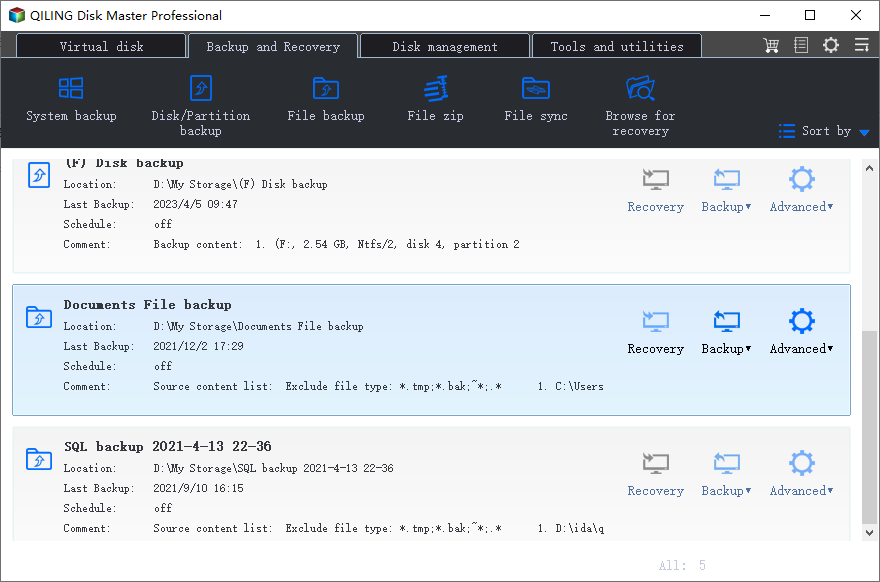
Step 3. Select files or folders from the list tree below and click "Next" to continue. As you can see from the screenshot, I ticked the C to restore all files and folders in this C drive.
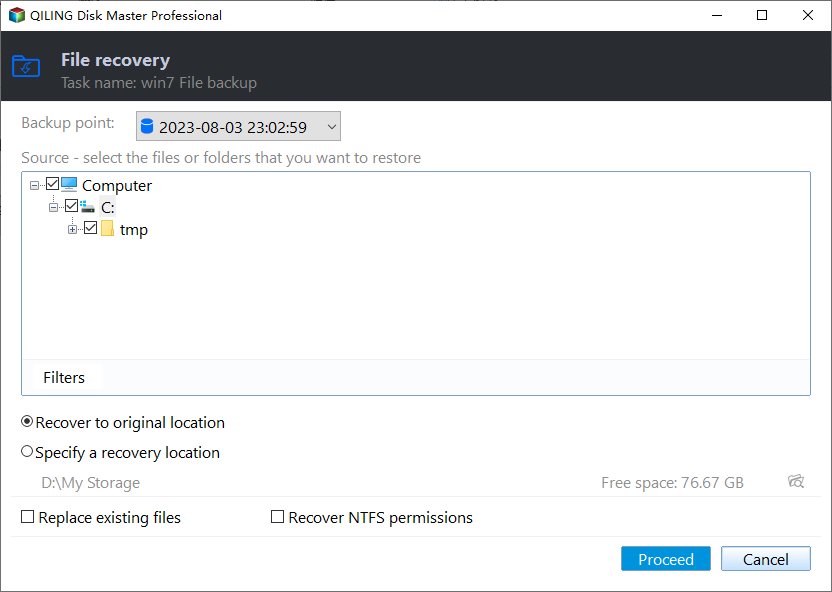
Step 4. The program will restore the files to a location of your choice, which can be either the original location or a new one. You can select the desired location and then click "Proceed" to initiate the restoration process.
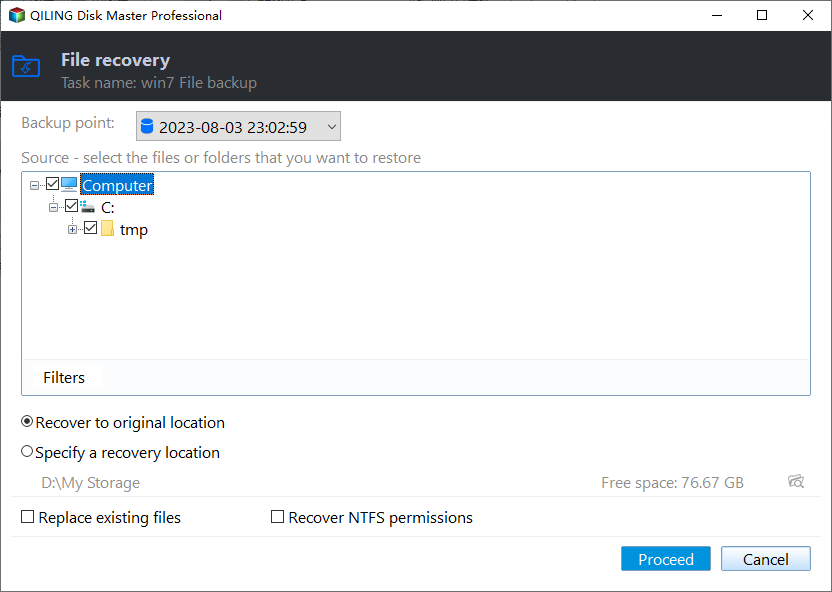
Step 5. Wait patiently until the operation has been completed successfully.
★ How to run selective file restore
If you don't have a file backup, you can restore files from other backup solutions like system, disk, or partition backup, which is available on the professional version that requires an upgrade.
1. In the main page of Qiling Disk Master, click "Tools" > "Explore Image".
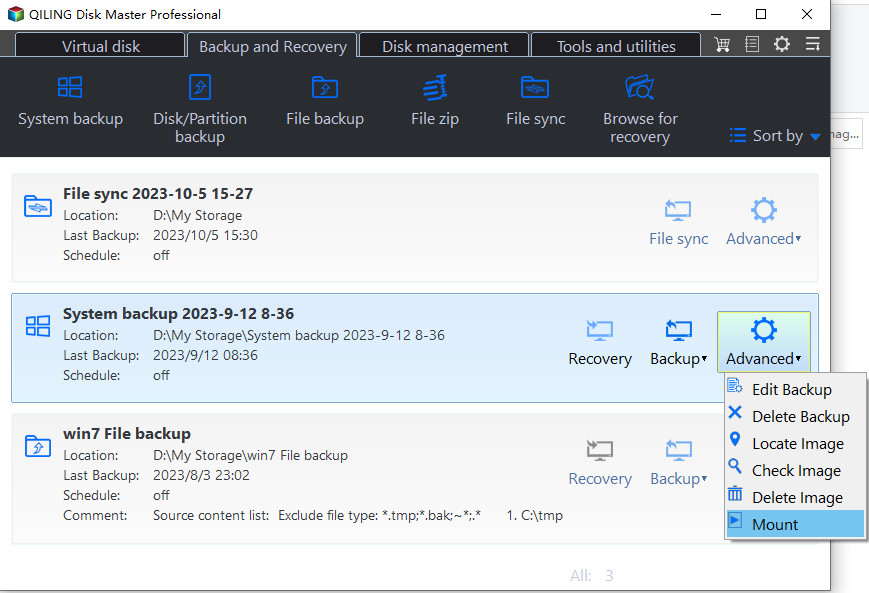
2. To restore files from a backup, select the desired backup image and backup point, assign a drive letter to it, and then click "Proceed".
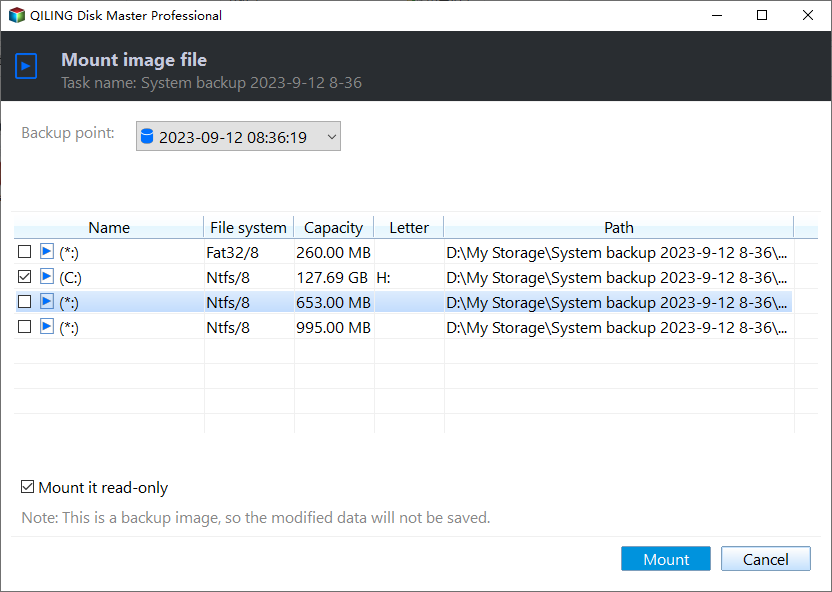
3. After creating the virtual partition(s) using the software, you'll need to open the created virtual partition(s), copy files you want to restore, and then paste them to another location.
Related Articles
- How to Run Automatic File Backup in Windows 10 (2 Free Ways)
- 3 Ways to Restore Files from Windows 10/8/7 Backup
- Selective File Restore Helps to Restore Individual Files
- How to Recover Lost/Deleted Files in Windows 10 (3 Ways)
- Learn How to Backup Windows 7 before Reinstalling
This tutorial will show you how to backup Windows 7 computer before reinstalling Windows with free backup software Qiling Disk Master Standard. - Fast Way to Backup Windows 7 to USB Drive [Free]
This guide explains Fast Way to Backup Windows 7 to USB Drive with clear steps, key checks, and practical tips.
Products
Articles & Tutorials
- Data Recovery
- Data Backup
- File Recovery
- File Backup
- File synchronize
- System Backup and Restore
- Disk and Partition Clone
- Technical articles
- Disk Master Help
- Windows Deleted File and Disk Recovery Tutorials
- Windows File and Data Recovery Tutorials
- More Windows Tutorials for Install, Security, Files, and PC Tips
- Windows Boot, Repair, and Recovery Environment Tutorials
- Windows Backup Tutorials
- Windows Restore Tutorials
- Windows Clone and Migration Tutorials
- Windows Server Backup, Recovery, and Management Tutorials
- Windows Disk, Partition, and Storage Management Tutorials