Selective File Restore Helps to Restore Individual Files
What is Selective file restore
During the backup process, you can backup a large amount of files, such as backing up all partitions on a disk to an image file or backing up all data from partition E. Additionally, the software offers a "selective file restore" feature, allowing you to restore only the specific files you need, rather than having to restore the entire backup. For example, you can restore only the files from partition E that you need.
I use Drive D to store work-related documents and have a complete backup of it with Qiling backup tool. Two years later, Drive D is filled with important data, but I accidentally deleted a crucial item "D:\projects\case1". To recover just the deleted item without restoring the entire drive, I used the "selective file restore" feature, which perfectly completed the task.
Before the introduction of how to restore selective files with Qiling Disk Master, you can click the following links to learn how to make a backup excellently.
- How to make system backup
- How to back up partition/volume
- How to make disk backup
- How to make incremental backup and differential backup
Selective file restore by using Qiling Disk Master
Operating principle: Qiling Disk Master offers a feature called "Image File Explorer" that allows users to mount image files as virtual partitions, similar to C:, D:, etc. This enables users to access and explore files on the mounted image file, which can be mounted as Drive Z, for example. The "Copy" and "Paste" functions can then be used to copy files from the mounted image file to other partitions, effectively allowing for selective file restore.
To restore files selectively, go to the "Restore" tab, select the desired backup, and choose the files or folders you want to restore. You can also filter the files by date, file type, or search for specific files. Once you've selected the files, click "Restore" to begin the process.
Step1. To start, download Qiling's software and select a backed up image file. There are two methods to proceed, which can be initiated from this point.
Click the "Backup and recovery" tab, select a backup task, and then click the "Advanced" button and select "Mount Image" under it.
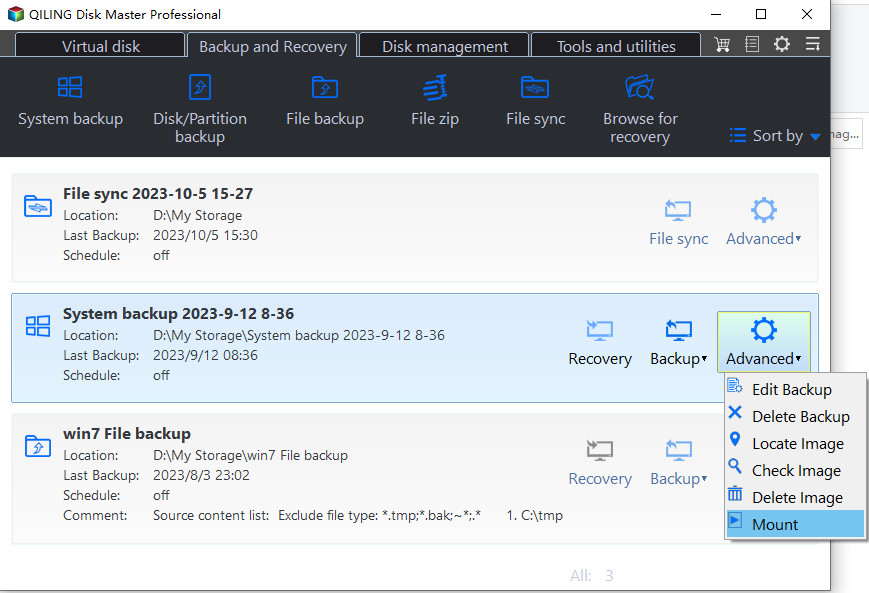
Step 2. Select a backup point in the "Backup Point" page.
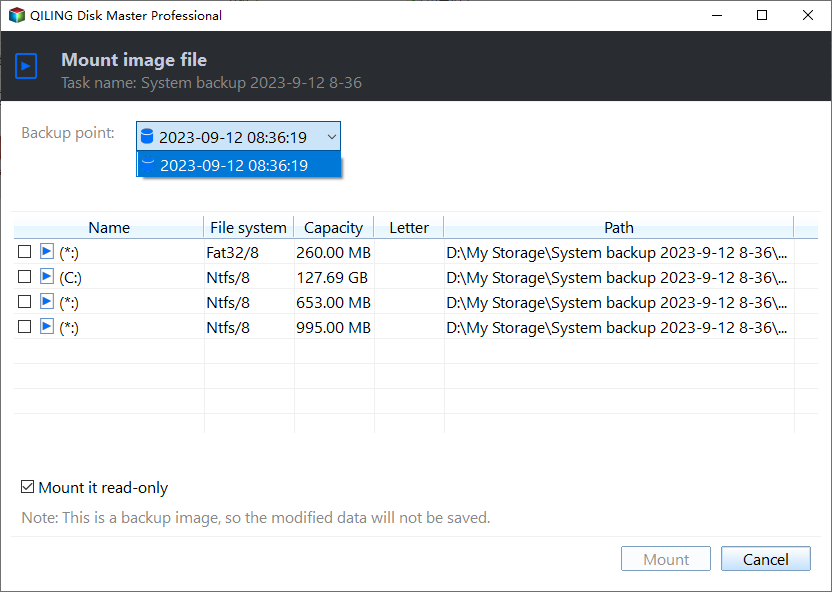
Step 3. In the "Explore Image" page, select the drive letter for the blank box you want to explore.
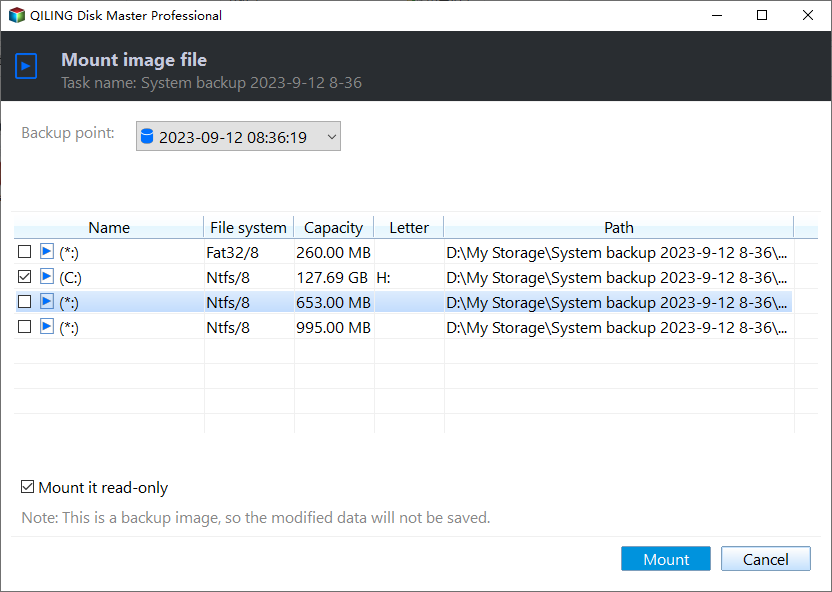
Step 4. Click "Proceed" when the operation is done.
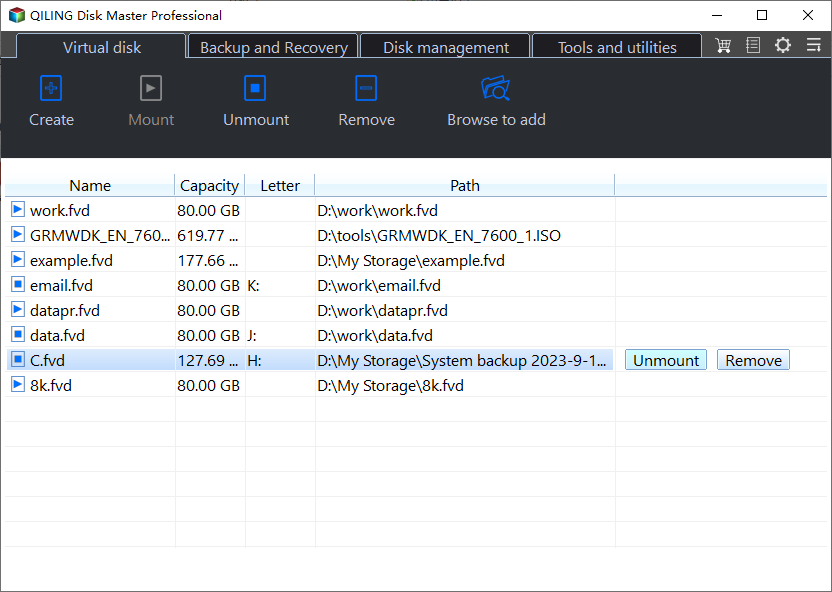
Step 5. You can access the virtual partition through "My Computer". To restore specific files, simply copy them to other existing partitions using the built-in Windows functions of "copy" and "paste".
After completing the operations and copying files to other partitions, detach the partition by clicking "Virtual disk" -> "Unmount Image" to free up resources.
The operations of selective files restore are so simple. If you want to know the methods of other restore any further, you can learn from the tutorials as below:
Related Articles
- How to Perform File and Folder Restore with FREE Qiling Disk Master
- How to restore a single file from a backup image
- 3 Ways to Restore Files from Windows 10/8/7 Backup
- How to Backup Windows Server 2016 to NAS Device?
Backup Windows Server 2016 to NAS is very safe and convenient for data protection and disaster recovery. - Clone UEFI GPT Disk to SSD Successfully and Secure Boot
Learn how to Clone UEFI GPT Disk to SSD Successfully and Secure Boot with clear steps, key checks, and practical tips. - Fix Cloned Hard Drive Won't Boot in Windows 7 Easily (5 Ways)
If you encounter the problem cloned hard drive won't boot in Windows 7, you can read this article to know the specific reasons and solutions. -
Windows Restore Guide
Choose the right restore method for files, folders, restore points, or system images.
Products
Articles & Tutorials
- Data Recovery
- Data Backup
- File Recovery
- File Backup
- File synchronize
- System Backup and Restore
- Disk and Partition Clone
- Technical articles
- Disk Master Help
- Windows Deleted File and Disk Recovery Tutorials
- Windows File and Data Recovery Tutorials
- More Windows Tutorials for Install, Security, Files, and PC Tips
- Windows Boot, Repair, and Recovery Environment Tutorials
- Windows Backup Tutorials
- Windows Restore Tutorials
- Windows Clone and Migration Tutorials
- Windows Server Backup, Recovery, and Management Tutorials
- Windows Disk, Partition, and Storage Management Tutorials