Backup Partition/Volume Easily in Windows 11, 10, 8, 7
What Is Partition/Volume Backup?
Partition or volume backup involves creating an image file that contains all the data and settings on a specific partition (e.g. C:, D:, E:).
The data in different partitions are typically distinct, with system partitions containing system files, programs, and individual files, while other partitions primarily hold personal data.
A partition or volume backup includes all files on a specific data partition, such as the D drive. This means that if there are 10,000 files on the D drive, its image file will contain all of them. The concept is similar to compression software like WinRAR or WinZip, but the backed up files can only be accessed using the software that created them.
Why Perform Partition Backup?
To protect our precious data or memory, we need to do a partition or volume backup. This is especially important due to common causes such as hardware failure, software corruption, or accidental deletion, which can result in data loss. By backing up our partitions or volumes, we can ensure that our valuable data is safely stored and can be easily restored in case of any mishap.
- Make an exact copy of your files on the partition.
- Prevent disk problems, such as virus attacks, file system failures, incorrect configurations, hard disk failures, and other issues. It is recommended to regularly update your operating system and installed software, use reputable antivirus software, back up your data, and check your file system and disk configuration for any errors or inconsistencies. This proactive approach can help minimize the risk of data loss and system downtime.
In the event of a system crash or disk damage, having a partition backup can be a lifesaver, allowing you to recover data even if Windows and all programs need to be reinstalled. To do this, you'll need to reinstall Windows, restore all programs and settings, and then restore data to the partition where it was backed up. While partition backup is useful, it's also recommended to create a system backup or disk backup for added protection.
How to Backup Partition or Volume in 3 Steps
To complete partition or volume backup in Windows 11, 10, 8, 7, XP, Vista, you can use a free backup software like Qiling Disk Master Standard, which allows you to backup one or more partitions at the same time and restore files from the backup, and also supports backing up individual files, system, or disk.
Schedule backup partition or volume to protect data continuously: It supports daily, weekly, or monthly backup frequencies, with customizable backup dates, times, and intervals.
Backup only changed files in this partition: This software uses Incremental Backup by default, which only backs up changed files, saving time and disk space, and also offers features like Intelligent Sector Backup, Automatic Splitting, and Normal Compression.
The software has the ability to create a bootable USB drive that can be used to boot a computer when it is not functioning properly or when a user wants to.
The software provides an intuitive interface for users to easily understand and perform operations, such as backing up partitions or volumes. Before starting, download the software. For server users, consider using Qiling Disk Master Server.
Before backing up a partition, it's recommended to check if it contains any unwanted data, which should be deleted if necessary. After that, follow the steps below to back up the partition in Windows 10, which can also be applied to other systems.
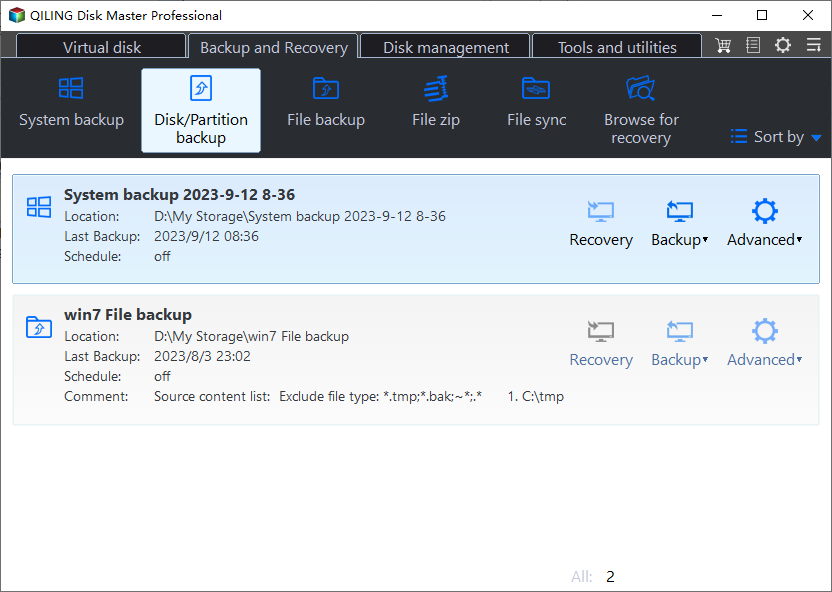
1. Launch the software, then go to the "Backup" tab, select the "Partition Backup" option.
2. The Task Name can be set here. Select a partition/volume as the source drive that needs to be backed up, and set a destination path to store the image file, which can include one or more partitions or volumes at the same time.
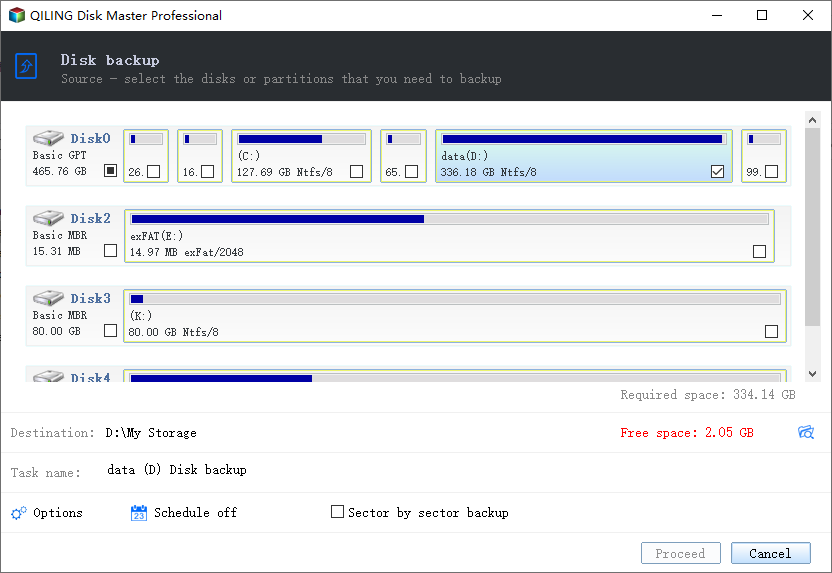
3. Click "Proceed" to backup partition or volume in Windows 10.
The backup only includes the original item on the partition at the time of the backup, without any changes made later. To keep all changes, you need to set a schedule backup and image the SSD automatically, which can be set to Daily, Weekly, Monthly, or triggered by an event, or plugged in via USB, with the latter two options being premium features available on the professional version.

To avoid backup disk full issues, it's recommended to enable the Backup Scheme feature, which allows you to automatically delete backup files. You can choose from three options: by quantity, by time, or by daily/weekly/monthly intervals. This feature is especially useful when setting a scheduled backup task, as it will create one full backup and 6 incremental backups, which can quickly fill up your disk space. To take advantage of this feature, you'll need to upgrade the software first, and as a bonus, you can get 5% off for one computer.

Incremental and differential backups have different recovery requirements. Incremental backups have a high requirement for recovery, whereas differential backups are much easier. For a detailed comparison, you can refer to my previous article: Incremental or Differential Backup.
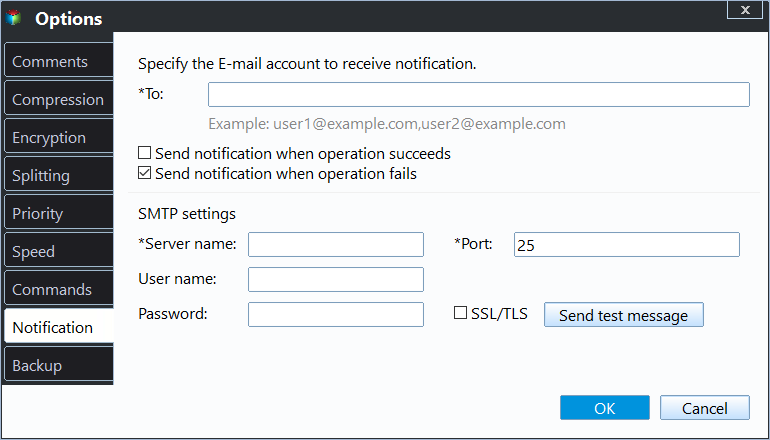
You can still enable email notification during the backup process, and also have options for comment, splitting, compressing the backup image, and selecting a backup mode.
Final Words
Backing up partitions, especially system and disk, is crucial to prevent data loss due to forgotten backups. This also contributes to system security and stability, which can indirectly impact the data security of other partitions.
This software allows for an exact copy of a partition using Partition Clone, enabling access or modification. It also offers System Clone or Disk Clone for system partitions or entire disks, and supports cloning OS or Disk on HDD/SSD or MBR/GPT disk.
Related Articles
- How to Easily Disable Bitlocker Encryption in Windows 11 (8 Ways)
You can learn what is Bitlocker encryption and how to disable Bitlocker encryption in Windows 11 as well as a better way to password your file. Please read on. - How to Stop Backup in Progress in Windows 7 Effortlessly
Learn how to Stop Backup in Progress in Windows 7 Effortlessly with clear steps, key checks, and practical tips. - How to Backup Windows Server 2019/2016/2012 in the Best Way?
You will learn the best way and how to backup a server to prevent data from losing. Get details below right now! - How to Create System Repair Disk on USB for Windows 7/8/10?
Learn how to Create System Repair Disk on USB for Windows 7/8/10 with clear steps, key checks, and practical tips. - Solved | "Cleaning up. Do Not Turn off Your Computer."
This guide explains Solved | "Cleaning up. Do Not Turn off Your Computer." with clear steps, key checks, and practical tips. - Clone 500GB HDD to 250GB SSD with Best Migration Tool
"It's annoying. SSDs are smaller than HDDs and I don't find any software to clone 500GB HDD to 250GB SSD." If you have similar problem, learn how to do it from this page.
Products
Articles & Tutorials
- Data Recovery
- Data Backup
- File Recovery
- File Backup
- File synchronize
- System Backup and Restore
- Disk and Partition Clone
- Technical articles
- Disk Master Help
- Windows Deleted File and Disk Recovery Tutorials
- Windows File and Data Recovery Tutorials
- More Windows Tutorials for Install, Security, Files, and PC Tips
- Windows Boot, Repair, and Recovery Environment Tutorials
- Windows Backup Tutorials
- Windows Restore Tutorials
- Windows Clone and Migration Tutorials
- Windows Server Backup, Recovery, and Management Tutorials
- Windows Disk, Partition, and Storage Management Tutorials