How to Backup a Server 2012, 2016, 2019, 2022 (Best 2 Ways)
Why Backup a Server?
Have you experienced system breakdowns, lost data, virus attacks, and physical disasters? Have you invested significant time and money in setting up your system and downloading numerous applications? Did these situations leave you frustrated and upset?
Having a backup server can be a lifesaver in case of a disaster, allowing you to quickly restore your system or files and get your computer back up and running. This is especially important if you've ever had to deal with a system failure or data loss, and can prevent a lot of stress and downtime. By having a reliable backup server, you can ensure that your important data is safe and accessible, even in the worst-case scenario.
Why Isn't Windows Server Backup Recommended?
Backing up a server can be a crucial task, but some users may find the Windows Server Backup tool to be insufficient, leading to disappointment in situations where it fails to backup important documents, applications, and system files.
✧ Windows Server Backup limitationsThe backup feature in this system is limited and only offers some basic functions, which are not very comprehensive or powerful.
✧ Complex operationsIt's inflexible and has a steep learning curve, requiring a full system reinstall in some cases.
✧ Slow progress: it will cost more time to backup and restore.
✧ Possible errorsThe current backup and recovery process is unstable and prone to errors, resulting in issues like "A Volume Shadow Copy Service operation failed" during backup and recovery operations.
Best 2 Ways to Backup a Server - Reliable Tools and Hybrid Backups
To ensure data security, the best way to backup a server is to use reliable and comprehensive backup software.
1. Qiling Disk Master Server
The Qiling Disk Master Server edition allows home and business users to create backups of important data, including files, folders, partitions, or entire systems, offering flexibility and peace of mind for data preservation.
✾ Different backup methods: You can create three types of backups: full, incremental, or differential. A full backup saves all data, while incremental and differential backups only save changed files, making them more efficient.
✾ Diverse backup ways: It can backup a server to various devices, including internal, external, USB, NAS, network drives, and cloud drives.
✾ The system can automatically back up a server on a daily, weekly, monthly schedule, or even trigger a backup when a specific event occurs, and also supports backing up to a USB drive.
✾ Automatic cleanup: To automatically delete obsolete backup images and free up disk space, you can use a script or tool that periodically checks for and removes outdated backups.
The software is compatible with all Windows Server operating systems, including Windows Server 2022, 2019, 2016, 2012, 2011, 2008, 2003, and their respective R2 and SBS versions, allowing for seamless backup and protection of servers.
2. Qiling Disk Master
Qiling Disk Master offers a centralized backup management solution for Windows operating systems, allowing users to create backup tasks for multiple PCs and Servers and manage them from a single console.
✾ A software that enables system/disk/partition backup for client PCs and Servers, supporting various Windows versions, including Windows 11/10/8.1/8/7 and Windows Server 2022/2019/2016/2012 (R2)/2008 (R2).
✾ You can save backup images to a local disk, external hard drive, network share, or NAS device.
✾ You can schedule a backup task to run daily, weekly, or monthly using the full, incremental, or differential backup method.
Don't hesitate to download it to have a try!
How to Backup Server 2012, 2016, 2019, 2022 Effortlessly
Here take backing up Windows Server 2012 as an example to show you the detailed steps and ensure data security.
👉 Backup Server 2012 via Qiling Disk Master Server
👉 Backup Server 2012 using Qiling Disk Master
Backup Server 2012 via Qiling Disk Master Server
1. Run Qiling Disk Master. Click Backup > System Backup.

2. The system data is selected by default, and then choose a destination path to store the backup image.

3. Confirm the operations and click Proceed to backup Windows Server 2012.

👉 3-2-1 Backup Strategies
To ensure data security, it's recommended to follow the 3-2-1 backup strategy, which involves keeping at least 3 copies of your data, storing them on 2 different locations, and having at least 1 offsite backup. This approach guarantees that you'll always have a copy of your backup and keep your data safe.
To implement the 3-2-1 backup strategy, you can utilize existing devices you already have, such as an external hard drive, USB drive, network drive, or cloud drive. This approach involves backing up your data to one of these devices and then using a second device as a redundant copy, ensuring your data is safely stored in two separate places.
Select one of the devices in step 2 by clicking the inverted triangles and then choose different devices in later backups.
>> Select a local path: The software allows you to backup your system to an internal or external disk that is recognized by Windows, requiring the disk to be connected in advance.
>> Add Share or NAS Devices: To backup your system, you can select the option to back up to a network location or NAS. This requires adding the network location and selecting a shared folder on it, which can be done by clicking the option and inputting the necessary information.

To backup the system to a cloud drive, click the folder-shaped button and select the desktop folder of the cloud drive where you want to store the backup image.
👉 Advanced Backup Settings
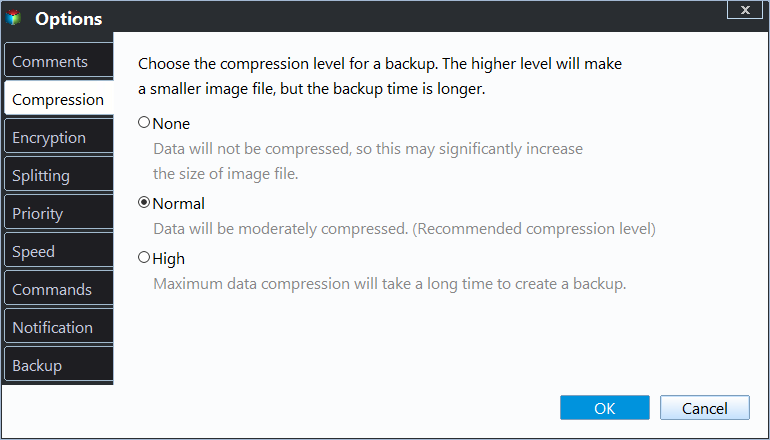
Qiling Disk Master allows you to customize backup settings, such as adding comments to distinguish between backup images, splitting images into smaller files, and encrypting images for added security.
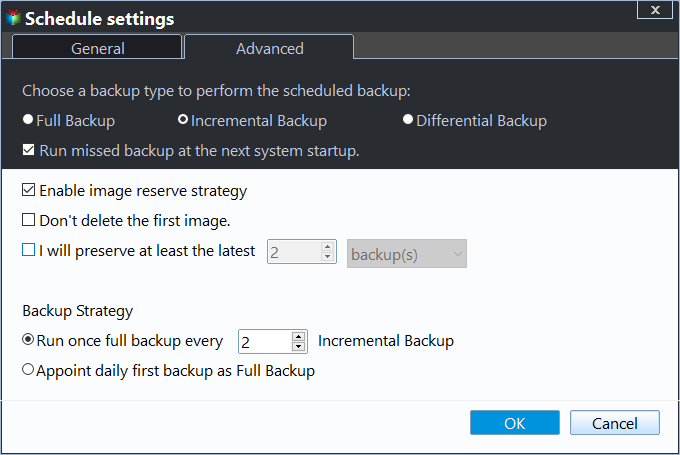
You can enable schedule backup and choose from daily, weekly, monthly, event triggers, or USB plug-in, with the latter being recommended for backing up to a USB drive, allowing automatic connection and backup without needing to manually connect the drive each time.

Besides, you can set backup and cleanup methods in the backup scheme to meet different needs.
To backup only changed files, both incremental backup and differential backup can be used.
To automatically delete old backups, select a cleanup method after enabling automatic backup cleanup.
👉 Fast Disaster Recovery
You can restore your computer to its previous state using a system or disk backup, or selectively restore specific files from the backup if you don't have a file backup.
To restore a system or disk, click on "Restore" and select the task or image file to find the backup image, then choose the items to restore and the destination path, and finally click "Proceed".

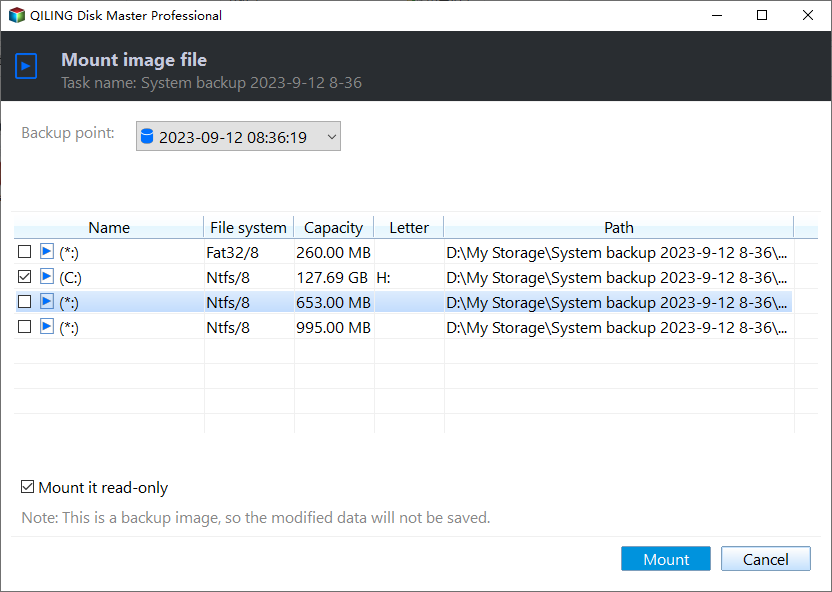
To restore files from a backup, go to Tools, select Explore Image, choose the backup image and time point, assign a drive letter to the partition(s) on the backup, and click Next to mount the backup image in Windows Explorer.
Conclusion
You can easily backup Server 2012, 2016, 2019, 2022 and previous systems, including R2 version, with the help of specialized server backup software. This software offers different backup and cleanup methods, as well as various ways to ensure data security.
The Technician edition is a great option for protecting unlimited PCs within a company. It enables simultaneous deployment of system images to multiple computers without boot or network issues, making it a convenient solution. Additionally, you can create a portable version of this software to backup, restore, or clone Windows Server 2019 or other systems, making it a worthwhile investment.
Related Articles
- How to Create System State Backup for Windows Server 2016
You will learn two easy ways to create a system image for Windows Server 2016, namely using Windows Server Backup, Qiling Disk Master Server and Qiling Disk Master. Get the stepwise guide below. - How to Schedule Windows Server Backup Once a Week
If you don't want to set daily backups, you can schedule Windows Server Backup once a week with Task Scheduler or the all-around backup utility. - Windows Server Backup Not Doing Incremental Backup? Solved Now!
Set up windows Server Backup Not Doing Incremental Backup Solved Now with practical backup or sync options, storage checks, and safer ways to protect files. - Windows Server 2012 Backup and Restore with Wbadmin
This article is to illustrate how to use Windows Server 2012 Wbadmin or an easier alternative to backup, restore or delete images. Get it now! - How to Automatically Sync Windows Server with OneDrive
Learn how to Automatically Sync Windows Server with OneDrive with clear steps, key checks, and practical tips. - How to Defragment Hard Drive Windows 10?
Learn how to defragment hard drive Windows 10 to make your computer run faster and smoother.
Products
Articles & Tutorials
- Data Recovery
- Data Backup
- File Recovery
- File Backup
- File synchronize
- System Backup and Restore
- Disk and Partition Clone
- Technical articles
- Disk Master Help
- Windows Deleted File and Disk Recovery Tutorials
- Windows File and Data Recovery Tutorials
- More Windows Tutorials for Install, Security, Files, and PC Tips
- Windows Boot, Repair, and Recovery Environment Tutorials
- Windows Backup Tutorials
- Windows Restore Tutorials
- Windows Clone and Migration Tutorials
- Windows Server Backup, Recovery, and Management Tutorials
- Windows Disk, Partition, and Storage Management Tutorials