How to Schedule Windows Server Backup Once a Week
Need to schedule Windows Server Backup once a week
Windows Server Backup (WSB), introduced in Windows Server 2008, replaced NTbackup and allows administrators to backup data and configure scheduled backups.
The scheduling options for backups in this system are somewhat restrictive, allowing for either daily backups or more frequent backups, but not less frequent ones like weekly scheduled backups. This limitation is particularly frustrating as the data is already being protected by a Database Availability Group, and the backup disk may quickly become full with frequent backups, prompting a desire to reduce backups to run weekly.
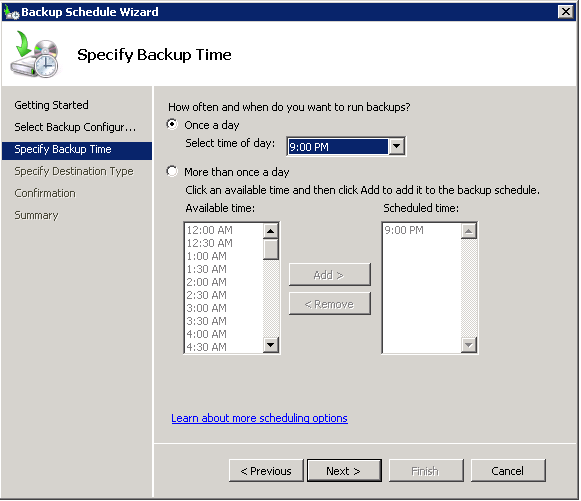
How to perform Windows Server Backup weekly
Task Scheduler in Windows operating system allows users to schedule any task to run at a desired time, including creating a Windows Server 2012 backup schedule weekly. This can be done using the Windows Server 2012 Wbadmin application, which is a management tool provided in the operating system.
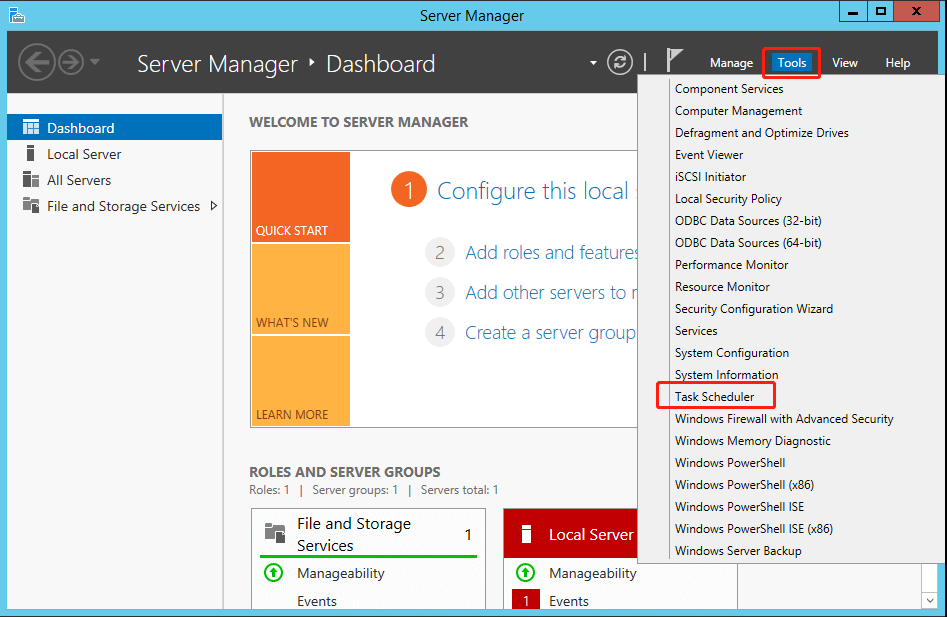
- To launch the Server Manager, search for it in the Start menu and click on it to open. Then, click on the Task Scheduler under the Tools tab.
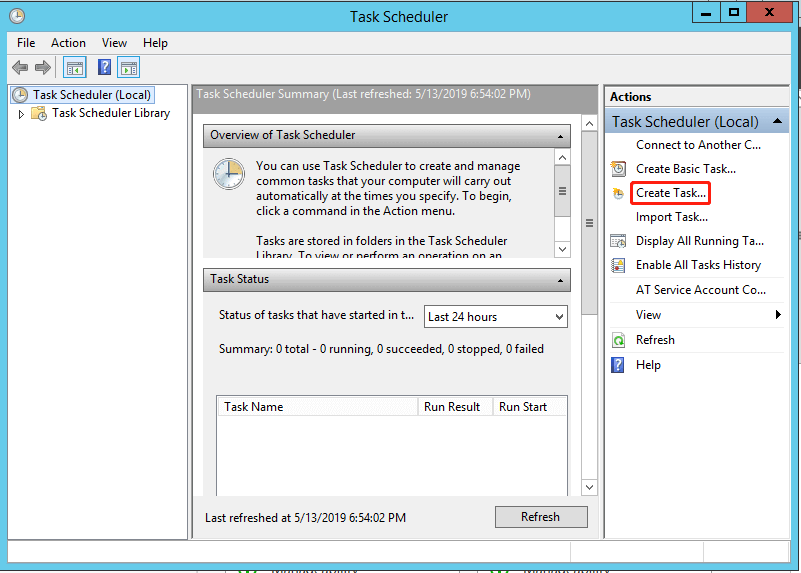
- Click Create Task in the Actions pane.
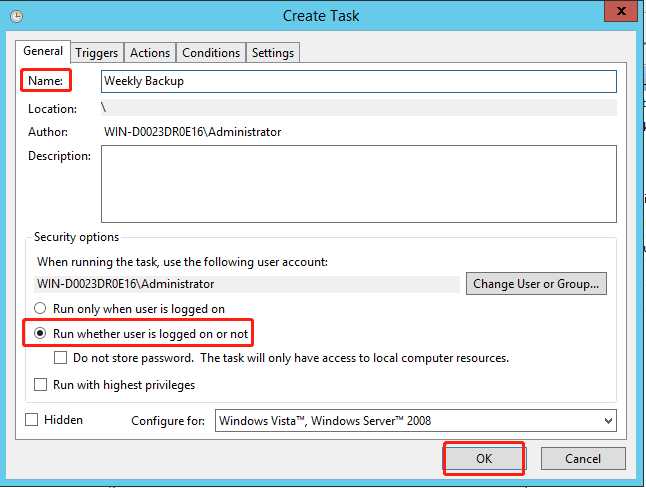
- In the General tab, give the task a name such as "Weekly Backup" and optionally add a description.
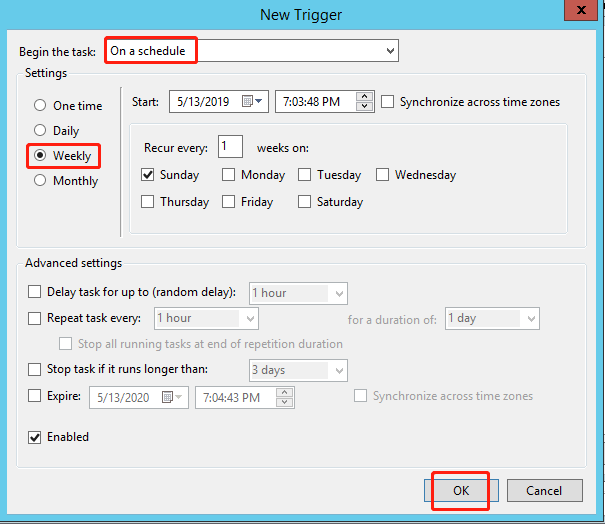
- Choose New under the Triggers tab.
- To schedule a weekly backup, select "On a schedule" from the pull-down menu, choose "Weekly" and specify the day of the week to run the backup, then click "OK".
- Choose New under Actions tab.
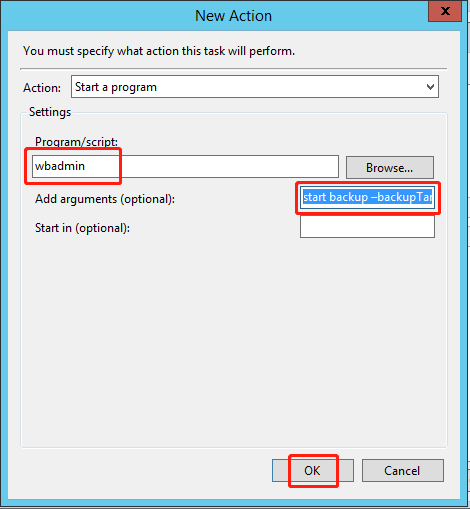
- Type wbadmin in the Program/script box. Put the following wbadmin command in the pane next to Add arguments (optional): backup -backupTarget:C:\backup -allCritical -allSelected -quiet. Then click OK.
▶ wbadmin start backup -backupTarget:H: -include:C: -allCritical -quiet
- Notes: The parameters you will use in the backup process.
- Proceed: tells wbadmin.exe to start a backup.
- -backupTarget: the target volume to store the backups.
- -include: To specify multiple volumes for the backup job, list them separated by commas in the backup job field. For example, if you want to backup volumes C, D, and E, you would enter C, D, E in the backup job field. If you want to backup volumes A and B, you would enter A, B in the backup job field.
- -allCritical: includes all critical volumes and system state data in the backup.
- -quiet: runs the command silently with no visual interaction.
- To schedule a weekly backup on a Windows Server, click OK to confirm the password for the user account, then click OK again to schedule the backup. This will create a task in the Task Scheduler.
The steps to create a system image backup using wbadmin may appear complex, especially for non-technical users. Additionally, incorrect parameters in the wbadmin command may prevent the task from working properly. It's also worth noting that only NTFS-formatted partitions can be included in the backup, and critical volumes cannot be used as the target location.
Due to network limitations, incremental and differential backups cannot be shared over the internet, as multiple versions of these backups are not supported when using a network as the target location.
To avoid issues with scheduled tasks in the Task Scheduler, consider using a professional server backup software that can handle these limitations.
Easier way to run Windows Server Backup schedule weekly
Qiling Disk Master Server
Qiling Disk Master Server is a great server backup software that allows you to create backups of Windows Server systems, including 2003, 2008, 2012, 2016, 2019, and 2022. It enables you to schedule backups weekly, daily, or monthly, and also supports incremental or differential backups to a network share. Additionally, you can set up multiple backups and schedule them based on specific events or when a USB device is plugged in.
This program allows for unlimited file system and backup target location, supporting various file systems such as NTFS, FAT32/16, EXT2/3/4, and more. You can backup any partition and save it to a network, internal/external hard drive, cloud drive, or NAS device, all with an easy-to-use interface that makes the process effortless.
To create a weekly backup of your system, such as Windows Server Backup, follow these steps. First, download the software, and then proceed with the setup.
Step 1. Open this program, click Backup and then choose System Backup.

Step 2. Give this backup task a name. The system partitions are selected by default. Click the folder-shaped button to select a destination path, such as E:\.

Step 3. To schedule a backup, click Schedule Backup -> Enable Schedule Backup and select Weekly from the drop-down menu, also specifying the desired day and time.

Step 4. Click Scheme and select Full/Incremental/Differential Backup under the Backup Method tab. Then click Enable Automatic Backups Cleanup. To manage old backups, you can select a method to delete them based on specific criteria. You have three options: deleting by quantity, where you specify a maximum number of backups to keep; by time, where you set a specific date or time range to delete backups older than; or by frequency, where you choose to delete backups on a daily, weekly, or monthly basis. Learn more about backup scheme here.
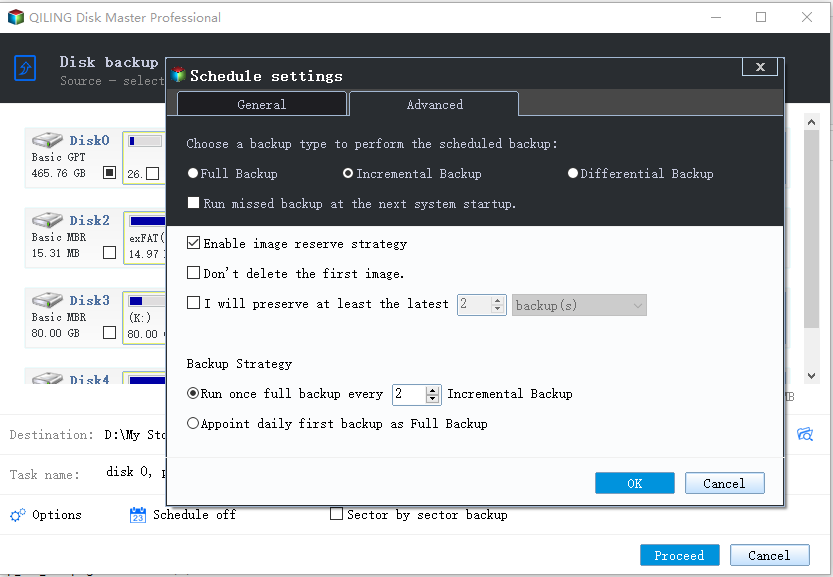
Step 5. Review your operation and click Proceed to schedule Windows Server backup once a week.
Tips✍:
- Options: The task involves enabling Windows Server backup encryption, setting up email notifications, and configuring pre/post commands. This is typically done to ensure secure backups and timely notifications of backup completion or failure.
- To restore the system, go to Home > the system backup task and click Restore.
Summary
To schedule Windows Server Backup to run less frequently, such as once a week, you can use Task Scheduler. However, certain restrictions apply, and using the wbadmin command line can be challenging for users, as incorrect parameters can prevent the scheduled task from working.
You can create a weekly backup schedule for your Windows Server using Qiling Disk Master Server, which also allows for incremental/differential backups to a network share. This software enables you to create a recovery disk to restore your system in case of failure.
Related Articles
- Set Windows Server 2012 Backup Schedule Weekly Step by Step
This guide explains Set Windows Server 2012 Backup Schedule Weekly Step by Step with clear steps, key checks, and practical tips. - Windows Server Backup Schedule Less Than Once a Day
Learn the simple trick to use Windows Server Backup to schedule less than once a day backup job. Besides, an easier way to create multiple daily/weekly/monthly backup schedules is also included in this article. - Create Windows Server 2008 R2 Backup Schedule Weekly
Although Windows Server Backup can either schedule a daily backup, or more frequent backup, it's not enough. Read this guide to get two ways to configure Windows Server 2008 backup schedule weekly task. - Cloned SSD Won't Boot? Make Cloned SSD Bootable [5 Ways]
if the cloned SSD won't boot on Windows10/8/7. On this page, you'll learn the symptoms of cloned SSD won't boot, reasons of why is SSD not booting, and how to make SSD bootable in 5 powerful ways. - Best Commercial Backup Software for Window(2022 Thorough Review)
Go through the detailed review of the best commercial backup software available. Learn about the Qiling Backup, its main features, compatibility, etc. The different versions of Qiling Backup ensure you get the best for your professional backup. - 6 Best Free VM Backup Software Examples
This guide explains 6 Best Free VM Backup Software Examples with clear steps, key checks, and practical tips.
Products
Articles & Tutorials
- Data Recovery
- Data Backup
- File Recovery
- File Backup
- File synchronize
- System Backup and Restore
- Disk and Partition Clone
- Technical articles
- Disk Master Help
- Windows Deleted File and Disk Recovery Tutorials
- Windows File and Data Recovery Tutorials
- More Windows Tutorials for Install, Security, Files, and PC Tips
- Windows Boot, Repair, and Recovery Environment Tutorials
- Windows Backup Tutorials
- Windows Restore Tutorials
- Windows Clone and Migration Tutorials
- Windows Server Backup, Recovery, and Management Tutorials
- Windows Disk, Partition, and Storage Management Tutorials