Windows Server Backup Schedule Less Than Once a Day
Is it possible to schedule a backup less frequently?
Windows Server Backup (WBS) was first introduced in Windows Server 2008, replacing NTbackup, and later updated in Windows Server 2012 with features like incremental backup to network share.
You can't use Windows Server Backup to schedule a backup less than once a day, but you can create a scheduled task to run a backup command to achieve less frequent backups.

Schedule less frequent backup with WBS
To create a scheduled Windows Server backup task, you can use the Task Scheduler or learn the WBadmin commands in Windows Server 2012/2008. Alternatively, you can use a simpler tool to create scheduled backup tasks.
To create scheduled backup with Task Scheduler:
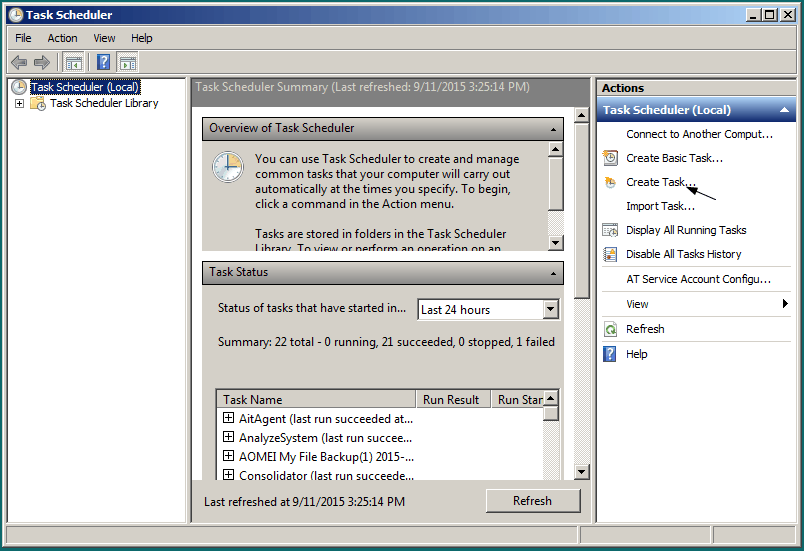
1. To open the Task Scheduler, type "task scheduler" in the search box, and in the listed results, choose Task Scheduler.
2. Click "Create Task" to start the scheduled task configuration.
3. To rename the task in Task Scheduler, type a new name in the "Name" box, then select the "Run whether user is logged on" option instead of "Run only when user is logged on" in the Security options.
4. To create a new trigger, switch to the Triggers tab and click "New" to add a new trigger. In the new pop-out window, you can specify any day(s) of the week or month to run the task, rather than running it daily.
5. To create a WBadmin bare metal backup to the H: drive, go to the Task Scheduler, click on the Actions tab, and click New to add a new action. In the Program/script box, type "wbadmin", and in the Add argument (optional) box, type a WBadmin command, such as "backup -backuptarget:H: -allCritical -quiet" to create a bare metal backup to the H: drive.
6. You can adjust other settings depending on your needs and click "OK" to finish creating this less frequent scheduled backup.
The backup disk will eventually get full, despite its claim to automatically delete old backups, and you can delete backup files using the WBadmin command. Alternatively, you can use third-party server backup software like Qiling Disk Master Server for a simpler backup solution.
Backup less than daily with Server backup tool
Qiling Disk Master Server allows you to schedule backups, including daily, weekly, and monthly triggers, as well as event-based backups. It also supports full, incremental, and differential backup options, and can back up to a network share.
This software offers various backup options, including system, disk, partition, and file backup, and also features automatic deletion of old backups to free up disk space.
To create a scheduled backup with Qiling Disk Master, you can set the backup schedule in minutes through a friendly interface. For example, let's create a scheduled backup for system backup.
1. Download, and run this backup utility for Windows Server.
2. Click "Backup" tab, and select "System Backup".
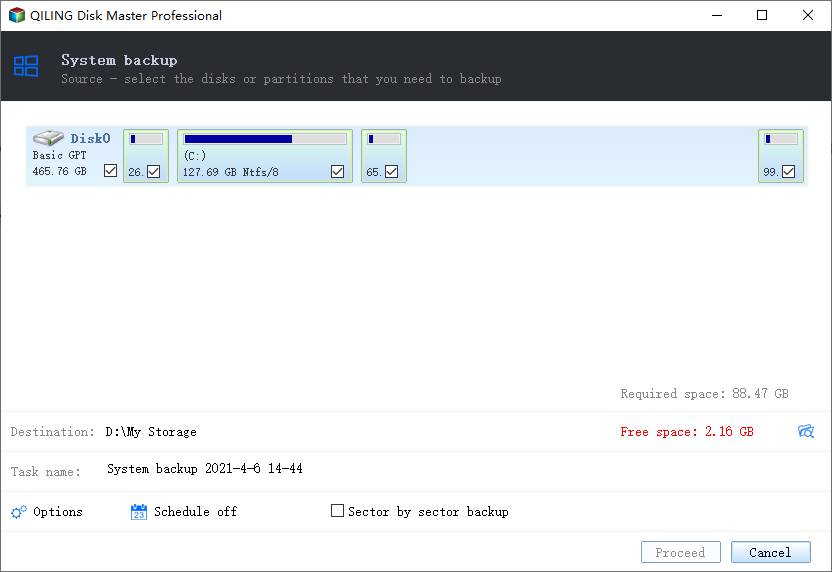
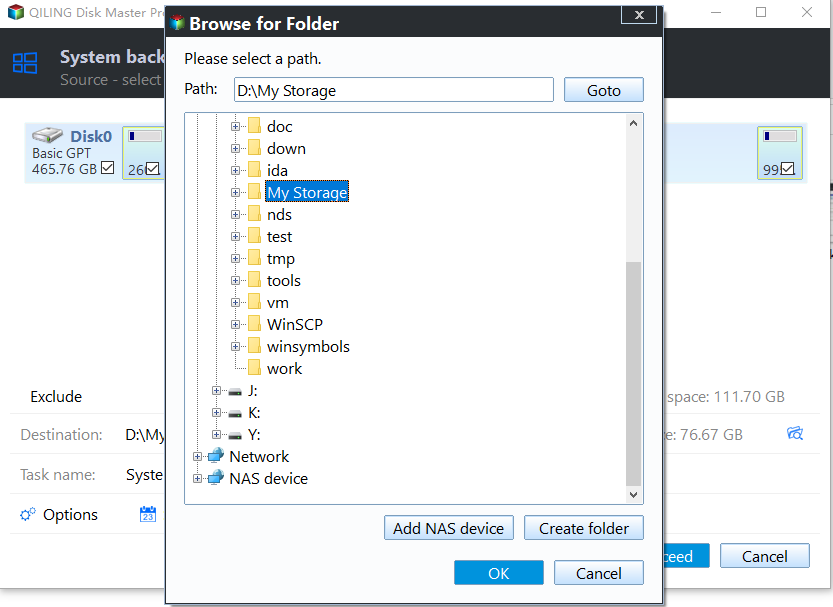
3. In the next screen, you can see the needed partitions for a system restore have been added in the backup. To proceed, simply click the drop-down menu to specify a target location path to save the backup image files.
4. To schedule a backup, click the "Schedule" button and specify the exact time you want the backup to run, choosing from options such as a specific time in a day, any day in a week or month, or a specific event trigger.
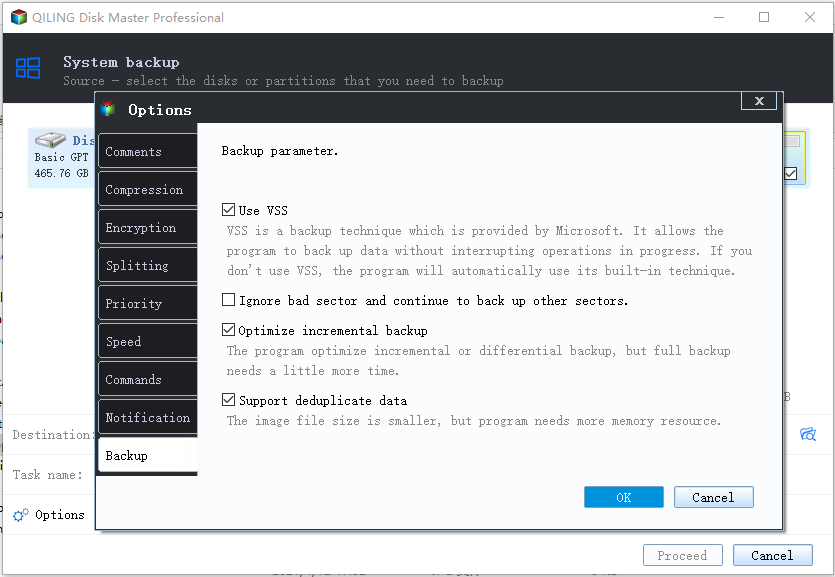
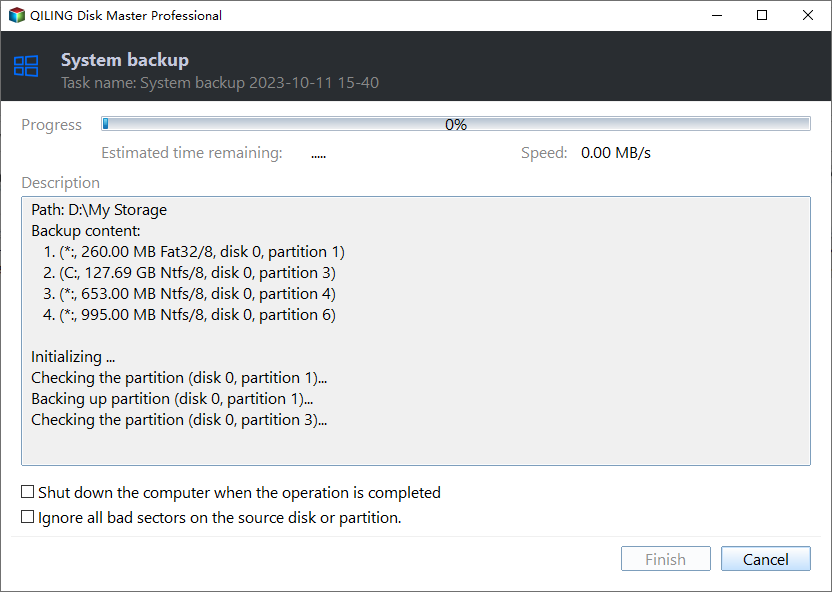
5. To enable automatic old backups cleanup, click on "Scheme" and then click "Proceed" to complete the task.
Conclusion
Windows Server Backup can be set up to schedule weekly or monthly backups, but if you need to schedule less than once a day backups, Qiling Disk Master is a better alternative. In addition to backup and restore capabilities, it also allows you to clone your server to another hard drive or SSD, providing an extra layer of protection. This can help ensure that your server is always up to date and can be easily restored in case of a failure.
Related Articles
- How to Do Windows Server 2012 Backup Schedule Weekly Step by Step?
Learn how to Do Windows Server 2012 Backup Schedule Weekly Step by Step with clear steps, key checks, and practical tips. - How to Create Multiple Schedules in Windows Server Backup?
Read this guide to get three practical ways to create multiple schedules in Windows Server Backup. Applied to Windows Server 2003, 2008, 2012, 2016, etc. - How to Create Restore Point in Windows Server 2012 (R2)?
A restore point allows you to restore system to the previous state. This article will show you how to create Windows Server 2012 restore point with two ways. - Reset Windows Server Backup with Step-by-Step Guide
This guide explains Reset Windows Server Backup with Step-by-Step Guide with clear steps, key checks, and practical tips. - How to Run a Disk Defragment on Windows 10, 8, 7?
Fragmentation will make your hard drive do extra work, slowing down your computer. In this article, you will know what is disk fragmentation, what is defragmentation and how to run disk defragmentation on Windows 11, 10, 8, 7. - Guide: How to Set NVMe as Boot Drive
Learn how to set NVMe as a boot drive on Windows. This guide explains preparation steps, BIOS settings, and practical tips for booting from an NVMe or PCIe NVMe drive with Qiling Disk Master.
Products
Articles & Tutorials
- Data Recovery
- Data Backup
- File Recovery
- File Backup
- File synchronize
- System Backup and Restore
- Disk and Partition Clone
- Technical articles
- Disk Master Help
- Windows Deleted File and Disk Recovery Tutorials
- Windows File and Data Recovery Tutorials
- More Windows Tutorials for Install, Security, Files, and PC Tips
- Windows Boot, Repair, and Recovery Environment Tutorials
- Windows Backup Tutorials
- Windows Restore Tutorials
- Windows Clone and Migration Tutorials
- Windows Server Backup, Recovery, and Management Tutorials
- Windows Disk, Partition, and Storage Management Tutorials