How to Create Multiple Schedules in Windows Server Backup
Can you create multiple schedules with Windows Server Backup?
Windows Server Backup (WSB) allows you to automatically protect your data by setting up scheduled backups, but you can only create one backup schedule using the user interface. If you want to create another scheduled task, you can modify the existing one or delete it and recreate a new one.
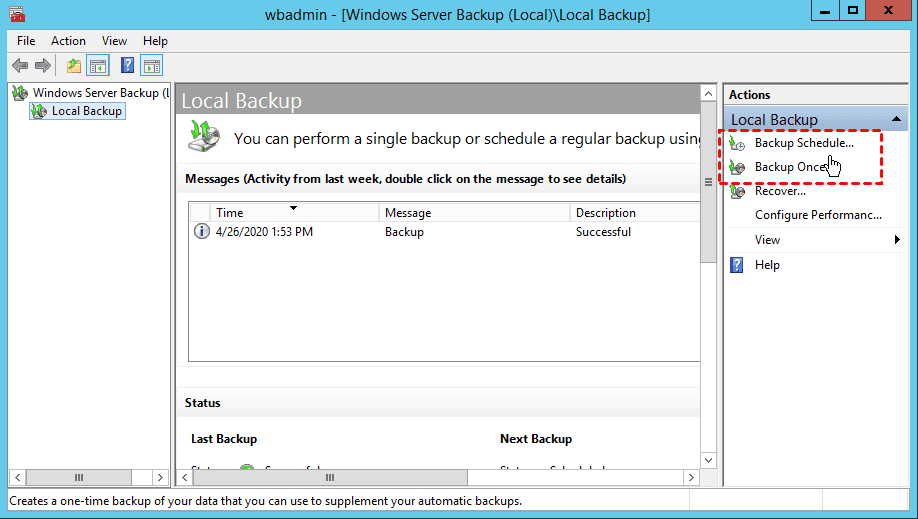
The inconvenience of needing multiple backup tasks with different schedules, such as a weekly backup for system state and a daily backup for frequently used folders, can be addressed in Windows Server. This can be achieved through two methods: creating separate backup tasks with different schedules, or using a single backup task with multiple schedules. The former involves setting up multiple backup tasks, each with its own schedule, while the latter uses a single backup task with multiple schedules, allowing for a more streamlined and efficient backup process.
Methods to create multiple schedules to backup Windows Server
Here in this part, you will know two methods to create multiple backup schedules for Windows Server 2003, 2008, 2012, 2016, 2019, 2022.
▶The first method involves using Windows' built-in Task Scheduler and Wbadmin, which can schedule multiple backups without overwriting old ones. However, for those unfamiliar with the Task Scheduler, this method can be complex and error-prone.
Windows Server Backup has some limitations that users should be aware of. These include the inability to back up and restore system state, system volumes, and certain system files, as well as limitations on the size and number of backups that can be stored.
▪ In Windows Server 2008 and 2008 R2, the Windows Server Backup (WSB) feature cannot include volumes larger than 2040GB (2TB) in a backup.
▪ The scheduled backup on a network share will only be completed with full backups instead of incremental backups.
▪ Only NTFS-formatted partitions can be included in the backup.
▪ You can not set the critical volumes as the target destination.
▶▶You can use the Qiling Disk Master Server, which allows you to create multiple Windows Server backup jobs in full/incremental/differential mode, and customize backup retention policy, for a flexible and easier way to create multiple backup schedules.
Create backup schedules flexibly as you want
One simpler way to create multiple schedules for Windows Server backup is by using an automated backup tool.
- Way 1. Create multiple schedules via Task Scheduler and Wbadmin
- Way 2. Create multiple schedules with effective Server backup tool
Way 1. Create multiple schedules via Task Scheduler and Wbadmin
To create multiple scheduled backups, you can use Task Scheduler to run the Wbadmin command, allowing for weekly or less frequent backups instead of daily ones.
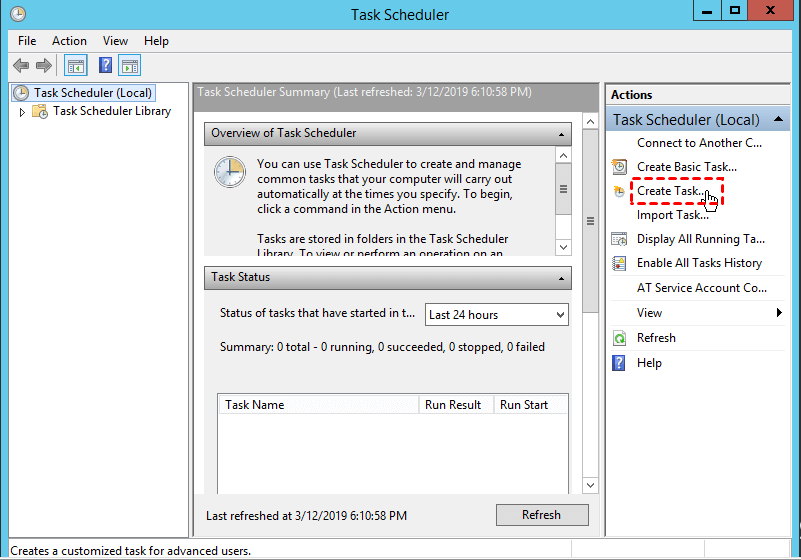
Step 1. Click Start and type "task scheduler" in the search box. Select Task Scheduler in the listed results.
Step 2. Under the Action tab, select Create Task.
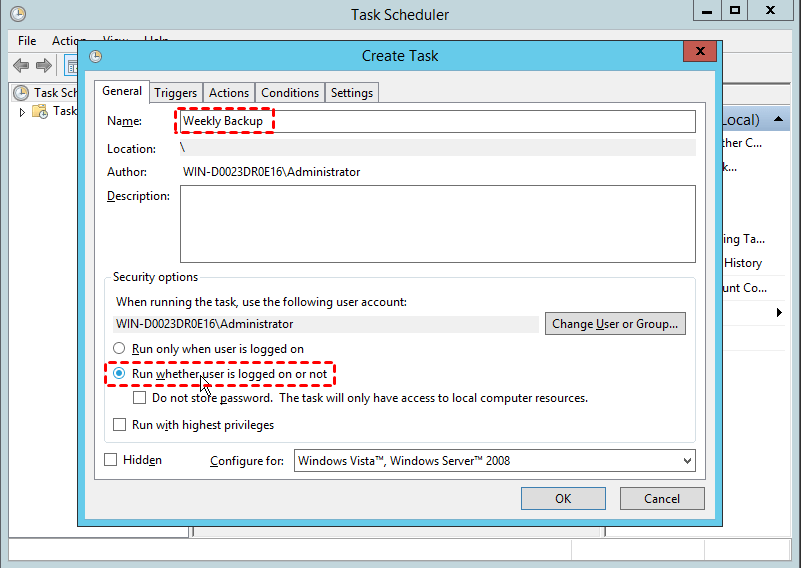
Step 3. You can name the task and write a description if needed, then check the option to run whether the user is logged on or not.
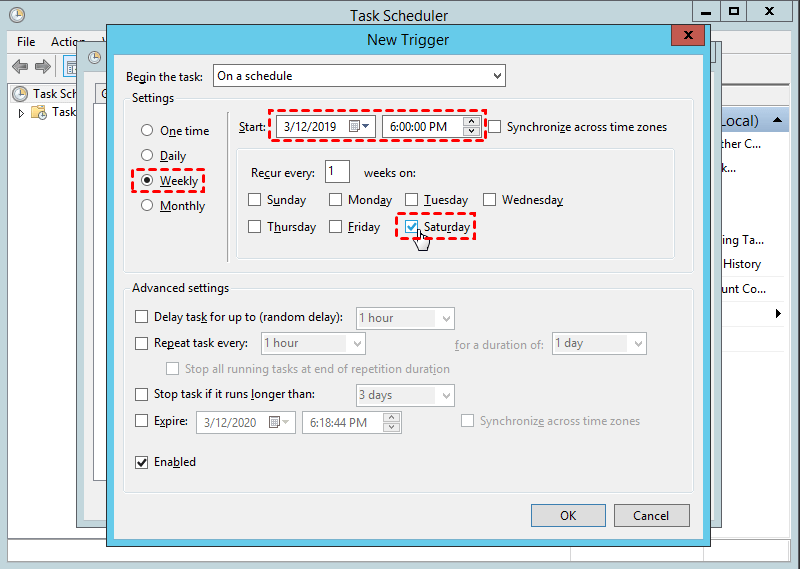
Step 4. To set up the backup, go to the Triggers tab, click New, and select the frequency of the backup, which can be one time, daily, weekly, or monthly.
Step 5. To create a scheduled backup task in Windows Server 2012 or 2008, go to the Actions tab, click New, and type "wbadmin" in the Program/script box, followed by a backup command in the Add argument (optional) box. For example, to back up the entire C drive to the H drive, you would write "backup-backuptarget:H: -allCritical -systemState -vssFull -quiet" in the Add argument (optional) box. This command will create a scheduled backup task that backs up the entire C drive to the H drive.
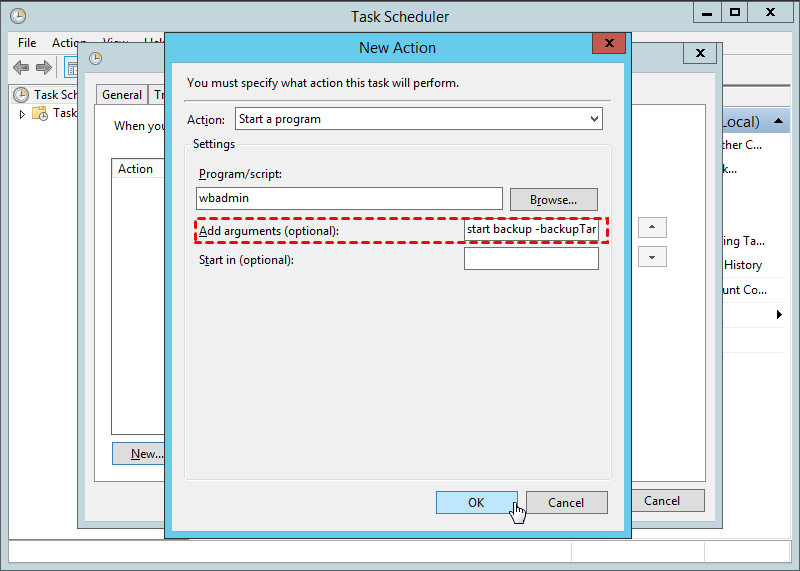
Descriptions:
- Proceed: tell wbadmin.exe to start a backup.
- -backupTarget: the target volume to store the backups.
- To backup, specify the volume(s) you want to backup. If you want to backup multiple volumes, separate them with a comma. For example: "C:" or "C:, D:".
- The backup program also includes any other data required for a full server recovery.
- -quiet: to perform unattended backup tasks.
Step 6. Click OK to finish creating this scheduled task, or go to the Conditions and Settings tabs to review and adjust settings before confirming.
If you're not comfortable using the WBadmin command, Task Scheduler, or prefer a more flexible backup solution, consider using a third-party server backup program that allows for multiple scheduled backups with ease of use.
Way 2. Create multiple schedules with effective Server backup tool
Qiling Disk Master Server is a professional server backup software that allows configuring multiple backup schedules to run with Task Scheduler or its own service. It offers a range of features.
① Backup schedule
There are five schedule modes available: "Daily", "Weekly", "Monthly", "Event triggers", and "USB plug in". Scheduled backups can be full, incremental, or differential as needed.
② Backup cleanup
A retention policy can be set for automatic backup cleanup, freeing up disk space, with four cleanup rules available: "By quantity", "By time", "By daily/weekly/monthly", and "By space".
③ Other features
Partitions that aren't formatted with NTFS can be backed up, and the destination isn't limited.
Qiling Disk Master supports a wide range of Windows operating systems, including Windows Server 2022, 2019, 2016, 2012/R2, 2008/R2, 2003, SBS 2011, 2008, 2003, as well as Windows 11, 10, 8.1/8, 7, Vista, and XP. The tool also features a user-friendly interface, allowing users to create multiple scheduled backups with ease. With just a few clicks, users can set up multiple backup schedules.
Step 1. Download 30-day free trial, install and launch the server backup tool.
Step 2. Under the Backup tab, select the type of backup you want to perform, such as file/folder, system, partition, or disk backup. For this example, choose System Backup.

Step 3. The default volume(s) needed for the task are automatically selected. You can name the task and click on the column to choose the destination path.

Step 4. Click Schedule Backup to choose when the task will run, then click OK to confirm, and finally click Proceed to complete the process.

Other settings you may need:
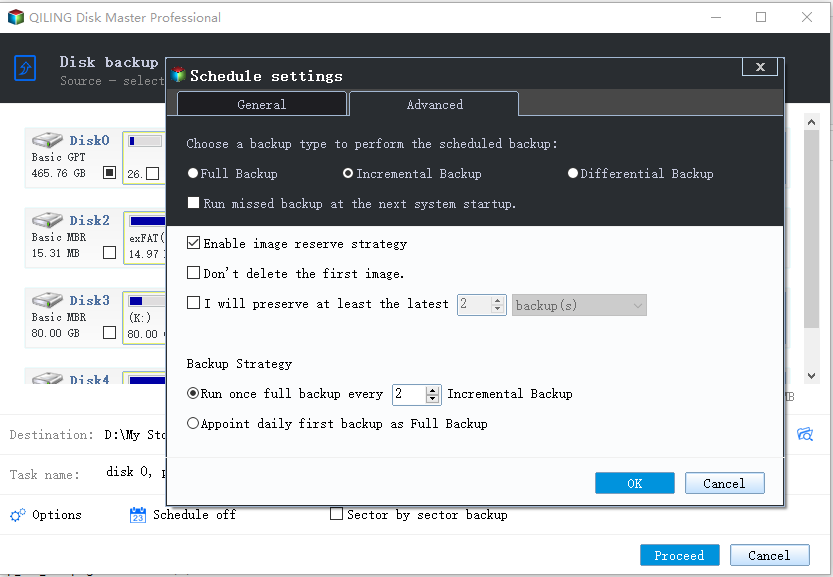
1. To set up a backup scheme in the Schedule Backup window, click Backup Scheme from the left panel and configure the backup type, frequency, and retention period.
To schedule a backup, choose a backup method: full, incremental, or differential backup. This will determine the type of backup to be performed.
To ensure optimal disk space management, enable the feature to automatically delete obsolete backups if needed. This will help maintain a healthy balance between data preservation and disk space utilization.
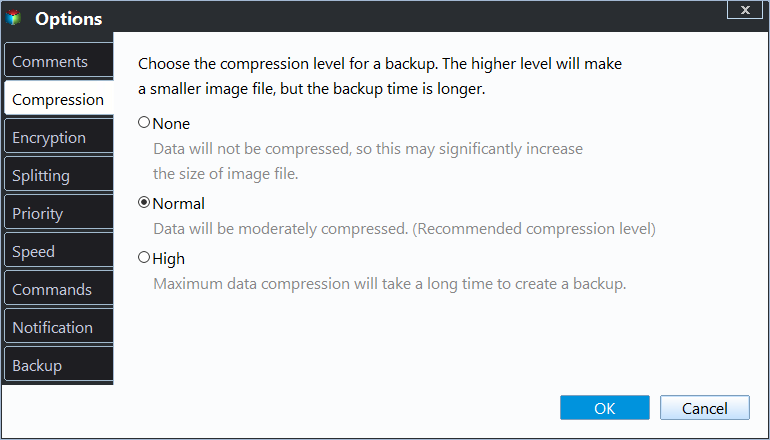
2. You can click "Options" to set a password to encrypt your backups.
Conclusion
If you're not satisfied with Windows Server Backup's multiple schedule feature, Qiling Disk Master Server is a great alternative. This tool not only provides backup and restore options but also allows you to clone your system, partition, or disk, giving you an extra layer of protection without imaging.
To protect unlimited PCs and servers within your company, you can choose Qiling Disk Master Technician Plus, which offers unlimited billable technical services to clients and allows for portable version creation.
Related Articles
- Windows Server Backup Limitations You Should Know
This guide explains Windows Server Backup Limitations You Should Know with clear steps, key checks, and practical tips. - Create Windows Server Backup Incremental to Network Share with Ease
Learn how to Create Windows Server Backup Incremental to Network Share with Ease with clear steps, key checks, and practical tips. - Easiest Way to Clone Windows Server 2012 to New Hard Drive
This guide explains Easiest Way to Clone Windows Server 2012 to New Hard Drive with clear steps, key checks, and practical tips. - 4 BestBackup Software for Synology NAS[Pros and Cons]
This passage introduces the five best backup software for Synology NAS, including its functions, pros, and cons. Then, you can choose one backup software according to your budget and needs. - [2022 Featured Pick] 5 Best Backup Software for Small Business
For small business owners, the best backup tools are those that make it easy to use, and this article aims to help them find the ideal backup software for their needs. - How to Back Up Windows Server 2016 [Step by Step]
Windows Server 2016 backup can be simplified by choosing the right solution. The Windows Server backup guide provides a step-by-step process for backing up files, pictures, operating systems, and other data. Qiling Backup Business and Windows Server Backup are both useful tools during this process.
Products
Articles & Tutorials
- Data Recovery
- Data Backup
- File Recovery
- File Backup
- File synchronize
- System Backup and Restore
- Disk and Partition Clone
- Technical articles
- Disk Master Help
- Windows Deleted File and Disk Recovery Tutorials
- Windows File and Data Recovery Tutorials
- More Windows Tutorials for Install, Security, Files, and PC Tips
- Windows Boot, Repair, and Recovery Environment Tutorials
- Windows Backup Tutorials
- Windows Restore Tutorials
- Windows Clone and Migration Tutorials
- Windows Server Backup, Recovery, and Management Tutorials
- Windows Disk, Partition, and Storage Management Tutorials