Create Windows Server Backup Incremental to Network Share
Can I create Windows Server incremental backup to network share?
You can use a third-party backup software that supports incremental backups to a network location. Some options include Qiling Disk Master, which allow you to store backups on a network share and also provide the ability to go back in time and retrieve files from past dates. These solutions can be used to backup Windows file servers and provide a more robust and flexible backup solution compared to the built-in Windows Server Backup.
Windows Server has its built-in backup tool. To create a scheduled full backup to a network share using Windows Server Backup or WBadmin, proceed as follows: You can use either Windows Server Backup or WBadmin to create a scheduled backup to a network share, but only full backups will be performed. The process typically involves setting up a backup configuration, selecting the backup location on a network share, and scheduling the backups to run at regular intervals.
Since Server 2008, the Windows Backup utility only allows one backup to be stored on a remote shared folder, even if you map the network shared folder as a network drive. This means that even if you schedule incremental backups, they will still fail.
Windows Server Backup still allows scheduling an incremental backup to a local disk, and some workarounds can be used to make incremental backups to a network share.
How to perform Windows Server Backup incremental to network share
To make Windows Server backup to a network share with incremental mode, create a virtual hard drive (VHD) on the network location as the destination, then use Windows Server Backup to create incremental backups as normal. This treats the network shared folder as a local drive, allowing incremental backups to be made.
However, this method is time-consuming. Unfortunately, the default Windows Server Backup feature is quite limited.
- Way 1. Window Server Backup incremental network share (VHD files)
- Way 2. Easier way to make Windows Server Backup to network share incremental
Way 1. Window Server Backup incremental network share (VHD files)
Windows Server built-In Windows Server, Disk Management can create VHD/VHDX files, which can be viewed in File Explorer as a local drive, allowing for Windows Server backups to a network share. This enables the use of VHDs for incremental backups on Windows Server 2008/2012/2016, resulting in quicker and less disk-intensive backups compared to full backups.
1. To access Disk Management, type "diskmgmt.msc" in the search box or Run box and press Enter.
2. Click Action and select Create VHD.
3. Enter a network location and disk size. Then click OK.
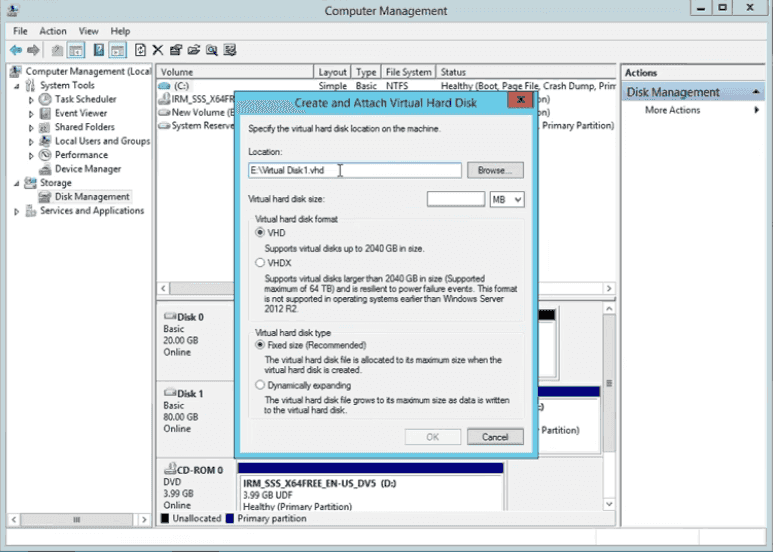
4. Right-click on the new created disk and choose Initialize Disk.
5. Right-click on the unallocated space and choose New Simple Volume.
6. Follow the wizard to create a new partition.
7. To backup your Windows Server, type "backup" in the search box and select Windows Server Backup.
8. To schedule a backup task to the virtual drive, click on Backup Schedule and follow the Backup Schedule Wizard. This will guide you through the process of setting up an incremental backup task.
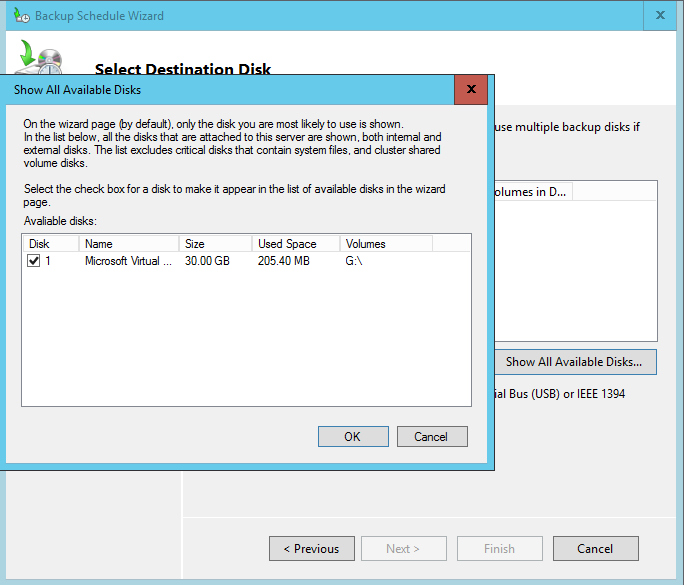
To schedule incremental backups to a network share folder, you must use Windows Server Backup to create a single scheduled backup, which will then allow you to modify or stop the existing schedule. Alternatively, you can use backup software to create incremental backups directly to the network share folder, eliminating the need to create a separate scheduled backup.
Way 2. Easier way to make Windows Server Backup to network share incremental
If you prefer an easier way to perform Windows Server Backup incremental to network share, Qiling Disk Master Server is a Windows backup utility that can help.
- The software supports various Windows operating systems, including Windows Server 2003, 2008, 2012, 2016 (including R2), SBS 2003, 2008, 2011, 2019, 2022 and Windows Client OS.
- It allows you to schedule multiple incremental or differential backups to a network share with ease.
- It provides System Backup, File Backup, Disk Backup, and Partition Backup to backup Servers.
Example: create system backup to network share
1. Download, install and launch the program, then select System Backup under the Backup tab.

2. The program will automatically select system-related partitions to back up. Simply expand the drop-down menu in the second column and click "Select a network location" to proceed.
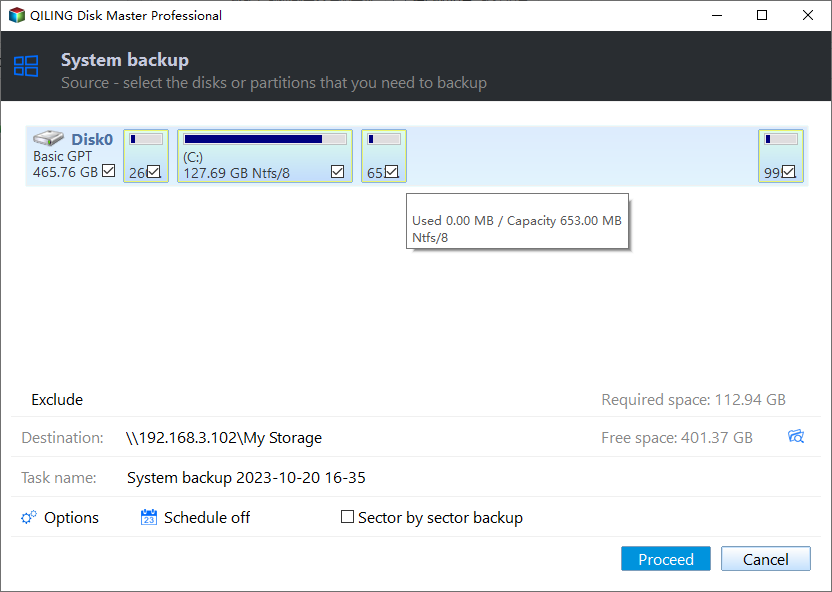
3. In a pop-up window, click "Add Network Location" and enter the network path, then select a shared folder under the path.
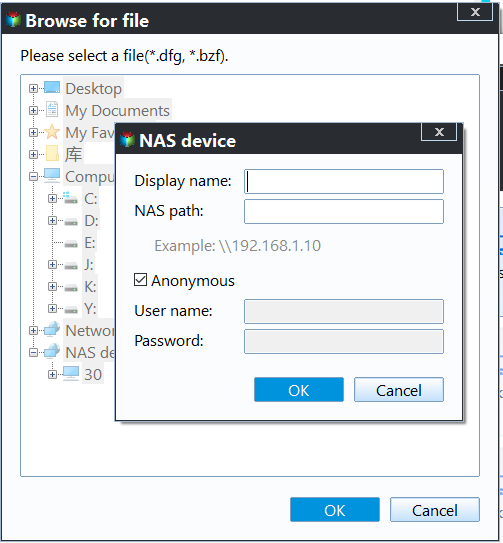
4. To proceed, specify the target location for the backup, then click "Backup Schedule" to configure a specific time for the backup. Under the "Backup Scheme" tab, you can choose from Incremental, Full, or Differential backup options based on your needs.

5. If you're running out of space after several backup runs, you can enable Automatic Backup Cleanup in your Backup Scheme to automatically delete old backups.
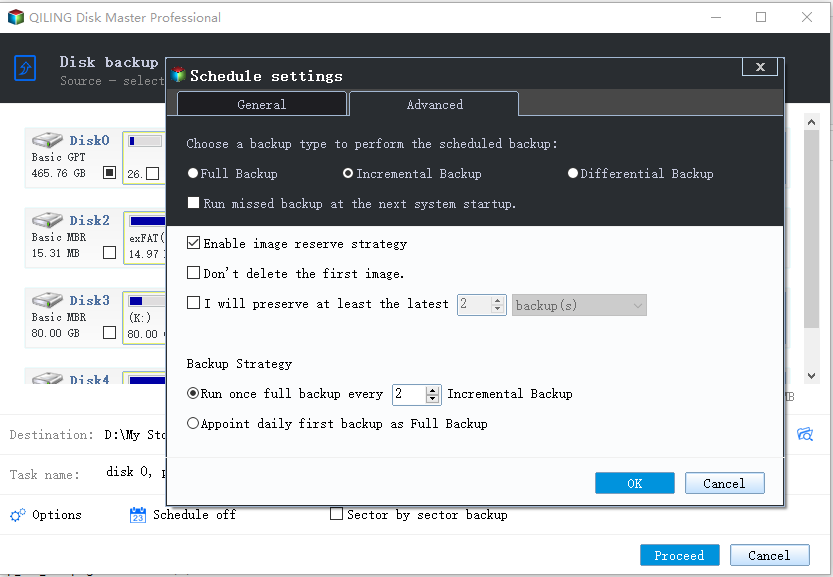
6. Review the backup task. Then click Proceed.
Note: To get notified about the backup's success or failure, and to protect the backup image, click on the "Options" button to enable email notifications and set a password.
Conclusion
You can perform Windows Server Backup incrementally to a network share using two methods. However, to simplify the process, consider using Qiling Disk Master Server, which allows you to schedule multiple incremental backups of Windows Server 2008, 2012, and 2016 to a network share. Additionally, this tool enables System Clone, Disk Clone, and Partition Clone, providing comprehensive data protection.
If you're a service provider, you can offer charged technical service to unlimited companies or individuals using Qiling Disk Master Technician.
Qiling Technology released Qiling Centralized Disk Master, a tool that allows for centralized backup of computers and management of backup tasks within a Local Area Network (LAN) on a central management console.
Related Articles
- How to Let Windows Server Backup Overwrite Old Backups?
You can perform Windows Server backup overwrite old backups manually with 3 methods in simple steps, to make it flexible and automatic, try professional backup and restore software. - Windows Server Backup Not Deleting Old Backups-Fixed
This guide explains Windows Server Backup Not Deleting Old Backups-Fixed with clear steps, key checks, and practical tips. - Fixed: Windows Server Backup Service Missing in 2008/2012/2016
This guide explains Fixed: Windows Server Backup Service Missing in 2008/2012/2016 with clear steps, key checks, and practical tips. - How to Backup to OneDrive Without Sync? Step-by-step Guide
OneDrive is a cloud storage service and enables file hosting and synchronization. This page covers the importance of backing up and how to back up to OneDrive without sync. Hope it can help with your backup issues. - How to Automatically Clone A Hard Drive as A Backup for A PC
Qiling Backup Enterprise can be used to automatically clone a hard drive as a backup for a PC. To do this, you can follow the steps outlined in the post to use the software to clone the hard drive. - 4 Ways to Back Up Computer to the Cloud Drive
You can back up your computer to the cloud drive in four ways: running cloud drive backup software, turning on Google Drive, logging into Dropbox, or syncing with OneDrive. This post will guide you through the process.
Products
Articles & Tutorials
- Data Recovery
- Data Backup
- File Recovery
- File Backup
- File synchronize
- System Backup and Restore
- Disk and Partition Clone
- Technical articles
- Disk Master Help
- Windows Deleted File and Disk Recovery Tutorials
- Windows File and Data Recovery Tutorials
- More Windows Tutorials for Install, Security, Files, and PC Tips
- Windows Boot, Repair, and Recovery Environment Tutorials
- Windows Backup Tutorials
- Windows Restore Tutorials
- Windows Clone and Migration Tutorials
- Windows Server Backup, Recovery, and Management Tutorials
- Windows Disk, Partition, and Storage Management Tutorials