4 Steps: How to Perform Partition Restore or Volume Recovery
When Need Partition/Volume Restore
To summarize, the partition and volume work well most of the time, but unexpected issues may arise with the operating system. In such cases, it's essential to have a system backup in place. For partition backup, you can refer to the article "How to Backup Partition/Volume".
Restoring a partition to its normal state without a backup can be challenging, but some partition recovery software, such as Qiling Disk Master, offer a function to recover lost and deleted partitions. This can potentially help recover the partition, but it's worth noting that the success of this process depends on various factors.
If we have backed up the partition to an image file, restoring it is a straightforward process. If the partition's data is damaged, we can quickly restore it to a normal state using the backed-up image file.
- Data on the partition/volume has been accidentally deleted or corrupted, and you need to recover it to a previous state.
- The file system on your computer has been damaged, resulting in an error message prompting you to format a partition when trying to access it.
- Partition table has been destroyed, which leads to partition/volume loss.
- Viruses and Trojans can't be removed without formatting a partition or volume, which would delete all data, including unaffected files.
- The damage of "Meta Information" on dynamic disk will render it invalid.
To avoid data loss and costly recoveries, it's essential to have a partition backup system in place. This ensures that important data is safely stored at all times, allowing for easy restoration in case of loss. Losing data can be devastating, with thousands of dollars potentially unrecoverable. By making regular backups, you can prevent the need for expensive data recovery services and ensure that your valuable information is always protected.
Qiling Backup Software
Qiling Technology specializes in storage management, offering a backup and restore software that meets the basic needs of most users. The Qiling backup software allows for easy partition, volume, and disk backup and restore, making it a convenient option that can be downloaded and used for free.
Qiling Disk Master supports all Windows editions and can handle various disk types, including MBR and GPT, primary, logical, and dynamic volumes, making it easy to back up and restore disks.
Before partition restore, you should have a backed-up image file that includes the partition, which is essential for the operation and should be properly preserved, such as by burning to a CD for permanent storage.
Steps of Partition Restore with Qiling Disk Master
When Qiling Data Backup starts, it displays all previous backup tasks in the list box on the "Restore" interface, allowing you to select and restore relevant tasks directly or restore everything by opening the image file. The steps for Partition Recovery are as follows.
Note: download this free software, install and launch it.
Step 1. Select the image file of the backed partition/volume that needs to be restored. There are two methods.
Method 1: Click "Restore" item on the left tab, and then "Select Task", all the backups will be listed. Click the image file that needs to be restored, and then click "Next".

Note: If there is no backup in the list, or the partition/volume has been backed up to a network path or CD, you can select the target partition/volume by clicking on the "Select Image File" option.
Method 2: To restore a backup task, go to the "Home" tab, select the target backup task, click the three horizontal lines button, and then choose "Restore".
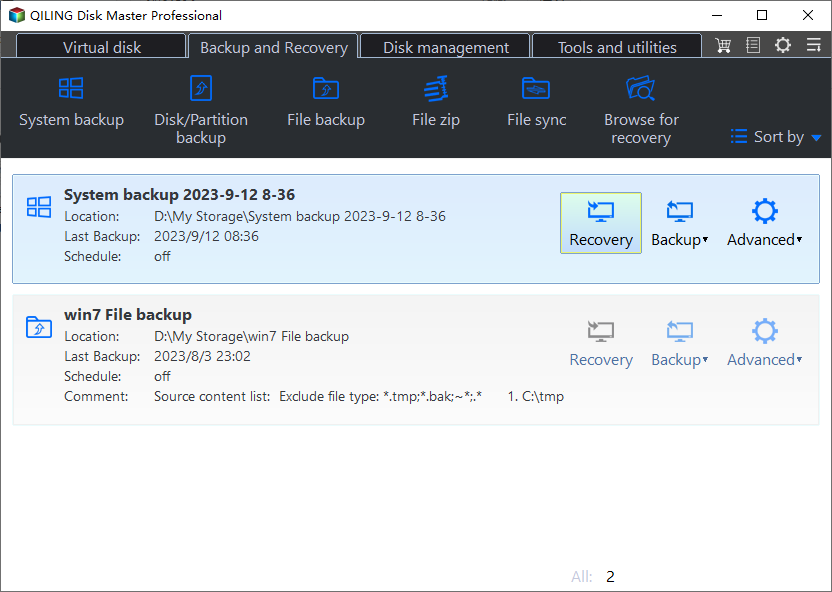
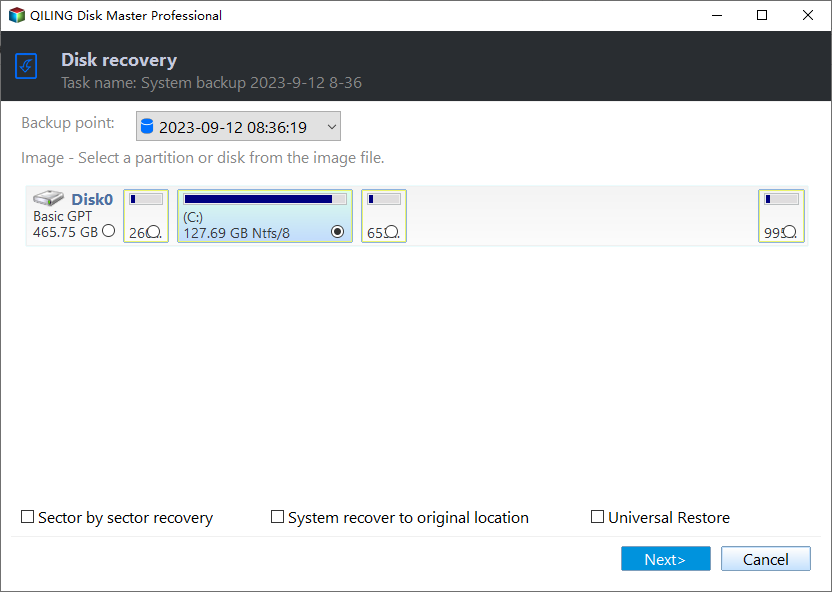
Then, All versions of the backup task will be listed out. Select the item you want to restore and click "Next".
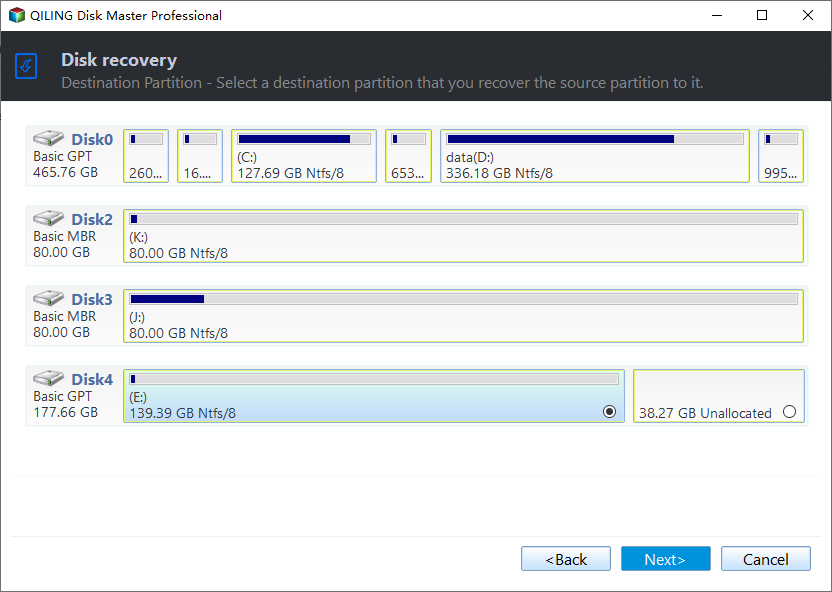
Step 2. After backing up your data, select a partition as the destination and click "Next".
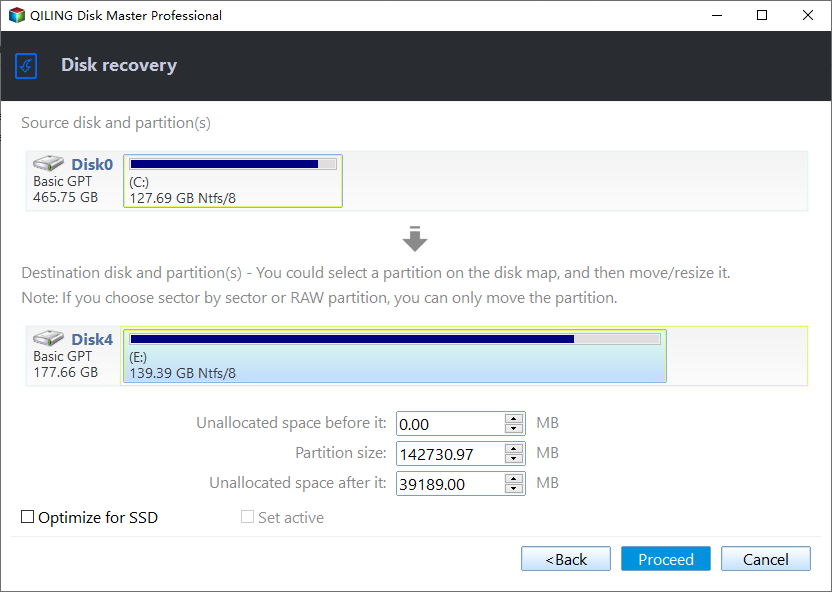
Step 3. Confirm the operations and click "Proceed" to carry out the operations, noting that you can resize the destination partition by clicking "Edit partition".
Step 4. When the operation is over, click "Finish" to exit the interface.
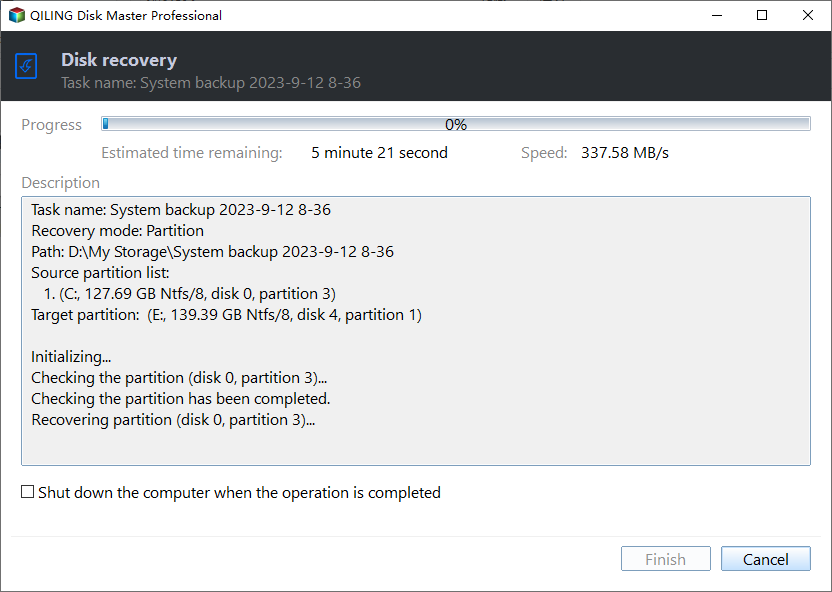
Notes: If there's a program running on the destination partition, the software will warn you to end it first. If termination is unsuccessful, the program will prompt you and automatically restart the computer to proceed with the operations.
During partition restore, the computer may need to restart. If the system partition is damaged, the system may not boot and Qiling Disk Master can't run, so restore can be completed with a bootable CD. For more information, see the article on System Partition Restore by using Bootable CD.
Related Articles
- Partition or Volume Restore
- How to Perform Disk Restore or Recovery with Qiling Disk Master
- Toshiba HDD Recovery Not Working – How to Repair Your PC Then?
This guide explains Partition or Volume Restore How to Perform Disk Restore or Recovery with Qiling Disk Master Toshiba HDD Recovery Not Working – How to Repair Your PC Then with clear steps, key checks, and practical tips. - Toshiba NTI Backup Now EZ Free Alternative and Guide
Qiling Disk Master Standard is more than a Toshiba NTI Disk Master Now EZ free alternative, it is an independent and powerful backup software. - How to Clone HDD to SSD with Alignment Easily
You can learn what is SSD alignment and how to clone HDD to SSD with Alignment easily. Please read on for more details. - Two Effective Ways to Clone HDD to SSD Samsung in Windows OS
If you're looking to clone your HDD to a Samsung SSD in Windows 11, 10, 8, or 7, this article provides some expert advice.
Products
Articles & Tutorials
- Data Recovery
- Data Backup
- File Recovery
- File Backup
- File synchronize
- System Backup and Restore
- Disk and Partition Clone
- Technical articles
- Disk Master Help
- Windows Deleted File and Disk Recovery Tutorials
- Windows File and Data Recovery Tutorials
- More Windows Tutorials for Install, Security, Files, and PC Tips
- Windows Boot, Repair, and Recovery Environment Tutorials
- Windows Backup Tutorials
- Windows Restore Tutorials
- Windows Clone and Migration Tutorials
- Windows Server Backup, Recovery, and Management Tutorials
- Windows Disk, Partition, and Storage Management Tutorials