Download Free Disk Restore Software and Recover Your Data
Why Need Free Disk Restore Software?
When a disk has been used for a period of time, there will be inevitable data loss more or less. Most of the data might have played an important role in a corresponding field, and losing it can have significant consequences. This can be due to various disk problems, such as disk corruption, logical bad sectors, physical bad sectors, disk crashes, and disk formatting. These issues can result in data loss, and it's essential to take preventive measures to avoid such problems.
- In today's digital world, data loss can occur due to various types of viruses. This can happen at any moment, causing significant disruptions to individuals and organizations alike.
- The computer asks you to format the disk, which would result in the loss of all data on it, and may also display error messages such as "access is denied".
- The disk may become unreadable due to incorrect operations, ultimately leading to data loss.
- The "bad track" and "bad sector" on a disk can lead to data loss due to their malfunctioning state.
- When you get the "invalid disk" prompt, you should format the disk, which will delete all data on the disk.
Your disk or system may be damaged due to various reasons like virus attacks, system file errors, Windows Update errors, or bad sectors.
Free disk restore software is essential for data protection, allowing you to restore the entire disk, including the operating system, programs, and personal data, ensuring a secure boot.
To recover a disk, it's essential to have a backup image of the disk created beforehand. This means that a disk backup should be done at any time to ensure that data loss due to disk problems can be recovered.
Best Free Disk Recovery Software - Qiling Disk Master
The hard drive recovery software requires disk backup as a precondition for recovery, and therefore needs to support disk backup, making it possible to perform disk restore for your PC. A great choice for this is Qiling Disk Master Standard, which offers several advantages.
For Disk Backup:
- It will back up all data on the disk, including OS and boot files if it's a system disk.
- This software enables automatic running of a disk backup task. It offers three scheduling options: daily, weekly, and monthly, with the added feature of waking up the computer to run scheduled tasks.
- Besides, it helps save disk space as much as possible with features like normal compression, intelligent sector backup, and incremental backup, all of which can be used without needing setup.
For Disk Restore:
- The system disk will have all data restored and will still ensure a secure boot after the disk recovery.
- It enables you to restore a disk image to its original location or to a new hard drive or SSD.
- If you have a new SSD disk, check its alignment feature to get the most out of its performance, including faster read and write speeds and a longer lifespan.
How to Restore Data from Hard Drive Easily (with Secure Boot)
To perform a disk restore for your PC, ensure you have a valid disk backup and prepare the necessary items, including a blank CD or DVD, a Windows installation disk, or a USB drive with the installation media, and a valid product key. Additionally, you may need to create a bootable media if your PC is unable to boot from the original disk.
- Download FREE disk restore software Install and launch Qiling Disk Master Standard. If your system fails to boot, create a boot media with it.
- Prepare a new hard drive and initialize it. To initialize a new disk, go to Disk Management, right-click the new disk, and select Initialize Disk. You will be prompted to choose a disk type, select either MBR or GPT, and click OK.
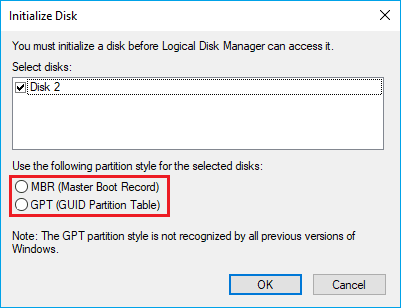
- Prepare a SATA-to-USB cable or enclosure If you need to connect the new hard drive externally before restoring, prepare a SATA-to-USB adapter or an external drive enclosure. This is especially useful if you are restoring a disk image to a new drive that will later replace the existing one.
Then, follow the steps below to perform disk restore.
To locate the backup images created previously, start by going to either the "Home" or "Restore" tab, where all available backup tasks will be listed. This is the initial step in the process.
Way 1: From the Home tab
- Click the orange icon and select Restore.
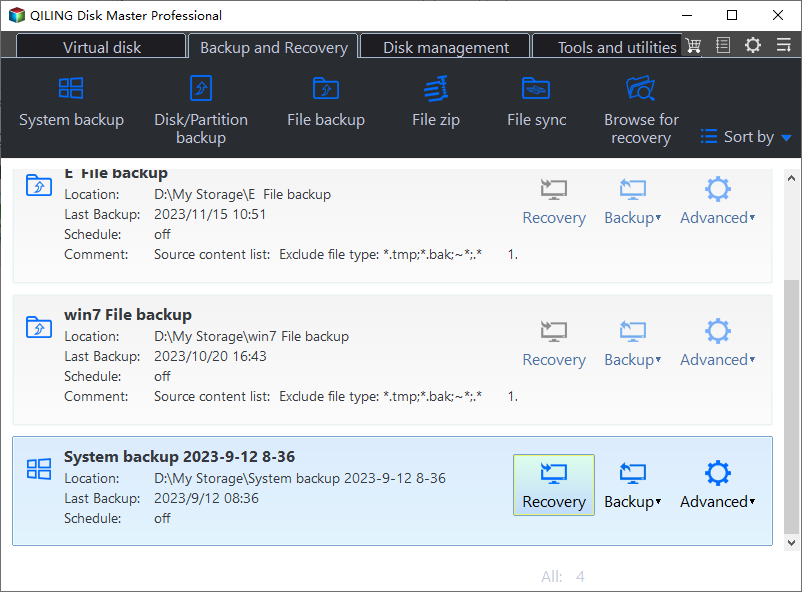
- To restore your image, you will first be directed to the Image Information window, where you can choose to restore either the entire backup or a part of it, and then click "Next".
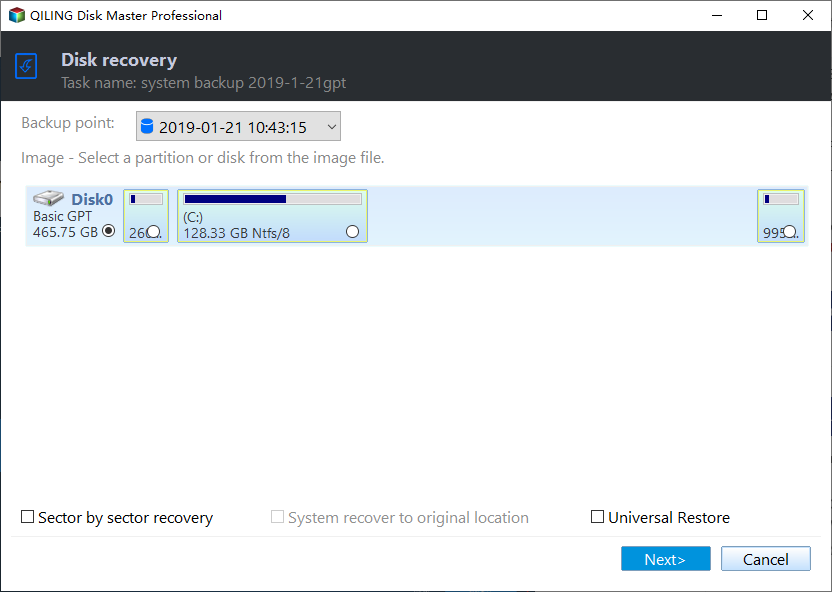
Way 2: From the Restore tab
- Click "Restore" and "Select Task" options. If the image file is not listed, click "Select Image File" to browse for it, especially if it's stored on CD or a network path.

- To restore from a disk backup image, first select the disk backup image in the Restore window and click Next. This will allow you to access the Image Information window where you can choose the specific items you want to restore.

After locating the disk image, go to the Disk Restore window, select a new hard drive or SSD to receive the backup image, and click Next.
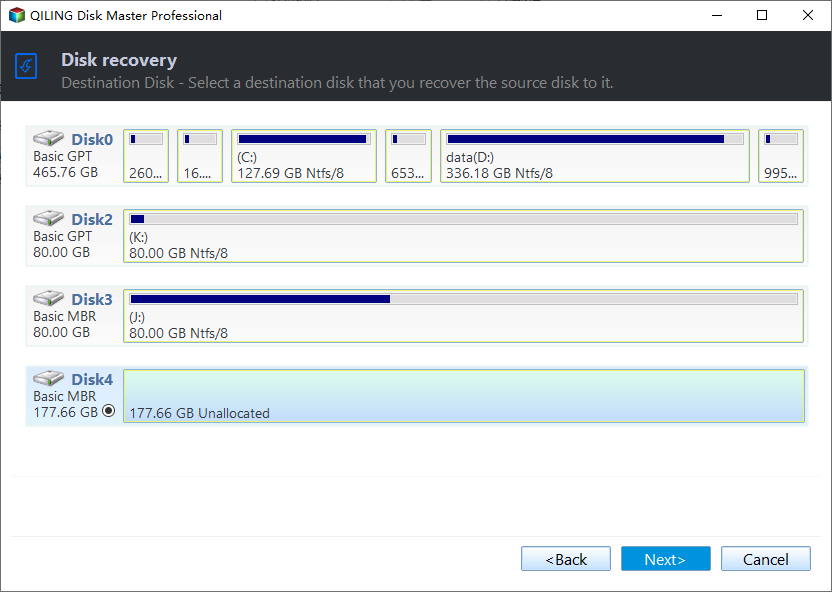
You will eventually reach the Operation Summary window, where you can preview the disk information and confirm that the correct disk is selected. Click "Proceed" to initiate the disk restore process. If your new disk is an SSD, also select the option for "SSD Alignment" to enhance its performance.
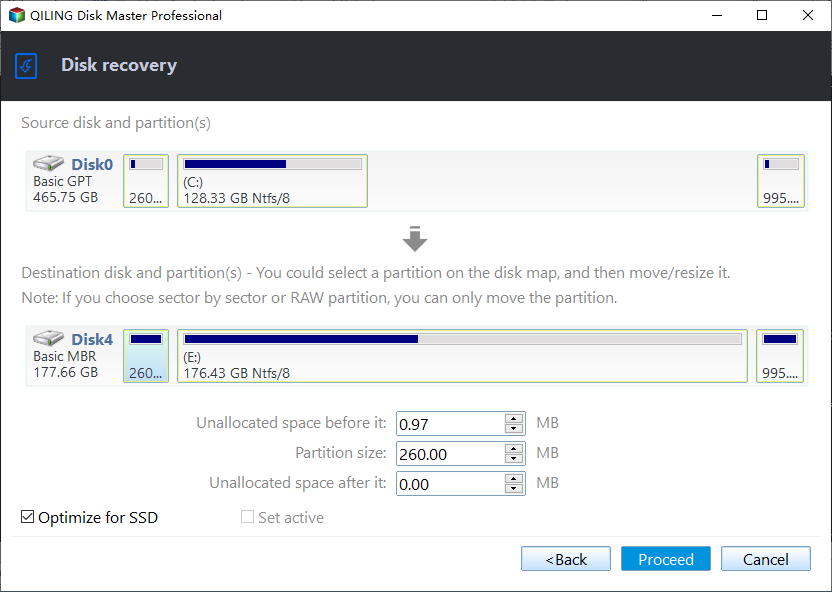
- Edit partitions allows you to resize the partition size on the destination disk, offering three options: Copy without resizing partitions, Add unused space to all partitions, or Manually adjust partition size.
- The restore process can be done on a sector-by-sector basis, allowing for the optional restoration of all sectors from the original disk.
When the operations are complete, click "Finish". If you only want to restore individual files from this disk, you can get more information through the "selective file restore" option.
If a program is running on the destination disk, the software will either terminate it or, if that's not possible, automatically restart the computer to complete the operations, a process known as "Restart Mode".
Summary
With the disk backup and disk restore feature of Qiling Disk Master Standard, you can easily restore all the data on the disk, ensuring a successful boot from the new hard drive or SSD if it's a system disk.
To restore data from a hard drive quickly, it's suggested to keep a disk restore software and schedule the backup task automatically. This way, you can ensure that your backup disk always has enough space, and the advanced edition even allows you to automatically delete old backups.
Related Articles
- How to Backup Hard Drive with Qiling Disk Master
- 3 Free Ways to Create Windows 10 Recovery Disk or USB Drive
- Restore Windows 10 System Image to New Hard Drive | 2 Ways
- How to Backup User Profile in Windows 11 Easily
You can learn how to back up User Profile in Windows 11 in this article. A total of three methods are provided for your reference. - Backup and Sync External Hard Drives with Google Drive
This page introduces you to the most efficient way to backup and sync external hard drive with Google Drive, whether from or to it. - Backup Hard Drive before Formatting in Windows 10/8/7
You may want to format your hard drive and reinstall Windows when it is running slow. Be sure to backup hard drive before formatting.
Products
Articles & Tutorials
- Data Recovery
- Data Backup
- File Recovery
- File Backup
- File synchronize
- System Backup and Restore
- Disk and Partition Clone
- Technical articles
- Disk Master Help
- Windows Deleted File and Disk Recovery Tutorials
- Windows File and Data Recovery Tutorials
- More Windows Tutorials for Install, Security, Files, and PC Tips
- Windows Boot, Repair, and Recovery Environment Tutorials
- Windows Backup Tutorials
- Windows Restore Tutorials
- Windows Clone and Migration Tutorials
- Windows Server Backup, Recovery, and Management Tutorials
- Windows Disk, Partition, and Storage Management Tutorials