Top 4 Ways to Create Image Backup in Windows Server
- Why Backup Windows Server?
- Which Method Should You Use in Windows Server?
- Way 1: Create Server Backup Image with Windows Server Backup
- Way 2: Create Windows Server Backup Image with WBAdmin
- Way 3: Create Image Backup in Windows Server with Qiling Disk Master
- Way 4: Make Windows Server Image Backup with Qiling Disk Master
- Conclusion
Why Backup Windows Server?
Microsoft Windows Server operating systems, including Windows Server 2003/2008/2012/2016/2019 (R2)/2022, are designed for enterprise-level management, data storage, and applications for multiple clients.
To ensure the safety of your business data stored on Windows Server, it's crucial to create regular image backups to prevent serious issues such as virus attacks, system crashes, and hardware damage.
Let's explore 4 server backup solutions and create a Windows Server image backup step by step.
Which Method Should You Use in Windows Server?
This article provides you with 4 useful ways to image Windows Server, applicable not only to Server 2008 but also to other systems such as Server 2008 R2, 2012, 2016, 2019, 2022, and more.
2 built-in tools
Windows Server Backup Wbadmin and Windows Server Backup are built-in free server backup tools that can backup and restore the full server, selected volumes, system state, or specific files or folders. They also allow creating a server image backup for bare metal recovery in case of hard disk failure.
2 third-party tools
Qiling Disk Master Server is a top-notch server backup software that can create Windows Server image backups in almost all operating systems, offering flexibility and the ability to schedule backups from daily to weekly, monthly, and even hourly.
The backup software can save backup time and disk space by only backing up changed files after the first full backup. This feature also allows for automatic deletion of old backup images, ensuring that the backup disk always has enough space for new data.
 Qiling Disk Master Server
Windows Server Image Backup Software for All Systems.
Qiling Disk Master offers a centralized backup management solution for Windows operating systems, allowing users to create backup tasks for multiple PCs and Servers and manage them from a single console.
To complete the backup process, select one of the options and follow the stepwise guide to swap to the corresponding way. This will allow you to successfully complete the backup process.
👉 To create a server backup image using Windows Server Backup, you can follow these steps: First, open the Server Manager console and click on "Add Roles and Features" to add the Windows Server Backup feature. Then, launch the Windows Server Backup console and create a new backup configuration by selecting the server's system drive and any other drives you want to include in the backup.
👉 Way 2: Create Windows Server Backup Image with WBAdmin
👉 To create an image backup in Windows Server with Qiling Disk Master, follow these steps: First, download and install Qiling Disk Master on your Windows Server. Next, launch the software and select the drive you want to back up, then choose the backup location and options.
👉 Way 4: Make Windows Server Image Backup with Qiling Disk Master👍
Way 1: Create Server Backup Image with Windows Server Backup
To install Windows Server Backup, go to Server Manager, then click on Dashboard, followed by Manage, and finally Add Roles and Features. From there, follow the wizards to complete the installation.
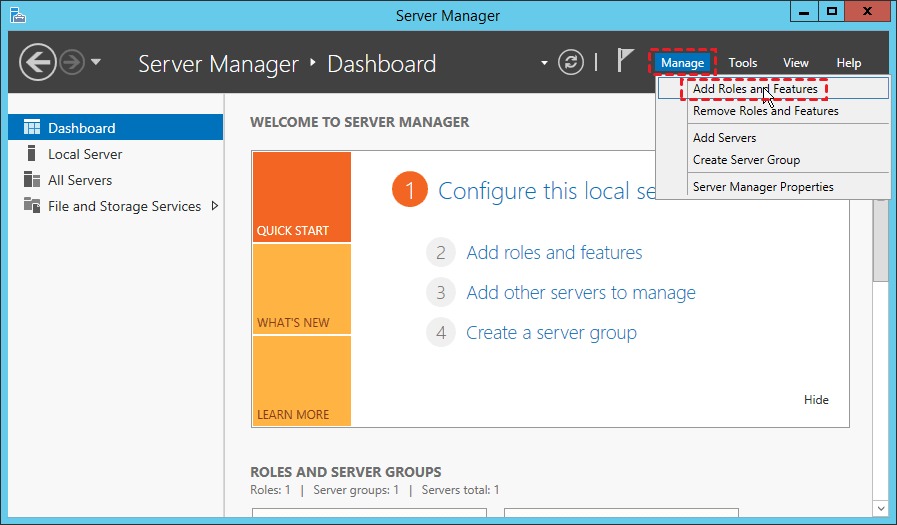
After installing Windows Server Backup, you can open it and create a backup of Windows Server 2016 using it.
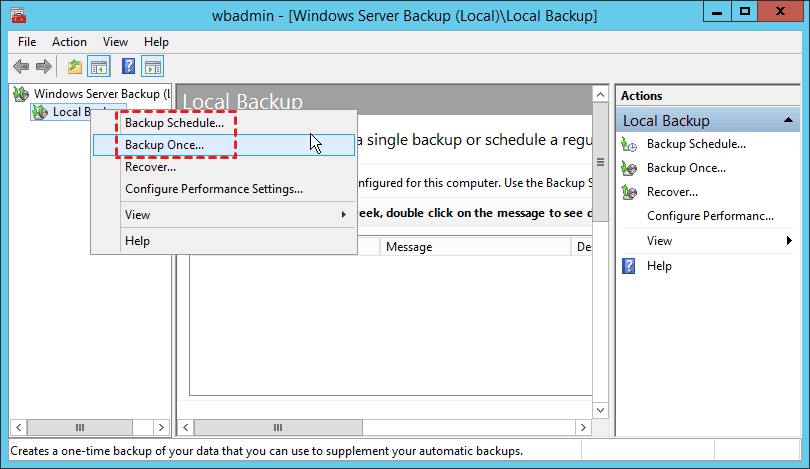
1. To schedule a Windows Server backup, go to Server Manager, then Tools, then Windows Server Backup. Under the Local Backup tab, right-click on Backup Once to perform a one-time backup. To schedule a backup, click on Backup Schedule and choose the desired frequency, such as daily.
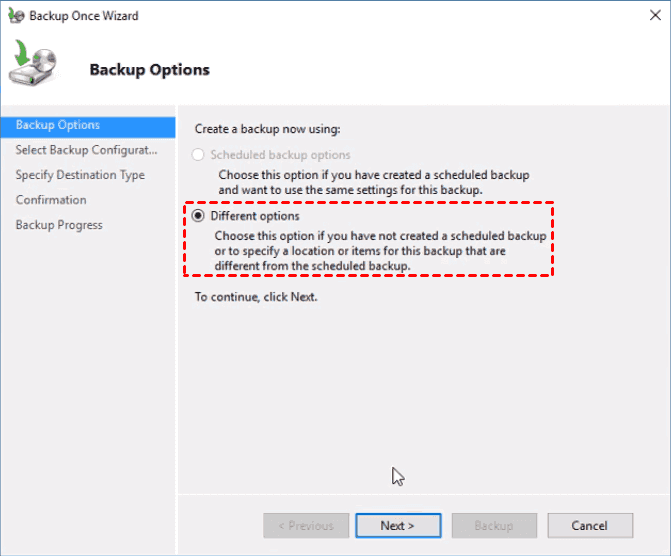
2. Choose the backup options: Different options, and hit Next.
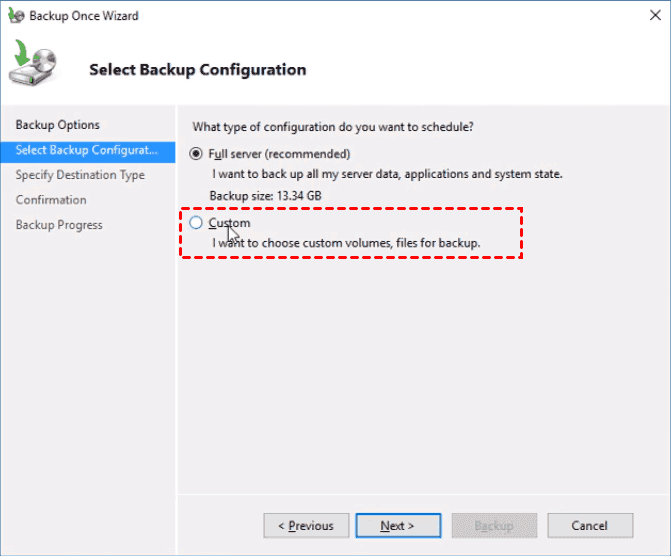
3. To select the custom type for creating an image backup for Windows Server, choose the data you want to create an image backup for.
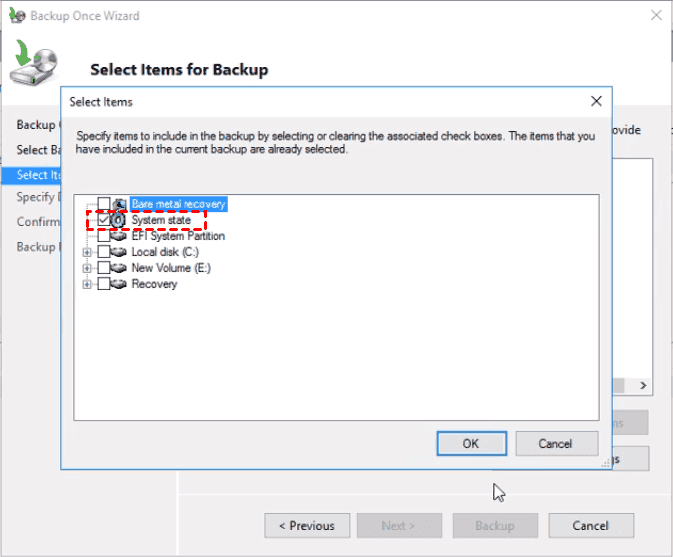
4. To create a system image backup for Windows Server 2016, click "Add Items" and select "System state" to backup the system. Additionally, you can choose "Bare metal recovery" and other partitions you want to include in the image.
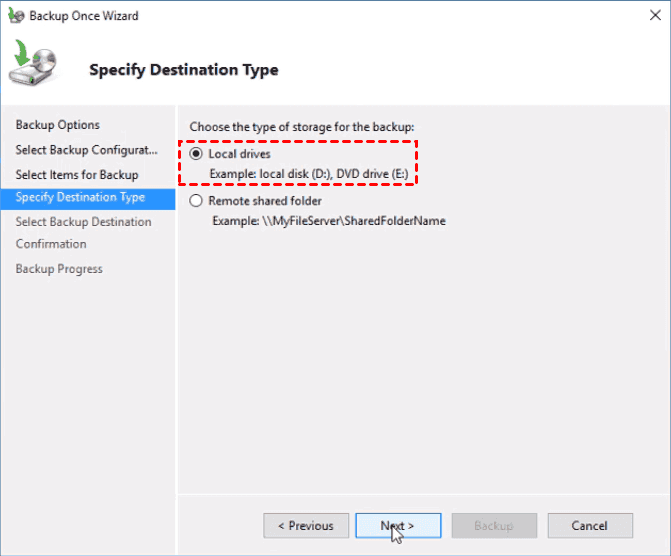
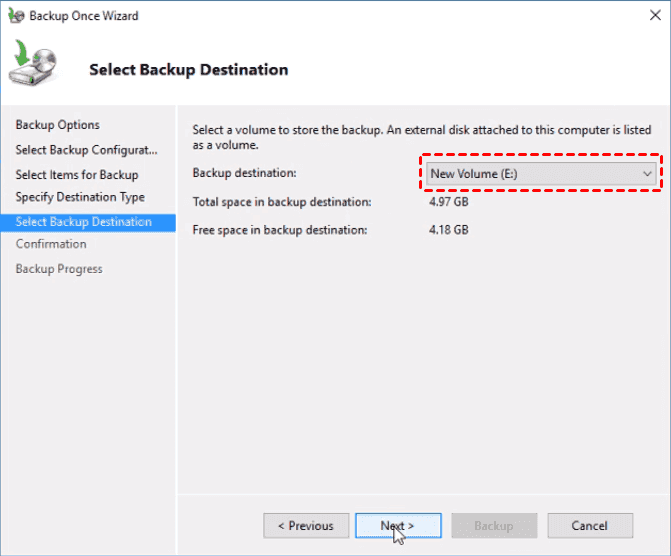
5. To create a Windows Server image backup, select the backup destination as Local drives and click Next. Then, choose a backup destination for your Windows Server image backup and click Next.
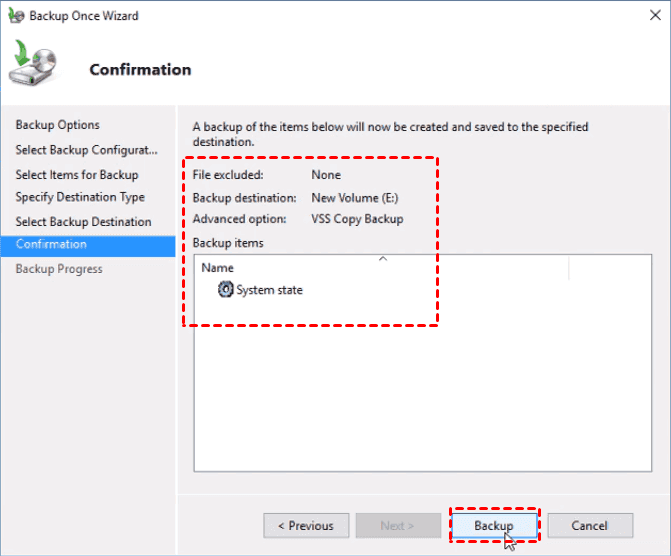
6. Preview the settings and click Backup to backup Windows Server.
Way 2: Create Windows Server Backup Image with WBAdmin
To create an image backup in Windows Server, you can use the Wbadmin tool. Before using it, familiarize yourself with the available commands by typing "wbadmin /?" which will display a list of options. Commonly used commands include:
- WBADMIN ENABLE BACKUP: Creates or modifies a daily backup schedule.
- WBADMIN DISABLE BACKUP: Disables the scheduled backups.
- WBADMIN START BACKUP: Runs a one-time backup.
- WBADMIN STOP JOB: Stops the currently running backup or recovery operation.
- WBADMIN GET VERSIONS: The backup details list provides information on the backups that can be recovered from a specified location, allowing users to view and manage their backup data in a centralized manner. This feature enables users to track and access their backups with ease, ensuring that they have a reliable and secure means of recovering their data in case of any issues or disasters.
- WBADMIN GET ITEMS: Lists items contained in a backup.
- WBADMIN START RECOVERY: Runs a recovery.
- WBADMIN GET STATUS: Reports the status of the currently running operation.
- WBADMIN GET DISKS: Lists the disks that are currently online.
- WBADMIN GET VIRTUALMACHINES: Lists current Hyper-V virtual machines.
- WBADMIN START SYSTEMSTATERECOVERY: Runs a system state recovery.
- WBADMIN START SYSTEMSTATEBACKUP: Runs a system state backup.
- WBADMIN DELETE SYSTEMSTATEBACKUP: Deletes one or more system state backups.
- WBADMIN DELETE BACKUP: Deletes one or more backups.
To create a bare metal backup in Windows Server, you can type the following command: `wbadmin -backup yourbackup -allcritical -systemState -vssFull -backupTarget:E:\yourbackup.bak` (replace `yourbackup` and `E:\yourbackup.bak` with your desired backup name and location).
Wbadmin wbadmin start backup -backupTarget:e: -allcritical -vssfull -quiet
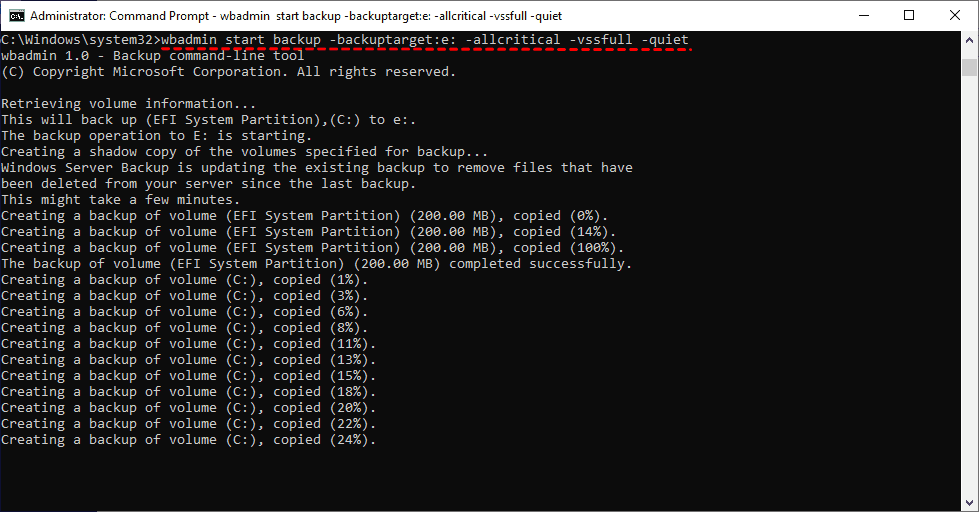
- -allcritical: Creates a backup that includes all critical volumes.
- -vssfull: run a full backup using Volume Shadow Copy service (VSS).
- -quiet: run the command with no prompts to the user.
The bare metal backup includes the system state backup by default and also contains other essential partitions such as the C drive, Recovery partition, and EFI System partition.
After the bare metal backup is completed, you can perform bare metal recovery at any time to safeguard your Windows Server from data loss.
Windows Server Backup Limitations
While both built-in backup tools can assist in creating image backups in Windows Server, they still have some limitations that cannot be ignored. These include:
- Backup of volumes greater than 2 TB was not supported and 512-byte sectors were required in Windows Server 2003 (R2) and 2008 (R2).
- The schedule backup is limited to daily or more frequent backups.
- In Windows Server 2003 and 2008, there was no option to manage backup versions and retention. However, this feature has been available since Windows Server 2012.
- Removable media, including items like tape, CDs, and USB flash drives, is not supported.
- Unfortunately, the backup DVDs were not sufficient to recover individual files, folders, or application data.
- If you want to schedule a backup on Windows Server to a shared network folder, the previous backup will be overwritten with the latest one.
- The Wbadmin command line tool is more complex to operate for most users.
Due to the limitations and complexity of Windows Server Backup, it's recommended to try alternative backup software, such as Qiling Disk Master Server, which can provide a more efficient and user-friendly way to backup Windows Server.
Way 3: Create Image Backup in Windows Server with Qiling Disk Master
The Qiling Disk Master Server allows for efficient backup of entire disks, systems, partitions, or individual files, providing flexibility based on the user's selection and destination disk space. This enables users to take advantage of various benefits during the backup process.
- Create image backup in Windows Server and PC automatically: This software supports all versions of Windows Server, including Windows Server 2003, 2008, 2012, 2016, 2019, 2022, and their respective R2 versions, as well as Windows 11, 10, 8, 7, XP, and Vista. It also allows for backups to be performed on a daily, weekly, or monthly schedule, or can be triggered by specific events, and can even be initiated by plugging in a USB device.
- Backup only changed files: Incremental and Differential backup are supported, which backup only changes, reducing backup time and disk space usage, but requiring high recovery requirements.
- Delete old backup images automaticallyIt supports 4 cleanup methods: By quantity, By time, By daily/weekly/monthly, and By space, allowing the backup disk to always have enough space based on the selected backup method.
Download the Windows server backup software Qiling Disk Master Server, specifically the TechPlus edition which supports unlimited servers and PCs.
After installing the software, open it and follow these steps to take an image backup of Windows Server 2012 R2: you can also create a Windows Server 2012 image backup or use it for other systems like 2016, 2019, etc.
1. To create a backup of your Windows Server OS, click on the "Backup" option on the main window, then select "Disk Backup" or "System Backup" depending on your needs.

2. Rename the backup task to give it a unique name if necessary, and select the Windows Server hard disk to be backed up by tapping on "Disks".

3. Choose a destination to save the Windows Server image backup, which can be an external disk, USB flash drive, CD/DVD, share, or NAS device.

4. Click the "Proceed" button to create a Windows Server image backup.

- Schedule Backup: To summarize, you have 5 options to trigger the device: Daily, Weekly, Monthly, Event triggers, and USB plug-in.
- The backup scheme is composed of two parts: the backup method (which includes Full, Incremental, and Differential) and the cleanup method (which can be categorized by time, quantity, daily/weekly/monthly, or space).
- Options: To automate the Windows Server backup process, you can add comments, compress, split, and optionally encrypt the backup image, as well as enable email notification to receive alerts via email or SMS once the task is complete.
The backup process will be completed quickly, taking into account the size of the data on your source disk. The larger the data, the longer the backup time. Once finished, you can easily restore the Windows Server Image Backup in the Home tab.
- Go to Home -To backup your disk, click on the three bars icon and select "Restore" from the dropdown menu. Alternatively, click on "Restore" and then "Select Task/Image File" to choose the server backup image.
- Choose Restore the entire disk or Restore a partition in the disk, then click Next.
- To save your backup image, choose a destination path and click Next.
- Tick Universal Restore if you want to restore Windows Server 2012 backup to another machine. Press Proceed.
Way 4: Make Windows Server Image Backup with Qiling Disk Master
Qiling Disk Master allows users to centrally manage backups for multiple Windows PCs and servers from a single console.
- A software that enables the creation of system, disk, or partition backups for both client PCs and servers, supporting various Windows versions including Windows 11/10/8.1/8/7 and Windows Server 2022/2019/2016/2012 (R2)/2008 (R2).
- You can save backup images on various devices such as a local disk, external hard drive, network share, or NAS device.
- You can schedule a backup task to run daily, weekly, or monthly using the full, incremental, or differential backup method.
Conclusion
You can easily create image backups on Windows Server and PCs using various methods. Recommended for Windows Server image backup are Qiling Disk Master Server and Qiling Disk Master, which offer an intuitive interface and rich features suitable for all users, meeting different needs. These tools allow for easy image backup in Windows Server 2003/2008/2012/2016/2019/2022 and Windows PCs.
Qiling Disk Master allows for file syncing, backing up to cloud drives, transferring files between computers, and cloning a Windows Server 2012 drive, among other features.
Related Articles
- How to Create System State Backup for Windows Server 2016?
You will learn two easy ways to create a system image for Windows Server 2016, namely using Windows Server Backup, Qiling Disk Master Server and Qiling Disk Master. Get the stepwise guide below. - Windows Server Backup Bare Metal Recovery to Different Hardware
This guide explains Windows Server Backup Bare Metal Recovery to Different Hardware with clear steps, key checks, and practical tips. - 3 Ways to Create a System Image Backup in Windows Server 2003
This guide explains 3 Ways to Create a System Image Backup in Windows Server 2003 with clear steps, key checks, and practical tips. - Windows Server Backup Restore Step by Step Guide
This guide explains Windows Server Backup Restore Step by Step Guide with clear steps, key checks, and practical tips. - Unable to Copy Files to External Hard Drive on Windows 11[SOLVED]
If you're experiencing issues copying files to an external hard drive on your Windows 11 computer, this guide provides step-by-step solutions to resolve the problem effectively. - Can I Upgrade My Laptop Processor | Your Answer Is Here
This guide explains Can I Upgrade My Laptop Processor | Your Answer Is Here with clear steps, key checks, and practical tips.
Products
Articles & Tutorials
- Data Recovery
- Data Backup
- File Recovery
- File Backup
- File synchronize
- System Backup and Restore
- Disk and Partition Clone
- Technical articles
- Disk Master Help
- Windows Deleted File and Disk Recovery Tutorials
- Windows File and Data Recovery Tutorials
- More Windows Tutorials for Install, Security, Files, and PC Tips
- Windows Boot, Repair, and Recovery Environment Tutorials
- Windows Backup Tutorials
- Windows Restore Tutorials
- Windows Clone and Migration Tutorials
- Windows Server Backup, Recovery, and Management Tutorials
- Windows Disk, Partition, and Storage Management Tutorials