Create a System Image Backup in Windows Server 2003 (3 Ways)
Quick navigation:
- About System Image
- Create Server 2003 system image backup with Backup Utility
- Create Windows Server 2003 system image with NTBackup
- Create Windows Server 2003 System Image Backup with Third-Party Tool
- Summing Up
About System Image
A system image is a complete copy of a Windows system, including the operating system, drivers, applications, settings, and preferences, typically covering the C drive, EFI System Partition, and Recovery Partition, as well as any additional drives.
If your computer's hard drive or entire system fails, you can restore it using a system image, but you can't restore individual files or items.
Create Server 2003 system image backup with Backup Utility
To create a system image in Windows Server 2003, you can use the built-in Backup Utility, which will backup all data on the computer and create a system recovery disk to restore Windows in case of system failure.
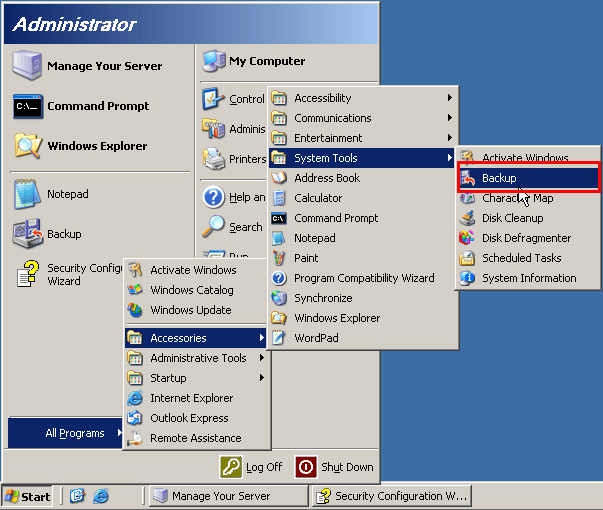
1. To open the Backup Utility, go to Start -> All Programs -> Accessories -> System Tools -> Backup.
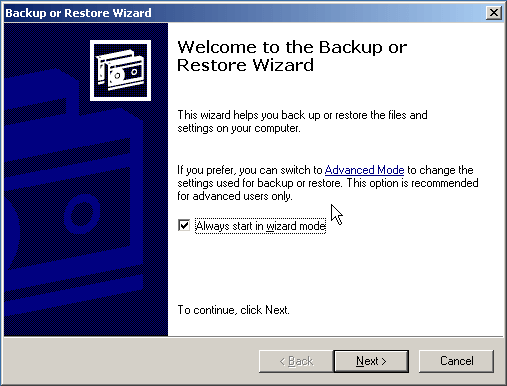
2. In the Backup or Restore Wizard, click Advanced Mode link.
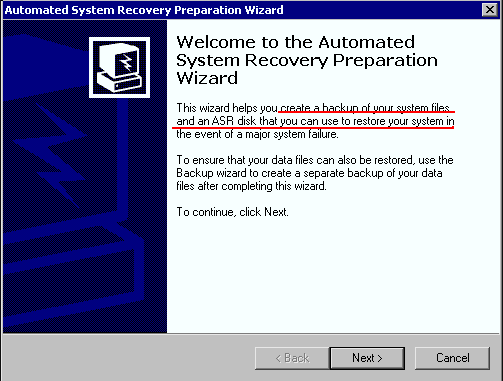
3. Click Welcome and select Automated System Recovery Wizard.
4. It will then inform you that a backup and ASR disk will be created, prompting you to click Next to proceed.
- ★Tip:
- To ensure that your data files will be restored intact, it's suggested to backup files separately with this backup wizard.
4. Select a backup media or specify a name for it, then click Browse to proceed.
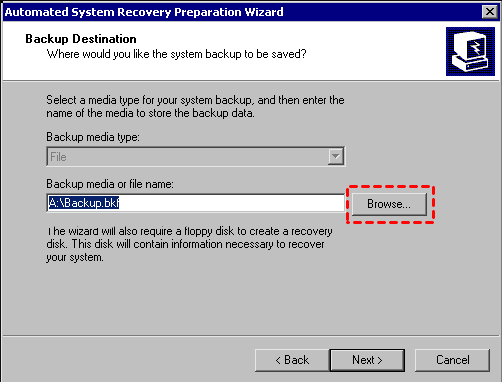
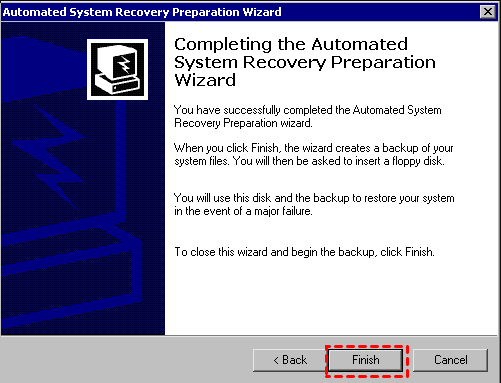
5. To create a system image backup in Windows Server 2003, click "Next" and then "Finish" to proceed. You will then be prompted to insert a floppy disk for ASR (Automated System Recovery) disk creation. Please do so accordingly.
- ★Tip:
- To schedule a Windows Server 2003 system image backup, use the Schedule Jobs option.
Create Windows Server 2003 system image with NTBackup
To create a system state backup in Windows Server 2003, you can use NTBackup. The command for this is not provided in the text, but it can be used to create a system state backup. This is an alternative method to using the Windows Backup utility, which is also available in Windows Server 2003.
ntbackup backup systemstate /j "My Backup Job 3" /F "C:\backup.bkf"
However, the system state backup could not restore your system files and Windows. To create a system image to restore your Windows Server 2003, assuming only C drive, no Recovery partition or others system partition, use the command:
ntbackup backup C: /j "My Backup Job" /F "C:\backup.bkf"
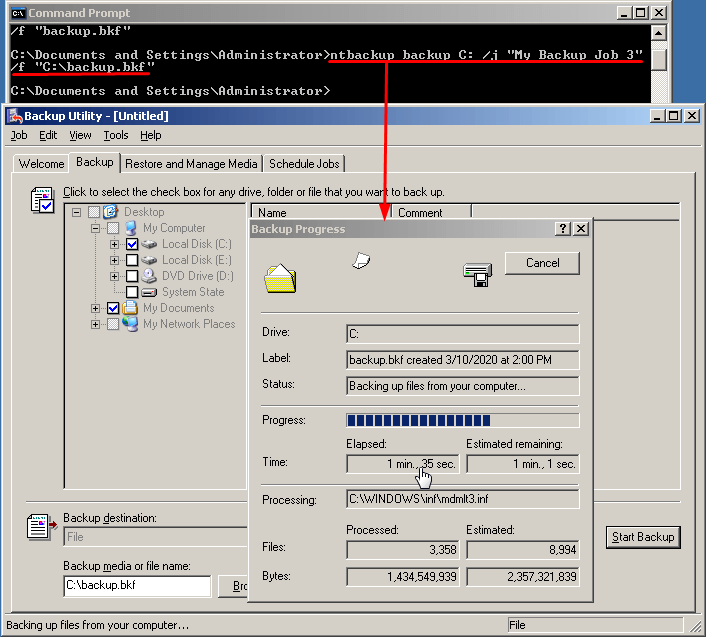
If you're experiencing the error "this drive is not a valid backup location" when creating a system image using NTBackup, it's likely due to the drive not being properly formatted or not having enough free space. To resolve this, try formatting the destination drive to NTFS and ensuring it has sufficient free space.
NTBackup is a built-in Windows backup utility, but it has a lot of parameters that need to be specified for backups, making it difficult to use.
To create a shadow copy for your system partition, right-click the C drive in Windows File Explorer and select Properties. Then, click the Shadow Copies tab and enable the shadow copy for the C drive.
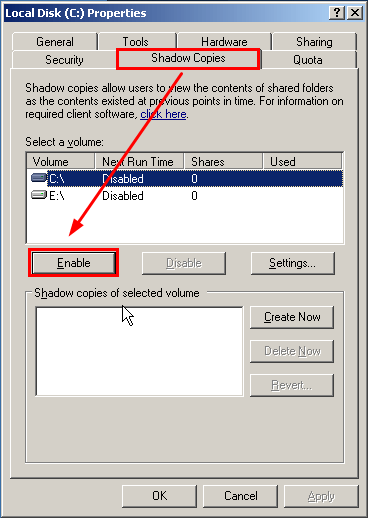
The system file restore failed because the volume containing the OS files can't be reverted, so it's suggested to backup your data drive using shadow copy.
Create Windows Server 2003 System Image Backup with Third-Party Tool
You can create a Server 2003 image backup, including all data on the system partition, using either native backup software or third-party Windows server 2003 backup software, such as Qiling Disk Master Server. This software supports various Windows versions, including Server 2003 (R2), 2008, 2012 (R2), 2016, 2019, 2022, as well as Windows XP, Vista, 7, 8, 8.1, 10, and 11, offering several advantages.
- Schedule backup system: You can create a Windows Server 2003 system image backup with a frequency of daily, weekly, or monthly.
- Save disk space: Compressing backup images, backing up only used sectors of the file system or changed files, deleting backup files, and setting a backup retention policy are effective ways to manage backup disk space. The most effective among these is setting a backup retention policy, which ensures the backup disk always has enough space for new backups.
- You can back up Windows Server 2003 to various destinations, including external hard drives, USB flash drives, network drives, and more.
To create a system image in Windows Server 2003, download Qiling Disk Master Server first, and then follow the steps to create a system image.
Step 1. Launch Qiling Disk Master server. Select Backup -> System Backup on the main window.

Step 2. Rename the Task Name if required. Choose a destination location to save the Windows Server 2003 system image backup.

Tips:
✍ To ensure your Windows Server image backup is safe, it's highly recommended to save it to an external storage device, such as a USB flash drive, SSD, NAS, or network share. This will prevent data loss in case of a system failure or other disaster.
✍ The system partition, where system files and boot files are stored, will be chosen automatically.
Step 3. Click Proceed button to create a system image backup for Windows Server 2003.

Besides, there are multiple optional settings for you to configure if you want:
1. You can compress the backup image to save space, split it into smaller files for easier transfer, add comments to the backup image for notes, or encrypt the image for security. Additionally, you can enable email notifications to receive updates on the backup process.
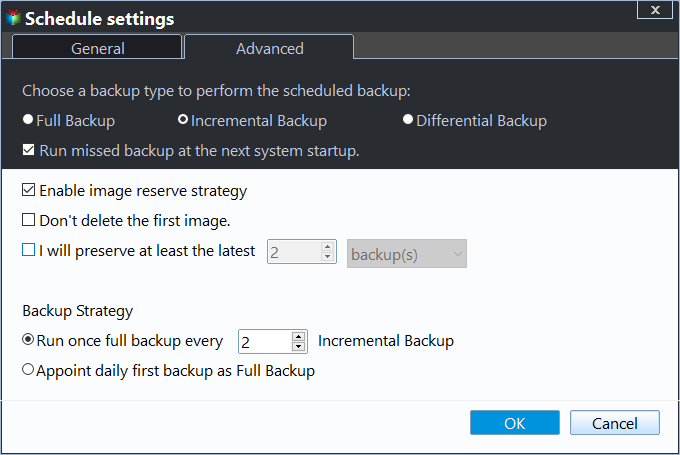
2. To set up automatic backups for Windows Server 2003 (R2), you can schedule a backup using five options: daily, weekly, monthly, event triggers, or a USB plug-in. This will ensure that your server's data is securely backed up at regular intervals, providing peace of mind and protection against data loss.
- Daily/Weekly/Monthly: Backup your data on a daily, weekly, and monthly schedule to automate the process and save time.
- Event Triggers: The backup task should be triggered according to the following events: User logon, User logoff, System startup, and System shutdown. This ensures that the system is backed up at regular intervals, even when the user is not actively interacting with it.
- USB plug in: When the USB device is plugged in, the task automatically backs up data from the USB or local data to the USB device.

3. To maintain a well-organized backup system, consider implementing a backup scheme that involves deleting old backups by quantity, time, or frequency (daily, weekly, monthly). This ensures that storage space is managed effectively. Additionally, enable incremental or differential backup methods, which allow you to backup only changed files, reducing the amount of data to be stored.
After the backup is completed, wait a few minutes for the process to finish, depending on the size of the data on the system partition. Once done, click "Finish" to complete the system image backup. This will allow you to create a bootable media that can be used to restore the Windows Server 2003 system in case of a boot failure.
- ★Tips:
- You can still use the tool to create a system image in Windows Server 2012 (R2), 2016, 2019, and 2022.
- This software allows you to create a system image that can be used to restore a new computer with different hardware.
- Qiling Disk Master Server is a disk clone software that allows you to clone a Windows operating system to an SSD, as well as clone a hard drive to a larger drive, effectively making it a reliable tool for upgrading or replacing existing storage devices.
Summing Up
In Windows Server 2003, you can create a system image backup using the Backup Utility, NTBackup, which can be done with multiple parameters for backup tasks, but it does not guarantee file restoration and requires a separate backup for file recovery.
To avoid data loss, consider using Qiling Disk Master Server, a reliable backup software for Windows Server 2003. It allows for scheduled backups (daily, weekly, monthly) and is also suitable for IT technicians who can use Qiling Disk Master Technician. This software can help ensure the integrity of system and personal data.
If you want to protect all data for all clients within your company and manage backups easily from one central console, you might consider using Qiling Centralized Disk Master.
Related Articles
- How to Restore Windows Server 2003 System Image Backup (Secure Boot)
Learn how to restore Windows Server 2003, 2008, 2012 (R2) system image backup to previous state or on different hardware with the help of Qiling Disk Master Server. - How Do I Create System Image for Windows Server 2008(R2)?
Creating system image backup in Windows Server 2008 (R2) is essential to protect your system and data on it. With it, you can easily recover them without downtime in the event of a disaster. - Windows 10/8/7 System Image Restore to Different Computer
This guide explains Windows 10/8/7 System Image Restore to Different Computer with clear steps, key checks, and practical tips. - How to Use Windows Server Backup for Active Directory Backup
Backing up Active Directory is important for Windows Server users. Learn how to backup Active Directory 2008/2012/2016 efficiently in this article. - Create Windows 7/10/11 System Image on a USB Drive (3 Ways)
This tutorial helps you easily create a system image on a USB flash drive with 3 workarounds. Using third-party backup software is easier and more efficient. - How to Create System Repair Disk on USB for Windows 7/8/10?
Learn how to Create System Repair Disk on USB for Windows 7/8/10 with clear steps, key checks, and practical tips.
Products
Articles & Tutorials
- Data Recovery
- Data Backup
- File Recovery
- File Backup
- File synchronize
- System Backup and Restore
- Disk and Partition Clone
- Technical articles
- Disk Master Help
- Windows Deleted File and Disk Recovery Tutorials
- Windows File and Data Recovery Tutorials
- More Windows Tutorials for Install, Security, Files, and PC Tips
- Windows Boot, Repair, and Recovery Environment Tutorials
- Windows Backup Tutorials
- Windows Restore Tutorials
- Windows Clone and Migration Tutorials
- Windows Server Backup, Recovery, and Management Tutorials
- Windows Disk, Partition, and Storage Management Tutorials