Get Backup Retention Policy Best Practices Here!
Quick navigation:
- Does your backup files take up large space?
- What are the backup retention policy and precaution?
- What are backup retention policy best practices?
- How to easily perform backup retention policy step by step
- Further reading: four different backup retention policies
- Written in the end
Does your backup files take up large space?
Running scheduled backups repeatedly can create multiple backup versions, which can take up a significant amount of disk space on your hard drive, making data protection a crucial consideration to prevent data loss.
You're experiencing issues with your external drive's capacity, which is causing you to run out of space for backups. This is a problem because you're concerned about accidentally deleting important files if you delete backup files to free up space, and using a larger drive as a backup destination won't solve the issue in the long run as it will eventually fill up as well.
To solve the problem of a full backup disk, use the backup retention policy in your backup software. This policy allows you to set rules for automatically deleting old backups, freeing up disk space while retaining recent backups.
What are the backup retention policy and precaution?
A backup retention policy is a rule that defines how long backup files should be retained, using software like Qiling Disk Master Professional to manage and schedule backups.
This software offers 4 backup policies: quantity, time, daily/weekly/monthly, and space. You can choose to retain a specified number of backups or set a backup cycle based on the selected scheme. Additionally, there's a note to consider before setting the backup retention policy for your task.
Backup types: You can create system backup, disk backup, partition backup, file backup and cloud backup as per your needs.
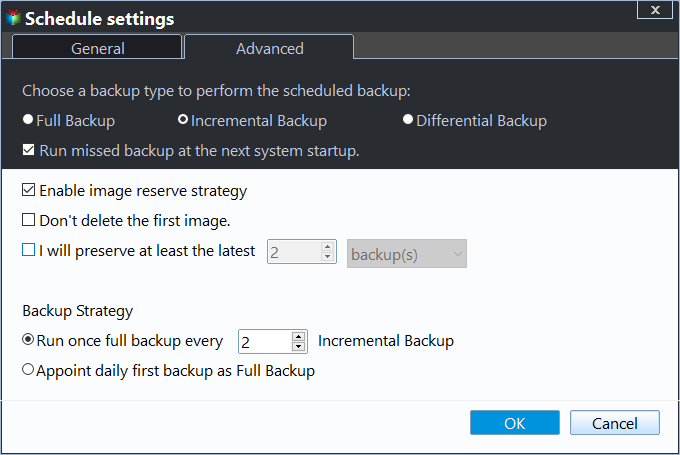
Backup Schedule: To set a schedule backup, you can choose daily, weekly, or monthly full/incremental/differential backups. Note that scheduled incremental backups will delete previous versions, making the backup invalid, whereas differential backups won't, as they have a different basis.
Backup Scheme: In Qiling Disk Master, users can choose from various backup schemes, including incremental and differential methods. For incremental backups, three retention policies are available, while differential backups offer four options. This allows users to tailor their backup approach to suit their specific needs.
What are backup retention policy best practices?
To prevent the backup disk from becoming full due to continuous backups, some users create a batch file to delete old backup versions and schedule it to run automatically using Task Scheduler. This ensures that old backups are removed after a certain period of time, freeing up space on the backup disk.
While the backup sounds good, there are potential issues that could make it invalid. If you're using scheduled incremental backup, it will automatically create incremental backups after the first full backup, which can lead to problems if you accidentally delete a previous incremental backup, rendering the subsequent backups invalid.
It's not recommended to manually delete backup versions if you're not familiar with incremental and differential backup methods. Instead, consider using a professional backup software like Qiling Disk Master Professional or its advanced version to manage your backup disk space effectively. This ensures a safe and efficient backup process.
How to easily perform backup retention policy step by step
To automatically delete old backups while keeping the latest backup valid, download and install Qiling Disk Master Professional (or Qiling Disk Master Server for server systems) on your computer, then prepare a backup disk to store image files.
Step 1. Connect the backup disk to your computer and ensure it's recognized. Launch Qiling Disk Master, click "Backup" and "File Backup" to start the backup process. Alternatively, you can use other backup software.

Step 2. Click "Files" or "Folders" to choose files or folders you want to backup.

Step 3. To select a backup destination, click on the location indicated by the arrow and choose where you want to save your backups. This can be an external hard drive, network drive, NAS, or any other location that Windows can detect.

Step 4. Click "Schedule Backup" and select daily/weekly/monthly backup, etc. The default option is daily incremental backup.

Step 5. To initiate the backup process, click on "Backup Scheme" and select the desired backup method, which can be full, incremental, or differential backup. Additionally, enable the "Automatic Backup Cleanup" feature and choose a suitable retention policy. Once these settings are in place, click "Proceed" to execute the backup task.
Further reading: four different backup retention policies
The "Backup Scheme" option, located at the lower left corner of a backup solution, such as file backup, allows you to select from various backup schemes. When clicked, it reveals all available schemes, and selecting one triggers a full backup before proceeding with the chosen scheme, which is the default option. The cleanup rule will vary depending on the backup method chosen.
1). By quantity
- Full Backup: Only keep the last n backups, automatically deleting old ones when the number exceeds the set value.
- Incremental Backup: The system only keeps the most recent "n" groups of backups, where each group includes a full backup and multiple incremental backups. If the number of groups exceeds the set value, the oldest group is automatically deleted. This ensures that only the most recent backups are preserved, and older backups are removed to maintain a manageable storage size. This process repeats continuously, with newer backups replacing older ones.
- Differential Backup: The system automatically deletes old backups when the number of backups exceeds a set value, prioritizing the deletion of differential backups before full backups.
2). By time
- Full Backup: Keep only the last n days/weeks/months of backups, and automatically delete old backups when the backup time exceeds the set value.
- Incremental Backup: To maintain a manageable backup history, only keep backups of the last "n" days/weeks/months. When the backup time exceeds this set value, the old backup group, which includes a full backup and multiple incremental backups, will be automatically deleted. The last backup in the group will trigger the deletion of the entire group, ensuring that only the most recent backups are retained.
- Differential Backup: Only keep backups of the last "n" days/weeks/months. When the backup time exceeds the set value, old backups are automatically deleted, with differential backups deleted first and full backups last.
3). By daily/weekly/monthly
- Full Backup: In the last "n" days, keep all backups. After "n" days have passed, the old backups will be automatically deleted based on a weekly schedule.
In the last "n" weeks, a full backup will be kept every week. If the set number of weeks is exceeded, the old backups will be automatically deleted according to the monthly rule.
In the last "n" months, a full backup is kept every month, and any older backups are automatically deleted.
- Incremental Backup: In the last "n" days, all backups are kept daily, and once the set number of days is exceeded, old backups are automatically deleted following a weekly schedule.
In the last "n" weeks, all full backups will be kept every week. After that, old backups will be deleted monthly.
In the last "n" recent months, keep a full backup every month, and automatically delete old backups when the set number of months is exceeded.
- Differential Backup: In the last "n" days, keep all backups. Once that time frame is exceeded, old backups will be automatically deleted based on a weekly schedule.
In the last n weeks, all full backups are kept every week, and when the set number of weeks is exceeded, the old ones are automatically deleted according to the monthly rule.
In the last "n" months, a full backup is kept every month, with older backups being deleted after that period.
4). By space
When backups exceed one group and there's insufficient space, old backups are automatically deleted to make room for new ones, until enough space is available. This feature is specifically available for differential backups, which prioritize space management.
A backup group typically consists of a full backup and multiple differential backups. The program will first remove the differential backups one by one from the group, followed by the removal of the full backup that belongs to the group.
Written in the end
To effectively manage backup retention, it's essential to follow best practices, such as regularly reviewing and updating your backup policy. This involves setting a suitable retention period for backups and implementing a strategy to automatically delete old backups while retaining the latest ones. If disk space becomes a concern, consider using Qiling Disk Master Professional to automatically delete old backups and maintain a healthy storage space.
This software supports various backup solutions and features, including system backup, disk backup, incremental backup, and more, allowing for continuous protection and efficient management of backup disk space. It's available for download and worth trying.
Related Articles
- Windows Server Backup Retention Policy-Can It Be Specified?
- What is Grandfather-Father-Son Backup and How to Do It?
- How to Delete File History Backup in Windows 10?(4 Ways included)
- 2 Quick Ways to Restore Folders in Windows 10
Restore lost folders in Windows 10 with two practical methods, including built-in recovery options and file recovery software for deleted or missing folders. - Top Three Easy Methods to Block TCP Port 445 in Windows 10/7/XP
WannaCry ransomware run amuck recently. It is important to know how to block/disable/close TCP port 445, 135, 139 opened by system on Windows 7/10/11/Server 2003/2008 step by step. - Best NAS Ransomware Protection | 2 Things You Should Do
Your NAS is probably vulnerable to ransomware virus. Take the NAS ransomware protection actions immediately to protect your NAS from Ransomeware.
Products
Articles & Tutorials
- Data Recovery
- Data Backup
- File Recovery
- File Backup
- File synchronize
- System Backup and Restore
- Disk and Partition Clone
- Technical articles
- Disk Master Help
- Windows Deleted File and Disk Recovery Tutorials
- Windows File and Data Recovery Tutorials
- More Windows Tutorials for Install, Security, Files, and PC Tips
- Windows Boot, Repair, and Recovery Environment Tutorials
- Windows Backup Tutorials
- Windows Restore Tutorials
- Windows Clone and Migration Tutorials
- Windows Server Backup, Recovery, and Management Tutorials
- Windows Disk, Partition, and Storage Management Tutorials