Restore Windows Server 2003 System Image Backup (Secure Boot)
Options to Restore Windows Server 2003 from Failures
Daily use of Windows Server 2003 can lead to unexpected system crashes or hard drive failures due to various factors, including hardware conflicts, faulty RAM, hard disk drives becoming overloaded, viruses or hacker attacks, software conflicts, power supply issues, and other unknown reasons.
We can clone a hard drive in Windows Server 2003 to solve hard disk drive overload or failure, or restore the computer from a system image backup if we have backed up the C drive in advance.
How to Restore Windows Server 2003 System Files?
Windows Server 2003's internal backup tool can be used to create a system image backup, but unlike Windows XP and Vista, it doesn't have an automatic system restore feature. This means that the system doesn't automatically create restore points for its current state, making it impossible to restore Windows Server 2003 to a previous state.
We have two options: download System Restore or manually create a restore point for the computer's current state using Windows Server 2003's System State.
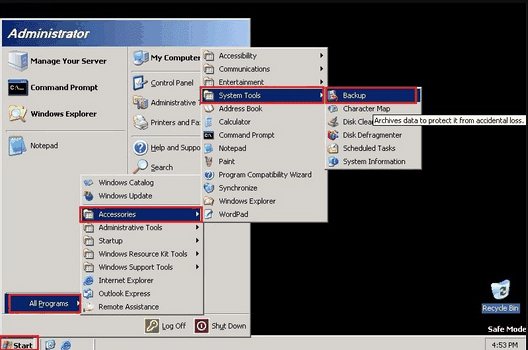
- To open the Backup Utility, go to Start -> All Programs -> Accessories -> System Tools -> Backup.
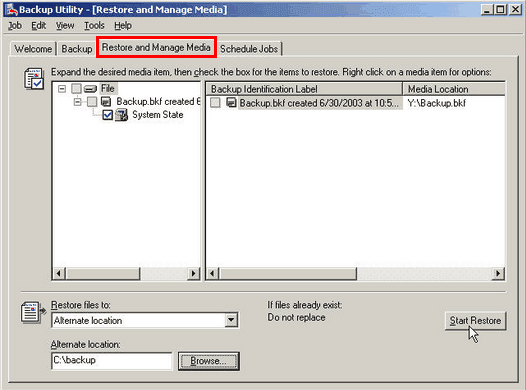
- After backing up the system state, click the "Restore and Manage Media" tab, select the checkbox next to "System State" and initiate the restore process.
Limitations of Windows Server 2003 Backup Utility
Before using the complex system restoration method, note that Windows Server 2003's Backup utility (NTBackup.exe) is a file-based backup and restore tool, which means it backs up and restores files individually. This can be problematic for large-scale systems, such as those used by companies or organizations, which often generate a vast amount of files, registries, and other data.
To summarize, backing up and restoring Windows Server 2003 using NTBackup is a time-consuming process, especially when restoring the operating system, settings, and numerous applications.
If the system fails without a reason before we have enough time to do a system backup, we risk losing important personal data forever, even if we can re-install applications.
Software to Restore Windows Server 2003 System Image Backup
Fortunately, there is an alternative Windows Server 2003 backup software that can help restore system state backups safely and quickly - Qiling Disk Master Server edition, designed for Windows Server backup and disaster recovery, system migration for both physical and virtual Windows Server 2003 and later versions (including R2).
This software supports various backup and restore options, including system backup, incremental and differential backup, scheduled backup, system and disk restore, and universal restore, as well as command line backup and restore for advanced users, offering a range of helpful features beyond backup and restoration.
This tool offers robust backup and recovery management, protecting data and minimizing server downtime to ensure business continuity.
Restore Windows Server 2003 with Qiling Disk Master
If the system won't start, create a bootable disk with Qiling Disk Master and make a system image backup first by linking the very first chaining.
🎇 Note: Before restoring data from a backup, it's crucial to ensure the target disk or partition is empty, as the restoration process will overwrite its contents. To avoid any potential data loss, it's wise to backup any important data on the target disk or partition before proceeding with the restoration.
To get started, download and install Qiling Disk Master Server, which offers a 30-day free trial. Once installed, simply launch the software and you're ready to go!
In case of system failures or problems, a full system image can be created using the System Backup feature, which automatically selects all necessary system partitions. This can be set up to run on a daily, weekly, or monthly schedule.
The OS is designed to be user-friendly, allowing you to easily recover the system in case of any issues, making it a convenient and hassle-free experience.
Step 1. On the "Backup" tab page, click "Select Task" to choose a system image, or "Select Image File" to browse for an image file stored elsewhere.

Step 2. Select the system backup image.

Step 3. Choose the backup point.

Step 4. If you're planning to restore your device to a different location, you can select the location from the list of available locations. This will ensure that your device is restored to the correct location and that any data or settings specific to that location are also restored.

Step 5. Check Operation Summary. Then click "Proceed."

The system will prompt us to restart the computer later, and then the operations will be completed under the Restart mode.
✨ Tips:
🧵 Edit Partition: We can resize a partition by dragging the resize bar to the desired size.
🧵 SSD Alignment: If the destination disk is an SSD (solid-state drive), this function can help accelerate its writing and reading speed.
About Universal Restore
If you want to restore a system image created on another computer to a different hardware, select "Universal Restore" before proceeding to ensure the computer can boot after the restoration.
Notes:
- After restoring Windows Server 2003 (R2) to a computer with dissimilar hardware, you may need to enter license codes to reactivate Windows, Office, and other software.
- Some drivers, like those for video and sound cards, display and network interfaces, are not installed by Universal Restore for hardware that is different from the original. These drivers can be installed manually after the restoration since they don't affect the system's ability to start up.
Conclusion
With just a few clicks, you can easily and safely restore a Windows Server 2003 system image backup, avoiding data loss and complex operations. If you need to restore it on different hardware, you can refer to Universal Restore.
With the help of Qiling Disk Master Server, you can upgrade your hard drive by migrating data or the operating system to another hard drive without encountering any issues, and it also guarantees a successful boot from the cloned drive if it's a system clone.
Related Articles
- How to Create A System Image Backup on Windows Server 2003?
Learn how to Create A System Image Backup on Windows Server 2003 with clear steps, key checks, and practical tips. - How to Perform System Restore in Windows Server 2016 | 2 Ways
Learn how to Perform System Restore in Windows Server 2016 | 2 Ways with clear steps, key checks, and practical tips. - Repair System Files in Windows Server 2003 Easily (3 Ways)
You will learn 3 helpful ways to repair system files in Windows Server 2003 and how to protect your system files in a better way. - Create Windows Server 2003 System Restore Point (2 Ways)
Learn how to Create Windows Server 2003 System Restore Point (2 Ways) with clear steps, key checks, and practical tips. - How to Solve File Is Too Large to Copy to External Hard Drive Problem?
If the file is too large to copy to external hard drive, you need to know why that happens and find out effective ways to settle that issue. - An Easy Way to Fill Hard Drive with Random Data
This post provides a detailed guide on how to fill a hard drive with random data using the Qiling Disk Master Professional disk wipe utility.
Products
Articles & Tutorials
- Data Recovery
- Data Backup
- File Recovery
- File Backup
- File synchronize
- System Backup and Restore
- Disk and Partition Clone
- Technical articles
- Disk Master Help
- Windows Deleted File and Disk Recovery Tutorials
- Windows File and Data Recovery Tutorials
- More Windows Tutorials for Install, Security, Files, and PC Tips
- Windows Boot, Repair, and Recovery Environment Tutorials
- Windows Backup Tutorials
- Windows Restore Tutorials
- Windows Clone and Migration Tutorials
- Windows Server Backup, Recovery, and Management Tutorials
- Windows Disk, Partition, and Storage Management Tutorials