Create Windows Server 2003 System Restore Point (2 Ways)
Need help: how do I create a restore point in Windows Server 2003
System Restore (rstrui.exe) is a feature introduced in Windows XP and later systems. However, Windows Server 2003 does not include System Restore functionality by default. For protecting your Windows Server 2003 system, it is recommended to use a third-party backup solution like Qiling Disk Master Server to create system backups that can be used for recovery purposes.
Users want to find a Windows Server 2003(R2) system restore point to revert the OS, but restore points are only available in Windows client PCs, such as Windows 11, 10, 8, 7, XP, Vista, which take snapshots of all data, including system files, applications, registry, and settings, at a particular time.
In Windows Server 2003, you can use system state backup to achieve the same purpose as creating a system image backup, and it can also help you restore your computer even if the system crashes or hard disk collapses.
In this article, I will introduce you 2 useful ways, namely the built-in "Backup Utility" and the 3rd party server backup software - Qiling Disk Master Server. Please keep reading below to get details.
- Way 1: Create Windows Server 2003 Restore Point with Backup Utility
- Way 2: Create System Restore Point in Any Windows Server Easily

Way 1: Create Windows Server 2003 Restore Point with Backup Utility
Here you will use the built-in tool "Backup Utility" to create system state backup in Windows Server 2003 (R2), the alternative of Windows Server 2003(R2) restore point. The detailed steps are below.
✎Note: To back up your files to an external storage device, first connect the external storage device to your computer. If it's not connected, the system will default to backing up to the local storage.
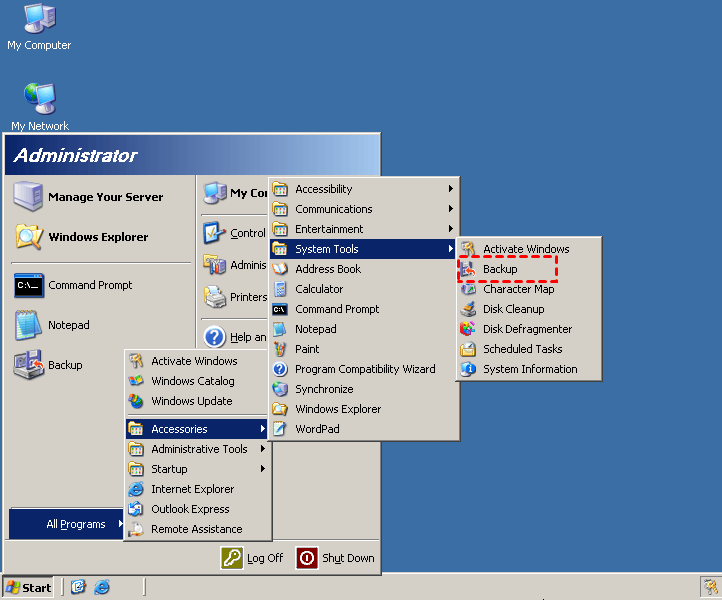
Step 1. To initiate the backup process, start by clicking on "Start," followed by "All Programs," then "Accessories," and finally "System Tools," where you will select "Backup" to begin the backup process.
Step 2. Click Advanced Mode in the Backup or Restore Wizard.
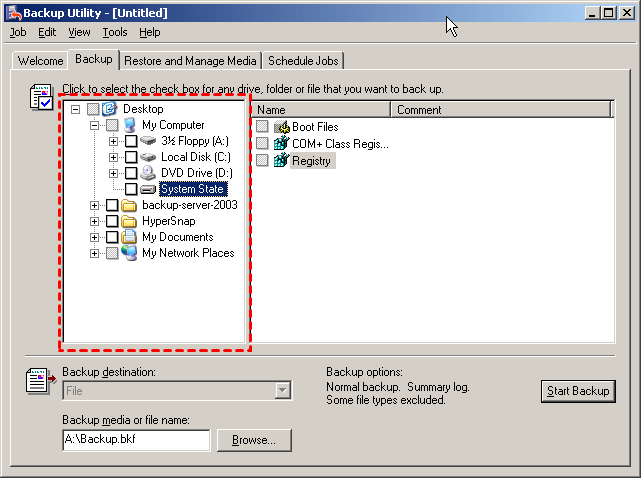
Step 3. To backup the system state, go to the Backup tab and click on System State in the left-hand box.
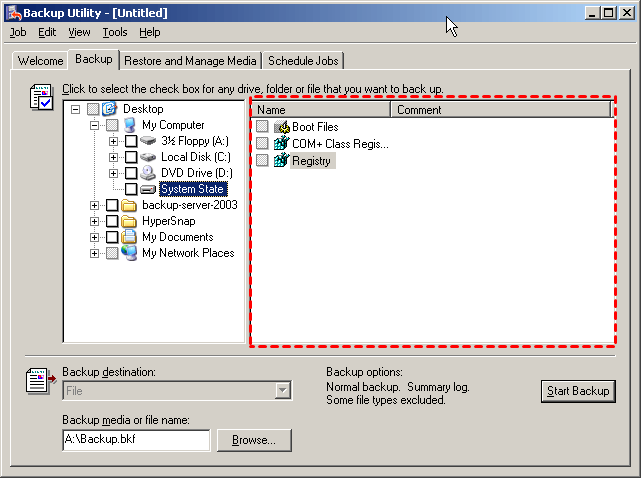
Step 4. Select files, folders, or drives that you want to back up in the box on the right.
Step 5. Choose the destination for the backup, then click "Proceed". Next, click "Schedule" and select a backup frequency, such as Once, Daily, Weekly, Monthly, and set the start time.
Wait until the backup process finishes, you will see a system image backup in the destination location.
This software creates a full system state backup every time, which can take a long time and use a lot of disk space, potentially leading to low disk space. It also requires the computer to remain on until the backup is completed if done at off-peak hours.
If you find these issues intolerable, you can also check the next method with more powerful functionality and wider range of application.
Way 2: Create System Restore Point in Any Windows Server Easily
The Backup Utility in Windows Server 2003 (R2) and Windows Server Backup have limitations that can be frustrating in some cases. An alternative is Qiling Disk Master Server, which can automatically create system state backups in Server 2003 and easily restore system image backups.
✤ The software has an easy-to-use interface that allows users of all skill levels to create various types of backups, including System Backup, File Backup, Partition Backup, and Disk Backup, making it accessible to both beginners and experienced users.
✤ The software supports all Windows systems, including Windows Server 2003/2008/2011/2012/2016/2019/2022 (including R2 versions) and Windows XP/Vista/7/8/10/11 (all editions).
✤ The device supports multiple storage options, including external hard drives, USB drives, and network drives.
✤ It allows you to schedule backup system flexibly and set up a retention policy to manage backup disk space in a professional way.
✤ You can perform full, incremental, or differential backups as needed, and create multiple scheduled tasks for backing up different server data.
✤ The Universal Restore feature allows you to restore a system backup to a server with different hardware.
To create a system restore point in Windows Server 2003(R2) using an alternative method, you can download and install Qiling Disk Master Server. Ensure the target disk has sufficient space to accommodate all data on the server computer to avoid backup failure.
To protect unlimited PCs and servers within one company and deploy systems to multiple computers, consider the Qiling Disk Master Technician Plus edition.
To create a system image backup in Windows Server 2003 using Qiling Disk Master Server, follow these steps, which also apply to Windows 2008(R2)/2011/2012i(R2)/2016(R2)/2019/2022.
How to create Windows Server 2003 restore point step by step:
Step 1. Launch this professional backup software, and select System Backup under the Backup tab.

Step 2. The system and boot related partitions have been selected by default. You just need to choose the destination path for your backup.

Step 3. After customizing the Windows Server system backup with more useful options, click Proceed to execute the backup.
👉To schedule a backup on System Backup, click the "Schedule" option on the main page, and then select the desired frequency, such as Daily, Weekly, Monthly, or trigger it by an event, or even plug in a USB drive.

👉In the Backup Scheme tab, you can select the backup method as full, incremental, or differential backup.
👉To set a retention policy and auto delete old backups, enable automatic backup cleanup. This will free up your disk space.

When the backup is complete, you'll have a system image that can be used to restore Windows Server 2003 to a previous date. It's also recommended to create a bootable media for your server computer, allowing you to restore it even if it becomes unbootable.
Verdict
Although Windows Server 2003 doesn't have a restore point feature, you can still create a system state backup using the built-in Backup Utility or a professional server backup software like Qiling Disk Master Server. This allows you to recover your system to a previous state, similar to a restore point. Additionally, system image backups will still work even if your computer is unbootable.
Qiling Disk Master Server can be used to backup disks, partitions, and files, and also allows scheduling backups and setting up backup schemes, making it a helpful tool for protecting data and systems in Windows Server 2003 and other systems.
Related Articles
- Alternative Way to Create Restore Point in Windows Server 2008 (R2)
If you are looking for a quick way to capture a snapshot of your computer, please continue to read this article and learn 2 effective ways to create restore point in Windows Server 2008 R2. - Restore Windows Server 2008 R2 to Previous Date | 3 Ways
Learn how to Restore Windows Server 2008 R2 to Previous Date | 3 Ways with clear steps, key checks, and practical tips. - Create Windows Server 2012 Restore Point with 2 Alternative Ways
A restore point allows you to restore system to the previous state. This article will show you how to create Windows Server 2012 restore point with two ways. - Quickly Partition an External Hard Drive with Free Partition Assistant
Partitioning an external hard drive becomes a common question. This article is structured on how to partition an external hard drive with partition assistant. - How to Do Gateway System Recovery in Windows 7/8/Vista?
Learn how to Do Gateway System Recovery in Windows 7/8/Vista with clear steps, key checks, and practical tips. - How to Perform Google Drive File Stream Local Backup (2 Ways)
You will learn 2 useful ways to perform Google Drive file stream local backup, including the Google Drive desktop app and the free third-party software. Please read on.
Products
Articles & Tutorials
- Data Recovery
- Data Backup
- File Recovery
- File Backup
- File synchronize
- System Backup and Restore
- Disk and Partition Clone
- Technical articles
- Disk Master Help
- Windows Deleted File and Disk Recovery Tutorials
- Windows File and Data Recovery Tutorials
- More Windows Tutorials for Install, Security, Files, and PC Tips
- Windows Boot, Repair, and Recovery Environment Tutorials
- Windows Backup Tutorials
- Windows Restore Tutorials
- Windows Clone and Migration Tutorials
- Windows Server Backup, Recovery, and Management Tutorials
- Windows Disk, Partition, and Storage Management Tutorials