Quickly Partition an External Hard Drive with Free Partition Assistant
What is External Hard Drive?
Computers require at least one internal hard drive to store the operating system, programs, and user data. External hard drives have become popular for storing important information separately from the internal drive, providing an added layer of security against online or offline threats. They are also portable and easy to use, requiring only a simple plug-and-play setup.
Why Partition an External Hard Disk Drive?
Partitioning an external hard drive offers several benefits. Firstly, it allows you to create separate partitions for different types of data, such as a partition for your operating system and another for your personal files.
- Partitioning an external hard drive allows you to store different types of data in separate partitions, which can be beneficial in case of data corruption or accidental deletion. If one partition is affected, the data in other partitions remains intact, and you only need to recover the specific partition that's been compromised, which is a faster and more targeted process than recovering the entire hard disk.
- Encrypting sensitive data on external hard drive partitions can protect it from theft or corruption, but may slow down computer performance. Using free disk partitioning software, create separate partitions for sensitive data, then encrypt only those partitions, leaving other system parts unencrypted, which can help maintain computer speed.
- External hard drive partitioning allows your computer to quickly find files and data by only searching one partition, making it easier to categorize files and folders according to logical schemes. This can increase productivity by letting you divide partitions for different purposes, such as using one for work files and another for personal documents, thanks to tools like Qiling Disk Master.
How to Partition an External Hard Drive without Data Loss?
To partition your external hard drive with Qiling Disk Master, simply insert the external hard drive and launch Qiling Disk Master Standard.
Situation 1: You have some free space available on your external hard drive.
Right-click the unallocated space and create one or more new partitions.
Situation 2: Your external hard drive doesn't have any unallocated disk space.
As shown in the picture, disk 2 only has one partition. To create additional partitions, right-click on partition F and select "Create Partition" from the dropdown menu, which will achieve the desired goal.
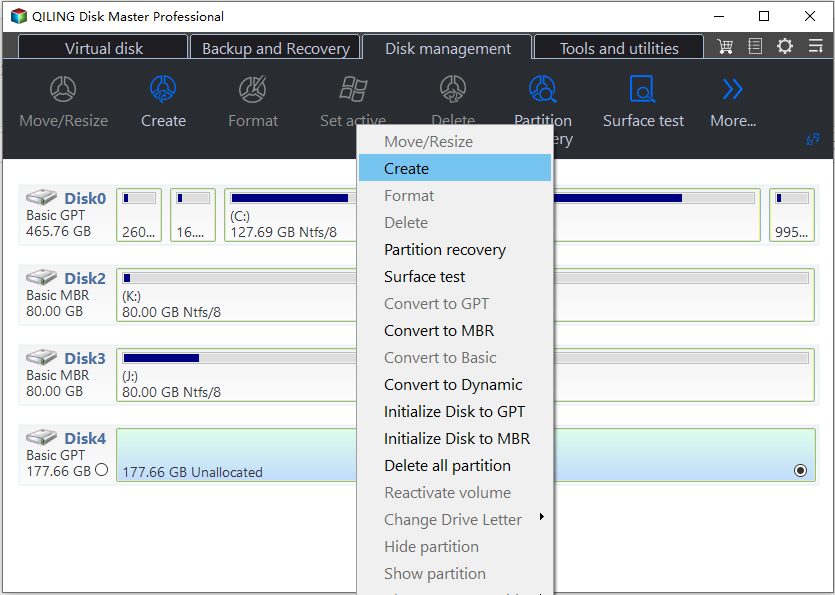
A new window appears with a slider bar in the middle. The slider bar can be dragged left or right to adjust and confirm the sizes of the new partitions.
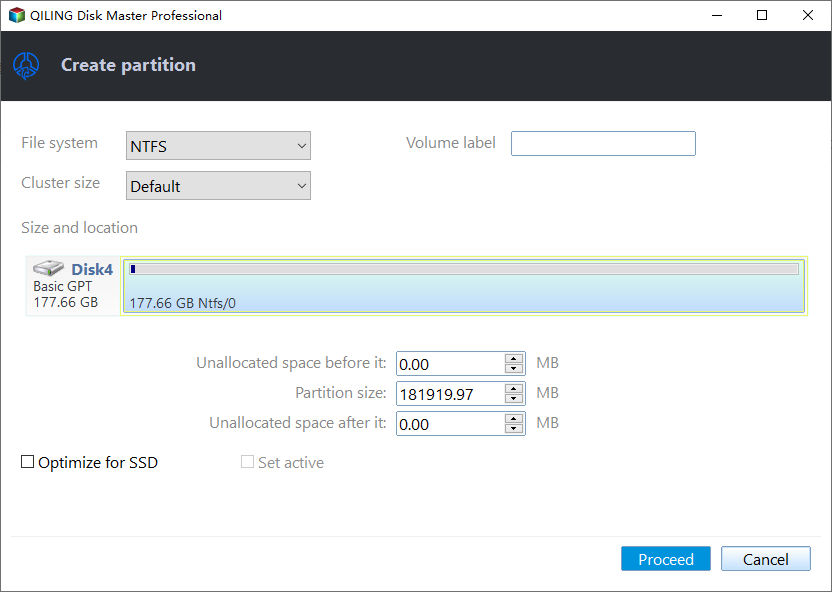
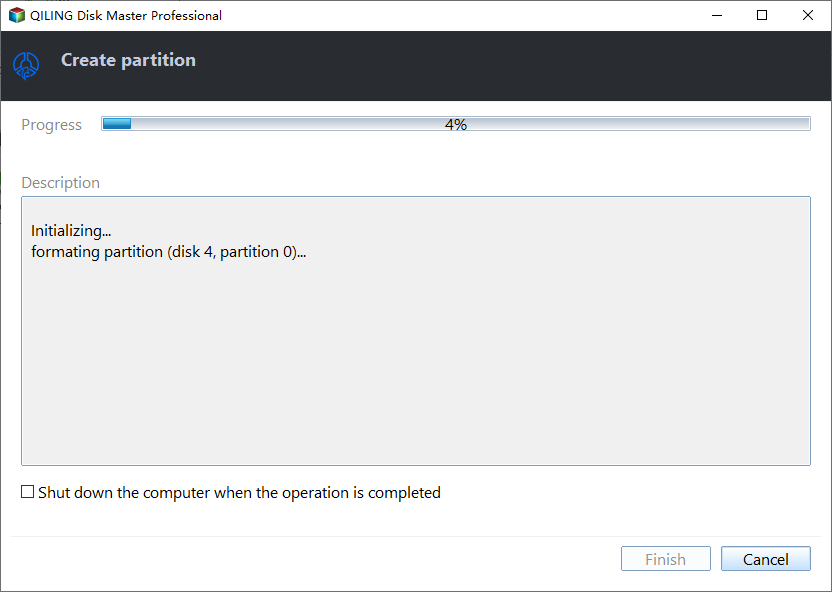
Then you will see the disk 2 is partitioned into two partitions, click Proceed to commit the operation.
If you think two partitions are not enough and still want more, right-click a partition that has enough free space. There are three ways for you to create more partitions.
Resize a partition: Resize the partition, create an unallocated space, and then create a new partition.
Split partition into two: To split a partition, click on "Split Partition" in the Disk Management window. In the new window, enter the desired size for the new partition and click "OK". Don't forget to click "Apply" to save the changes.
Create one or more new partitions:The procedure is similar to Split Partition and has been explained in the previous content.
Please click "Apply" to proceed with the operation. A dialog box will pop up, and you'll need to click "Proceed" to complete the application.
You can use Partition Manager - Qiling Disk Master to partition an external hard drive, keeping all your data safe and simple to use.
Download Partition Assistant Standard Edition (FREEWARE)
Related Articles
- Backup Windows 11 to Synology NAS (3 Easy Ways)
This article aims at explaining how to backup Windows 11 to Synology NAS easily. Read this tutorial to catch 3 methods to finish the task to protect Windows 11. - How to Easily Sync Local Folder to OneDrive in Windows 11 (2 Ways)
You can learn to sync local folder to OneDrive in Windows 11 with 2 effective methods. Read on for details. - 3 Ways to Safely Delete Windows 11 Windows.old Folder
This guide explains 3 Ways to Safely Delete Windows 11 Windows.old Folder with clear steps, key checks, and practical tips. - (Top 3 ways) How to Wipe an External Hard Drive on Windows 11
You can learn to wipe an external hard drive on Windows 11 via built-in tools or with a reliable disk wipe tool. Choose the method that fits your needs. - How to Solve File Is Too Large to Copy to External Hard Drive Problem?
If the file is too large to copy to external hard drive, you need to know why that happens and find out effective ways to settle that issue. - An Easy Way to Fill Hard Drive with Random Data
This post provides a detailed guide on how to fill a hard drive with random data using the Qiling Disk Master Professional disk wipe utility. The process involves using the software to create a bootable USB drive, then using the USB drive to boot into the software.
Products
Articles & Tutorials
- Data Recovery
- Data Backup
- File Recovery
- File Backup
- File synchronize
- System Backup and Restore
- Disk and Partition Clone
- Technical articles
- Disk Master Help
- Windows Deleted File and Disk Recovery Tutorials
- Windows File and Data Recovery Tutorials
- More Windows Tutorials for Install, Security, Files, and PC Tips
- Windows Boot, Repair, and Recovery Environment Tutorials
- Windows Backup Tutorials
- Windows Restore Tutorials
- Windows Clone and Migration Tutorials
- Windows Server Backup, Recovery, and Management Tutorials
- Windows Disk, Partition, and Storage Management Tutorials