(Top 3 ways) How to Wipe an External Hard Drive on Windows 11
- Scenario
- The need of doing a hard drive wiping
- Preparations before wiping a hard drive
- 3 effective ways to wipe an external hard drive on Windows 11
- Way 1: Secure erase SSD/HDD on Windows 11 with best hard drive wipe software
- Way 2: Wipe an external hard drive with Disk Management
- Way 3: Wipe an external hard drive from Command Prompt (CMD)
- Summary
Scenario
How to wipe an external hard drive?
You can use a third-party software like DBAN (Darling Worm) or a bootable USB drive with a Linux distro like Ubuntu to wipe the Samsung drive while it's connected via USB. These tools can erase the drive without needing to physically connect it to the system. You can also try using a tool like Hiren's BootCD, which has a built-in drive wiping utility. Make sure to download the correct version of the software for your drive's type (e.g., MBR or GPT). Be cautious when using these tools, as they will completely erase all data on the drive.
- Question from ElevenForum
If you need to wipe an external hard drive, you can use system tools or reliable disk wiping software to solve this problem easily. Before wiping, you should figure out the need of wiping an external hard drive and prepare the drive for wiping, including backing up important data and ensuring the drive is not in use by other devices. You can use system tools or reliable disk wiping software, such as DBAN or Disk Wipe, to wipe the drive. It's also a good idea to use a reliable disk wiping software as recommended in this article.
The need of doing a hard drive wiping
The common need for hard drive wiping arises from various scenarios, such as disposing of old computers, selling or donating used devices, or simply freeing up space on a hard drive. In these situations, it's essential to erase all data on the drive to prevent unauthorized access or identity theft.
▪ To free up storage space on your hard drive, you can delete unnecessary files, empty the recycle bin, and uninstall unused programs. You can also use the built-in disk cleanup tool to remove temporary files, system logs, and other items you don't need.
▪ To eliminate viruses from your hard drive
▪ To improve your PC's performance
▪ To make data unrecoverable and avoid data breach
To wipe an external hard drive on Windows 11, first, ensure the drive is safely disconnected from your computer. Then, locate the drive in File Explorer, right-click on it, and select "Format".
Preparations before wiping a hard drive
Before wiping a hard drive on Windows 11, prepare by backing up important data, disabling BitLocker or other encryption if enabled, and unplugging any external drives or devices to prevent accidental data loss or corruption.
1. Connect your external hard drive to your computer.
2. Before making significant changes or repairs to your PC, always back up your data to a safe location, such as a USB flash drive, internal hard drive, or cloud storage services like Dropbox, Google Drive, OneDrive, or iCloud.
Moving on, 3 effective ways to wipe hard drive on Windows 11 will be presented to you in order.
3 effective ways to wipe an external hard drive on Windows 11
To securely erase an SSD on Windows 11, you can use one of three effective methods: utilizing best hard drive wipe software or built-in tools, depending on your specific situation.
Way 1: Secure erase SSD/HDD on Windows 11 with best hard drive wipe software
It is highly recommended that you securely erase your data on an external hard drive using powerful wiping software such as Qiling Disk Master professional to make it unrecoverable and avoid data breach.
How to wipe hard drive in Windows 11 securely:
Firstly, download and install this hard drive wipe software for a try.
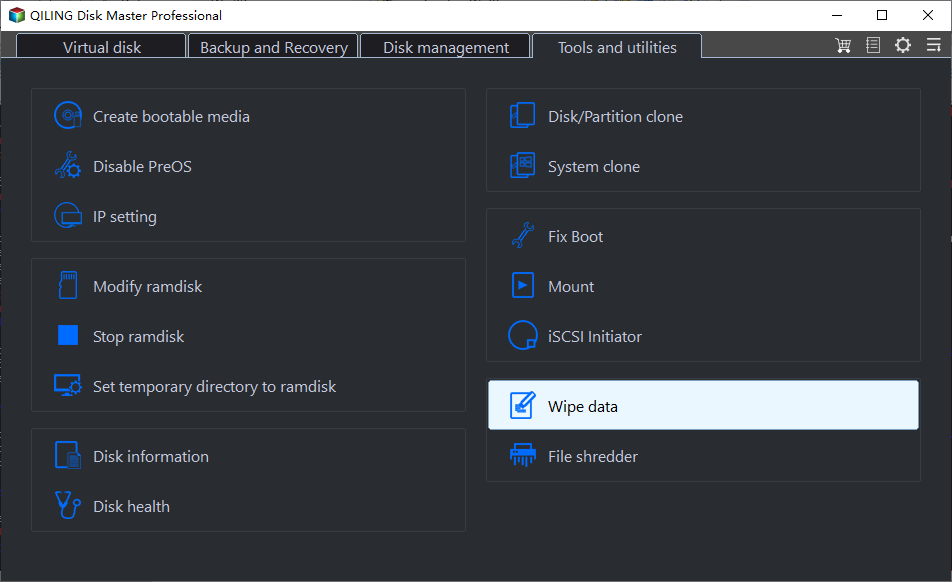
Step 1. Open Qiling Disk Master Professional, turn to the left tab and select Tools>Disk Wipe.
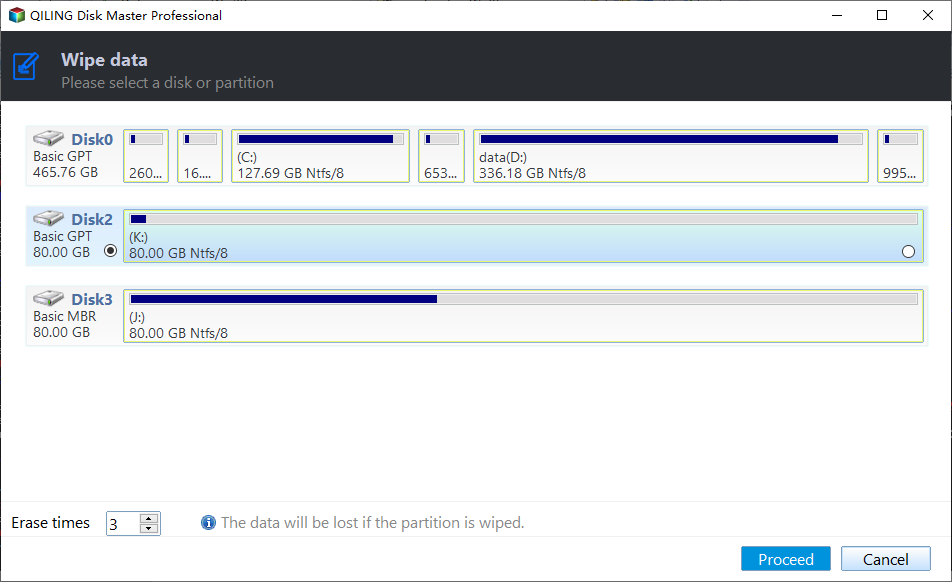
Step 2. Select the external hard drive that you want to erase.
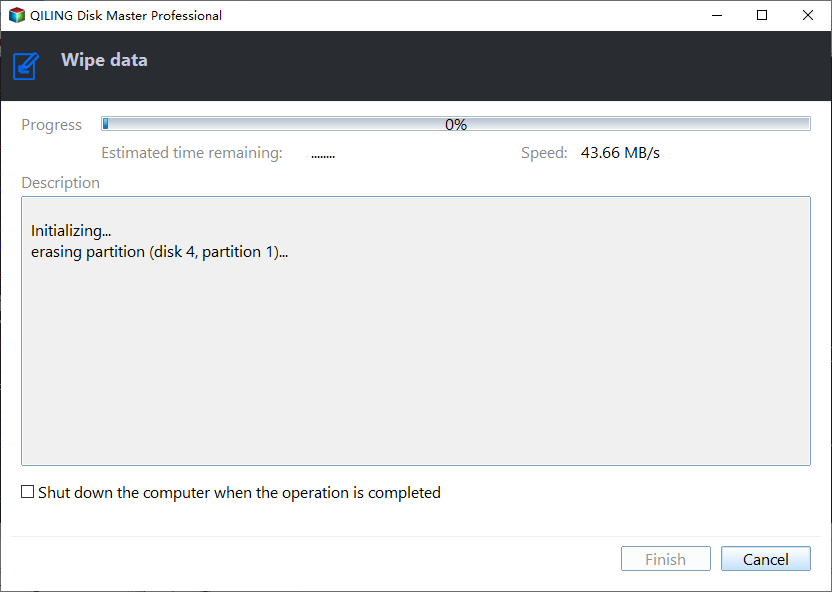
Step 3. Under the page Wiping Method, choose Fill sectors with Zero (Safe, Quick), and tap Proceed to wipe the external hard drive.
Notes:
» If you want to erase a hard drive more thoroughly, you can use methods such as filling sectors with random data, following the DoD 5220.22-M protocol, or using the Gutmann method.
» The tool currently does not support wiping dynamic disks.
Way 2: Wipe an external hard drive with Disk Management
Follow the steps below to wipe an external hard drive with Disk Management.
1. Right-click Start on the taskbar and select Disk Management.
2. The Disk Management window will list all your disks and partitions.
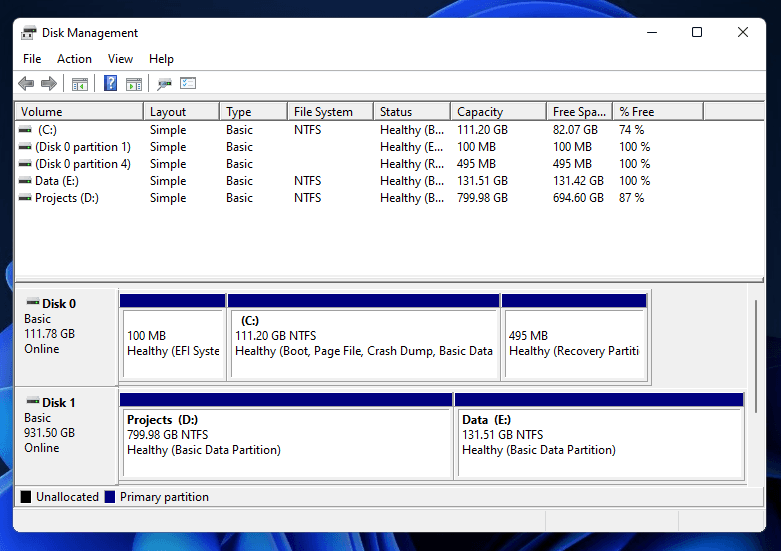
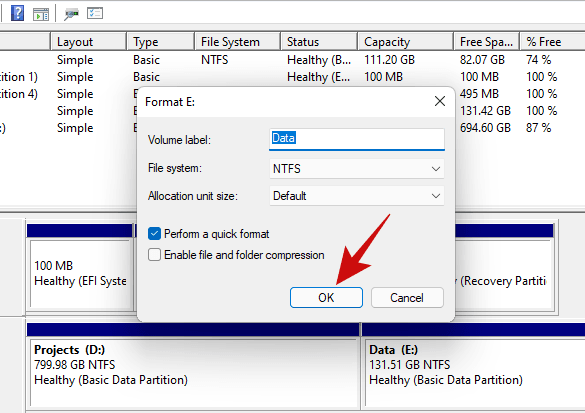
3. Right-click the volume you want to wipe, and click on Format.
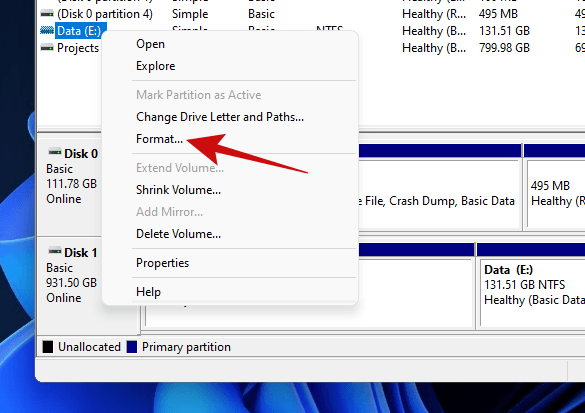
4. In the pop-up window, you can change the volume name and file systems, and choose to perform a quick format or a thorough wipe, depending on your preference.
Way 3: Wipe an external hard drive from Command Prompt (CMD)
To erase data on an external hard drive using the Diskpart command-line tool, start by opening Command Prompt as an administrator, then type "Diskpart" and press Enter. Next, type "list disk" and press Enter to view a list of available disks, including your external hard drive.
1. To open the Command Prompt as an administrator, press the Windows key + S to open the search box, type "cmd" and select "Command Prompt" from the search results, and then click "Run as administrator" to open it with elevated privileges.
2. Enter the following commands in sequence, then press Enter once for each command entered.
✐ diskpart
✐ list disk
✐ To erase a disk, first select the disk you want to erase by typing the corresponding drive number, listed in the previous step.
✐ clean
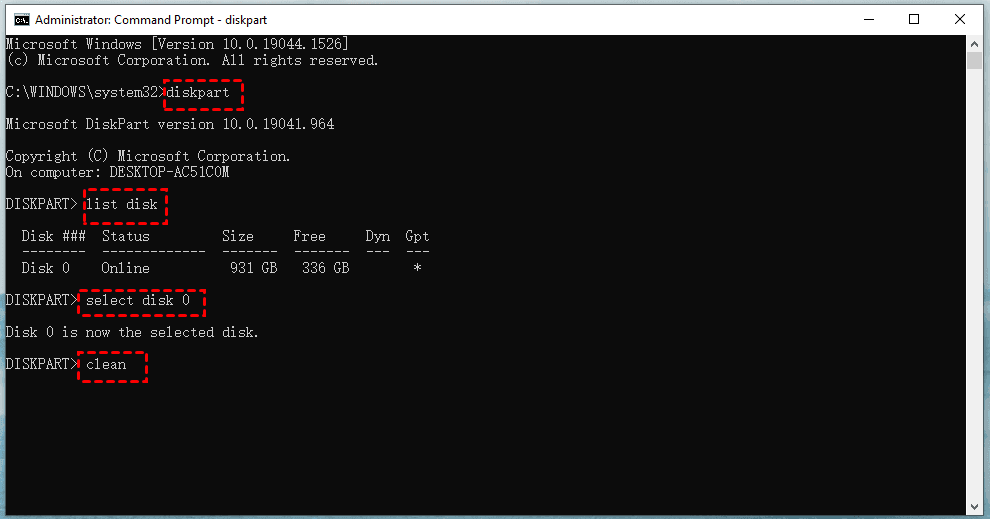
3. After inputting all the commands, press Enter and wait for the operation to complete until you see "DiskPart succeed in cleaning the disk".
Summary
To wipe an external hard drive on Windows 11, you have three options. You can use the built-in tool, Disk Cleanup, to securely delete data, or opt for more advanced software like Qiling Disk Master, which can completely wipe the drive. Alternatively, you can use the built-in tool, Disk Management, to delete the partition and then wipe the drive. Regardless of the method you choose, these steps will ensure your external hard drive is completely cleared of data.
This software offers a range of features, including Disk Wipe, Backup/Restore, and Sync, allowing users to easily sync folders on Windows 11, among other tasks.
Related Articles
- Wipe Hard Drive for Clean Install Windows 11 Safely and Easily (3 Ways)
You will learn 3 easy ways to wipe hard drive for clean install windows 11. You can choose to use the built-in tool, installation media or free third-party tool based on your own needs. - How to Wipe a Hard Drive for Reuse – 2 Ways
Learn how to Wipe a Hard Drive for Reuse – 2 Ways with clear steps, key checks, and practical tips. - Best Way for Backing Up Windows 11 to External Hard Drive (2 Ways)
You can learn three methods of backing up Windows 11 to an external hard drive, including built-in tool and third-party tools. - Can I Move Boot Partition in Windows 10/8/7 without Reinstalling
You will find the top 2 ways to move boot partitions in Windows 10. Follow the simple steps listed below to move Windows 10 to SSD without reinstalling. - Top 2 Ways to Migrate Windows Server 2012 R2 to New Hardware
Here are 3 ways to migrate Windows Server 2012 R2 to new hardware for different situations. You could choose one way to follow according to your situation. - Move Windows Server 2008 (R2) to New Machine with Different Hardware
Moving Windows Server 2008 or 2008 R2 to new machine with dissimilar hardware can be as easy as pie if we find the best solution. Get a powerful server backup and restore tool to help you from this page.
Products
Articles & Tutorials
- Data Recovery
- Data Backup
- File Recovery
- File Backup
- File synchronize
- System Backup and Restore
- Disk and Partition Clone
- Technical articles
- Disk Master Help
- Windows Deleted File and Disk Recovery Tutorials
- Windows File and Data Recovery Tutorials
- More Windows Tutorials for Install, Security, Files, and PC Tips
- Windows Boot, Repair, and Recovery Environment Tutorials
- Windows Backup Tutorials
- Windows Restore Tutorials
- Windows Clone and Migration Tutorials
- Windows Server Backup, Recovery, and Management Tutorials
- Windows Disk, Partition, and Storage Management Tutorials