Backup Windows 11 to Synology NAS (3 Easy Ways)
- Why Need to Backup Windows 11 to Synology NAS?
- Top 3 Ways to Backup Windows 11 to Synology NAS
- Method 1: Backup Windows 11 to Synology NAS via Backup and Restore
- Method 2: Backup Windows 11 to Synology NAS with Qiling Disk Master🔥
- Method 3: Backup Windows 11 to Synology NAS using Qiling Backup👍
- Wrapping Things up
Why Need to Backup Windows 11 to Synology NAS?
With growing awareness of data security, users are increasingly backing up their data to prevent accidental loss or system failure. This involves backing up the operating system, folders, or even the entire computer to a safe location. In addition to using an external hard drive, which is less likely to be affected by computer failure, backing up to a Network Attached Storage (NAS) device has become a popular and reliable backup option.
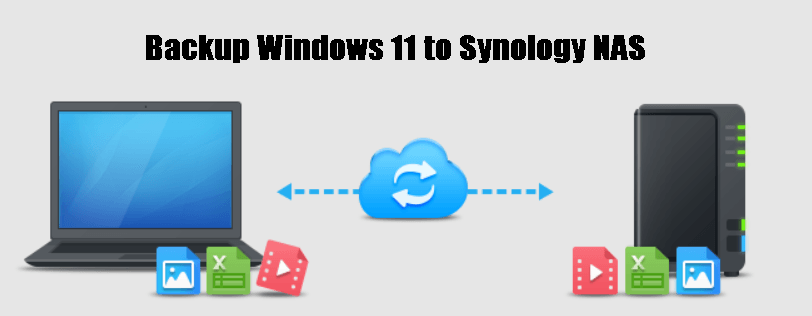
NAS, or Network Attached Storage, is a hard drive connected to your network that allows shared access to data. One of the benefits of using a Synology NAS is that it provides a convenient way to back up your Windows 11 data, with several advantages to this approach.
1. The NAS is a device that allows you to access your files from anywhere, without the need to physically connect it to your PC.
2. Synology NAS arrays include multiple internal hard drives, making them more resilient and allowing for no immediate data loss even if one drive fails, due to redundancy.
3. Your own NAS device at home prevents data leakage and theft, as it's not being carried around.
To back up Windows 11 to Synology NAS, you can use the built-in Windows Backup tool, or third-party software like Qiling Disk Master. The process involves setting up a backup job on your Synology NAS, then running the backup on your Windows 11 computer. You'll need to ensure that your NAS is connected to the same network as your PC, and that the backup software is configured correctly.
Top 3 Ways to Backup Windows 11 to Synology NAS
On Windows 11, there are three ways to backup to a network drive: using the built-in tool Backup and Restore, or opting for third-party reliable tools. You can choose the method that best suits your situation, considering the pros and cons of each option. Whether you prefer the convenience of the built-in tool or the added features of third-party software, selecting the right method will ensure your important files are safely backed up to your network drive.
Before you do:
● Make sure Synology NAS software and hardware are installed and functioning properly.
● Create a shared folder on the Synology NAS.
● Make sure your PC and the Synology NAS are in the same network.
Method 1: Backup Windows 11 to Synology NAS via Backup and Restore
To set up Synology backup in Windows 11, Windows 11 has inherited the Backup and Restore tool from Windows 7, which can be used for this purpose. Detailed steps are listed below to realize Synology backup in Windows 11.
Step 1. To backup and restore your data, go to the search box, type "Backup and Restore" and select it from the result list.
Step 2. Click "Set up backup" option.
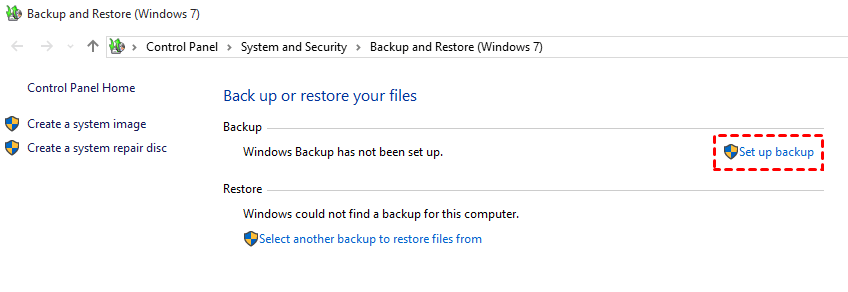
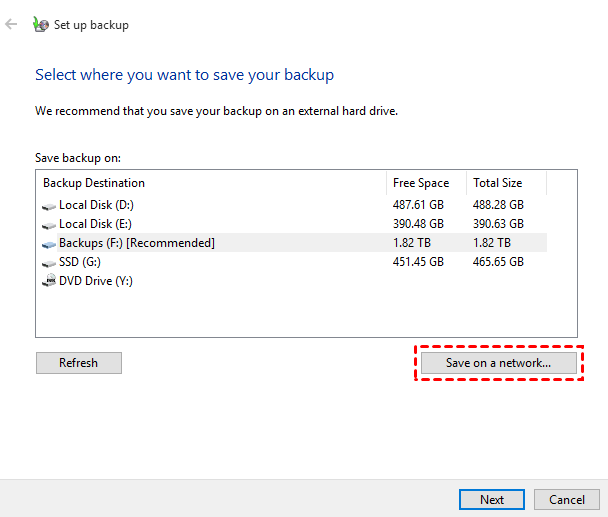
Step 3. Choose "Save on network".
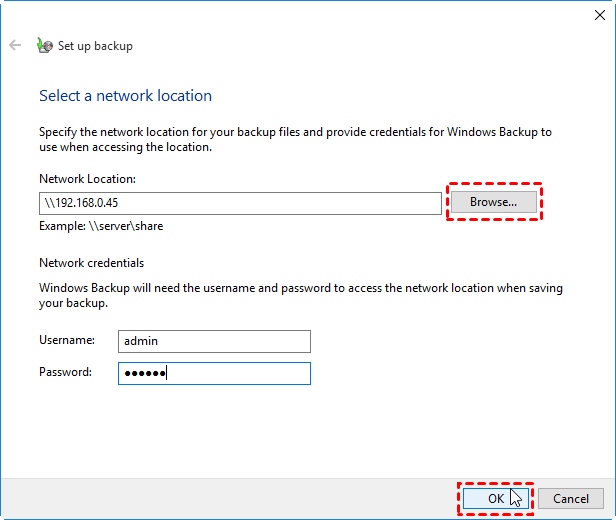
Step 4. To access your Synology NAS, click the "Browse" button and select it by adding its network location. Then, input the Synology server name or IP address, username, and password. Finally, click "OK" to complete the process.
Step 5. Let Windows choose (recommended) so that Windows will select the files to be backed up for you, then click Next to continue.
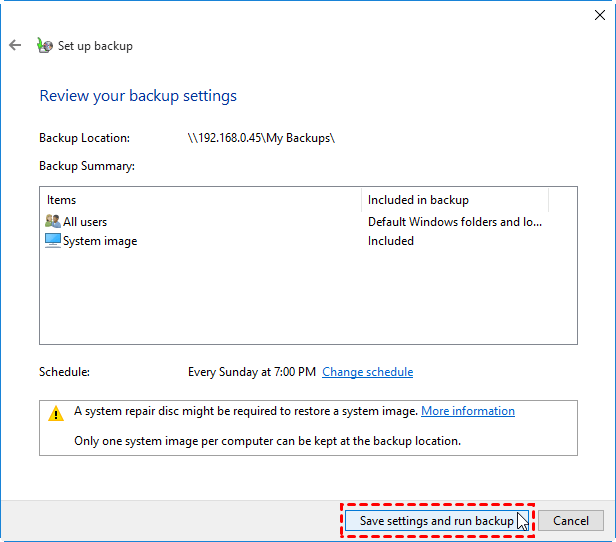
Step 6. To backup Windows 11 to a Synology NAS drive, click on Save settings and run backup.
Method 2: Backup Windows 11 to Synology NAS with Qiling Disk Master🔥
Qiling Disk Master Standard, the best backup software for Synology NAS, allows you to easily perform Synology backup Windows 11 in a few simple steps. Its key features include:
1. This software offers various backup options, including system, disk, partition, and file/folder backups.
2. It allows you to use incremental or differential backup to optimize backup efficiency compared with Windows' built-in tool, with differential backup available in the paid edition.
3. It supports Windows PC operating systems such as Windows 11/10/8.1/8/7/Vista/XP.
4. You can schedule backups to run automatically at regular intervals, such as daily, weekly, or monthly, to ensure your data is safely stored and easily recoverable in case of data loss or system failure.
How to backup PC to Synology NAS:
Step 1. Download, install and launch this freeware.
Step 2. Click "Backup" and select "System Backup" to automatically choose the partitions to be backed up.

Step 3. To add a new share or NAS device, click on the inverted triangle and select the option "Add Share or NAS Devices" from the dropdown menu.
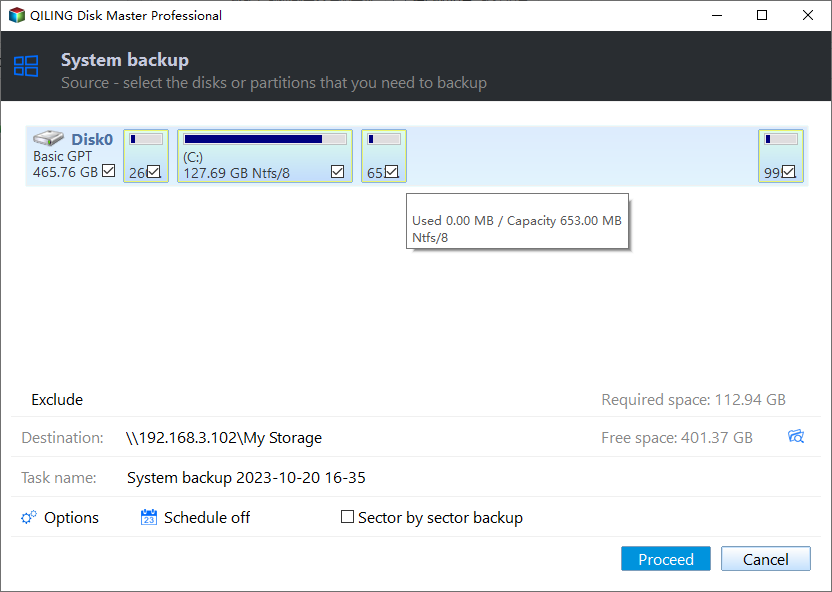
Step 4. To connect to your Synology NAS, type the network path or name in the input field and click the blue button at the right. If required, enter your username and password, then click "OK" to complete the connection.

Step 5. Choose a folder on your Synology NAS to store the backup image.
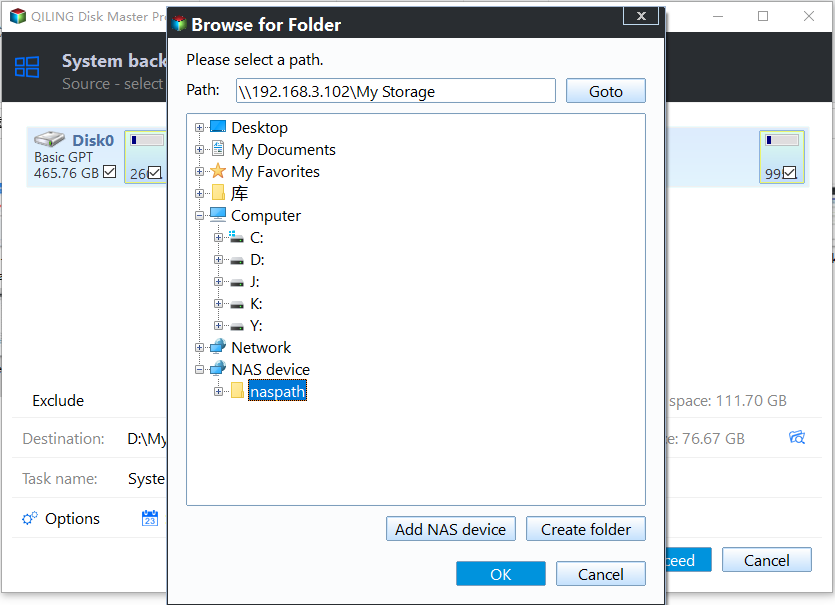
Step 6. After clicking "Proceed", the software will backup your Windows 11 to Synology NAS.
Windows 11 backup to Synology NAS was successfully completed.
Notes:
Options: You can write a note for your task to help distinguish it from other backup tasks, and a notification can be emailed with the result of each backup in unattended operations.
Schedule Backup: It allows you to automatically backup your files at fixed frequencies such as Daily, Weekly, or Monthly.
Backup SchemeIt can help remove old backup images automatically to free up storage space, available in the free version.Professional edition)
Method 3: Backup Windows 11 to Synology NAS using Qiling Backup👍
Qiling Backup is the best enterprise backup software, providing a convenient and reliable solution for centralized backup management of all Windows operating systems.
- This software allows you to create backups of system, disk, and partition for multiple Windows PCs, supporting Windows 11/10/8.1/8/7.
- You can save backup images on a local disk, external hard drive, network share, or NAS device.
- You can schedule a backup task to run daily/weekly/monthly using the full/incremental/differential backup method, which ensures your data is regularly backed up and can be restored in case of data loss.
Wrapping Things up
To backup Windows 11 to Synology NAS, you can use one of the three easy methods: using Windows built-in tools, such as File History or Backup and Restore, or third-party free backup software like Qiling Backup, and choose the most suitable method based on your specific needs.
I personally recommend Qiling Disk Master software, which not only performs system backup, file and partition backup, but also has other comprehensive features like synchronizing files and folders, making it a great tool for managing your data.
Related Articles
- Top 3 Ways to Backup Windows 10/11 to Network Drive/NAS
You will learn 4 effective methods to backup Windows 10 backup to network drive or NAS easily, even run automatically with the best free auto backup software. - How to Backup Windows 10 to NAS of All Kinds (Synology/QNAP)
With the popularization of NAS device, plenty of people choose to backup Windows to NAS. Learn how to backup Windows 10 PC to Synology, QNAP and other popular NAS easily from this page. - How to Backup Windows 11 Files & OS to Network Drive
Learn how to Backup Windows 11 Files & OS to Network Drive with clear steps, key checks, and practical tips. - 2 Ways | Backup Windows 10 PC to Synology NAS Safely
This guide explains 2 Ways | Backup Windows 10 PC to Synology NAS Safely with clear steps, key checks, and practical tips. - How to Create and Use Windows 10 Recovery Image Backup?
It's necessary to create system image windows 10 on USB or other locations, because Windows 10 recovery image backup help you restore your computer in the event of system crash or other unexpected issues. - Create Windows 10 Repair USB for Another PC - 3 Ways Included
This tutorial offers three ways to create a Windows 10 repair USB for another PC. You can choose Windows built-in tools or third-party software as per your need.
Products
Articles & Tutorials
- Data Recovery
- Data Backup
- File Recovery
- File Backup
- File synchronize
- System Backup and Restore
- Disk and Partition Clone
- Technical articles
- Disk Master Help
- Windows Deleted File and Disk Recovery Tutorials
- Windows File and Data Recovery Tutorials
- More Windows Tutorials for Install, Security, Files, and PC Tips
- Windows Boot, Repair, and Recovery Environment Tutorials
- Windows Backup Tutorials
- Windows Restore Tutorials
- Windows Clone and Migration Tutorials
- Windows Server Backup, Recovery, and Management Tutorials
- Windows Disk, Partition, and Storage Management Tutorials