How to Backup Windows 10 to NAS of All Kinds (Synology/QNAP)
Why backup Windows 10 to NAS?
Users are increasingly recognizing the importance of backing up their data to prevent loss and system failures. As a result, many are backing up their operating system, user folders, or even entire PCs to ensure continuity in case of unexpected issues, including problems caused by Windows 10 updates. To safeguard against computer errors, users often choose to store their backups on external hard drives.
NAS (Network Attached Storage) has gained popularity among computer users, and one of the reasons is that it allows users to backup their Windows 10 files to a secure and accessible location. This is particularly useful for users who want to ensure their important files are safe and can be easily accessed from any device on the same network. By backing up Windows 10 to NAS, users can have peace of mind knowing that their files are protected against data loss due to hardware failure, software corruption, or other unexpected events.
- No juggling with removable drives. Once you're connected to your network, you're automatically connected to your NAS device, as it's part of the same network.
- Centralized backups. You can save all your data backups and manage them on one NAS device, which can be expanded with multiple drive bays to increase storage space as needed.
- Data security. A NAS device is typically stationary and not portable, which reduces the risk of losing backups due to misplaced or lost drives.
Since backing up Windows to NAS is advantageous, how to perform it exactly? Please read on.
Set up your NAS device before Windows backup
To perform a Windows 10 backup to a NAS, start by selecting a reliable NAS device, such as a Synology NAS, and setting it up. This involves following step-by-step instructions to configure the NAS, including setting up its storage capacity, network settings, and security features. Once the NAS is set up, you can then configure Windows 10 to back up your data to the NAS using the built-in Backup and Restore (Windows Backup) tool or third-party backup software like Qiling Backup. This will ensure that your important files and system images are safely stored on the NAS, providing a reliable and secure backup solution.
Step 1. Add drives and connect cables to your Synology NAS referring to the Hardware Installation Guide for your model.
Step 2. Power on your Synology NAS. Open a web browser on a computer connected to the same network as the NAS.
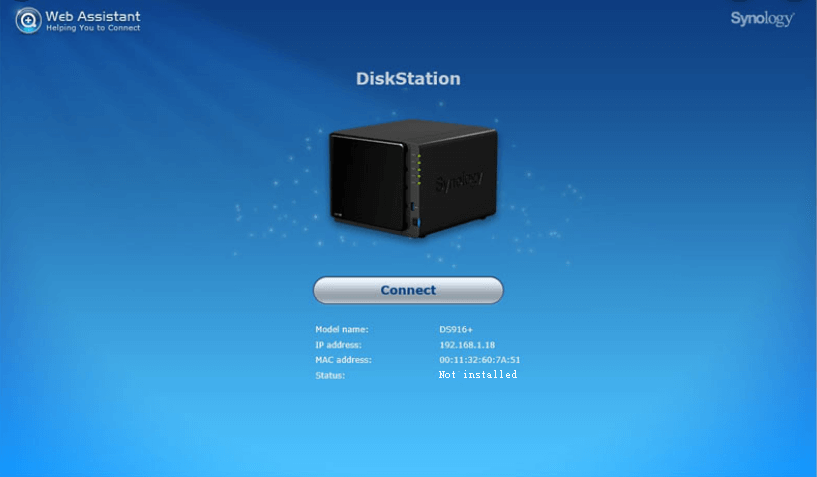
Step 3. Go to finds.synology.com. Web Assistant will find your Synology NAS within the local network.
Step 4. Click Connect to start the setup process and follow the onscreen instructions to install DSM (DiskStation Manager).
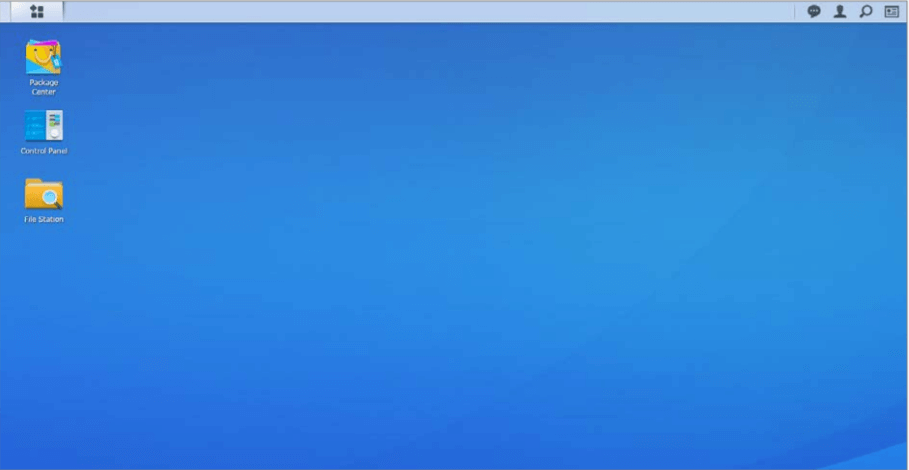
Step 5. After installing DSM, you'll see the DSM interface with three frequently used apps on the desktop: Package Center, Control Panel, and File Station. To logout, click the person-shaped icon at the top right.
Step 6. Go to This PC > Network, and you can see your NAS device there.
Top 3 ways to backup Windows 10 to Synology NAS
To perform Windows 10 automatic backup to a Synology NAS, as well as other popular NAS devices, there are three efficient methods to consider. These methods can also be used to backup Windows 10 to a QNAP NAS, WD, Buffalo, and other NAS devices.
Method 1: Backup Windows 10 to NAS with a free backup utility🔥
Qiling Disk Master Standard, the best free backup software, can perform Synology backup Windows 10 with its main features including:
◈ Help you with all kinds of backups in Windows, such as system backup, disk backup, partition backup and file backup (to set Windows 10 backup files to NAS).
◈ Support various backup destination - you can backup to local disks, external hard drives, network location or NAS devices.
◈ Run Windows 11/10/8/7 automatic backup to NAS with the Schedule feature. You can choose the Daily, Weekly, or Monthly mode based on how often you change the backed up data.
To perform Synology backup Windows 10 to NAS via Qiling Disk Master, follow these steps. First, download and install Qiling Disk Master on your Windows 10 computer.
Step 1. Download, install and launch this free software to backup Windows 10 to NAS - Qiling Disk Master.
Step 2. Click "Backup" and select "System Backup".
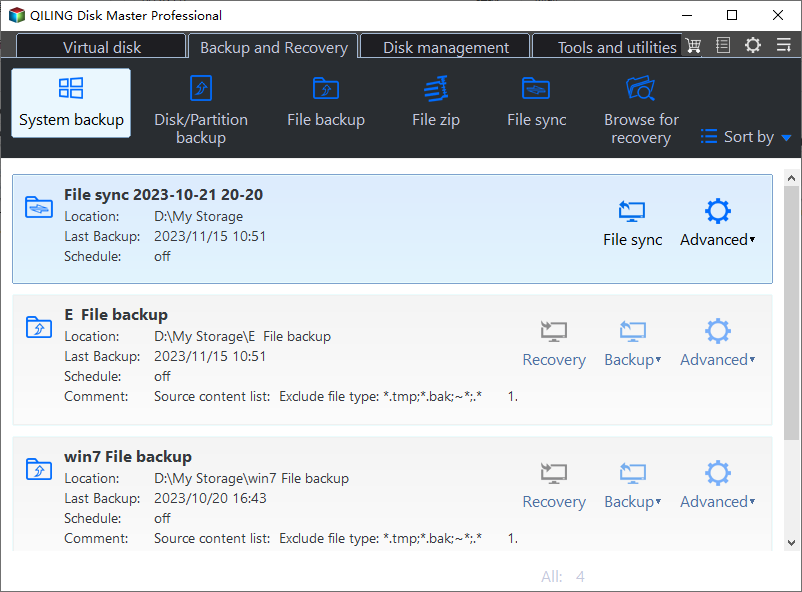
Step 3. The system partition(s) is (are) selected by default. To proceed, click the inverted triangle at the right edge of the second bar and select "Add Share or NAS Devices".
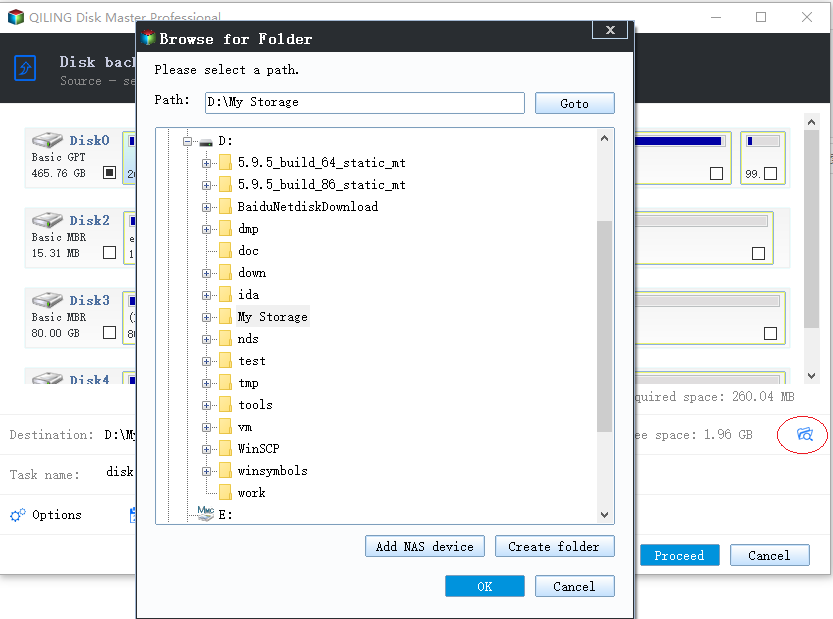
Step 4. To add a Synology NAS device, open the Add Share or NAS Devices window, enter the IP address of the Synology NAS, click the blue button, and enter the username and password if prompted.

Step 5. After adding the IP address, all network-shared folders under it will be listed. Choose one folder on the NAS as the destination path to store the backup image and click "OK".
Step 6. Confirm the operation and click "Proceed" to backup Windows 10 to Synology NAS.

✎ Tips:
- You can compress/split backup images using Options.
- In Windows 10, you can set up incremental/differential backups to a NAS, which will only save changed files, and automatically delete old backups, all within the Backup Scheme in Qiling Disk Master Professional.
- To manage your NAS storage space, go to Tools > Storage Management. Here, you can view and manage your backup tasks created with different NAS devices.
Method 2: Backup Windows 10 to NAS by creating a custom backup
To run Windows 10 backup to Synology NAS, follow these steps: Windows 10 has inherited the Backup and Restore tool from Windows 7, which can be used to create a custom backup. Using this tool, you can set up a backup to your Synology NAS by following the guidance below.
Step 1. To access the Backup and Restore feature in Windows 7, tap the Search button on the taskbar, type "backup" in the search box, and select Backup and Restore (Windows 7) from the search results.
Step 2. Click Set up backup.
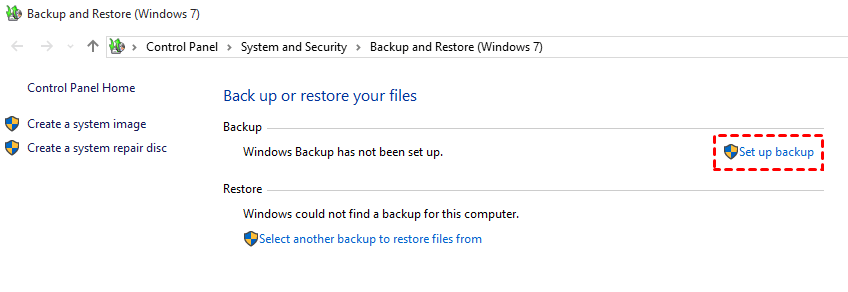
Step 3. Click Save on a network.
Step 4. Enter the Synology NAS's IP address, click Browse to choose a folder as the destination path, enter the username and password, and then click OK.
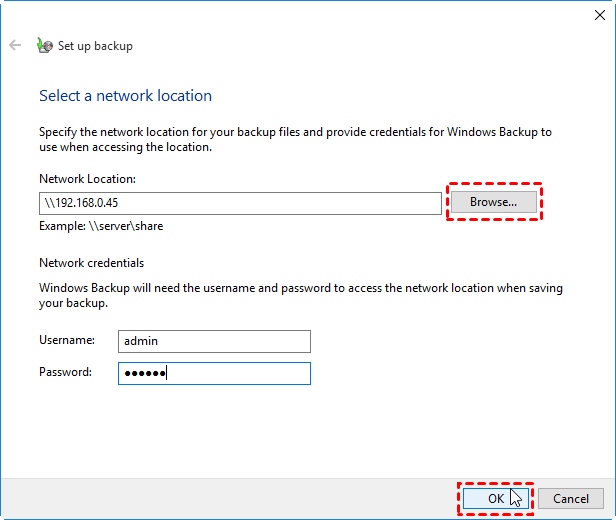
Step 5. Select the newly-added network location and click Next.
Step 6. Select Let Windows choose (recommended) to let Windows automatically select the files to be backed up, then click Next to proceed.
Step 7. Click Save settings and run backup to backup Windows 10 to NAS drive.
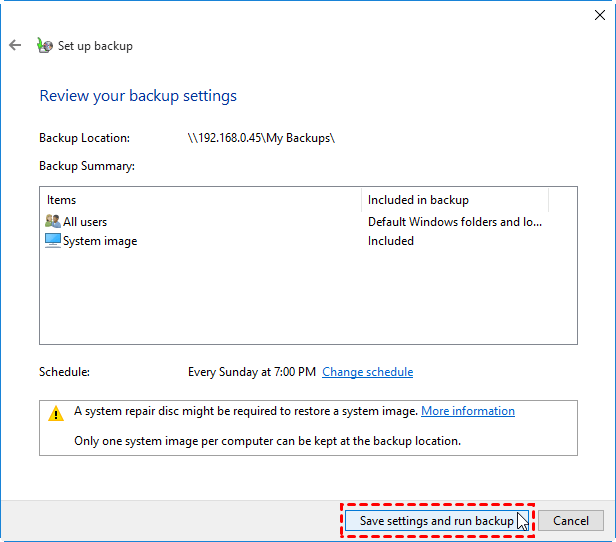
Tips:
★ The default schedule is "Every Sunday at 7:00 PM" which can be changed by clicking "Change schedule" at Step 7.
★ This software can be found by going to Settings -> System -> Storage -> Advanced Storage options > Backup options, then scrolling down to Looking for an older backup and selecting Go to Backup and Restore (Windows 7).
Method 3: Windows 10 backup to NAS through creating a system image
The built-in backup tool also offers a feature to create a system image, which can be used as an alternative to creating a custom backup.
Step 1. Go to Backup and Restore (Windows 7) and select Create a system image from the left pane.
Step 2. In the next window, click On a network location and then the Select button.
Step 3. To map a network drive, enter the Synology NAS IP address and shared folder name in the Network Location field, followed by the username and password for network credentials, and then click OK. After that, click Next.
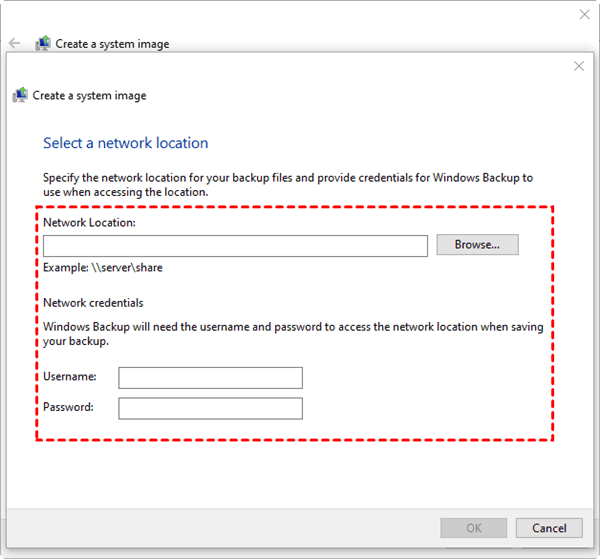
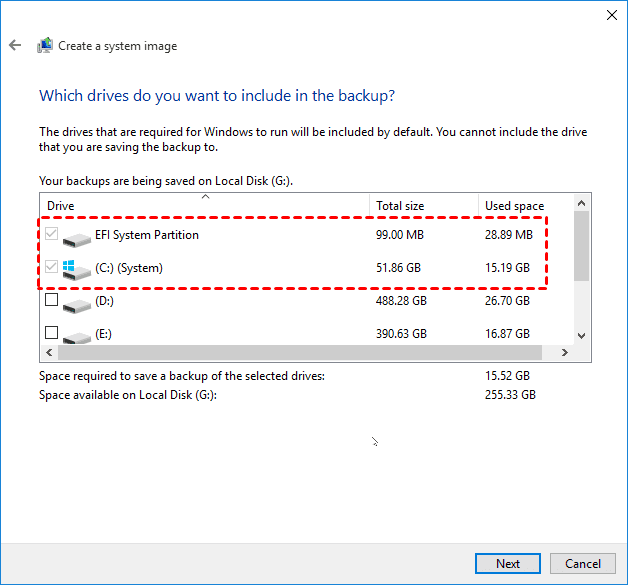
Step 4. Click Next to accept the default drives to be backed up. Finally, click Proceed to execute it.
Summary
Qiling Disk Master offers more advanced features than Backup and Restore, allowing for flexible options, compression, and splitting of backup images, as well as the ability to clone NTFS drives and run sector-by-sector clones.
Related Articles
- Top 2 Ways to Sync Local Folders to Synology NAS on Windows
- How to Backup Data on Windows 7/8/10 to Synology NAS
- 3 Ways for Windows 10 Backup to Network Drive/NAS
- How to Fix Windows Server Backup Incorrect Function
You will learn 5 quick solutions to Windows Server 2012 backup incorrect function. Also, if it does not work, you can try an easy alternative to backup files, system, partition, or disk as you like. - How to Low Level Format USB Flash Drive?
Learn how to Low Level Format USB Flash Drive with clear steps, key checks, and practical tips. - Quick Fixed: Mark Partition as Active Greyed out on Windows 10/8/7
This guide explains Quick Fixed: Mark Partition as Active Greyed out on Windows 10/8/7 with clear steps, key checks, and practical tips.
Products
Articles & Tutorials
- Data Recovery
- Data Backup
- File Recovery
- File Backup
- File synchronize
- System Backup and Restore
- Disk and Partition Clone
- Technical articles
- Disk Master Help
- Windows Deleted File and Disk Recovery Tutorials
- Windows File and Data Recovery Tutorials
- More Windows Tutorials for Install, Security, Files, and PC Tips
- Windows Boot, Repair, and Recovery Environment Tutorials
- Windows Backup Tutorials
- Windows Restore Tutorials
- Windows Clone and Migration Tutorials
- Windows Server Backup, Recovery, and Management Tutorials
- Windows Disk, Partition, and Storage Management Tutorials