How to Free Backup Windows 7/8/10 Data to Synology NAS
- Synology Data Replicator's lifespan has come to an end
- Alternative to Synology Data Replicator in Windows
- Backup to Synology via DiskStation Manager and built-in tool
- Create a shared folder on Synology NAS for preparation
- Create DSM local user for preparation
- Backup Windows 7 data to Synology using Backup and Restore
- Backup Windows 8/10 data to Synology using File History
- Backup data to Synology NAS with Qiling Disk Master Standard
- Conclusion
Synology Data Replicator's lifespan has come to an end
Synology Data Replicator, which offered three backup modes (Immediate, Sync, and Scheduled), has reached the end of its lifespan in 2013 and has not been updated since, with its download links removed from Synology's Download Center.
To backup data from Windows 7/8/10/11 to Synology NAS, you'll need to find an alternative to Synology and learn how to use it. This alternative will allow you to transfer files and data to your Synology NAS device.
Alternative to Synology Data Replicator in Windows
Here're two alternatives you can use to backup data on your computer to Synology NAS.
Method 1: Use DiskStation Manager and Windows built-in tool
Synology DiskStation Manager (DSM) is a user-friendly web-based operating system for Synology NAS devices, offering a range of features including file sharing, centralized backup, RAID storage, multimedia streaming, and virtual storage.
To backup data using DiskStation Manager and Windows built-in tool, create a shared folder on your Synology NAS for storing Windows backup, configure local users with priority access to this folder, and then enable Windows built-in tool to backup data from Windows 7/8/10/11 to your Synology NAS.
Method 2: Use third-party file backup software
Qiling Disk Master is a Windows file backup software that allows users to back up their computer data to various storage devices, including NAS, cloud storage, and external hard drives, making it a great tool for data protection and management.
To backup data using Qiling Disk Master, select the files to backup and choose Synology as the destination path, then click Proceed.
Backup to Synology via DiskStation Manager and built-in tool
You can backup data via DiskStation Manager and Windows built-in tool. In Windows 7, use Backup and Restore, while in Windows 8/10/11, use File History. Alternatively, you can proceed to the next part for a more straightforward solution. Let's take a closer look at how DiskStation Manager and built-in tool work.
- Create a shared folder on Synology NAS for preparation
- Create DSM local user for preparation
- Backup Windows 7 data to Synology using Backup and Restore
- Backup Windows 8/10 data to Synology using File History
Create a shared folder on Synology NAS for preparation
The shared folders on your Synology NAS are the basic directories where you can store and manage files and folders. To start storing files, you must first create at least one shared folder in the DSM interface.
Step 1. To create a new shared folder on your Synology device, navigate to the Control Panel, then select File Sharing, followed by Shared Folder, and finally click the Create button.
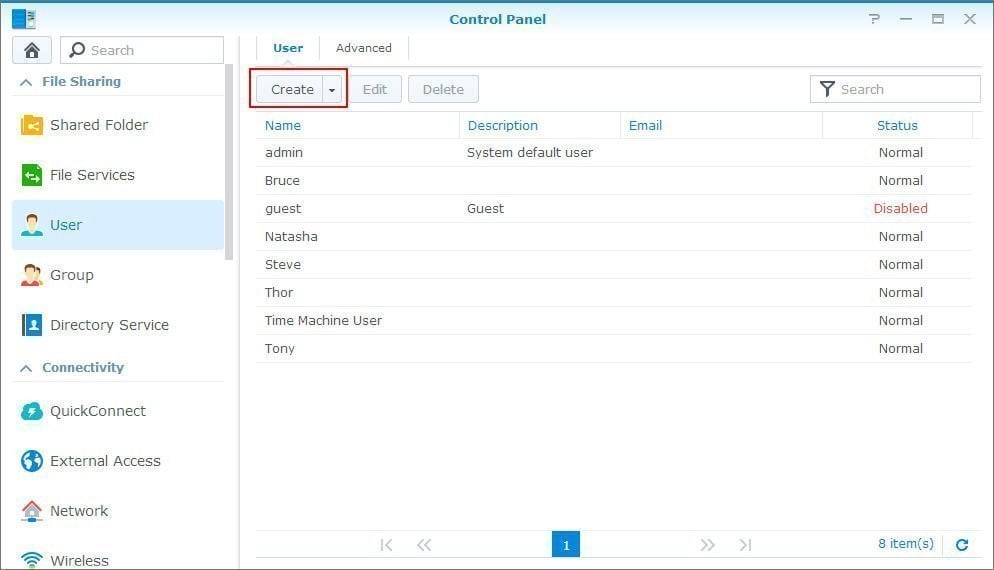
Step 2. Specify a name and description of your new shared folder.
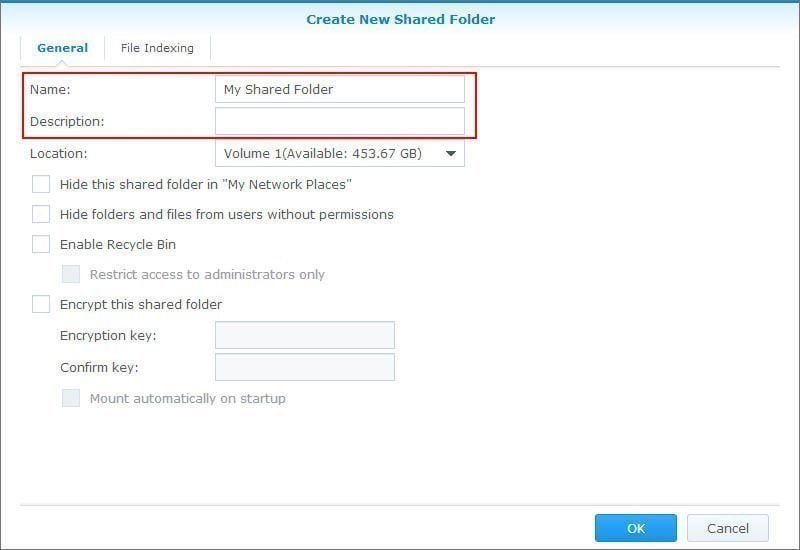
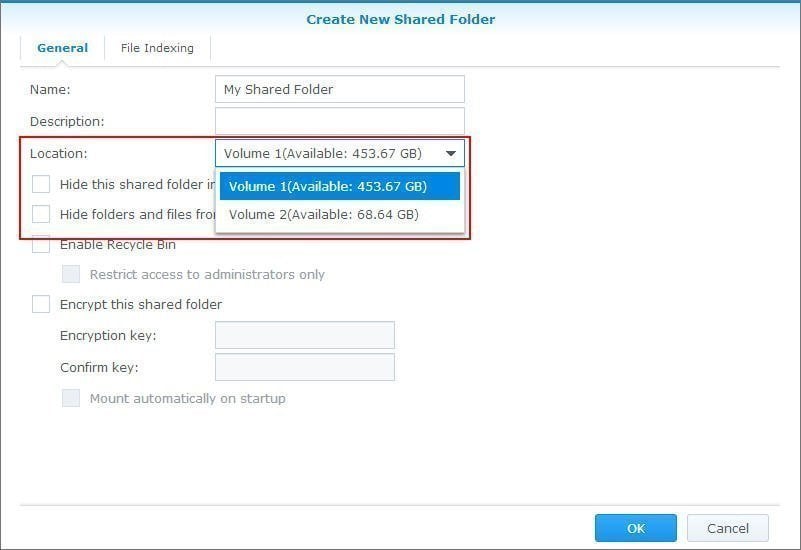
Step 3. Select a storage for your shared folder and tick other options, then click OK.
Create DSM local user for preparation
Step 1. Go to Control Panel, then click User to summon the next window.
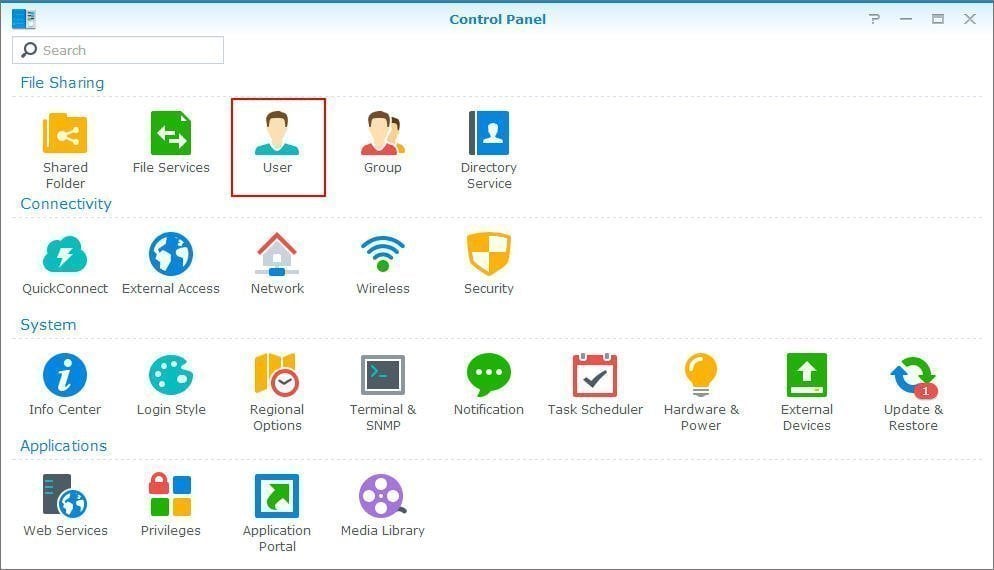
Step 2. Click the drop-down menu of Create button and select Create User, then you will see User Creation Wizard.
Step 3. On the user information page, options can be specified including Name, Description, Email, and the ability to send a notification mail to the newly created user. Additionally, the option to disallow the user from changing their account password can also be set.
Step 4. Go to Group > Create > Group Creation Wizard page and Specify a group for your newly created user.
Step 5. Specify access privileges for your new user on the Assign shared folders permissions page, including No access, Read/Write, and Read only options.
Step 6. Specify a storage space for your newly created user on the User quota setting page.
Step 7. Specify which services your newly created user can access the Assign application permissions page.
Step 8. Specify a speed limit for different services on the Group Speed Limit Setting page.
Step 9. Click Apply after you confirm all settings.
Backup Windows 7 data to Synology using Backup and Restore
Step 1. Click Start menu and type Backup and Restore in the search box, then select it from the start menu list.
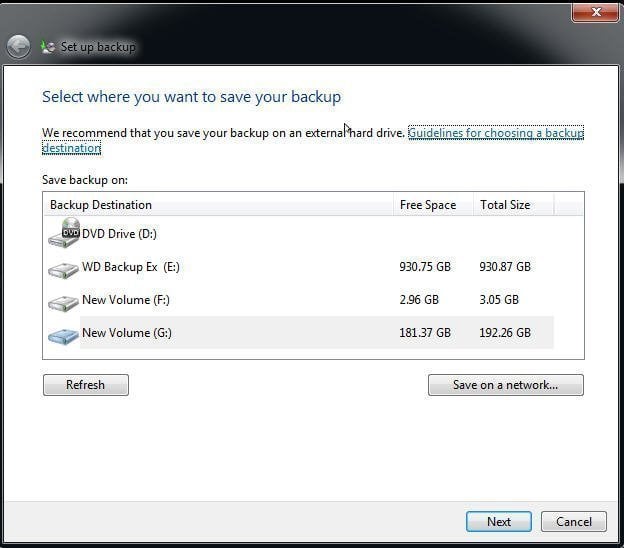
Step 2. Select Set up backup or Change setting on the backup and restore page.
Step 3. To save your file backup on a network, click the "Save on a network" button and then click "Next". Next, enter the IP address of your Synology NAS and select the shared folder you created to store your file backup. Finally, click "OK" to complete this step.
Backup Windows 8/10 data to Synology using File History
Step 1. Click Start Menu and type File History in the search box, then select File History settings.
Step 2. To add a backup drive, go to the Backup button and click on the + button to add a drive, then select a drive or network location, such as a Synology NAS.
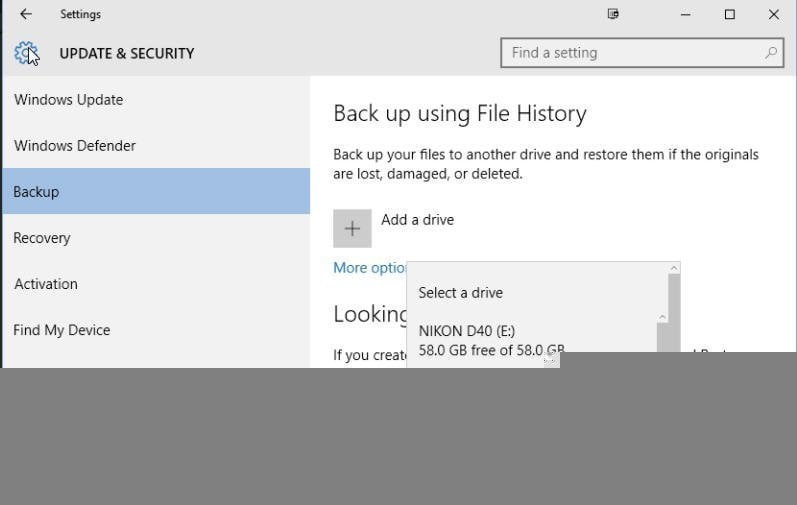
Step 3. Click More options to configure other settings. After that, click Back up now.
Backup data to Synology NAS with Qiling Disk Master Standard
You can use a third-party backup software like Qiling Disk Master Standard, which has a user-friendly interface that guides you through the process of backing up data from your Windows PC to your Synology NAS, including backing up your entire PC to the NAS.
Step 1. Download Qiling Disk Master Standard and run it. Then, click Backup > File Backup subsequently.

Step 2. Click Files or Folders to select the data you want to backup to Synology.

Step 3. Click the inverted triangle > Select a network location > Add Network Location, then fill in the required information.

Step 4. To enable daily incremental backup, click Schedule and then OK in the main page. This is the default backup setting in the software. After that, click the Proceed button to complete the process.

Notes:
• Incremental backup requires all backups to be intact, otherwise subsequent backups will be invalid and the restore operation will fail. To ensure the most backups are valid, daily differential backups can be considered, especially with the professional version that supports this feature.
• If you think the backup interval is too short, you can change it to weekly or monthly, depending on how often you may change files.
• To manage backup disk space and delete file backup regularly, the paid version's backup scheme can be very helpful, allowing you to efficiently manage your backup storage and ensure you don't run out of space.
• With a backup in hand, you can restore your files when something unexpected happens like hard drive failure, virus attack, etc.
Conclusion
With the help of an alternative to Synology Data Replicator, you can easily backup data from Windows 7/8/10/11 to your Synology NAS. The simplest way to do this is by using file backup software like Qiling Disk Master, which allows you to backup to various storage devices, including NAS, cloud storage, external hard drives, and more. This software also offers additional features, such as daily, weekly, and event-triggered backups, to ensure your data is safely and securely backed up.
Related Articles
- Backup Windows 7 Computer to Synology NAS Step by Step
- How to Backup Synology NAS to External USB Drive in Windows
- How to Backup Synology NAS to Cloud
- Backup Windows Server 2012 (R2) to Synology NAS
- Create Hard Disk Partitions Before Installing Windows 10/8/7
Learn how to create hard disk partitions before installing Windows 11/10/8/7 operating system on your hard drive for your system, applications, games and other data better organized. - Create Windows 7/10/11 System Image on a USB Drive (3 Ways)
This tutorial helps you easily create a system image on a USB flash drive with 3 workarounds. Using third-party backup software is easier and more efficient.
Products
Articles & Tutorials
- Data Recovery
- Data Backup
- File Recovery
- File Backup
- File synchronize
- System Backup and Restore
- Disk and Partition Clone
- Technical articles
- Disk Master Help
- Windows Deleted File and Disk Recovery Tutorials
- Windows File and Data Recovery Tutorials
- More Windows Tutorials for Install, Security, Files, and PC Tips
- Windows Boot, Repair, and Recovery Environment Tutorials
- Windows Backup Tutorials
- Windows Restore Tutorials
- Windows Clone and Migration Tutorials
- Windows Server Backup, Recovery, and Management Tutorials
- Windows Disk, Partition, and Storage Management Tutorials