Guide | Backup Windows 7 to NAS like Synology [3 Free Ways]
Should I backup Windows 7 data to NAS?
According to 3-In Windows 7/8/10, it's recommended to have at least three data copies: one for local storage and two for different devices. Having a backup strategy is safer, and backing up data to a NAS (Network-Attached Storage) device, like a Synology NAS, is a good idea, whether it's a system image or important files.
NAS (Network Attached Storage) is a network-connected storage device that can be accessed over the internet. One of the key benefits of backing up your PC to NAS is that it provides a secure and centralized storage solution, allowing you to access your files from anywhere with an internet connection. This can be particularly useful for remote work or for those who need to access files from multiple devices. Additionally, NAS devices often come with built-in backup software, making it easy to set up automatic backups of your important files.
- It's easier for file sharing between connected clients.
- You can access the data through network remotely.
- NAS storage is less prone to damage from accidents compared to traditional PC storage.
- When your Windows computer crashes, you can restore the system or files from a Network-Attached Storage (NAS) device, which allows you to recover your data and get back to work quickly.
You can use the built-in Windows Backup feature, which allows you to create a backup of your data to an external hard drive or a network location, including Synology NAS. This feature is free and can be accessed by going to Control Panel > System and Security > Backup and Restore (Windows 7).
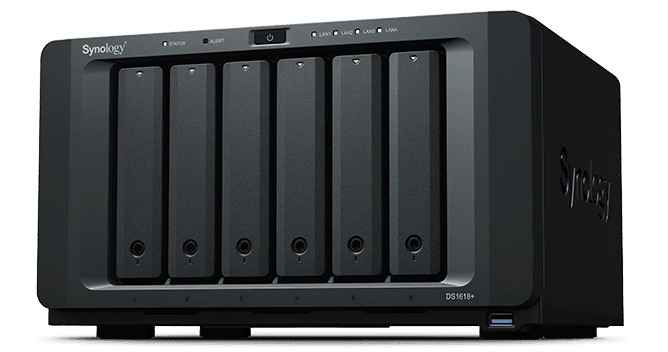
How to backup Windows 7 to NAS like Synology?
What do you care about most when performing backup to NAS in Windows 7? Transferring speed, data safety, or the ease of use? In fact, all these requirements can be met. I'll introduce 3 free ways as following:
- Method 1. Use effective freeware to backup Windows 7/8/10 to NAS
- Method 2. Use Synology Drive Client to backup data to NAS in Windows 7
- Method 3. Backup Windows 7 computer to NAS with Backup and Restore
Method 1. Use effective freeware to backup Windows 7/8/10 to NAS
The fastest method with the widest range of applications is the first place I put it, making it the top choice.
Qiling Disk Master Standard is a freeware that works on all Windows OS, including Windows 7/8/10, and allows you to backup important data to various locations, including Synology NAS, other NAS, network locations, cloud drives, external hard drives, and more, making it easy to implement a 3-2-1 backup strategy.
The software offers an intuitive interface and various options to simplify operations, such as scheduling a daily backup to run automatically.
The free version of the software is sufficient for backing up an operating system or important files to a NAS, making it a great option for those who want to try it out without committing to a paid version.
How to backup data to NAS in Windows 7/8/10 within 5 steps:
1. To connect to your Synology or other NAS, install and launch the tool, then switch to the Backup tab and choose File Backup.
To backup only the OS to a NAS, choose System Backup instead.

2. You can choose to backup either folders or files, and if you select system backup, the system partition will be automatically selected as the source.

3. To share or save files to a NAS, click the destination box and select Share/NAS from the dropdown menu that appears.
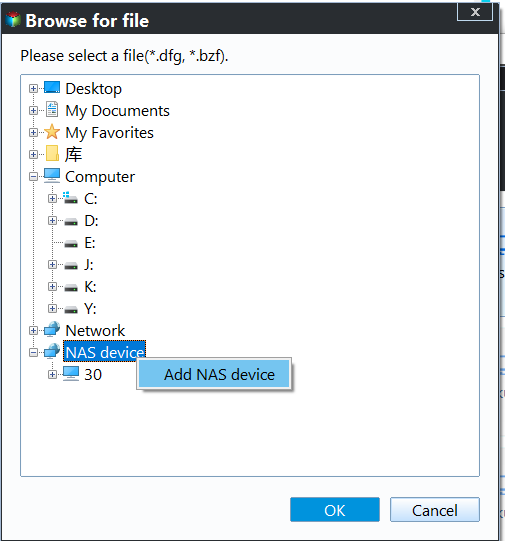
4. To add a network location, click "Add Network Location" and input your Synology NAS's IP address, username, and password, then click "OK" to confirm.

5. Optionally, you can schedule an automatic backup, set up a scheme to auto delete older backups, or manage more backup options. Click proceed and wait till the process ends.
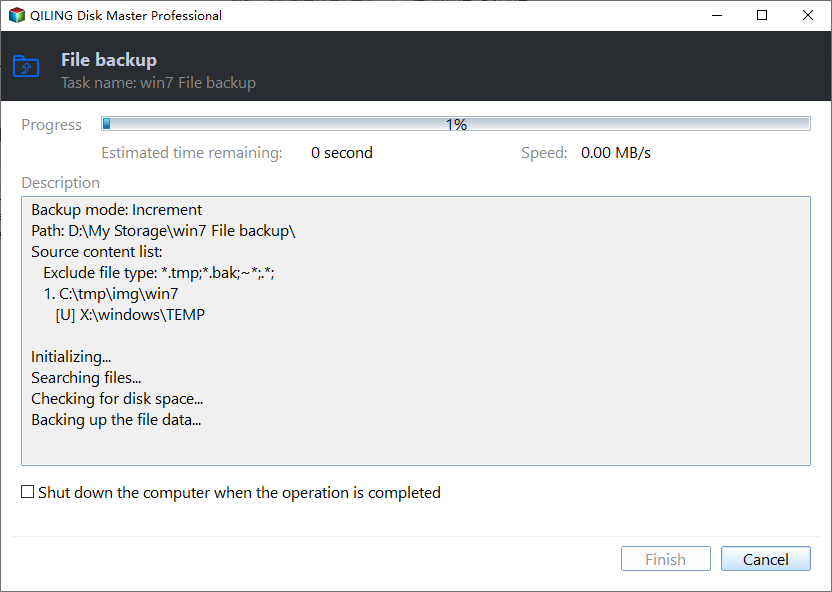
To ensure a smooth and reliable backup of your Windows 7 OS to a Network-Attached Storage (NAS) device, consider creating a bootable media in addition to backing up your system. This way, if your computer crashes, you can boot it up using the Windows PE environment and restore your system to a previous state using the system image stored on your NAS, effectively recovering your system to a working state.

If you want to replicate files to Synology NAS with their original format, use File Sync instead of backup. This will sync changed files from the source directory to the destination, and in Professional or higher editions, you can sync files without setting up a schedule.

Related tips:
- Schedule: You can choose from Daily, Weekly, Monthly, Event triggers and USB plug in, the last two being only available in Professional or higher editions. Additionally, you can use the Scheme feature to auto-delete older backups, helping to prevent insufficient NAS space caused by long-term automatic backup.
- Different backup modes: In addition to full backup, Qiling Disk Master offers incremental and differential backup options, allowing users to choose the best approach based on their specific needs.
Method 2. Use Synology Drive Client to backup data to NAS in Windows 7
Synology NAS users are likely familiar with DSM (DiskStation Manager), a web-based operating system designed specifically for Synology NAS. Through DSM, users can access and download various tools, including the Synology Drive Client, from the Package Center.
Synology Drive Client is a backup solution for Synology NAS users, offering instant and bandwidth-saving data protection. However, it has some drawbacks, including limited backup or sync options and occasional functionality issues due to various reasons, restricting its use to only Synology NAS devices.
Anyway, I'll introduce its basic workflow here for your reference.
Backup Windows 7 computer to Synology NAS with Synology Drive Client:
1. To set up Synology Drive Server, navigate to the Package Center on your Synology device and find the Synology Drive Server installation package. When you install it, three required packages will be downloaded together.
2. Launch the Synology Drive app and download the Synology Drive Client through the prompt or by clicking on the "Client" tab at the bottom-left corner.
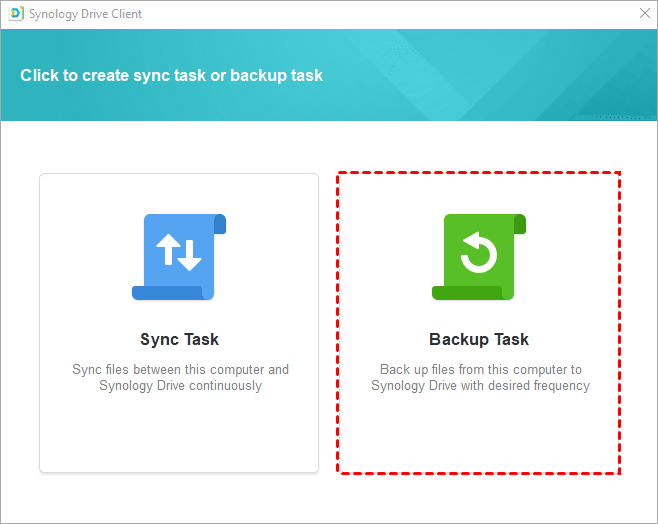
3. To install Synology Drive Client, follow the wizard and select the "Backup Task" option on the main interface.
4. To connect to your Synology NAS, you need to enter the required account information, which typically includes your username and password. This information is used to authenticate your access to the NAS and ensure that only authorized users can access and manage the data stored on it.
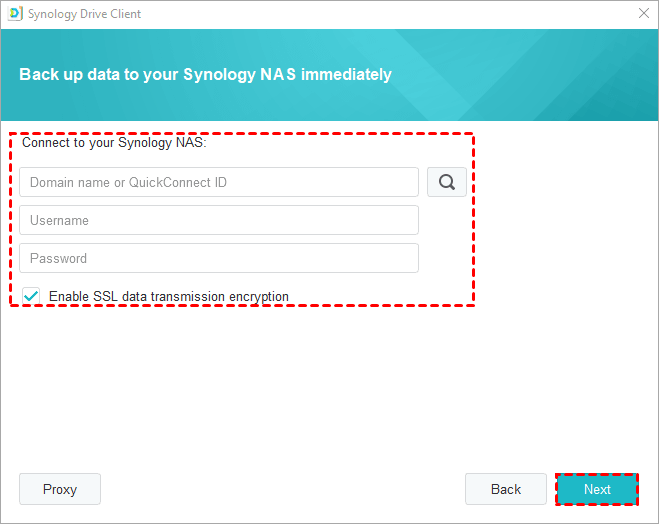
5. To backup your data, specify the source data you want to backup and select a backup destination, with the home folder being the default option. Click the "Next" button to proceed.
6. Choose a backup mode and click Next.
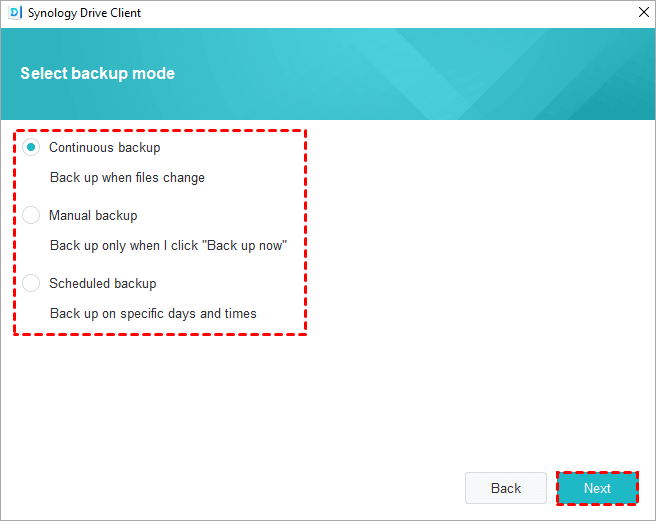
7. Confirm your operation and click Done to proceed with the backup. Wait for the backup to complete.
You can read this article to learn more about backing up a Windows 7 computer to a Synology NAS.
Method 3. Backup Windows 7 computer to NAS with Backup and Restore
In Windows 7 and 10, you can back up data to a Synology NAS or other network location using the built-in "Backup and Restore" feature.
While Windows Backup can be used to back up selected files or a system image to a NAS without the need for third-party tools, its limitations are also apparent. The backup process can be slow, making it difficult to multitask, and the backup modes are not very flexible. Additionally, automatic system image backup cannot be scheduled, which may be a drawback for some users.
Backup data to NAS with Windows 7 Backup and Restore:
1. To backup and restore, go to Start > Control Panel > System and Maintenance, or search directly for it.
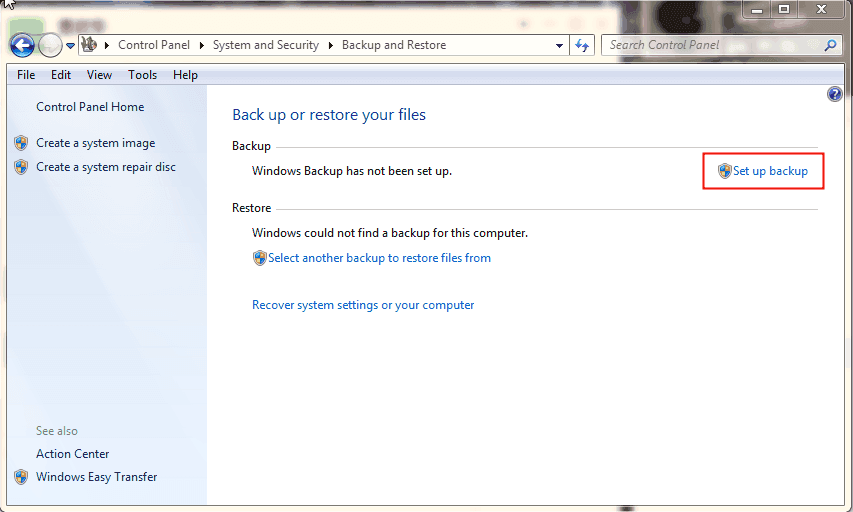
2. To set up a backup, click "Set up backup" and choose "Save on a network..." to specify a network destination. You will be prompted to enter the location and account information of your Synology NAS or other network device. After entering this information, click "OK" and then "Next".
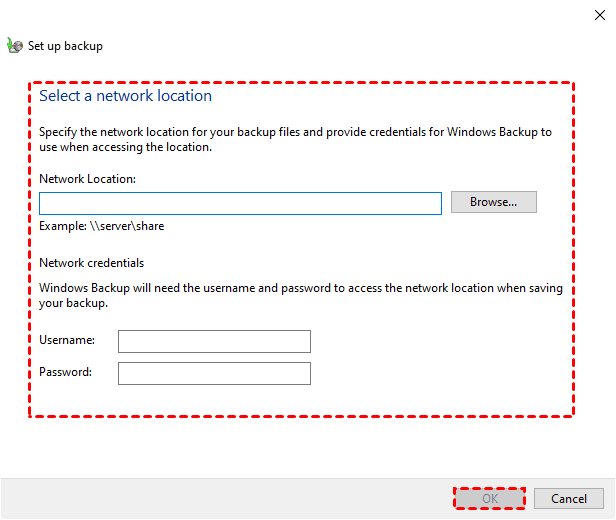
3. To start the backup process, choose what to backup and click Next. You can either let Windows automatically select the files and partitions to back up, or manually select them yourself.
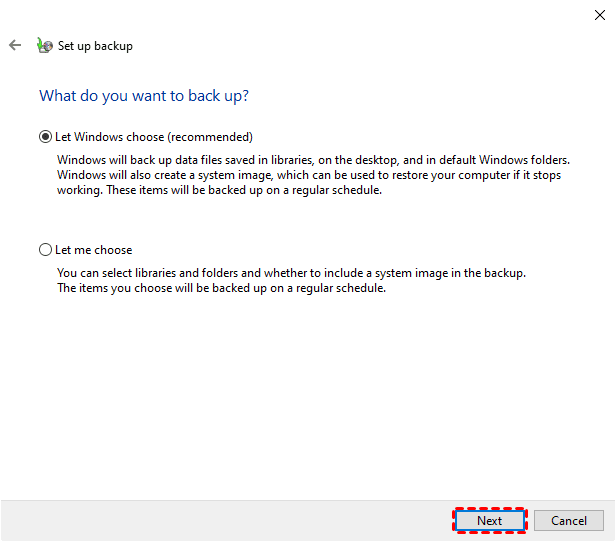
4. Confirm the operation and click "Save settings and exit" to proceed. You can also click "Change schedule" to set up an automatic backup.
5. You can also click on "Create a system image" to backup your OS to a NAS.
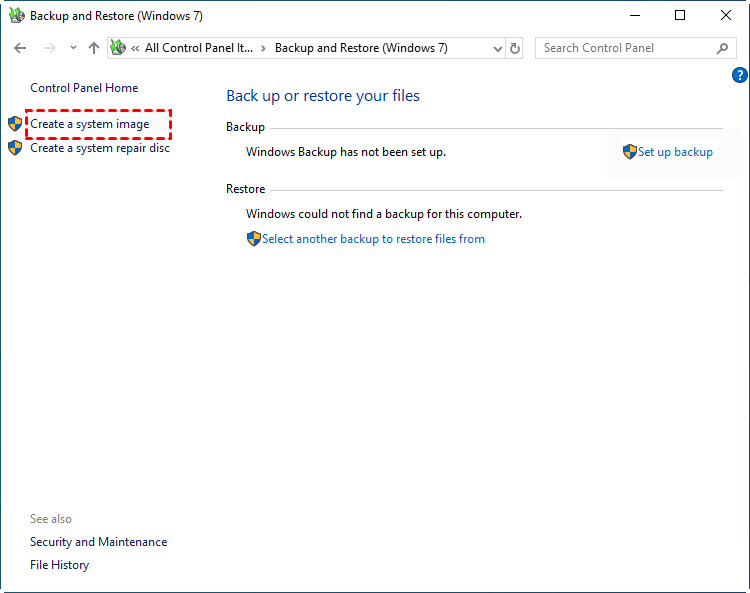
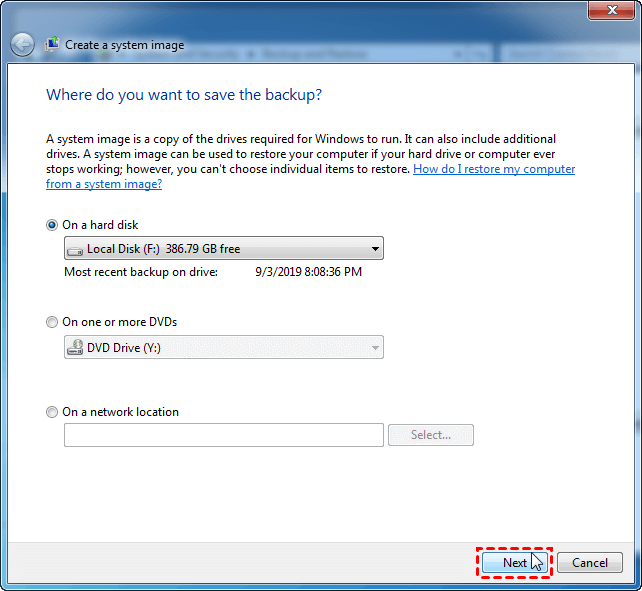
To recover your Windows 7 system, follow the detailed steps outlined in the Windows 7 System Image Recovery guide. When prompted to save the backup, select "On a network location" and enter the required information. This will allow you to recover your system using the saved image.
If the built-If the Windows 7 backup and restore feature isn't working, you can try the solutions provided in the article "How to Fix Windows 7 Backup and Restore Not Working".
Conclusion
3-2-Having a backup strategy is crucial to protect your important data. In addition to creating a local copy, it's reassuring to also backup your computer to a network location, such as a Synology NAS, to ensure your files are safe and accessible.
You can perform backup to NAS in Windows 7/8/10 using the free backup & restore software, Qiling Disk Master Standard, which offers fast transfer speed, high compatibility, and flexible backup modes, making it an easy and efficient option.
This software supports backing up Synology NAS to external hard drives, syncing Synology NAS to Google Drive, performing mirror backups between two NAS, and backing up Windows Server to NAS with its Server backup edition.
Related Articles
- How to Backup Synology NAS to External USB Drive in Windows?
- (2 Ways) Backup Windows 10 PC to Synology NAS Safely
- How to Backup Synology NAS to Cloud with Ease?
- Backup Windows Server 2012 (R2) to Synology NAS
- Backup Microsoft Office Before Reformatting Hard Drive
Learn the key steps, checks, and practical tips for this related guide. - How to Backup Files on NAS Drive to Cloud Drives in Windows 10/8/7?
Learn how to Backup Files on NAS Drive to Cloud Drives in Windows 10/8/7 with clear steps, key checks, and practical tips.
Products
Articles & Tutorials
- Data Recovery
- Data Backup
- File Recovery
- File Backup
- File synchronize
- System Backup and Restore
- Disk and Partition Clone
- Technical articles
- Disk Master Help
- Windows Deleted File and Disk Recovery Tutorials
- Windows File and Data Recovery Tutorials
- More Windows Tutorials for Install, Security, Files, and PC Tips
- Windows Boot, Repair, and Recovery Environment Tutorials
- Windows Backup Tutorials
- Windows Restore Tutorials
- Windows Clone and Migration Tutorials
- Windows Server Backup, Recovery, and Management Tutorials
- Windows Disk, Partition, and Storage Management Tutorials