How to Use Windows 7 System Image to Restore a Hard Disk
What is System Image Recovery
Windows 7 System Image Recovery allows you to restore a hard disk by replacing everything on the PC with an image file that contains all system drives and additional drives. This can be used to recover a computer that has broken down and cannot boot.
In Windows 7/8/10/11, System Image Recovery can be useful but sometimes fails or prompts that no disk can be used, requiring significant effort to resolve. Additionally, the Windows 7 system image restore process can be slow.
When backing up and restoring the operating system and entire hard drive, it's crucial to do so carefully, or find a quick and highly compatible alternative to avoid any potential issues.
- Use Windows 7 System Image Recovery to restore a hard disk
- Efficient and free alternative to restore Windows OS or hard drive
Use Windows 7 System Image Recovery to restore a hard disk
To use system image recovery to restore your hard drive, you'll need to have a backup image created before the error occurs. If you don't have a backup, you can only reset Windows 7 using an installation disc. This tutorial will guide you through the process, which is divided into two parts: creating a backup image and restoring your hard drive using the system image recovery feature.
1. How to create a system image in Windows 7
Step 1. Click Start button, then click Control Panel > System and Security > Backup and Restore.
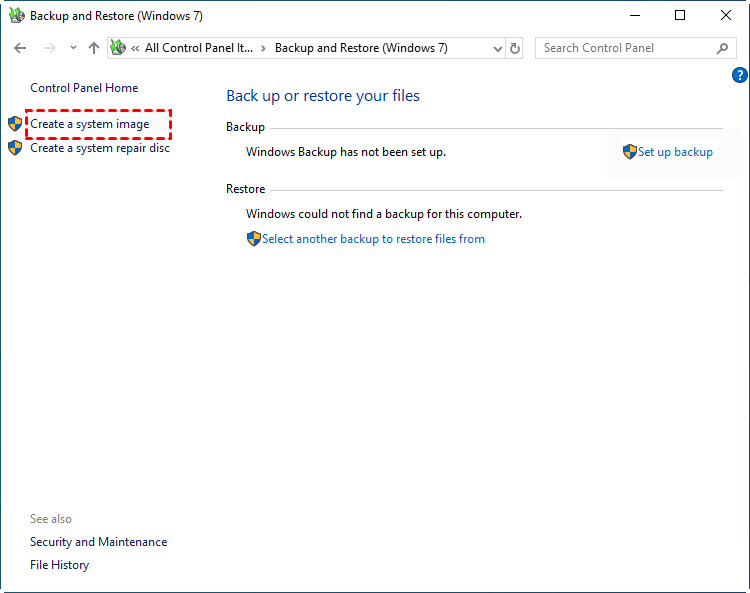
Step 2. Choose Create a system image on the left pane.
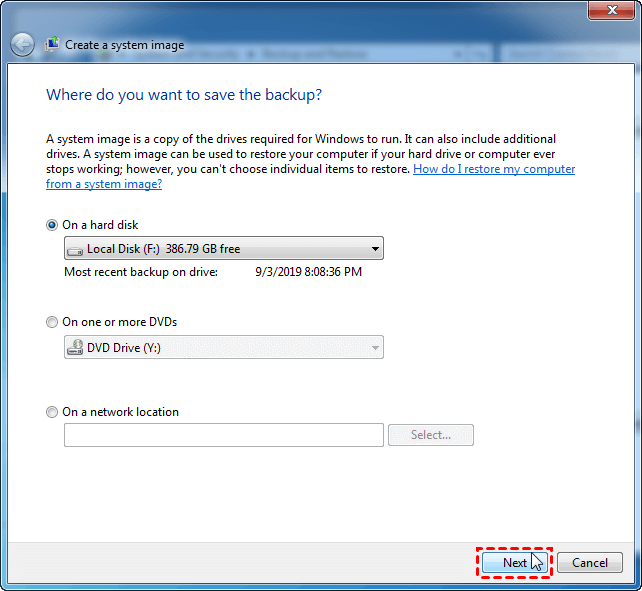
Step 3. Choose where to save the system image, then click Next.
To restore a system image in Windows 7, the destination disk must be formatted to NTFS. It's also recommended to store the image file on a separate drive from the system drive for safety reasons. The image can be restored from an external hard drive, USB drive, DVD, or network location.
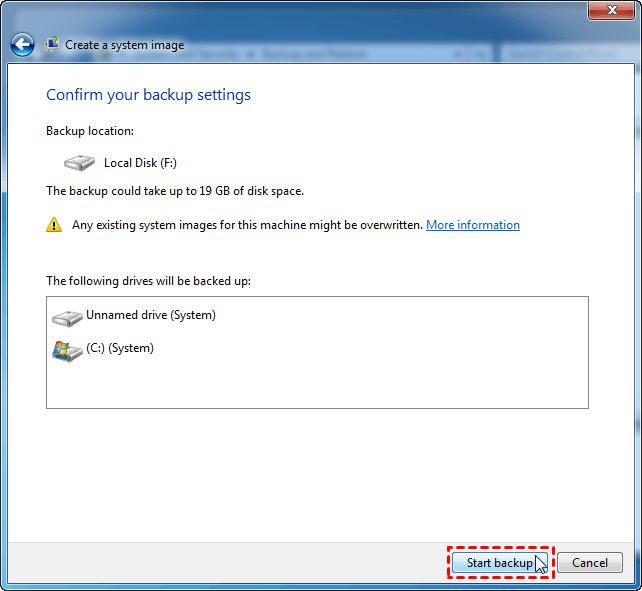
Step 4. To use system image recovery to restore a hard drive in Windows 7, include all additional drives you want to keep and click "Next".
Step 5. Confirm your backup settings, and click Proceed. Then wait for the process to end.
Tips: You can create a Windows 10 system image by searching for "backup and restore" on the taskbar, just like you would for Windows 8.
2. How to use Windows 7 System Image Recovery to restore a hard disk
To restore a system image in Windows 7, you'll need to prepare beforehand. First, you'll want to ensure that you have a valid system image backup, which can be created using the built-in Windows Backup and Restore feature.
Preparations:
◉ First, check if your computer has a set of preinstalled recovery options. If it does, you can access them to restore your system to its original state.
Press F8 when you start the computer and the Windows logo appears to enter advanced boot options in Windows 7, where you will see an option named Repair your computer.
If you can't find the option to reset your computer, it's likely that your computer doesn't have preinstalled recovery options. To resolve this, insert a Windows 7 installation disc, adjust the boot order if necessary, click "Next" in the Install Windows window, and then select "Repair your computer" from the lower left corner.
◉ If you backed up the system image to a device like a USB drive, external hard drive, etc., connect it as well.
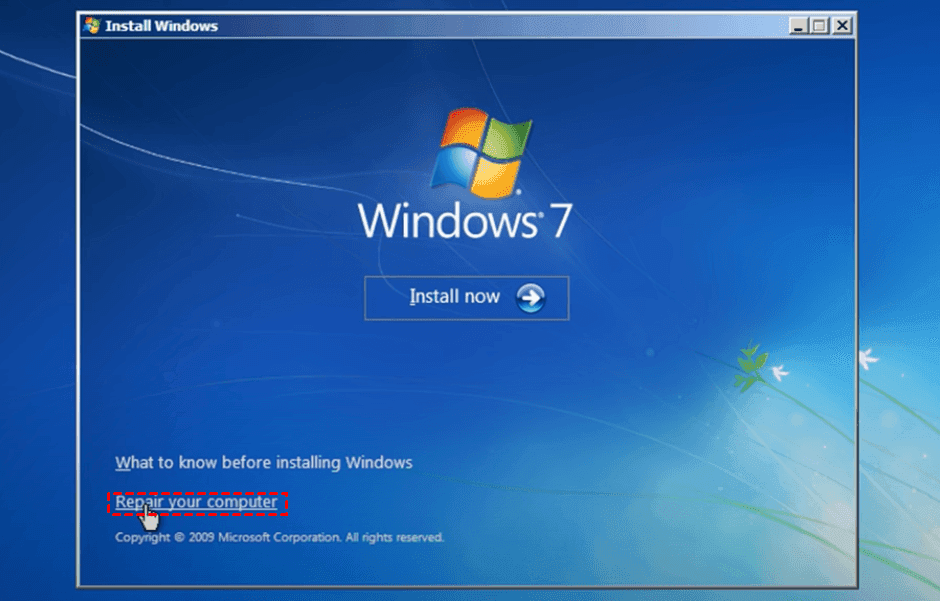
Step 1. Enter Repair your computer menu in Windows 7.
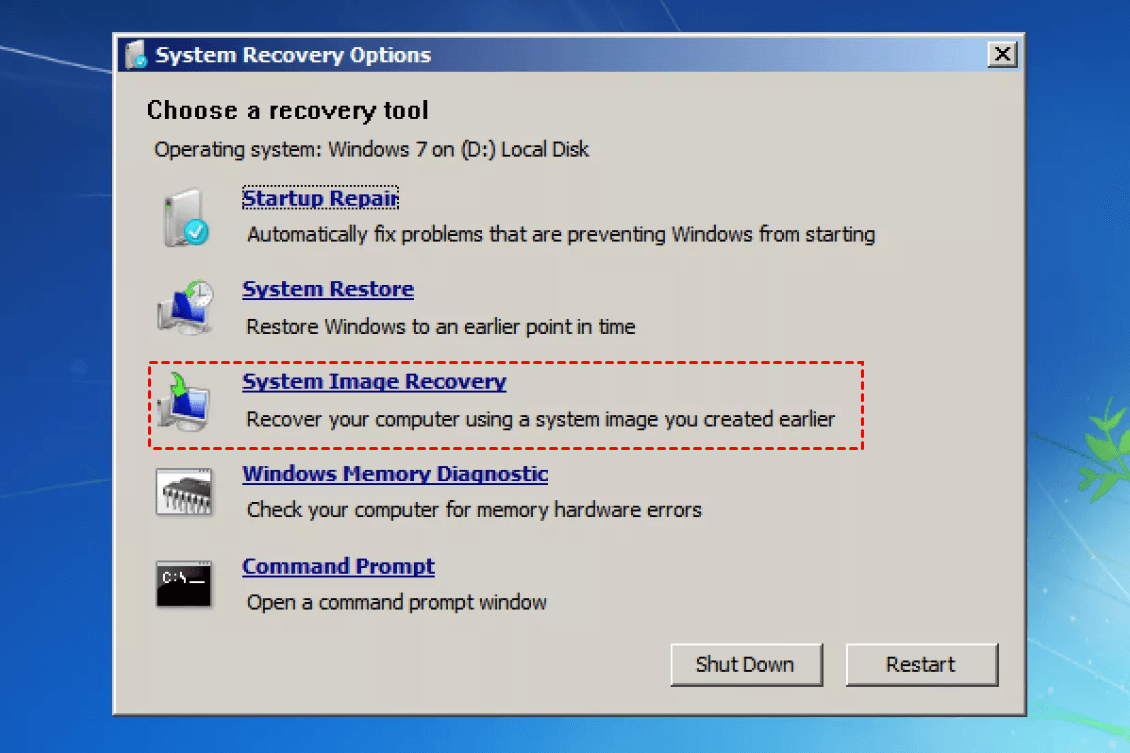
Step 2. Choose System Image Recovery in System Recovery Options.
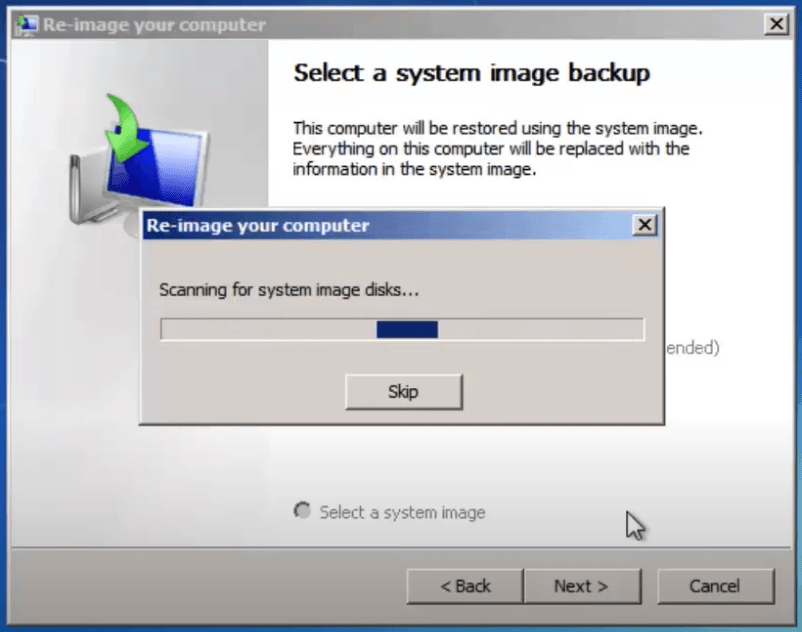
Step 3. It will automatically locate the available system image stores on your device, then click Next to continue.
If you're storing the system image on a network, simply click on "Select a system image" and enter the path to it.
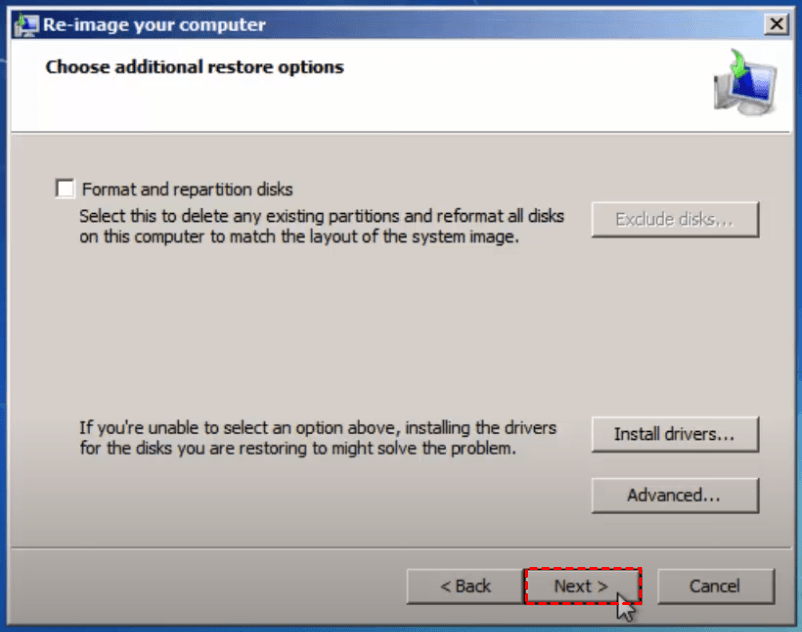
Step 4. Then choose additional restore options, and click Next.
The "Install drivers..." option is used to install drivers that are needed for your OS but haven't been built in Windows, such as NIC drivers, to avoid errors like "The network location cannot be reached".
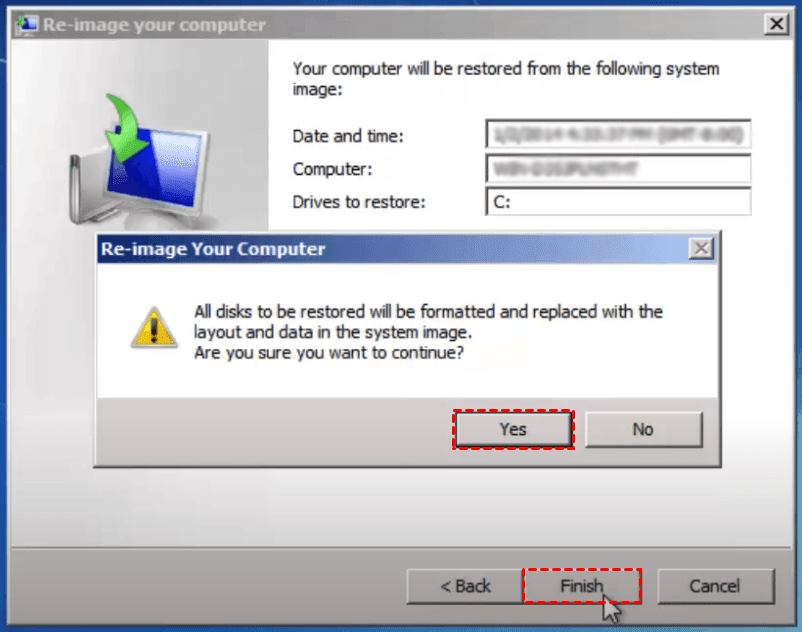
Step 5. Confirm the information and click "Finish", then "Yes" to continue. This may take hours to restore, and the computer will restart afterwards.
Tips:
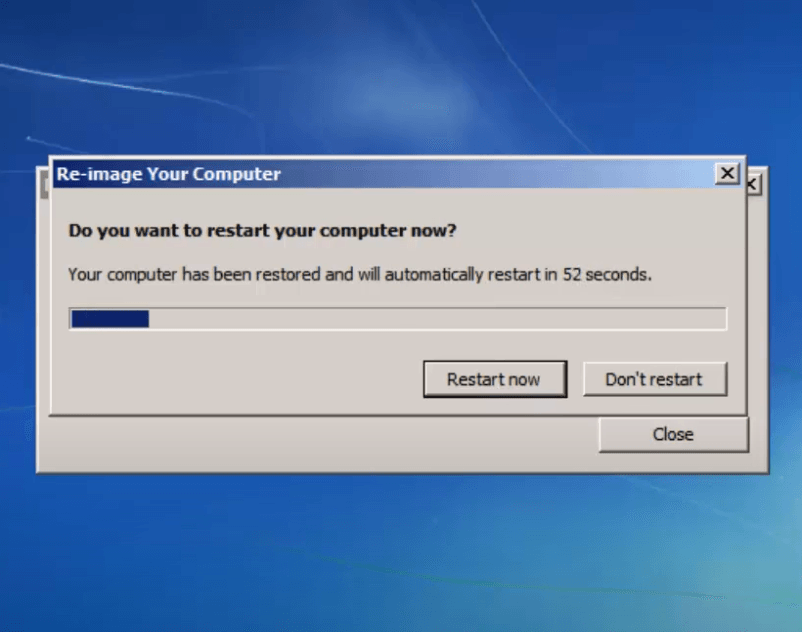
- In Windows 7, you can use a repair disc to restore your computer. To create one, follow the instructions here. Once created, insert the disc and boot from it, then follow the wizard to re-image your computer.
- To use system image recovery in Windows 10/8, you can follow the same general approach, entering Windows 10 recovery mode accordingly.
Efficient and free alternative to restore Windows OS or hard drive
Qiling Disk Master Standard is a free Windows backup and recovery software that supports Windows 11, 10, 8, 7, Vista, and XP operating systems.
◆ This tool enables you to create restorable images for files, partitions, OS, or the entire disk at a satisfying speed.
◆ There's a built-This tool helps you create recovery media in case your computer can't boot due to system errors. It allows you to use the created media along with a system image to restore your OS or entire disk to an earlier state.
◆ You can restore a system image to another computer with different hardware if you upgrade to a higher edition.
To restore Windows 7 with System Backup, you can follow the steps, which are similar to backing up and restoring the entire hard disk with Disk Backup. This method allows you to backup and restore the entire system, including all personal data, and is a good option if you want to preserve everything on your hard disk. The process is straightforward and easy to follow, thanks to the intuitive interface.
How to backup and restore Windows 7 system easily:
If you want to backup & restore only the operating system, you can use the System Backup feature.
Preparation: Download and install the software.
Step 1. Go to Backup tab and choose System Backup.

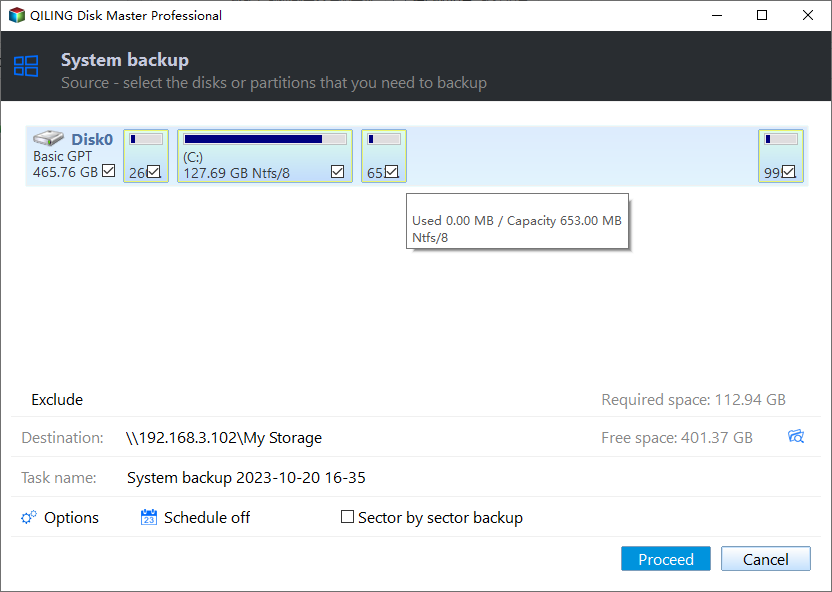
Step 2. Your system partitions will be automatically selected, and you just need to specify a destination to backup it.
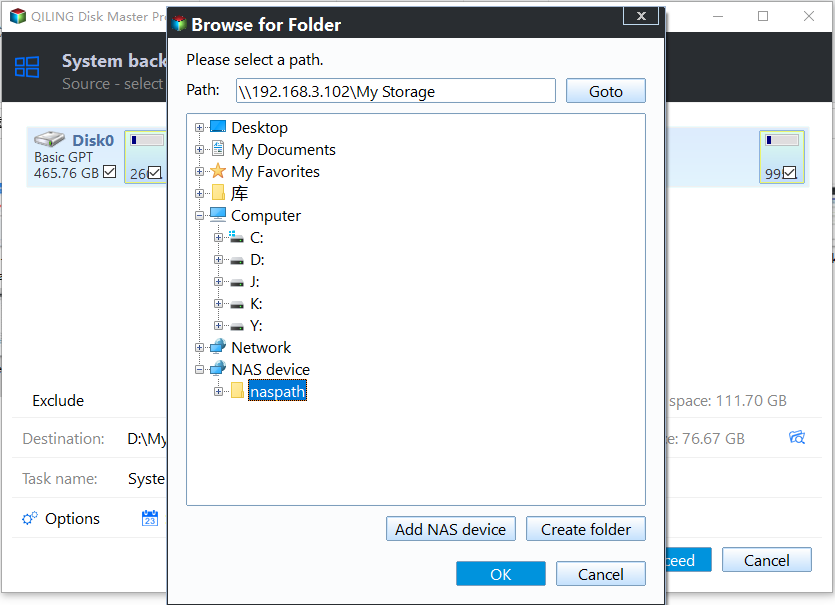
You can save your data to an external hard drive, USB, NAS, cloud drive, network location, or other secure locations for added protection.
Step 3. Configure the backup as you like and click Proceed.
You can edit the task name, adjust further settings, set an automatic schedule backup, or set a backup scheme to auto delete older backups.
Step 4. When the process has been completed, click Finish, or you can go to the target directory to view the image.

Step 5. To restore the system image, navigate to the Restore tab, locate the desired image file or task, and click Proceed.

Related tips:
- In the Schedule Backup section, you have five options: Daily, Weekly, Monthly, Event triggers, and USB plug in, with the latter two being exclusive to advanced editions. Additionally, you can choose from full, incremental, and differential backup methods.
-
If your computer fails to boot and you haven't created any system image nor bootable media, you can try booting in Safe Mode, which starts Windows with a minimal set of drivers and programs. If that doesn't work, you can try using a Windows installation media to repair your system.
1) Install Qiling Disk Master Professional or higher editions on another working Windows 7 PC.
2) create a bootable media with it.
3) create a system or disk image to network or a removable device
4) Insert the media to boot the crashed computer to Windows PE, then restore the system image you just created.
5) Remember to tick the advanced option Universal Restore, it’s specially designed for dissimilar hardware restore and ensures you can boot the computer normally after system image recovery.
✐ Easier way to restore system image to external hard drive:
You can use Qiling Disk Master, a one-key recovery software, to create a system image and bootable media simultaneously. This software will also add a boot menu to your computer and a fast key, such as F11 or A, to access it.
If your computer is not working, you can access OneKey System Recovery via the boot menu by pressing F11 or A, and then use the software to restore your system image.

Conclusion
If your computer fails and you can't log in to Windows, you can use Windows 7 System Image Recovery to restore your hard disk in the recovery environment, provided you have a previously created system image and a bootable media.
You may encounter errors that prevent you from using the feature, and the recovery speed may not be satisfactory. As an efficient alternative, you can try Qiling Disk Master, which can create images for file, system, partition or disk, and also help with network booting, creating bootable media, cloning Windows 7 to a new hard drive, and more.
Related Articles
- How to Create a System Image Backup in Windows 7 Easily?
Creating a system image backup in Windows 7 helps you a lot in case of system crash, virus attack or hardware failure and get your computer back quickly. Also applies to Windows 8 and 10. - How to Restore System Image from External Hard Drive?
Restoring system image from external hard drive is a popular way of restoring Windows 7/8/10. And this article will tell you the ways to restore Windows from external hard drive. - How to Create Windows 7 Recovery USB Drive Effortlessly?
It's wise to learn to create Windows 7 recovery USB drive, which can help you to repair or restore your system if your computer fails to boot. - 2 Ways to Restore Windows 10 System Image to New Hard Drive
You will learn how to easily restore Windows 10/11 system image to new hard drive with Backup and Restore (Windows 7) or powerful backup software- Qiling Disk Master Standard. - Top 5 Best Free Registry Backup Software [Updated 2024]
You can easily create a backup of the Windows registry using free registry backup software. There are several options available, including a comprehensive solution, that can be downloaded to your Windows computer to back up your registry. - Top 10 Best Gmail Backup Tools in 2024 (Free & Paid)
This post provides an overview of the 10 best Gmail backup tools, highlighting their features and details to help you choose the one that best meets your needs.
Products
Articles & Tutorials
- Data Recovery
- Data Backup
- File Recovery
- File Backup
- File synchronize
- System Backup and Restore
- Disk and Partition Clone
- Technical articles
- Disk Master Help
- Windows Deleted File and Disk Recovery Tutorials
- Windows File and Data Recovery Tutorials
- More Windows Tutorials for Install, Security, Files, and PC Tips
- Windows Boot, Repair, and Recovery Environment Tutorials
- Windows Backup Tutorials
- Windows Restore Tutorials
- Windows Clone and Migration Tutorials
- Windows Server Backup, Recovery, and Management Tutorials
- Windows Disk, Partition, and Storage Management Tutorials