Enter Windows 10 Recovery Mode for Advanced Options | Guide
What Can Windows Recovery Mode Do?
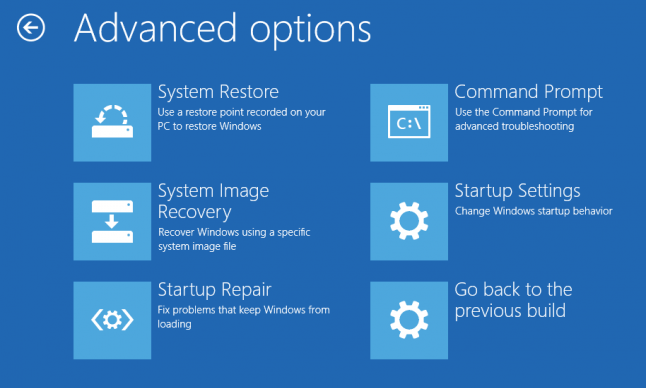
Windows recovery mode is a recovery environment (WinRE) that provides a series of Advanced Startup Options to troubleshoot, repair, and restore the system. It contains most of the recovery options from earlier Windows OS, including Windows 10, which allows users to access tools like System Restore, System Image Recovery, and Command Prompt, among others.
Startup Repair - Scans and fix problems that keep Windows from loading.
System Restore To resolve system issues, restore your computer to a previous restore point. This process involves reverting your system to a point in time when it was functioning correctly, effectively undoing any changes made since then.
System Image Recovery - Restore your computer from a previous system image backup.
Command Prompt - Run various command-line for advanced troubleshooting.
Startup Settings - Change Windows startup behavior and try for debugging.
To understand what Windows 10 recovery options are, you can refer to Microsoft's page. If you're looking to enable Safe Mode, you can enter the recovery environment through various methods and select Safe Mode under Startup Settings.
To access the Windows 10 recovery environment for advanced options, you can follow these steps: Press the Windows key + X on your keyboard, then select Settings from the menu. In the Settings window, click on Update & Security, then click on Recovery from the left-hand menu.
How to Enter Windows 10 Recovery Mode
To access Windows 10 recovery options like System Restore, Startup Repair, Safe Mode, and others, you need to first enter the Windows 10 recovery environment.
If your problem isn't serious and the computer can still log into Windows, the solution is straightforward. However, if your computer suddenly fails to boot, you'll need to go through a few extra steps to start Windows 10 in recovery mode.
- Enter Windows 10 recovery mode from Windows
- Enter Windows 10 recovery mode from boot
- Possible errors of Windows recovery options
- Easier way to perform system recovery in Windows 10
✍Prevention is better than compensation
If Windows 10/11 recovery options don't resolve your issues, consider using a system backup and recovery tool to protect your computer securely and easily.
Enter Windows 10 recovery mode from Windows
In Windows 10, there are two approaches to access recovery mode.
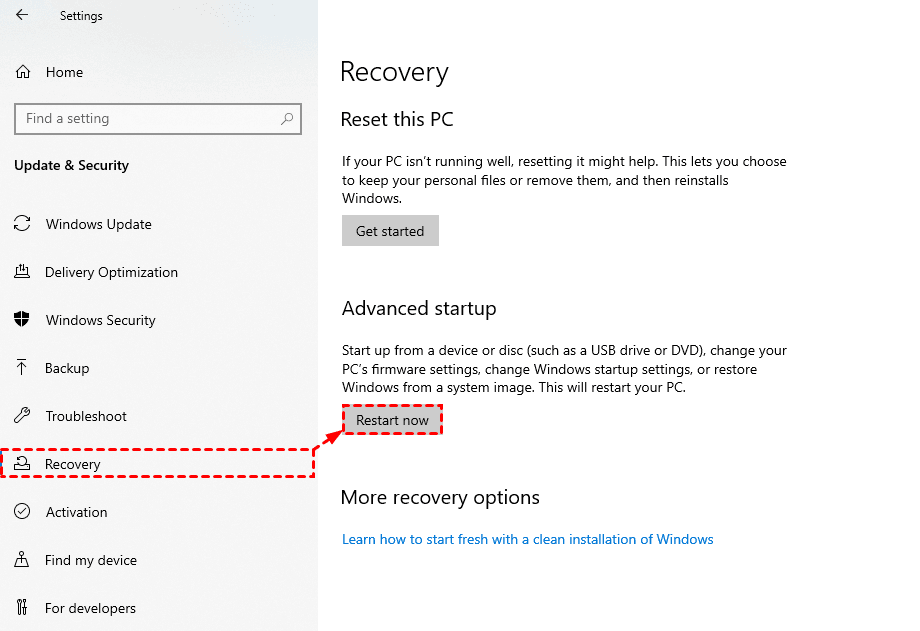
Approach 1. To initiate a Windows 10 update, click the Start button, then select Settings. Next, choose Update & Security, and navigate to the Recovery tab.
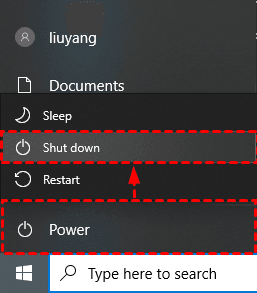
Approach 2. To start the Windows 10 in Safe Mode, click on the Start button, then click on the Power button, hold down the Shift key, and click on Restart.
You can start Windows 10 in recovery mode and click Troubleshoot > Advanced to get access to Windows recovery options.
Tips:
- To access the sign-in screen, hold the Shift key while clicking Power > Restart. This will allow you to access the sign-in screen without having to go through the usual sign-in process.
- To enter recovery mode for system restore, you can search for "restore point" in Windows, click on System Restore under the System Protection tab, and follow the wizard to complete it. Alternatively, you can use a powerful backup and restore tool to protect your data and operating system in case of unexpected errors.
Enter Windows 10 Recovery mode from boot
If you're having trouble logging into Windows 10, there are a couple of methods to get Windows to boot into recovery mode. One way is to hold the Shift key while restarting your computer.
Method 1. Boot Windows 10 in recovery mode with installation disc or recovery drive
A bootable media is required to enter Windows 10 Recovery Environment (WinRE) and gain access to Advanced Startup Options.
Step 1. Insert the installation disc.
Step 2. Select the language and region in Windows Setup.
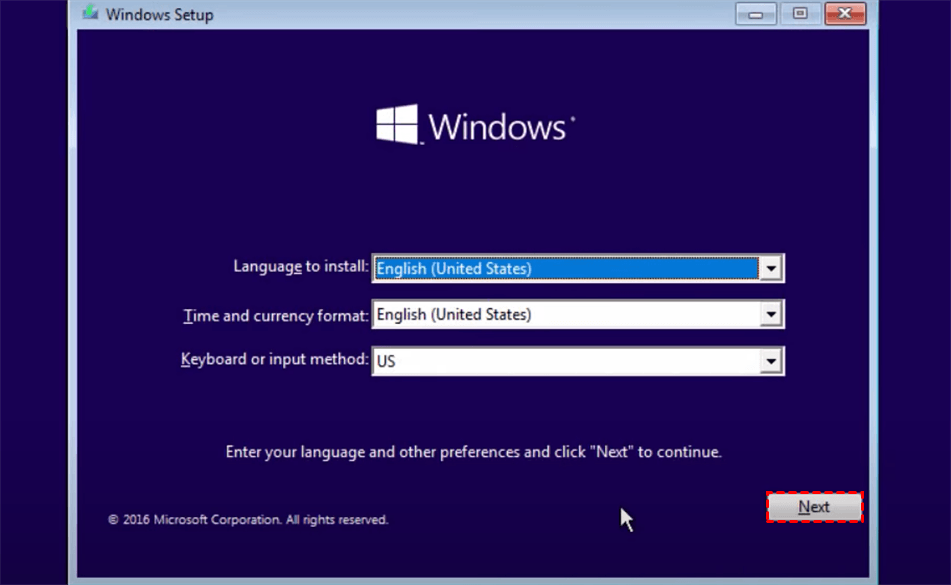
Step 3. Click Next, and then Repair your computer.
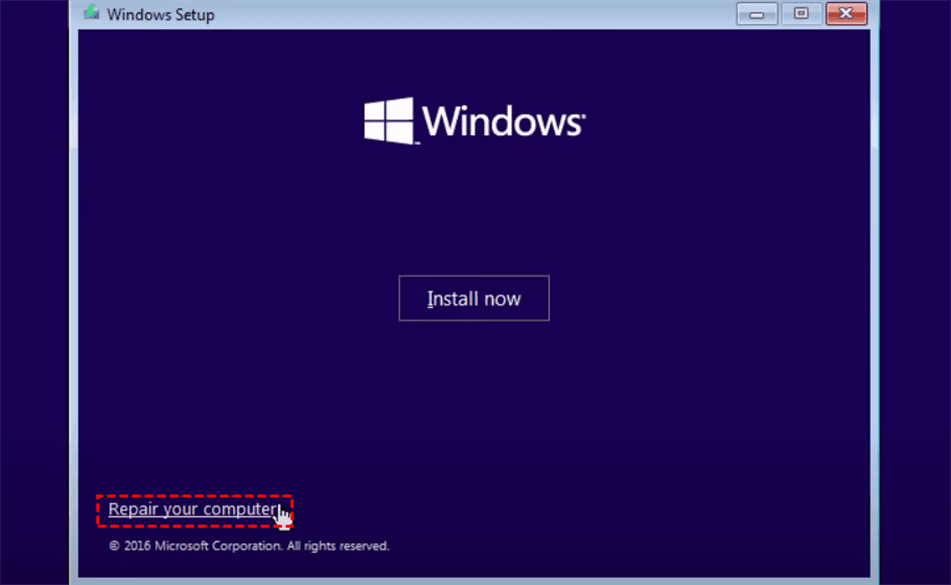
Step 4. Click Troubleshoot > Advanced.
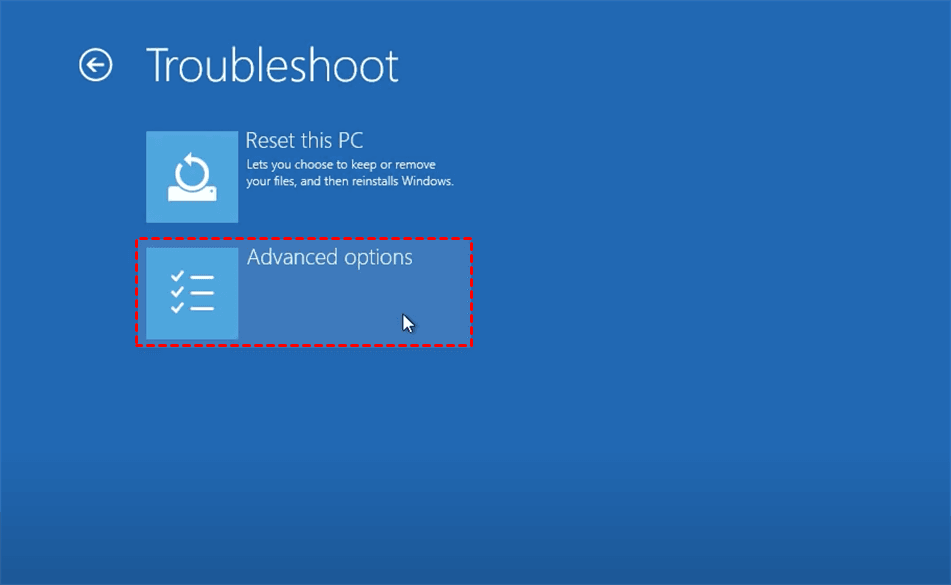
Tips: If you don't have an installation disc, you can create a recovery drive yourself.
Method 2. Boot Windows 10 in recovery mode without installation or recovery disc
If a Windows 10 computer fails to start, it will typically enter recovery mode after three failed attempts. To access this mode, you can hold the power button to shut down the PC, then power it on when the Windows logo appears. Repeat this process once more, and you should be able to access the Windows 10 recovery options from the boot menu.
Possible errors of Windows recovery options
Windows 10 recovery options are a common topic of discussion in relevant forums, with users often seeking help with issues related to entering recovery mode actively or passively. Various problems can arise, including errors that users may encounter when attempting to run recovery options.
Windows 10 System Restore stuck on initializing or restoring
Windows 10 Startup Repair not working
System Restore fail with error code 0x8007045b
Windows cannot find a system image on this computer
...
If your Windows 10 recovery options don't work, or you want a simpler way to restore Windows 10 with a higher success rate, there are alternative methods worth considering.
Easier Way to Perform System Recovery in Windows 10
Windows Advanced Startup Options can potentially resolve various system issues, but their effectiveness depends on proper usage and there's no absolute guarantee they will work.
In Windows 10, accessing recovery mode can be a complex process, and even after navigating through the steps, you may still encounter issues with performing tasks like Startup Repair, System Restore, or System Image Recovery. Improper operations during this process can even make the situation worse.
A system backup and recovery tool can be a simpler and more secure option for ensuring data safety, as it allows for easy restoration of a system to a previous state in case of a failure or corruption.
- Solution 1. Best freeware to recover Windows 10 without losing data
- Solution 2. Onekey system backup and recovery tool in Windows 10
Best freeware to restore Windows 11/10/8/7 without losing data
Qiling Disk Master Standard is a powerful backup and restore program that protects data and system by backing up Windows 10 when it's running well and restoring the faulty computer to a normal state.
◾ Simple and complete: This freeware allows you to backup and restore your system with just a few clicks. In addition to backing up your OS, you can also backup files and folders, partitions, or even your entire disk in case of data loss due to system or hard drive failures.
◾ Highly compatible: It works on Windows 11/10/8.1/8/7/XP/Vista, with an intuitive interface, and the operations are the same across all OS versions.
◾ Automatic and flexible: The system supports various backup types, including full, incremental, and differential backups, and allows for configuration of backup compression and splitting.
◾ Handy recovery tools: The tool includes features to create bootable discs or USB drives, and with higher editions, you can also create a self-booting recovery environment. This allows you to boot into Windows PE and restore your system from an earlier backup if your computer fails to boot.
◆ Create a system image in case of recovery need:
To initiate a system backup, click on the "Backup" option in the left pane, select "System Backup," and choose a destination to store the automatically selected system partitions. It's recommended to use removable devices or network storages for this purpose.
Tips: Click Options to manage backup settings, click Schedule to set up automatic backup, or click Scheme in the advanced edition to auto delete older backups.

◆ If you are worried about unexpected system failures:
You can create a bootable media or enable the Windows 10 recovery environment of Qiling to perform backup/restore from startup even when the computer fails to boot into Windows.
▶ To create a bootable media, go to the "Tools" tab, click on "Create Bootable Media", select the desired bootable disc type (Windows PE is recommended), choose the bootable media, click "Next", and wait for the progress to complete.

▶ Enable Qiling recovery environment (Advanced): To upgrade to a higher edition, go to the Tools tab, select Recovery Environment, check the box to enable the boot option for the desired edition, and click OK.
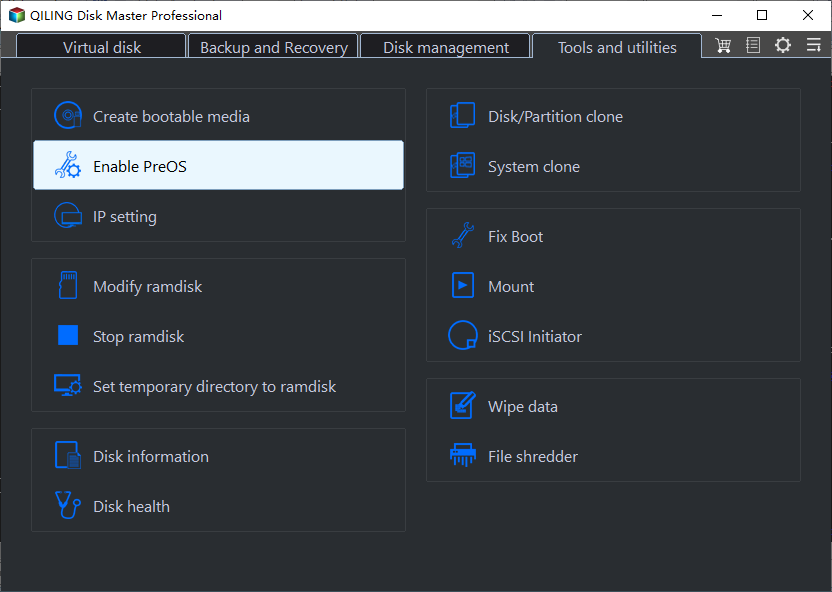
Tips:
>> The created WinPE disc allows you to boot from both MBR/legacy and UEFI mode.
>> If your computer breaks down, you can create a bootable media and system image backup on a working Windows PC. Then, use the Universal Restore feature (available in the Professional edition) on the faulty computer to make it bootable again after restoration.
◆ Perform Windows 11/10/8/7 recovery from boot:
1. If you can normally boot into Windows, you can easily perform a system restore using Qiling Disk Master. However, if Windows suddenly crashes, you can use recovery media or a recovery environment to restore from boot, which is a simpler alternative to Windows 10 recovery mode.
If you've enabled the recovery environment, you can choose to enter into Qiling Disk Master from startup. Alternatively, you can create a bootable CD/DVD or USB and connect it to your crashed computer, which will start it up in Windows PE. Once Qiling Disk Master appears, go to the Restore tab and click Select Image File.
2. Navigate to the system image you created earlier. If it's stored on a network location, click on "Share/NAS" followed by "Add Network Location" to locate the image.
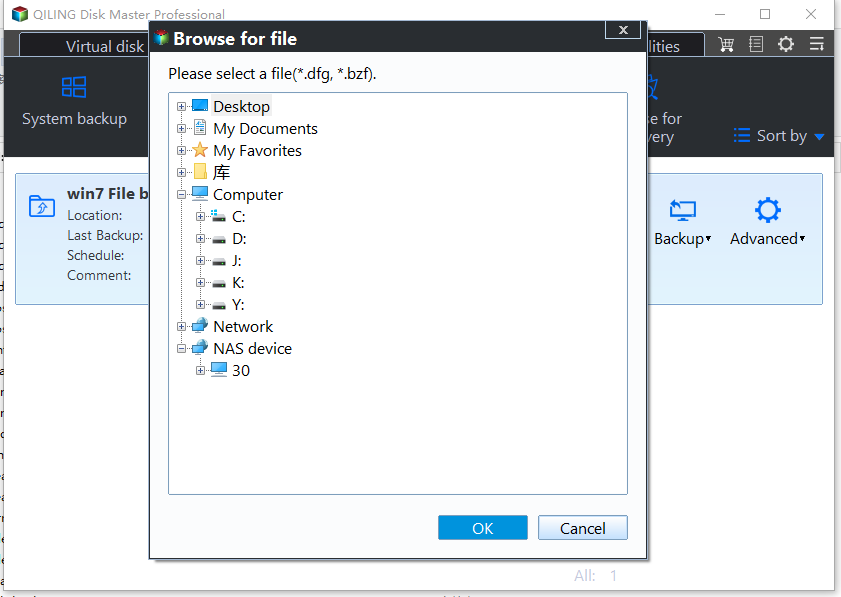
3. Select Restore this system backup and click Next.

4. Confirm the operation and click Proceed.
Note: If the system image is created on dissimilar hardware, please select the advanced feature "Universal Restore".

Onekey system backup and recovery tool in Windows 10
In Windows 10 recovery mode, accessing Advanced Startup Options allows you to repair or restore your system, but the process can be complex. If you're tired of navigating these configurations, you can create a onekey recovery option, providing a simpler alternative.

Qiling Disk Master is a tool that allows you to create a recovery partition and perform onekey system recovery, supporting Windows 11/10/8.1/8/7/XP/Vista and Windows Server 2003/2008/2011/2012/2016 on all computer brands.
With this feature, you can back up your entire system with just one key press, and then use the same key (F11 or A) to enter Qiling recovery mode, allowing you to easily restore your computer to its factory settings or an earlier state.

The operation is simpler, and you don't need an installation disc or recovery drive to access the recovery menu from boot, compared to Windows 10 recovery mode.
Frequently Asked Questions about Windows 10 Recovery Mode
Q: What's the difference between System Restore and System Image Recovery in recovery mode?
System Restore and System Image Recovery are two recovery options in Windows 10. System Restore recovers Windows from a previous restore point, a snapshot of system configurations, while System Image Recovery restores the computer from a system image backup, which includes all system drives and related files. If you only need to recover the system state, System Restore is sufficient, but it cannot restore data on your hard drive.
Q: What is Safe Mode and how's it different from recovery mode?
Safe Mode is a basic state of Windows that loads with limited files and drivers, allowing you to troubleshoot and resolve issues that don't occur in this mode, and then reboot normally.
In the context of this article, recovery mode refers to the Windows recovery environment, which includes a series of Advanced Startup Options such as System Restore, Startup Repair, etc. Safe Mode is just one of these recovery options.
Q: How do I boot to Safe Mode in Windows 10?
To enter Windows 10 Safe Mode, you can follow the steps to access Windows 10 recovery mode, click "Startup Settings" in Advanced Startup Options, and then select the "Enable Safe Mode" option.
Select 4 or press F4 to Enable Safe Mode
To enable Safe Mode with Networking, press the F5 key or select the option from the menu. This will boot your system in a minimal environment with networking capabilities, allowing you to troubleshoot and resolve issues while still having access to the internet.
Press the F6 key on your keyboard to enable Safe Mode with Command Prompt. This will allow you to access a command prompt within Windows, where you can troubleshoot and repair issues.
After booting into Safe Mode, you can try troubleshooting and fixing Windows 10, optionally backing up files or performing System Restore.
Q: How do I disable or enable Windows 10 recovery environment?
You can disable the Windows Recovery Environment (WinRE) on your Windows 10 device. To do this, open Command Prompt as Administrator and run the command `reg add "HKEY_LOCAL_MACHINE\SYSTEM\CurrentControlSet\Control\Session Manager\Memory Management\WinRe" /v WinReEnabled /t REG_DWORD /d 0 /f`. This command will set the WinRE status to disabled.
Command to check status: reagentc /info
Command to disable WinRE: reagentc /disable
Command to enable WinRE again: reagentc /enable.
Conclusion
Windows 10 recovery mode offers users various options to repair or restore their computer, but it can be complex and not always effective. An alternative to this process is using Qiling Disk Master, a powerful backup and restore software that can facilitate disaster recovery and system recovery operations.
A Windows 10/11/8/7 system backup and recovery tool with a bootable media creator, also available in a Server edition.
There's a onekey system backup and restore tool called Qiling OneKey Recovery that allows you to back up Windows 10 and create a recovery partition, and then press just one key to enter the recovery mode for system restore.
Related Articles
- How to Use System Restore from Boot in Windows 10/8/7?
- How to Repair Windows 10 Using Command Prompt (5 Ways)?
- Top 5 Ways to Windows 10 Recovery Environment Missing
- How to Do System Restore in Safe Mode Windows 10 Easily?
- Top Two Ways to Restore Previous Version in Windows 7
To go back in time and save your files, you can restore previous version in Windows 7 via Windows built-in feature or Qiling Disk Master Standard. Let's use them. - How to Restore Windows 7 to Previous Date with Ease
Learn how to Restore Windows 7 to Previous Date with Ease with clear steps, key checks, and practical tips.
Products
Articles & Tutorials
- Data Recovery
- Data Backup
- File Recovery
- File Backup
- File synchronize
- System Backup and Restore
- Disk and Partition Clone
- Technical articles
- Disk Master Help
- Windows Deleted File and Disk Recovery Tutorials
- Windows File and Data Recovery Tutorials
- More Windows Tutorials for Install, Security, Files, and PC Tips
- Windows Boot, Repair, and Recovery Environment Tutorials
- Windows Backup Tutorials
- Windows Restore Tutorials
- Windows Clone and Migration Tutorials
- Windows Server Backup, Recovery, and Management Tutorials
- Windows Disk, Partition, and Storage Management Tutorials