Top Two Ways to Restore Previous Version in Windows 7
The case: restore folder to the previous version
You can try right-clicking on the folder, selecting "Properties", then clicking on the "Previous Versions" tab. If you don't see the tab, it's likely that the feature is disabled by your system administrators. You can also try contacting your IT department to see if they can restore the folder for you. If you're unable to access the folder, you might want to try using a third-party backup software or a cloud storage service to recover your photos. I hope this helps!
The Previous Versions feature in Windows 7 allows users to restore files and folders to a previous state by accessing copies saved as part of a restore point. This feature was first introduced in Windows Vista's Business, Ultimate, and Enterprise editions, but is now available to all Windows 7 users.
In Windows 7, you can restore previous versions of files to their older versions, which can be helpful if you've accidentally modified or deleted files. This feature allows you to revert back to a previous version of a file, saving you from the hassle of rewriting it.
How to restore previous version of file in Windows 7?
You will find a lot of ways to restore previous version in Windows 7 by searching Google. After testing, the two most effective methods have emerged. Let's learn these two solutions with detailed demonstrations.
Restore previous version of files with Windows built-in feature
To restore Windows to a previous version, you must have system protection turned on. This allows Windows to create previous versions. If you're unsure how to turn on system protection, you can refer to the steps provided.
Step 1. To access the Control Panel on your PC, click the Start tab in the lower left corner of your screen, type "Control Panel" in the search box, and then open it.
Step 2. Select System and Security from the list. Then click System.
Step 3. Select System protection from the left pane. Click the drive where your files are stored. Then click Configure.
Step 4. Click Restore system settings and previous versions of files. Then choose OK.
Detailed steps of recovering files to the previous version with Windows built-in feature
Suppose you have a file called Text File. Now, you can restore previous version in Windows with the detailed instructions below.
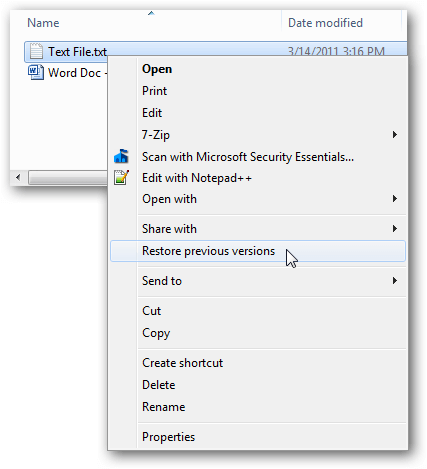
Step 1. Right click the file. Then choose Restore previous versions.
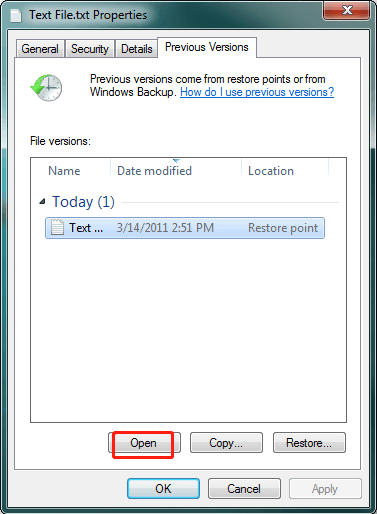
Step 2. Previous versions of this file will be listed in the interface, allowing you to select the version you want to view or restore from. You can click "Open" to view the selected version and confirm it's the one you want.
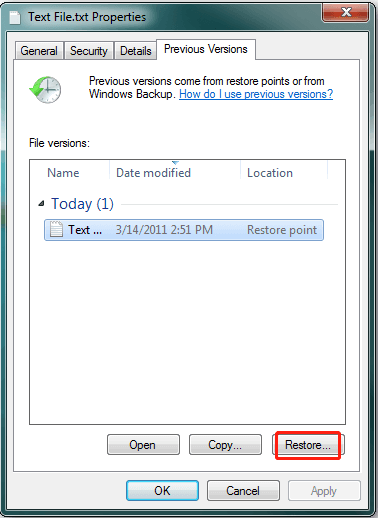
Step 3. If everything is correct, you can click Restore.
Notes:
- The current version of the file will be replaced, and this replacement cannot be undone.
- You can create a copy of the selected version by clicking the Copy button in Step 3.
For a single file, the simple method can be used, but it's time-consuming for a large number of files. Additionally, many users have reported that the previous versions feature in Windows 7 is not functioning properly, often displaying "there are no previous versions available" when opened. If you're looking for a reliable alternative, there's another solution available.
Restore files to the previous version using professional recovery freeware
Fostering a good habit of backing up is essential for disaster recovery, and Qiling Disk Master Standard is a good freeware option that allows you to easily restore deleted or modified files to their previous versions.
This recovery software supports various file formats and sizes, allowing you to recover deleted files from PS4, restore files from formatted SD cards, and recover lost files.
You can use this freeware to make a selective file restore from an image file, which is useful for restoring parts of the files. The software has a simple interface and easy steps, making the restoration process effortless. It supports various Windows operating systems, including Windows 10, 8.1, 8, 7, Vista, and XP, and can be downloaded to restore previous versions in Windows 7.
To recover files to their previous version, follow these steps: first, you must have a file backup in advance. Then, you can restore the previous version of your files via these operating steps, which are also applicable to Windows 10.
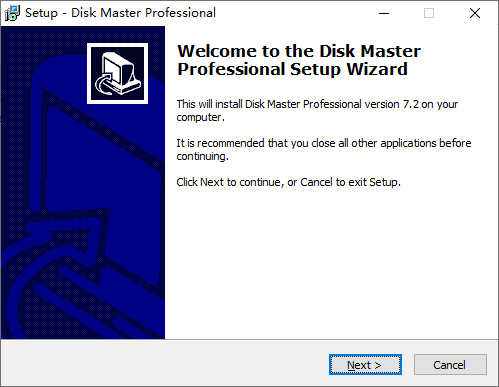
Step 1. Install and open this freeware.
Step 2. Choose Backup and recovery tab page. Select the files backup (My File Backup) from the list. Then click Next.
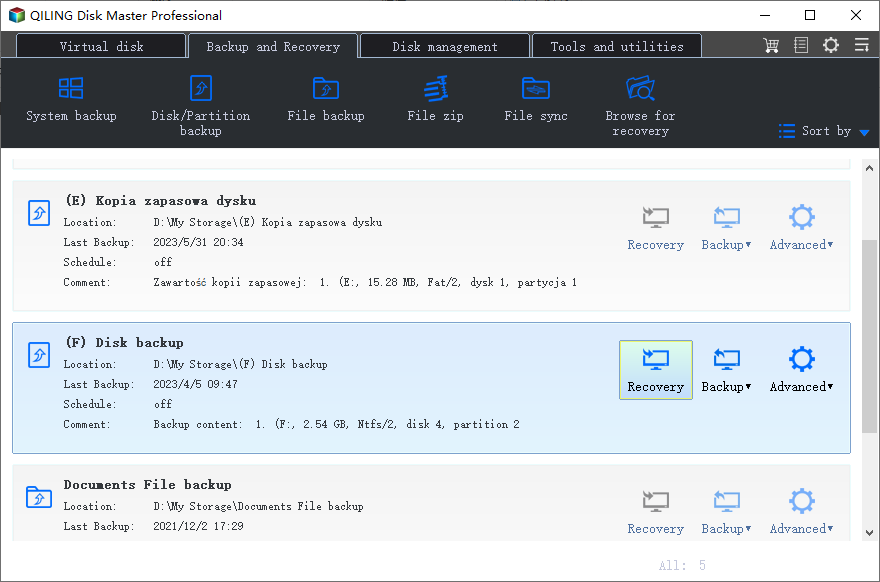
Step 3. Select a Backup Point to restore. Then click Next.
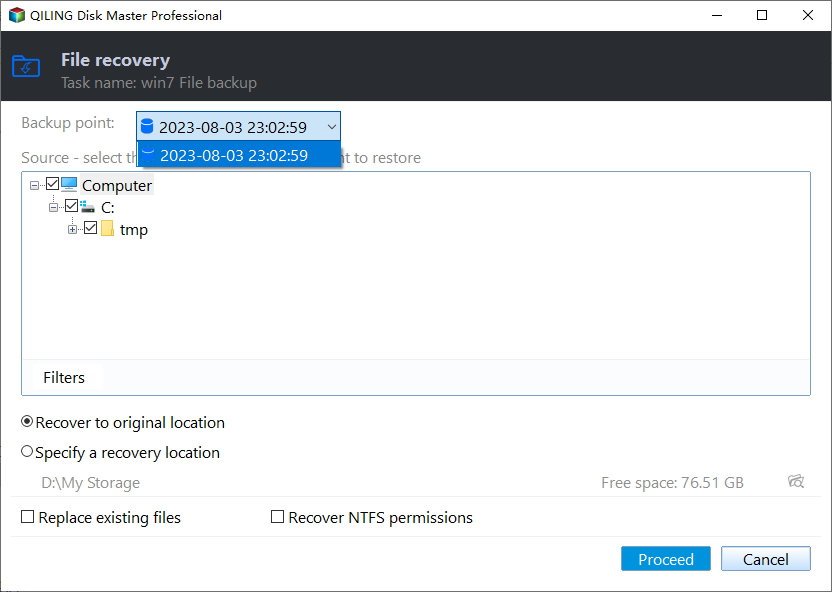
Step 4. You can restore files from the location where you backed up files (here is C:).
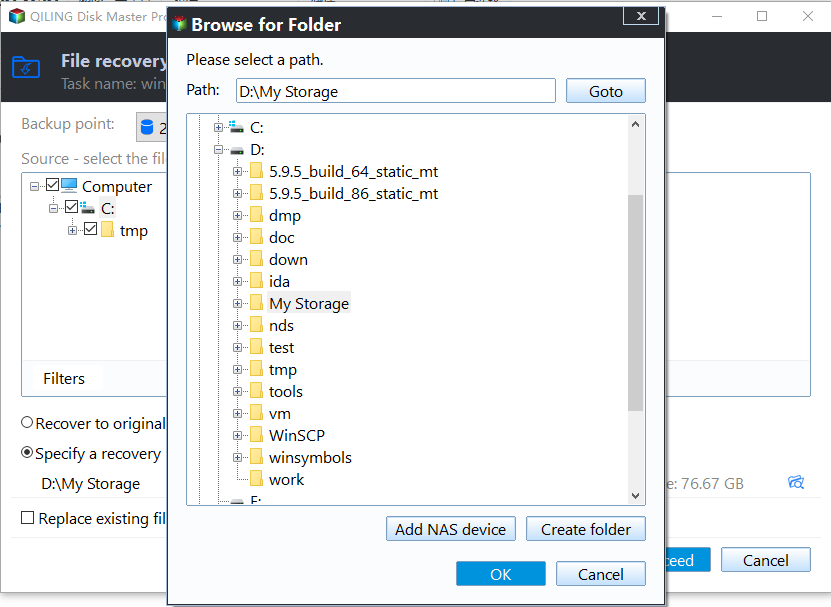
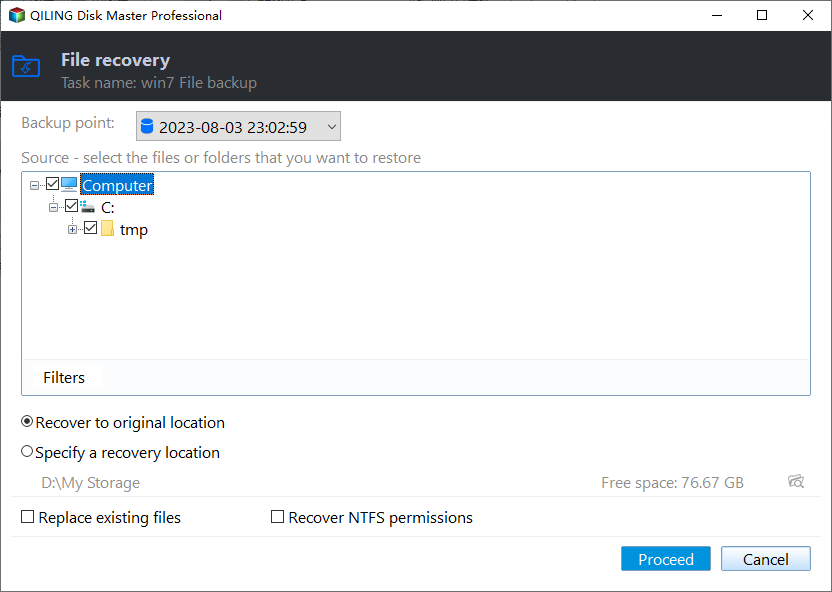
Step 5. You can choose Restore to original location or Restore to a new location according to your needs. Then click Proceed.
Notes:
- In step 5, you can restore NTFS permissions to maintain the original permission rights for the files. This feature is only applicable to NTFS formatted drives. Upgrading to the advanced version will give you access to this function.
- To overwrite existing files, click the "Replace existing files" option in step 5.
Summary
If you've accidentally deleted or modified a file, you can restore a previous version using Windows' built-in feature or Qiling Disk Master Standard in Windows 7. Depending on your situation, you can choose to use either method to retrieve the file.
It is recommended to use Qiling Disk Master Standard for its advanced settings, and for restoring previous versions in Windows Server, use Qiling Disk Master Server.
Related Articles
- Boot Device Not Found Hard Disk 3F0 Error on HP [FIXED]
If you facing hard disk 3f0 errors and looking about How to fix hard disk 3F0 errors, this article has it all. We discuss the potential reasons and practical solutions to fix boot device not found hard disk error (3f0) on hp. - Acer eRecovery Management Restore Failed Solutions
This essay will gather several common situations with acer erecovery management restore failed problem and give some solutions. - Fixed | Failed to Create Volume Snapshot (6 Ways)
This page illustrates what to do when you encounter the error "Failed to create volume snapshot" to backup or clone with Qiling Disk Master. - How to Factory Restore Lenovo ThinkCentre? (4 Ways Included)
You may want to factory restore Lenovo ThinkCentre for different reasons. This article will show you 4 ways to restore Lenovo ThinkCentre to factory settings in Windows. - FIXED: Windows Server Backup Stuck on Reading Data
This guide explains FIXED: Windows Server Backup Stuck on Reading Data and provides practical steps, tips, or recovery options to help you complete the task safely. - How to Wipe a Hard Drive without Deleting Windows
This guide explains How to Wipe a Hard Drive without Deleting Windows and provides practical steps, tips, or recovery options to help you complete the task safely.
Products
Articles & Tutorials
- Data Recovery
- Data Backup
- File Recovery
- File Backup
- File synchronize
- System Backup and Restore
- Disk and Partition Clone
- Technical articles
- Disk Master Help
- Windows Deleted File and Disk Recovery Tutorials
- Windows File and Data Recovery Tutorials
- More Windows Tutorials for Install, Security, Files, and PC Tips
- Windows Boot, Repair, and Recovery Environment Tutorials
- Windows Backup Tutorials
- Windows Restore Tutorials
- Windows Clone and Migration Tutorials
- Windows Server Backup, Recovery, and Management Tutorials
- Windows Disk, Partition, and Storage Management Tutorials