How to Restore Windows 7 to Previous Date with Ease?
Why you want to restore Windows 7 to previous date?
You may encounter various computer issues, such as system damage from a misbehaving app, which can be difficult to fix. Simply uninstalling the app may not reverse the damage. Restoring your system to a date before the app was installed can help resolve the problem.
Windows allows users to create system restore points that back up the computer's state, including system files, settings, registry, and local user profiles. These restore points can be used to revert the computer to a previous state when issues arise, making them a useful solution for software errors. Now, let's explore how to restore Windows 7 to a previous date using this feature.
How to restore Windows 7 to previous date?
Method 1. Restore Windows 7 to previous date with Windows built-in feature
The Backup and Restore feature lets you create the system restore point, and you can restore Windows 7 to previous date with the System Restore utility. Here are the steps to make it.
Step 1. Click the Start menu. Type System Restore and hit Enter.
Step 2. A window will appear and click Next to go to the next step.
Step 3. To restore your computer, you will see a list of recent restore points. The most recent one will be selected by default. If you want to see more options, click "Show more restore points". Then, choose the restore point you need and click "Next" to proceed.
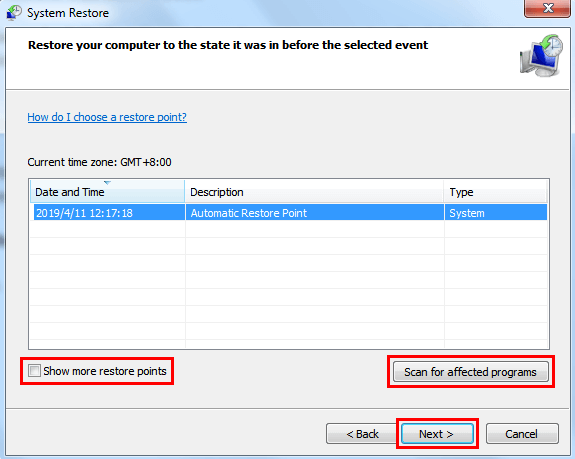
Note: If you're unsure whether the restore will cause some of your programs to lose data, you can click "Scan for affected programs" to check.
The computer will restart and start the restore process, which may take some time to complete. Please be patient during this process.
Windows 7 will remove all previous system restore points if you have restored to a system image recently, but you can use a third-party backup software to create and manage backup files in a flexible way.
Method 2. Restore Windows 7 to previous date with Qiling Disk Master Pro
Qiling Disk Master Pro is a comprehensive backup and restore software that protects computers from data loss and allows for recovery from various situations.
- Different Backup Types. Qiling Disk Master can create a system image and restore Windows 7 to a previous date, and also backs up disks, partitions, and selected files.
- Schedule Backup. The software enables users to set up a scheduled backup task, which can be performed on a daily, weekly, monthly, or event-driven basis, or even when a USB device is plugged in, ensuring that important data is automatically and regularly backed up.
- Backup to Various Destinations. It allows you to save the backup images to various locations such as your hard drive, a USB flash drive, or a network share.
- Manage Backup Files Flexibility. This feature allows you to set a custom scheme that helps remove old backup images, ensuring you always have the right backup image and never run out of disk space.
To create a system image and have Windows 7 restore to a previous date, you can use Qiling Disk Master Pro. First, download the free trial version of the software and follow the steps to create a system image. This will allow you to restore your system to a previous date in case of any issues.
Steps to create system image:
Step 1. Launch Qiling Disk Master Pro > Click Backup and then choose System Backup.

Step 2. The system automatically lists the partitions related to booting. Select the destination path to save the image file.

Steps to restore Windows 7 to previous date:
Step 1. Go to Home, find the system backup you created, click Restore, confirm by clicking Yes on the pop-up window, and select the backup image to proceed.

Step 2. Confirm the destination and click Proceed. During the system restore, the tool will prompt you to restart the computer and then enter into Restart Mode to complete the restore operation.

Conclusion
To restore Windows 7 to a previous date, you can use the built-in Windows feature or try a new approach with Qiling Disk Master Pro. This tool not only helps with backup and restore but also allows you to create a system repair disc, which can be a lifesaver in case your system crashes.
Related Articles
- How to Choose Suitable Digital Photo Storage Devices?
This page shows the five best ways to store your digital photos, and you can find good digital photo storage devices according to your needs after reading this page. - Windows 7 System Image Backup Failed Not Enough Disk Space[SOLVED]
If you are facing Windows 7 system image backup failed not enough disk space error, fix it with the below solutions. Learn three methods to create disk space to store system image backup on your computer, - Windows 11 Virus & Threat Protection Not Working (2024 Fixes)
Many users have reported Windows 11 virus and threat protection not working. We have wrapped up a few solutions here in this blog for our readers to let them get rid of this issue. - How to Backup Chrome Settings Without Sync [Step-by-Step Tutorial]
Back up Chrome settings without sync by saving browser profile data before reinstalling, migrating, or resetting Windows. - Wipe Hard Drive in Windows 10 to Protect Privacy
What's the best way to wipe a hard drive and clear all the data away and make sure they are unrecoverable by no means. please read this article. - Work from Home Equipment Checklist: What Do You Really Need To Work From Home
This guide explains Work from Home Equipment Checklist: What Do You Really Need To Work From Home and provides practical steps, tips, or recovery options to help you complete the task safely.
Products
Articles & Tutorials
- Data Recovery
- Data Backup
- File Recovery
- File Backup
- File synchronize
- System Backup and Restore
- Disk and Partition Clone
- Technical articles
- Disk Master Help
- Windows Deleted File and Disk Recovery Tutorials
- Windows File and Data Recovery Tutorials
- More Windows Tutorials for Install, Security, Files, and PC Tips
- Windows Boot, Repair, and Recovery Environment Tutorials
- Windows Backup Tutorials
- Windows Restore Tutorials
- Windows Clone and Migration Tutorials
- Windows Server Backup, Recovery, and Management Tutorials
- Windows Disk, Partition, and Storage Management Tutorials