Top 5 Ways to Fix Windows 10 Recovery Environment Missing
Windows 10 recovery environment is missing?
"I have a Dell computer running Windows 10. Today, I delete my recovery partition by mistake. So, I run a custom install for my Dell AW 15 R3. Everything is look like the same. However, I could not install the Dell recovery program due to the WinRE missing problem. What is a Windows recovery environment? How to do to repair Windows 10 recovery environment missing issue?"
What is Windows recovery environment?
The Windows Recovery Environment (WinRE) is a minimal operating system based on Windows Preinstallation Environment that can be used to repair operating system boot failures. It comes equipped with various tools for recovery, including automatic repair and troubleshooting tools, push-button reset, and system image recovery.
The WinRE image file, winre.wim, is usually saved in the \Windows\System32\Recovery folder, but it can also be stored in a separate partition, such as a system reserved or recovery partition, created by the manufacturer.
Causes to Windows 10 could not find the recovery environment
Windows 10 Recovery environment may be missing due to various reasons, except for deleting the recovery partition mistakenly. Other causes include corrupted system files, misconfigured UEFI settings, or issues with the Windows Boot Manager.
- Windows RE Status shows Disabled because it has been disabled in the Windows settings, preventing its use until it's enabled.
- The boot configuration store (BCD) does not contain entries for recovery mode, making it inaccessible unless the issue is resolved.
- The Winre.wim file is missing or invalid, which can be fixed by running the sfc /scannow command. If that doesn't work, you can try copying the Winre.wim file from a working system and setting the path again.
- The Winre.wim file may be infected with a virus, so running anti-virus software to remove malware or viruses is necessary.
- The WinRE configuration file ReAgent.xml is missing or contains incorrect data, which may be causing the issue. To resolve this, you can try deleting the ReAgent.xml file and then re-enabling WinRE.
- Corrupted Windows registry keys.
How to repair Windows 10 Recovery Environment missing error
According to the causes, we will provide you the corresponding ways to fix the error: unable to find the recovery environment in Windows 10.
Fix #1: Turn on Windows RE
If the Windows recovery environment is disabled, you need to enable it to take effect. You can check the status by typing the command "reagent /info" if you're unsure.
1. Press Start in Windows 10.
2. Type cmd and run as administrator.
3. To check the status of Windows Recovery Environment (WinRE), type "reagent /info" and press Enter. If WinRE is disabled, type "reagent /enable" to enable it.
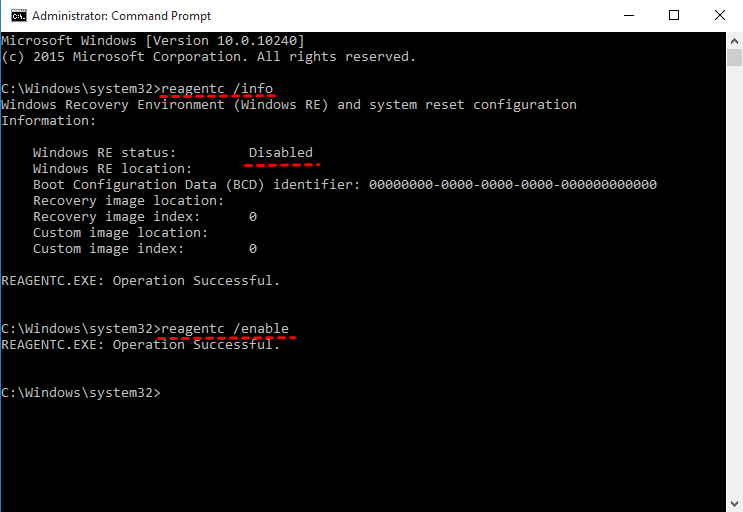
If you're unable to find the Recovery environment in Windows 10, you can try booting your computer in Safe Mode or using a third-party bootable media to access the Recovery environment. This can help you troubleshoot and repair any issues with your system.
Fix #2: check and fix the WinRE entry in BCD
1. To enable the Windows Subsystem for Linux (WSL) on Windows, you can open PowerShell with admin privileges and run the command `wsl --install`. This command will enable the WSL feature and install the Ubuntu distribution, which is a popular Linux environment for Windows.
bcdedit /enum all
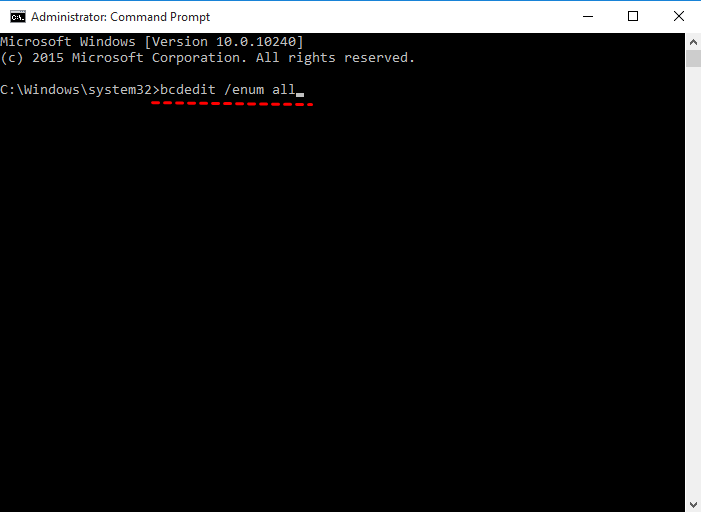
2. In the Windows Boot Loader, find the identifier set as {current} and recoverysequence with its GUID value.
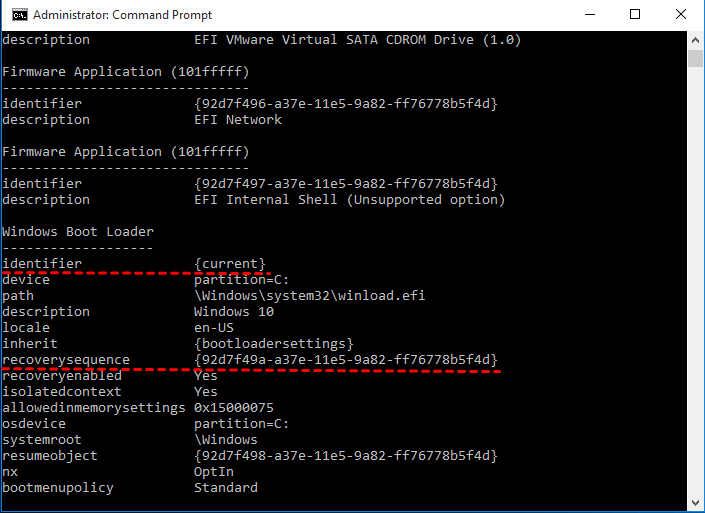
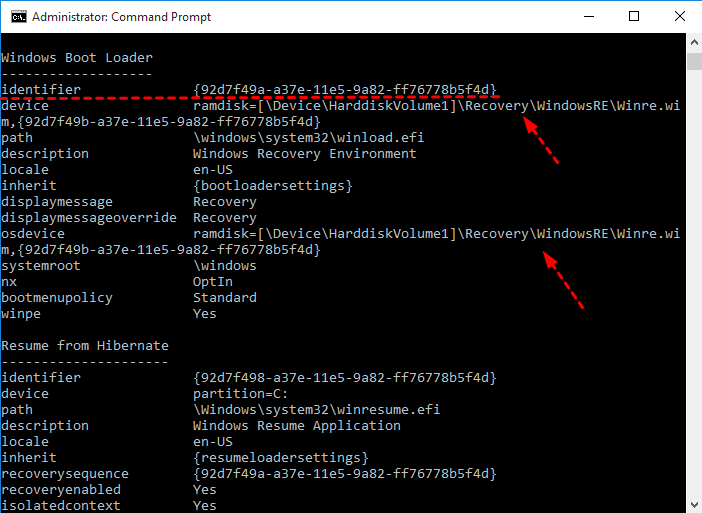
3. To find the identifier with the found GUID value, ensure the device and osdevice have the same path, which should point to the Winre.wim file. If they don't match, you'll need to run a command to assign the current identifier to another drive with the same path. This ensures consistency and correct functionality.
bcdedit /set {current} recoverysequence {GUID_which_has_same_path_of_device_and_device}
Fix #3: Fix missing or corrupted Winre.wim
1. Find the Winre.wim file on another working computer, copy it to the C:\Recovery folder on the current computer.
2. Type the following command to set the path again.
reagentc /setreimage /path C:\Recovery\WindowsRE
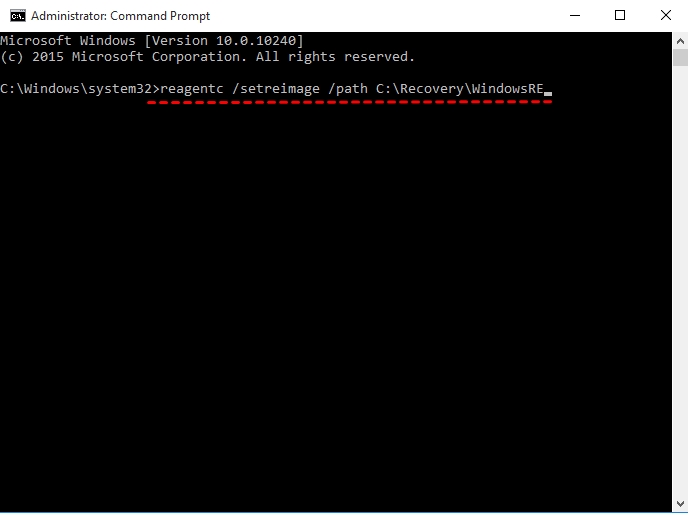
3. Type reagentc /info to check the path of Winre.wim file.
Fix #4: Use Windows 10 recovery drive
To resolve the error message "Could not find the recovery environment" in Windows 10, you can use a recovery drive that was created beforehand. If you don't have one, you can create a Windows 10 recovery disk on a working computer with the same hardware. This recovery drive can help you troubleshoot and potentially resolve the issue.
1. Connect a recovery drive to your computer, set the boot priority to the drive, press the Shift key while restarting, and your computer will restart in the Windows Recovery Environment.
2. On the Choose an option screen, select Troubleshoot.
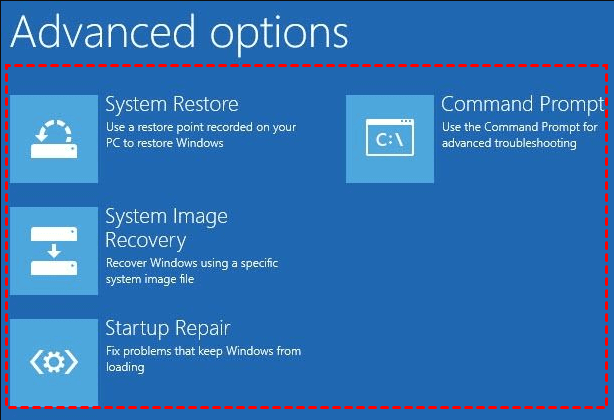
3. Select Advanced options on the Troubleshoot interface.
4. To recover your data, select one of the recovery tools shown in the picture and run it according to the on-screen instructions.
Fix #5: Use Windows 10 installation disc
If you're experiencing issues with resetting Windows 10, you can try using a Windows 10 installation disc to reset the operating system, which may help fix the recovery environment. However, if the reset fails, you may need to explore alternative solutions.
Detailed steps:
1. Create an installation disc on a working computer running the same version of Windows 10.
2. Connect the disc to your computer and set boot priority for it.
3. On the initial setup screen, click Next.
4. Click on "Repair your computer" and then select "Troubleshoot" on the next window.
5. To resolve the issue of a missing Windows 10 recovery environment, click on the "Advanced options" and select a recovery tool to repair the problem.
Create Windows 10 Recovery Environment with Qiling Disk Master
If you still can't fix the Windows 10 recovery environment missing issue, it's recommended to create a new Windows 10 recovery environment using a reliable system backup and restore software like Qiling Disk Master, which supports various Windows versions, including XP, Vista, 7, 8, 8.1, 10, 11, and Windows Server versions.
The steps listed below to create Windows 10 recovery environment.
1. First of all, download it and install to your Windows 10. Then open this program.
2. Click OneKey System Backup on the main interface.
3. To ensure a safe and efficient backup process, it is highly recommended to create a backup of the system to the Qiling Disk Master Partition, which is the primary partition for system backups. Alternatively, you can also create a backup to another location, such as an external hard drive or a cloud storage service, to maintain a secure and redundant backup system.
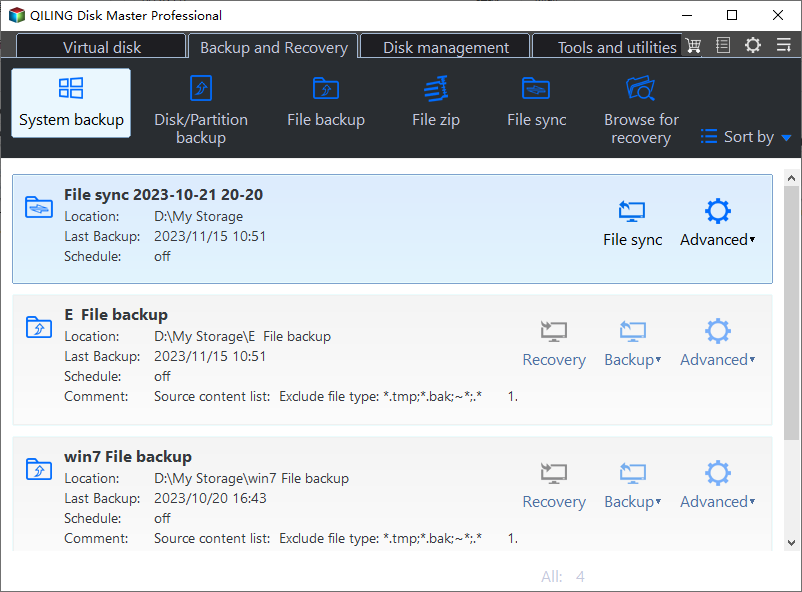
4. Confirm the system backup, then click Proceed. You can preview the destination disk by clicking Advanced options.

5. After a while, Qiling Disk Master will create a recovery environment for Windows 10. To exit, simply click OK. Once done, you can access the recovery environment via This PC, where you'll find two additional partitions on the hard drive. You can also set a shortcut key (F11 or A Key) to access the recovery environment from the Qiling Disk Master main window settings icon.
If your Windows 10 system fails to boot or is experiencing system file corruption, you can use OneKey Restore with a backup in hand. To do this, follow the instructions below.
1. Click OneKey System Recovery on main window.

2. In Qiling Disk Master Partition, select "Restore system by using the image file" or "Restore system by selecting a system image file" and click "Next".

3. Press Proceed to restore Windows 10.

Tips:
- The System Recovery will be completed in WinPE.
- If you can't boot up your Windows 10, you can press F11 or A key to enter the Onekey Recovery Environment to restore your OS, after setting the shortcut.
- OneKey system backup and recovery provided by Qiling also applies to Windows 7, 8, 11 and other popular operating systems.
With the help of Qiling Disk Master, you can add a new recovery option to your computer, which allows you to restore your Windows 11/10/8/7 if needed.
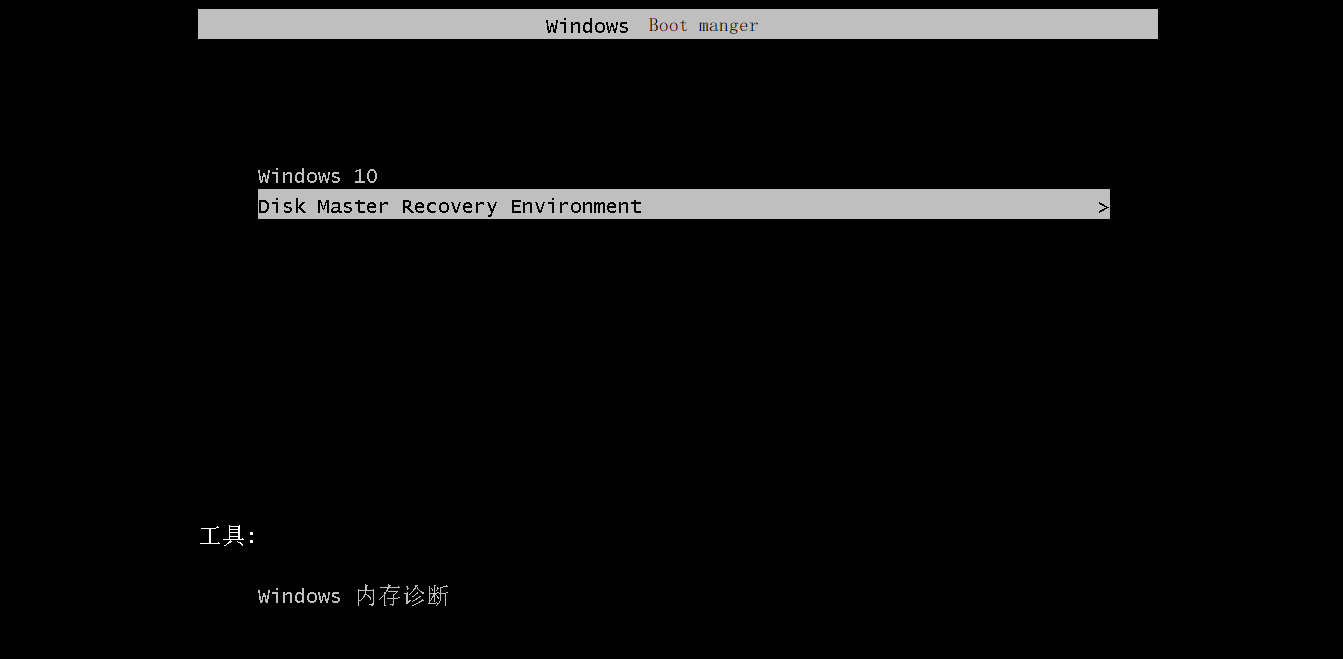
To prevent Windows 10 recovery environment missing problem, create a regular backup for your Windows 10 with Qiling Disk Master and add the Qiling Disk Master recovery environment to Windows 10 boot options menu.
The Epilogue
Windows 10 recovery environment missing problem can be easily fixed with the above 5 solutions, which can be followed to resolve the issue. Alternatively, it's wise to create a new Windows 10 recovery environment to restore the computer in time. These methods can also be used to fix the Windows recovery environment missing problem.
Related Articles
- Tested Solutions to No System Recovery Options in Windows 10/8/7
- How to Recover System If No Dell Factory Image Restore Option
- Unable to Create Recovery Drive in Windows 10 - How to Solve
- How to Reset or Refresh Windows 10 without Losing Programs
- 6 Ways to Fix Samsung Magician This Drive Is Not Supported
- How to Extend C Drive in Windows 10 without Formatting? [3 Ways]
To extend the C drive in Windows 10 without formatting, there are three methods you can use. The first method involves using the built-in Disk Management tool to shrink a different drive and then extend the C drive.
Products
Articles & Tutorials
- Data Recovery
- Data Backup
- File Recovery
- File Backup
- File synchronize
- System Backup and Restore
- Disk and Partition Clone
- Technical articles
- Disk Master Help
- Windows Deleted File and Disk Recovery Tutorials
- Windows File and Data Recovery Tutorials
- More Windows Tutorials for Install, Security, Files, and PC Tips
- Windows Boot, Repair, and Recovery Environment Tutorials
- Windows Backup Tutorials
- Windows Restore Tutorials
- Windows Clone and Migration Tutorials
- Windows Server Backup, Recovery, and Management Tutorials
- Windows Disk, Partition, and Storage Management Tutorials