How to Run SFC /Scannow in Windows 10, 11 (Stepwise Guide)
About sfc /scannow command
The SFC command is used to verify and replace important Windows system files. It has various switches such as /scannow, /scanfile, /verifyonly, /offwindir, /offsystemdrive, /log, /offwindir, /offsystemdrive, and /offwindir, which can be used to customize its functionality. The command can be used to scan and replace corrupted system files, scan specific files, verify system files without replacing them, and more.
- Sfc /scannow: This tool scans the integrity of all protected system files and, when possible, repairs files with problems.
- Sfc /verifyonly: scans integrity of all protected system files without repairing.
- Sfc /scanfile=: The tool scans the integrity of a referenced file and repairs it if any problems are identified, ensuring the file's accuracy and usability.
- …
The sfc /scannow command is used to repair system files that are incorrect, corrupted, changed, or damaged. To perform this repair, open Command Prompt as administrator, type sfc /scannow, and press Enter. The System File Checker will scan and replace any corrupted system files with a cached copy. This process may take some time, and the computer may restart automatically during the process.
How to use sfc /scannow in Windows 10/11 to repair corrupted system files
To run sfc /scannow in Windows 10/11, you can follow the steps below:
SFC scan on Windows
1. To open the Command Prompt as an administrator, click on the Search button on the taskbar, type "cmd" in the search box, right-click on the "cmd" result, and select "Run as administrator".
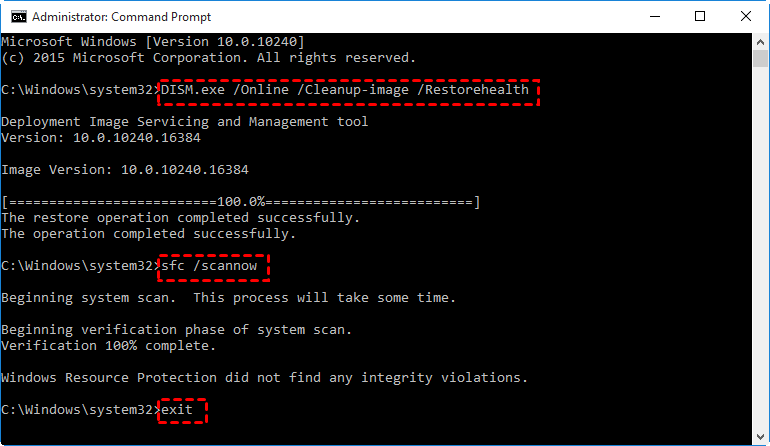
2. Run the command "DISM.exe /Online /Cleanup-image /Restorehealth" and press Enter. This process may take several minutes to complete.
Note: Running the DISM (Deployment Image Servicing and Management) tool prior to SFC is only necessary on Windows 11/10/8.1/8. To run sfc /scannow in Windows 7, you can skip to Step 3.
3. To scan system files and replace corrupted files, type `sfc /scannow` and press Enter, which will scan the system files and replace any corrupted ones with a cached copy located in `%WinDir%\System32\dllcache`.
Note: The %WinDir% placeholder is a Windows variable that represents the path to the Windows operating system folder, typically C:\Windows.
4. After the verification reaches 100%, you may receive a message indicating that your account is verified, or you may receive a message stating that your account is already verified, or you may receive a message stating that there is an issue with your account and you need to contact the platform's support team.
▶ Windows Resource Protection did not find any integrity violations.
>> A good thing.
▶ Windows Resource Protection found corrupt files and successfully repaired them.
>> A good thing.
▶ Windows Resource Protection found corrupt files but was unable to fix some of them.
The System File Checker process can be viewed in detail in the CBS.log file located in the %WinDir%\Logs\CBS folder, where you can manually replace the corrupted file with a known good copy of the file.
▶ Windows Resource Protection could not perform the requested operation.
In this condition, you can perform the System File Checker scan in safe mode, and ensure the PendingDeletes and PendingRenames folders exist under %WinDir%\WinSxS\Temp.
5. Type exit and press Enter to exit Command Prompt.
Offline SFC scan
To perform an SFC scan offline, you'll need to boot your PC using a Windows installation media, such as a USB drive or CD/DVD. Once booted, insert the installation media and follow the prompts to select your language, time and currency format, and other preferences. Next, click on "Repair your computer" and select Troubleshoot > Advanced options > Command Prompt.
1. Insert the Windows installation media or boot from a recovery drive to initiate the boot process.
2. Open Command Prompt from Windows Recovery Environment.
- To access the Command Prompt for Windows installation media, follow these steps: Click on "Repair your computer" from the installation menu, then select "Troubleshoot", followed by "Advanced options", and finally "Command Prompt".
- To create a recovery USB, select Troubleshoot, then Advanced options, followed by Command Prompt.
3. In the Command Prompt window, type `sfc /scannow /offbootdir=c:\ /offwindir=c:\windows` and press Enter. This command runs the System File Checker utility, which checks the integrity of Windows system files and repairs them if necessary.
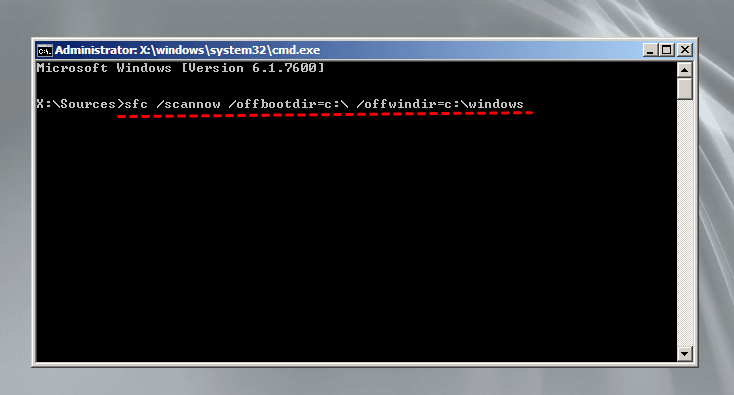
Note: To update the Windows 10 installation on a computer with multiple partitions, you need to replace C: with the drive letter of the partition that contains your Windows installation. For example, if you have a partition with the drive letter D:, you would replace C: with D:.
4. After the process is complete, reboot your computer.
If you're experiencing issues with corrupted system files, running the sfc /scannow command can help fix them. However, problems may arise during the process, such as sfc /scannow not working or getting stuck, which can even lead to the need to reinstall Windows if the command fails. To avoid this, you can try alternative methods or take preventive measures to ensure the sfc /scannow command runs smoothly.
💡Bonus tip: auto backup Windows 10/11 for system recovery
To avoid the hassle of reinstalling Windows when sfc /scannow fails, it's essential to backup Windows regularly. This will save you from the time-consuming process of reinstalling Windows and all the applications, making system restoration from the backup a much more convenient option. I recommend using Qiling Disk Master Standard, a reliable and free backup software that can help you achieve this.
- All-around data protection: It allows for full system backups as well as backing up specific files, documents, disks, and partitions.
- Windows PE boot: This tool allows you to create bootable media that can help restore your system under Windows PE, in case your computer fails to boot due to missing or corrupted system files.
- Wide compatibility: All Windows PC operating systems, including Windows 11, 10, 8.1, 8, 7, Vista, and XP, are supported. For Windows Server 2022, 2019, 2016, 2012, 2011, 2008, and 2003, Qiling Disk Master Server should be used instead.
To backup Windows on a regular basis, you can use Qiling Disk Master. This software allows you to backup your entire system, including files, settings, and programs, with just a few clicks.
Step 1. Download, install and launch Qiling Disk Master. Click on "Backup" and select "System Backup".

Step 2. The system partition (s) is (are) automatically selected, and you need to choose the destination path to save the backup files, which can be a local disk, external hard drive, or network location.

Step 3. To schedule a system backup, click on the "Schedule Backup" button in the bottom left corner, and then select the frequency at which you want the backup to run.

Step 4. Confirm the operation and click "Proceed" > "Add the schedule and Proceed now" to run your first backup.
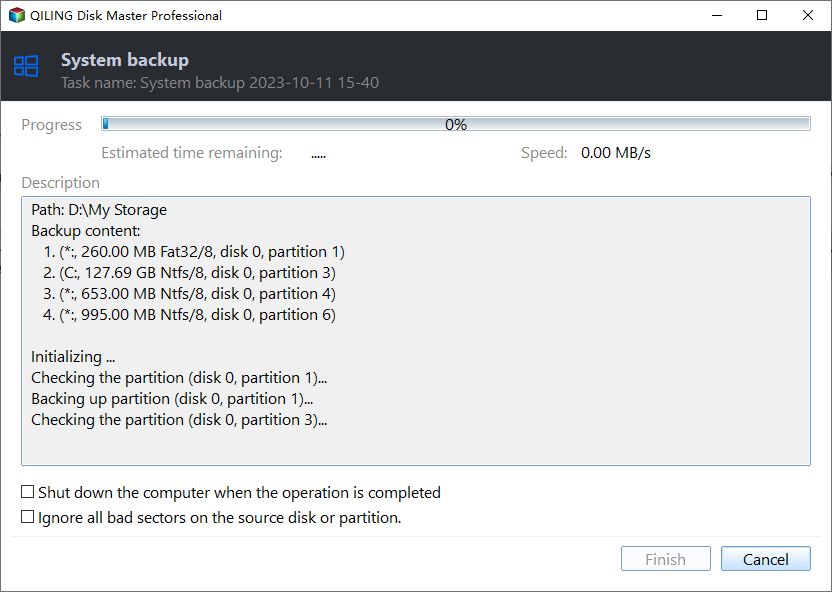
>> Options: You can enable email notification, choose the compression level for the backup image file, and select between intelligent sector backup and sector-by-sector backup.
>> Backup Scheme: In Qiling Disk Master Professional and higher editions, a feature is available that automatically removes older backups to save disk space.
Verdict
To repair corrupted system files in Windows 10 and 11, you can use the command sfc /scannow. However, before running this command, it's a good idea to be prepared for potential failures by backing up your Windows system regularly using Qiling Disk Master. This tool not only helps with system backups but also allows you to sync local folders with your Synology NAS.
If you're looking for portable sync software, consider Qiling Disk Master Technician or Technician Plus edition, which allows you to sync files on any computer. Try it now to discover more!
Related Articles
- Fixed: Windows Resource Protection Could Not Perform the Requested Operation
- How to Repair Windows 10 Using Command Prompt (5 Ways)?
- How to Repair Corrupted or Missing System Files in Windows 7/8/10?
- How to Backup Dynamic Disk Volume for Windows 7, 8, 10, 11
This tutorial demonstrates how to run dynamic disk backup in Windows 7 step by step and has a brief introduction to dynamic disk. - How to Fix Windows Server 2012 Boot BCD Error Easily?
If you encounter the "The Boot Configuration Data for your PC is Missing" issue when booting up Windows Server 2012, here you can learn how to fix the BCD error in Server 2012 or 2012 R2 effectively. - Ways to Add Unallocated Space in Windows Server 2016
This article shows you how to add unallocated space in Windows Server 2016. Three different methods will be shared to add unallocated space into partition.
Products
Articles & Tutorials
- Data Recovery
- Data Backup
- File Recovery
- File Backup
- File synchronize
- System Backup and Restore
- Disk and Partition Clone
- Technical articles
- Disk Master Help
- Windows Deleted File and Disk Recovery Tutorials
- Windows File and Data Recovery Tutorials
- More Windows Tutorials for Install, Security, Files, and PC Tips
- Windows Boot, Repair, and Recovery Environment Tutorials
- Windows Backup Tutorials
- Windows Restore Tutorials
- Windows Clone and Migration Tutorials
- Windows Server Backup, Recovery, and Management Tutorials
- Windows Disk, Partition, and Storage Management Tutorials