3 Ways: Add Unallocated Space in Windows Server 2016 Easily
- Need to add unallocated space to C drive in Server 2016
- 3 Ways to add unallocated space to C drive in Windows Server 2016
- Way 1. Add unallocated space with Server 2016 Disk Management
- Way 2. Add unallocated space to C drive using Diskpart
- Way 3. Add unallocated space with Server partition software
- Summary
Need to add unallocated space to C drive in Server 2016
To add unallocated space to the C drive in Windows Server 2016, you can use the built-in Disk Management tool to extend the system partition. Open Disk Management, select the system partition (usually C:), and then click "Extend Volume" to add unallocated space and increase available free space.
This article provides three ways to add unallocated space to the C partition for extending the system partition in Windows Server 2016, offering a convenient solution for users.
3 Ways to add unallocated space to C drive in Windows Server 2016
In Windows Server 2016, you can merge unallocated space to C drive or other small partitions using three methods. You can choose the best approach based on your specific needs and requirements.
Way 1. Add unallocated space with Server 2016 Disk Management
In the Windows Server 2016 Disk Management console, you can perform basic partition management tasks, including creating partitions, formatting, deleting, shrinking, and extending them. However, the "Extend Volume" feature has a limitation: it can only add unallocated space to a partition if it is adjacent to the partition on the right, specifically the C drive.
To add unallocated space to a partition in Windows Server 2016, follow these steps: If the unallocated space is adjacent to the partition you want to extend, you can extend the partition to include the unallocated space. This can be done through the Disk Management tool in Windows Server 2016.
Step 1. To extend the system partition, open the Disk Management console by pressing the Windows key + R, typing "diskmgmt.msc" and pressing Enter. Then, right-click on the system partition and select the option to extend the volume.
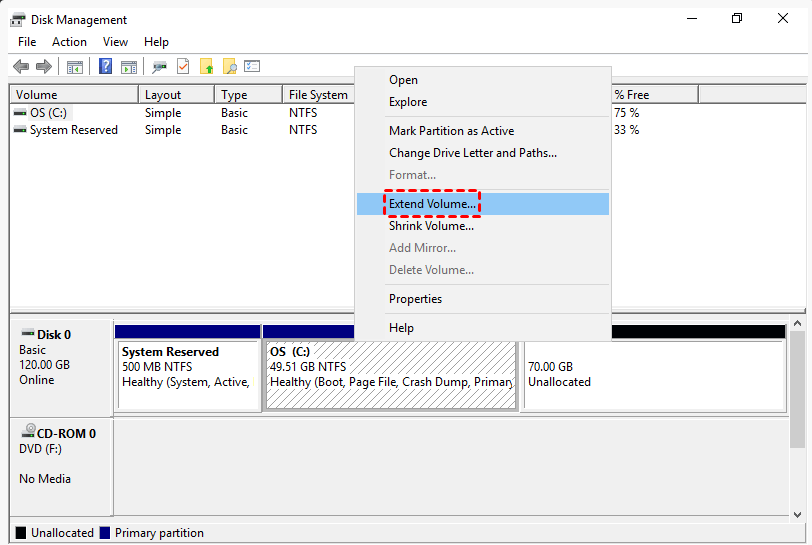
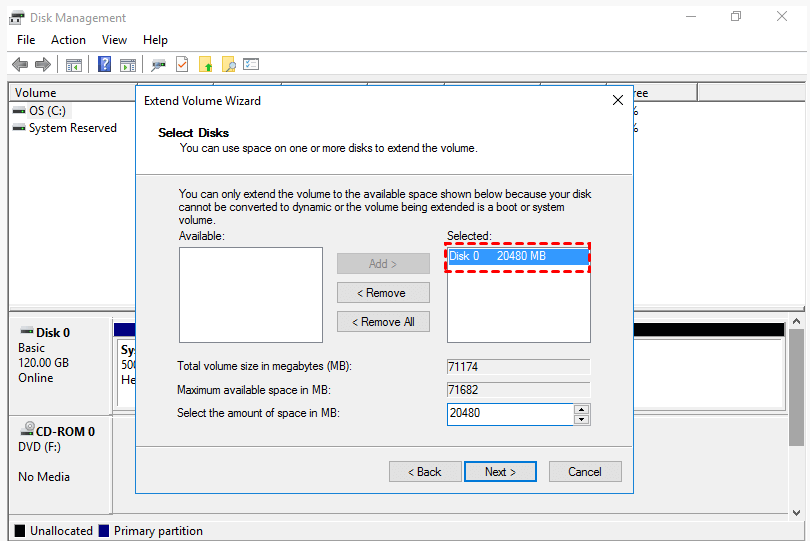
Step 2. In the pop-up window, type the amount of unallocated space and click "Next".
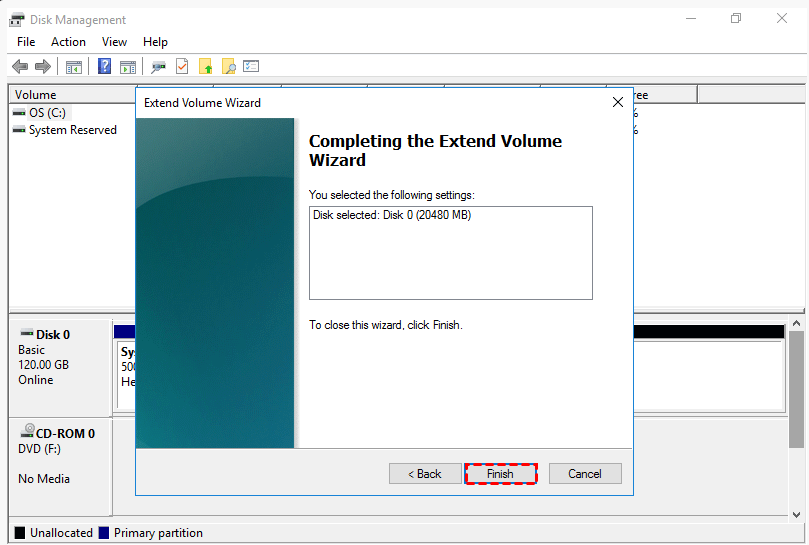
Step 3. Confirm the operation and click "Finish" to proceed, and the unallocated space will be added to the system drive.
Unfortunately, if the unallocated space is not adjacent to the partition, the "Extend Volume" option is unavailable, and Disk Management cannot be used to add unallocated space to Windows Server 2016.
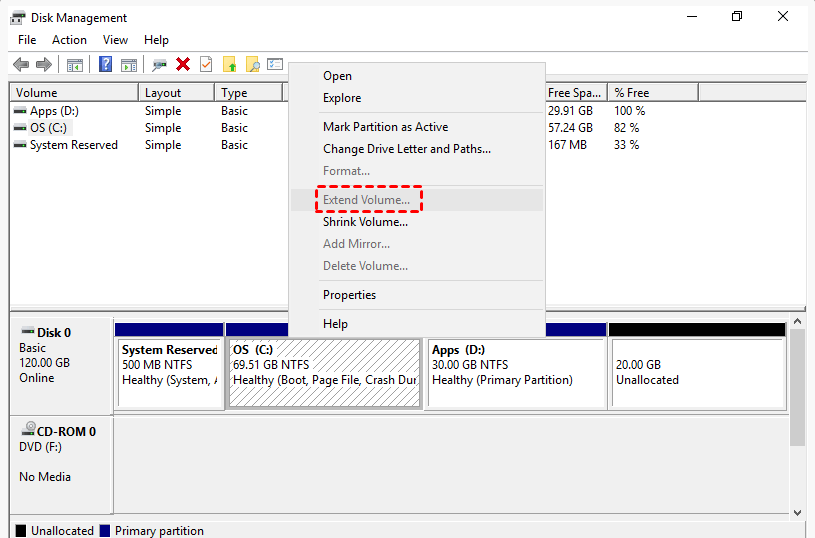
To avoid data loss, you can create contiguous unallocated space by deleting the partition behind C: partition, then add it to the system drive. However, this may cause data loss on the deleted partition.
Way 2. Add unallocated space to C drive using Diskpart
Diskpart is a utility in Windows Server 2016 for managing disk partitions, using command lines to perform tasks step by step. To extend the C drive, you can use the following orders in Diskpart.
• list disk
• select disk 0
• list volume
• select volume
• extend size= xxx (type the amount of size you wish to extend)
Take extending system partition on disk 0 as the example:
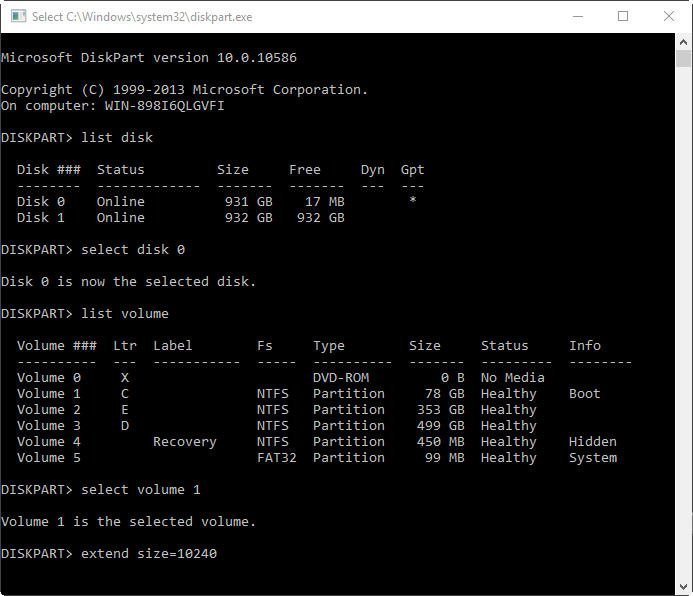
However, Diskpart has limitations when adding unallocated space into a partition for extending, such as being invalid if there is another drive between the C drive and the unallocated space, and can only extend the NTFS partition, similar to Disk Management.
If the first two methods to add unallocated space in Windows Server 2016 fail, you can use the Diskpart command to extend the volume and add the unallocated space. To do this, open the Command Prompt as an administrator, type "diskpart", and press Enter. Then, type "list disk" and press Enter to list all the disks on the system.
Way 3. Add unallocated space with Server partition software
In Windows Server 2016, using DiskPart command and Disk Management to add unallocated space to a (C) partition is not the most effective approach due to limitations. A more professional tool, such as Qiling Disk Master Server, is recommended for this task. This software is suitable for managing disks on Windows Server 2022/2019/2016/2012 (R2)/2008(R2)/2003 and Windows 11/10/8/7.
When you're not allowed to add unallocated space to a target partition because it's not adjacent, you can use the "Merge Partition" feature to merge unallocated space into the partition, regardless of its location.
Step 1. Download the Qiling Disk Master Server trial, install and launch it. You'll see the main environment of your disks, with unallocated space at the end. Click on the C: partition and select "Move/resize Partition" from the options.
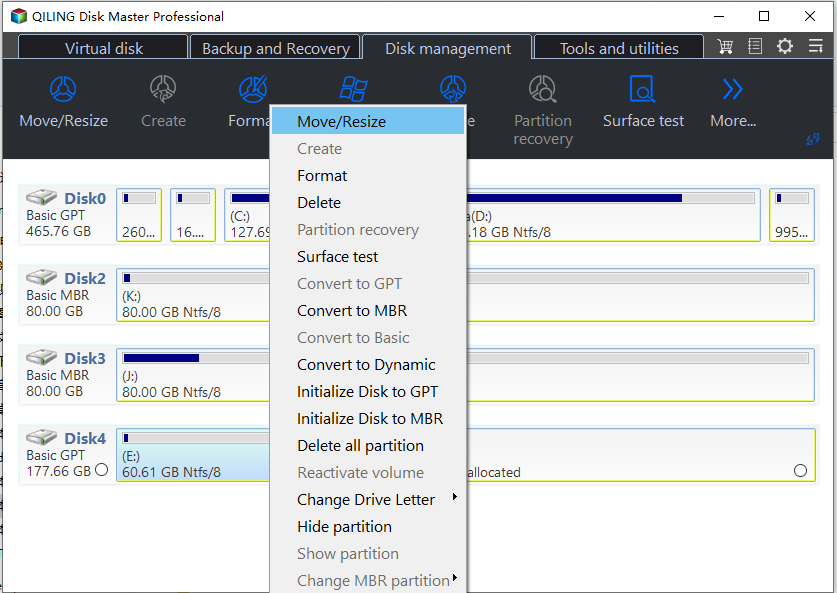
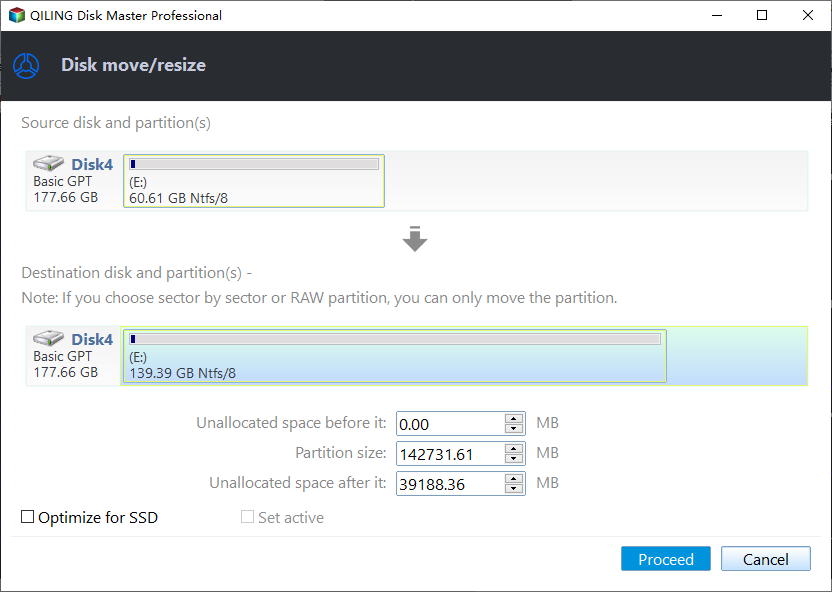
Step 2. In the next window, drag the C partition to the unallocated space.
Step 3. Please confirm that you want to proceed with all the operations. You can review the list of operations and confirm once you are sure. Then, wait for the process to complete.
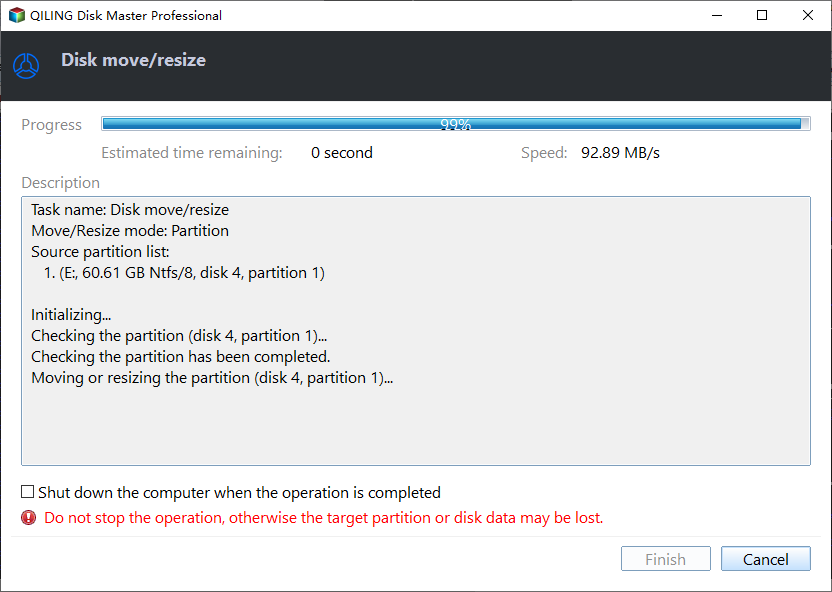
Adding unallocated space to a partition in Windows Server 2016 can be easily done using Qiling Disk Master Server. Alternatively, you can also utilize the Extend Partition Wizard to increase the partition size for Windows Server 2016.
Summary
If the unallocated space is next to the partition you want to expand, methods 1 and 2 are sufficient. If not, Qiling Disk Master Server can help expand the partition using unallocated space in Windows Server 2016. Additionally, Qiling Disk Master Server offers features like converting to MBR/GPT without deleting partitions, moving Windows Server to a new hard drive, cloning partitions, and cloning disks.
If you want unlimited usage within one company, you can choose Qiling Disk Master Unlimited Edition, which has a feature that allows you to create a portable version that can be run directly on target computers without installation.
Related Articles
- How to Use Batch Script to Backup SQL Server Databases?
Compared to other methods, a batch script is especially useful when you want to back up batches of databases regularly. This post shares batch scripts for backing up SQL Server databases, and an alternative with equal functionality. - Solved: Boot Device Not Found HP
Sometimes, some users report that hard drive not detected or boot device not found HP laptop/desktop. This article will show you five workable ways to solve it quickly and safely. - How to Boot Windows 7 from External Hard Drive Successfully?
There are chances that you need to boot Windows 7 from external hard drive. This article demonstrates how to create bootable media and boot Windows 7 from the drive. - Best Bootable Hard Drive Eraser for Windows 11/10/8/7
Use bootable hard drive eraser software to wipe a disk from outside Windows when you need to remove data before reuse or disposal. - Easy But Effective Hard Disk Not Initialized Fixes for Windows 10, 8, 7
If you find your hard disk is not initialized in Windows 10, 8, 7, you can try the following methods to fix "hard disk not initialized" issues like "hard disk unknown not initialized unallocated", or "disk unknown not initialized no size" on Windows. - Secure Hard Drive Eraser: Totally Wipe Hard drive in Windows 10, 8, 7
Here, we bring a secure hard drive eraser, which completely erases everything from a hard drive in Windows 10, 8, 7, providing a secure way to dispose of old or unwanted hard drives. - How to Shrink Volume in Windows Server 2016 Safely
Shrink a Windows Server 2016 volume safely with Disk Management or partition software, and prepare a backup before changing server storage. - Extend Volume Greyed Out in Windows Server 2016: Fixes
Fix an Extend Volume option that is greyed out in Windows Server 2016 by checking unallocated space, partition order, disk type, and backup readiness. - Extend C Drive in Windows Server 2012 Safely
Extend C drive in Windows Server 2012 safely by checking unallocated space, backing up data, and resizing the server partition.
Products
Articles & Tutorials
- Data Recovery
- Data Backup
- File Recovery
- File Backup
- File synchronize
- System Backup and Restore
- Disk and Partition Clone
- Technical articles
- Disk Master Help
- Windows Deleted File and Disk Recovery Tutorials
- Windows File and Data Recovery Tutorials
- More Windows Tutorials for Install, Security, Files, and PC Tips
- Windows Boot, Repair, and Recovery Environment Tutorials
- Windows Backup Tutorials
- Windows Restore Tutorials
- Windows Clone and Migration Tutorials
- Windows Server Backup, Recovery, and Management Tutorials
- Windows Disk, Partition, and Storage Management Tutorials