Free Solutions - Fix SFC Scannow not Working in Windows 11, 10, 8, 7
Introduction of SFC scannow command
SFC (System File Checker) is a Microsoft Windows tool located in the C:\Windows\System32 folder that scans and restores corrupted Windows system files. In Windows Vista, Windows 7, and Windows 10, SFC is integrated with Windows Resource Protection (WRP), which protects registry keys and folders together with critical system files.
The Windows Modules Installer service has full access to Windows Resource Protection files and registry keys, allowing modifications to WRP-protected resources. It must be running to restore missing or corrupted WRP resources. Additionally, administrators no longer have full rights to system files.
How to enable SFC scannow in Windows 7/8/10/11
Step 1. Type "cmd" in the search box, select it from the start menu list and run as administrator.
Step 2. Type "sfc /scannow" in the command prompt and hit Enter.
Step 3. The process will take some time. You just need to wait and exit this window.
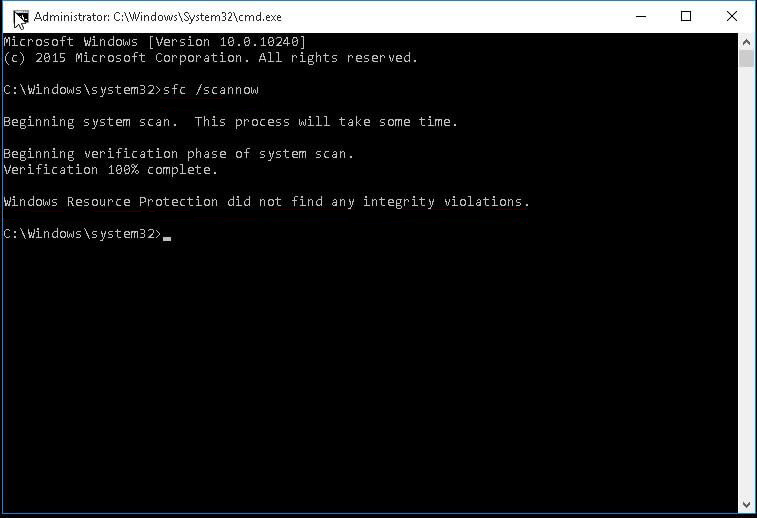
After running the scan, you may see one of the following messages:
✍ Windows Resource Protection did not find any integrity violations.
Your computer does not have any missing or corrupted system files.
✍ Windows Resource Protection found corrupted files and successfully repaired them. Details are included in ...
The System File Checker (sfc.exe) command has fixed the problem. No further action is required.
✍ Windows Resource Protection could not perform the requested operation.
This issue arises during the execution of the scan and indicates a problem that needs to be resolved.
✍ Windows Resource Protection found corrupted files but was unable to fix some of them.
The sfc /scannow command couldn't repair all corrupted files it found, so you need to take additional action.
In addition to the error messages above, you may also receive other notifications, including Windows Resource Protection unable to start the repair service, a system repair pending which needs a reboot to complete, and the requirement to be an administrator running a console session to use the SFC utility.
How to fix SFC scannow not working in Windows 11, 10, 8, 7
If SFC scannow is not working, you'll receive different error messages depending on your situation. To fix the issue, you can try the following solutions: check if the issue is caused by a corrupted Windows Update cache, run the SFC scan in a Command Prompt with administrator privileges, or try running the DISM scan first to see if it resolves the issue. If none of these solutions work, you may need to perform a System File Checker scan with the /offwindir option to scan the Windows installation folder. Each of these solutions will resolve the issue in a different way, so try the one that best fits your situation.
│Windows Resource Protection could not start the repair service
If you receive this error message, it means the Windows Modules Installer service (TrustedInstaller.exe) is disabled. You need to enable it manually.
Here are two ways in the following. You can select the way you are familiar with.
✎ Fix SFC scannow not running via Services
Step 1. To open the Services window, press the Windows key + R to open the Run dialog box, type "services.msc" and press OK.
Step 2. Find Windows Modules Installer and double-click it.
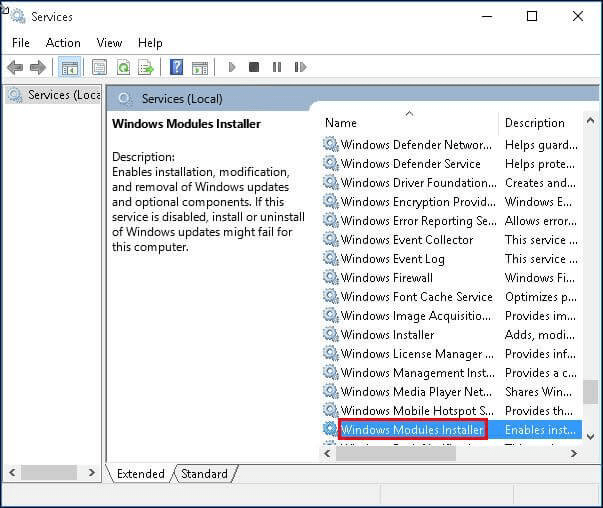
Step 3. Set the Startup type of the service to Manual, then click Apply and OK.

✎ Fix SFC scannow not responding using CMD
Step 1. To access the Command Prompt, type cmd in the search box, then click on it and select run as administrator. If prompted, enter your username and password.
Step 2. Type the following commands and hit Enter after each one.
▶ sc config trustedinstaller start= auto
▶ net start trustedinstaller
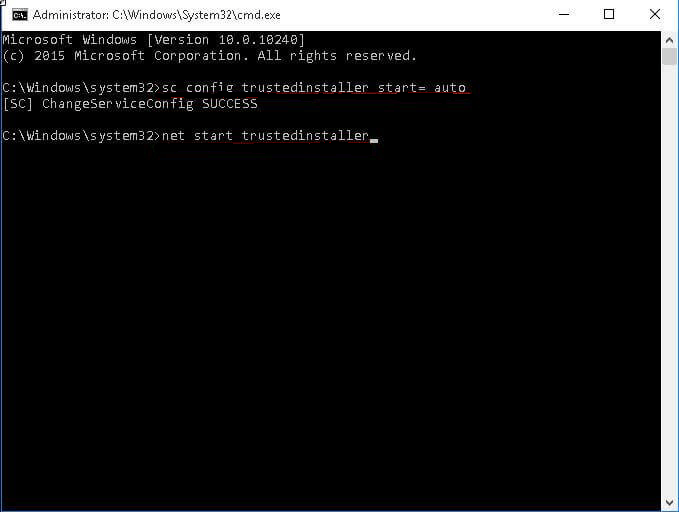
Step 3. Try running the SFC scannow command again.
│Windows Resource Protection could not perform the requested operation
✎ Run chkdsk command
Step 1. To execute a command in the Command Prompt, open cmd and run it as administrator. If prompted, enter your username and password to authenticate.
Step 2. Type chkdsk C: /r in the command prompt window and hit Enter. If it tells you that this volume is in use, type Y and hit Enter. This command will scan the C drive for errors and attempt to repair them, which may take a while.
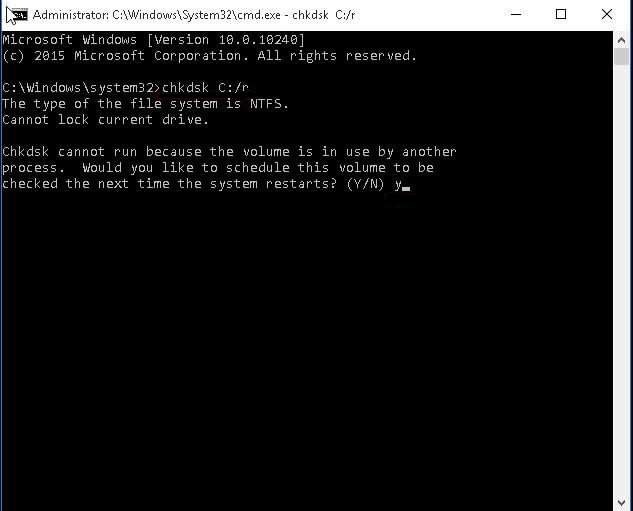
Step 3. Restart your computer, and it will start to find and fix the problem. After that, you can run SFC again.
✎ Run SFC scannow command in safe mode
Step 1. To start your computer in safe mode, press the F8 key repeatedly after turning it on, but before the Windows logo appears, and select Safe Mode from the Advanced Boot Options in Windows 7. In Windows 10, click Restart while holding the Shift key. This will allow your computer to start with a minimal set of drivers and services, which can help troubleshoot issues.
Step 2. Open cmd and run as administrator.
Step 3. Ensure the PendingDeletes and PendingRenames folders are not present on your system. If they exist, delete them to clear any pending file operations.
Step 4. Type `sfc /scannow` in the command prompt window and press Enter. This command will scan and repair corrupted system files.
✎ Change the security description
The error occurs when a command cannot access the WinSxS folder, requiring a manual change to the security description of this folder to resolve the issue.
Step 1. To complete the task, open the Command Prompt (cmd) and run it as an administrator. If prompted, enter your username and password to authenticate.
Step 2. Type ICACLS C:\Windows\winsxs and hit Enter.
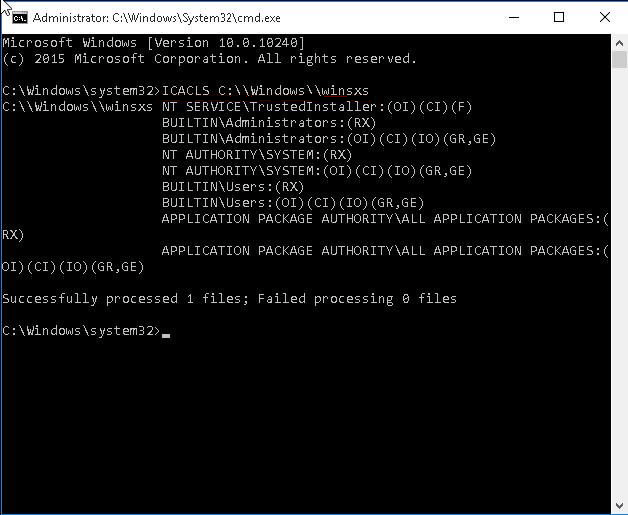
Step 3. Reboot your computer.
│Windows Resource Protection found corrupt files but was unable to fix some of them
If you receive this message and SFC scannow does not fix the problem, you can try to use the DISM command to restore health.
Step 1. To run a command in cmd as administrator, open the command prompt, right-click on the title bar, and select "Run as administrator". If prompted, enter your username and password to authenticate. Once authenticated, you can type and run your desired command.
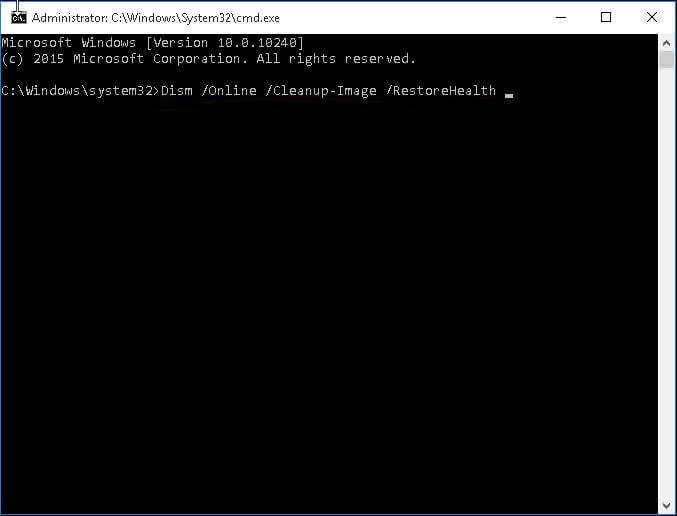
Step 2. Type "Dism /Online /Cleanup-Image /RestoreHealth" in the Command Prompt window and press Enter. This will run a full system repair and replace corrupted system files.
│SFC scannow not working: system repair pending
If you receive a message saying there's a system repair pending that requires a reboot to complete, you can try running DISM RestoreHealth to fix it. If that doesn't work and you get a message saying DISM doesn't support servicing Windows PE with the /Online option, you can try alternative methods.
✎ Run another DISM command
Step 1. Open cmd at boot.
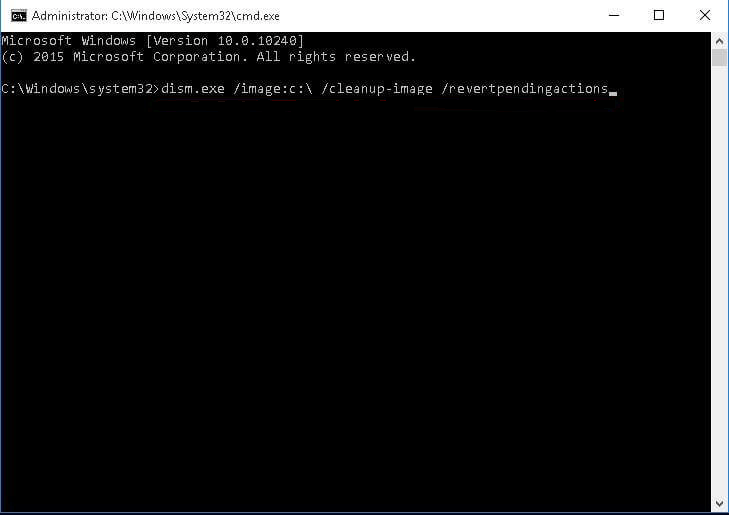
Step 2. Type the following command and hit Enter.
dism.exe /image:c:\ /cleanup-image /revertpendingactions
✎ Delete registry key for pending system repair
Step 1. Type regedit and select it from the start menu.
Step 2. In the registry editor, navigate to the following key:
HKEY_LOCAL_MACHINE\SOFTWARE\Microsoft\Windows\CurrentVersion\RebootPending
Step 3. Right-click RebootPending key and select Delete in the context menu.
Step 4. Exit this window and try SFC again.
Tested workaround to "SFC scannow not working" in Windows 7/8/10/11
If System File Checker (SFC) fails to scan for missing or corrupted system files in Windows 7/8/10/11, you can try using a free partition manager like Qiling Disk Master Standard to find and repair the affected files.
Qiling Disk Master can also be used to resize partition, move partition, fix "extend volume is disabled", add unallocated space to D drive, and satisfy the basic needs of most users.
If you want more advanced features or need to fix problems that the standard edition can't handle, you can upgrade to Qiling Disk Master Professional.
Step 1. Download Qiling Disk Master and open it.
Step 2. Click the partition you want to check and choose "Surface Test".
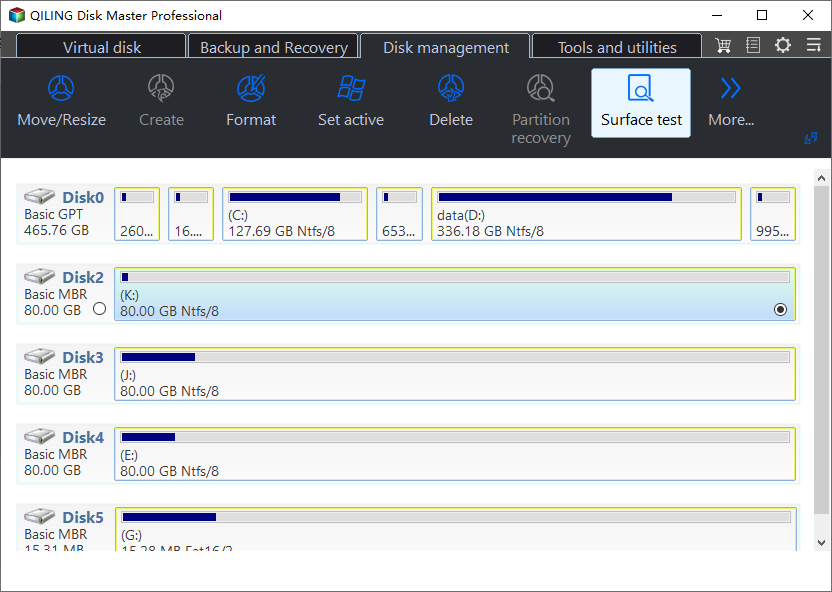
Step 3. To proceed, simply tick one of the available check options and click the Proceed button, which will initiate the process.
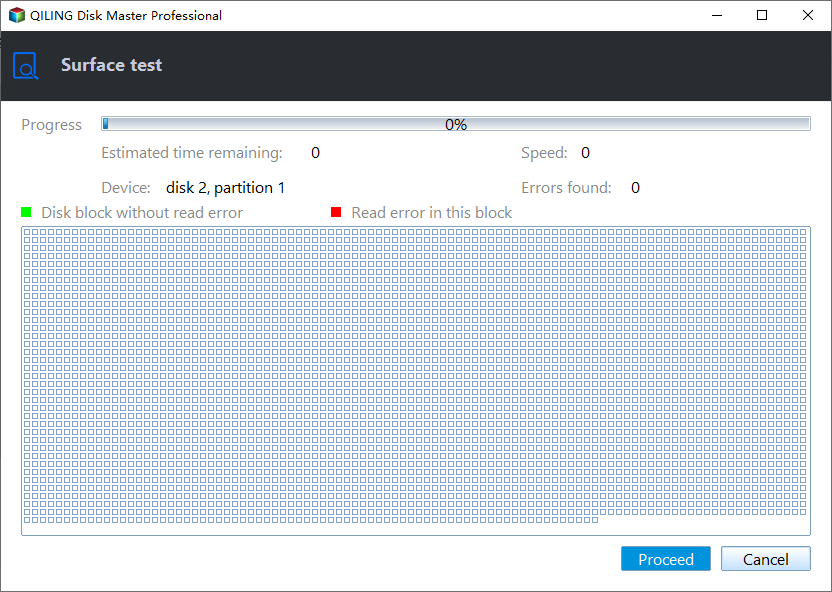
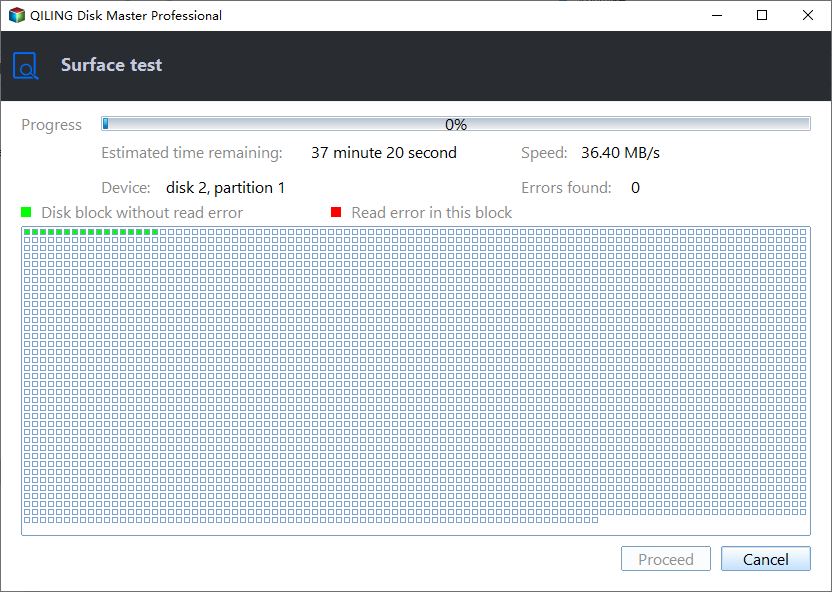
Step 4. It will run the process immediately, wait a minute and click Finish when the progress reaches 100%.
The way forward
System file checker, or SFC, is a tool in Microsoft Windows that scans and repairs corrupted system files. However, sometimes it may not work as expected, resulting in error messages such as Windows Resource Protection could not perform the requested operation, or Windows Resource Protection found corrupted files but was unable to fix some of them. These errors can be caused by a variety of issues, including corrupted system files, malware, or Windows updates gone wrong.
If SFC scannow is not working due to Windows Resource Protection issues, you can try fixing it by following the above steps according to your situation. If that doesn't work, you can use free Qiling Disk Master to check the partition and fix missing or corrupted system files, which is easy to use even for a beginner. For Server users, you can try Qiling Disk Master Server to fix the issue.
Related Articles
- Why Can't I Format My SD Card on My Camera? Answered and Fixed
Formatting an SD card on camera might make you run into some issues. This article will explore possible reasons and fixes for that. - How Do I Format Disk to exFAT in Command Prompt
This guide explains How Do I Format Disk to exFAT in Command Prompt with clear steps, key checks, and practical tips. - How to Perform HP Omen SSD Upgrade [Efficient Ways]
This passage discusses valuable information about the HP Omen SSD upgrade, including compatibility, steps for the upgrade process, and more. And you can apply this tutorial to any HP Omen computers, including HP Omen 30L, HP Omen 13/15/16/17. - Panasonic SD Formatter Windows 10 [2024 Full Guide]
This guide explains Panasonic SD Formatter Windows 10 with clear steps, practical tips, and safer ways to complete the related Windows, disk, backup, or recovery task. - How to Fix Windows 10 File System Error (-2018375670) [Step-by-Step Guide]
This article provides the newest and easiest ways to fix Windows 10 file system error (-2018375670) and introduces a professional tool to help check bad sectors and file system errors. - Windows 11/10 Search Not Working 2022? Fix It Now!
If the search bar is not working in Windows 11/10, there are several solutions to try. You can start by restarting the search bar and your device, or try rebuilding the Windows search index.
Products
Articles & Tutorials
- Data Recovery
- Data Backup
- File Recovery
- File Backup
- File synchronize
- System Backup and Restore
- Disk and Partition Clone
- Technical articles
- Disk Master Help
- Windows Deleted File and Disk Recovery Tutorials
- Windows File and Data Recovery Tutorials
- More Windows Tutorials for Install, Security, Files, and PC Tips
- Windows Boot, Repair, and Recovery Environment Tutorials
- Windows Backup Tutorials
- Windows Restore Tutorials
- Windows Clone and Migration Tutorials
- Windows Server Backup, Recovery, and Management Tutorials
- Windows Disk, Partition, and Storage Management Tutorials