How to Restore System Image from External Hard Drive (2 Ways)
System image is important to computer users
A system image is a complete copy of a computer's hard drive, including Windows, settings, programs, and files, which can be used to restore the entire system in case of a failure or loss of data.
Why create system image to an external hard drive?
When creating a system image after installing Windows, users need to decide where to save the image. Options include saving it to the local hard drive, an external hard drive, or backing it up to a network attached storage (NAS) device.
Creating a system image on an external hard drive is the most secure and stable way to protect your system. Even if your computer's hard drive fails, your system image remains safe, and you can easily restore all data when your computer crashes. This method ensures the security and stability of your system, making it a reliable backup solution.
Fast way to restore system image from external hard drive
Some users may fail to restore a Windows 10 system image from an external hard drive, especially when using Backup and Restore in certain Windows 10 versions. Common errors include:
'The system image restore failed. A Volume Shadow Copy Service component encountered an unexpected error. Check the Application event log for more information. Error code: 0x80042302.
If the built-in recovery process cannot find or restore the image, use Windows installation media or a dedicated system image recovery tool to boot the computer and restore the backup from the external drive.
For a simpler restore process, you can use third-party freeware such as Qiling Disk Master Standard to restore a Windows system image from an external hard drive. Its user-friendly interface makes the process suitable for beginners.
Before restoring a system image from an external hard drive, it's essential to prepare by ensuring the external drive is properly connected and recognized by the system, and that the system is set to boot from the external drive. Additionally, it's a good idea to disconnect any unnecessary peripherals and save any unsaved work to prevent potential conflicts or data loss during the restoration process.
- Download Qiling Disk Master Standard, install and launch it. Create a system image to an external hard drive with Qiling Disk Master.
- Create bootable media or a recovery environment for booting your computer in case of boot failure, or use Qiling PXE Boot Tool to boot multiple computers over a network.
You can use this freeware to restore Windows 10/8/7 system image from an external hard drive. Follow the guide below to do so.
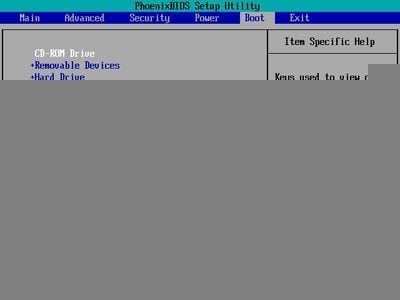
1. If your computer can't boot, use bootable media or Qiling PXE Boot Tool to boot it. Insert the media and external hard drive with your Windows system image, press a special key (usually F8), enter the BIOS mode, set the media as the first boot device, and you'll enter the Qiling Disk Master interface.
2. Click Restore, and click Select Task to select the corresponding backup task you want to restore from, or if your computer can still boot, launch the freeware and click Restore directly.
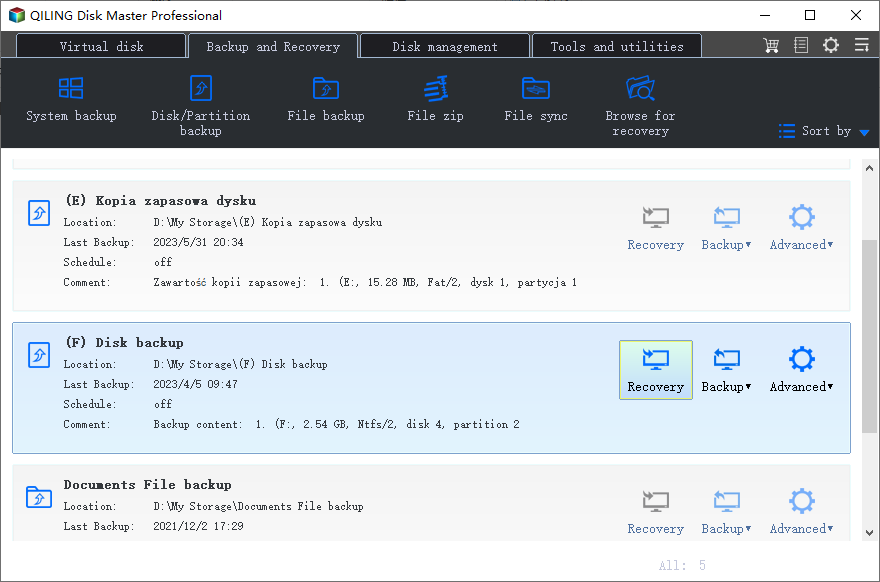
3. Select the system backup task you created previously, then click Next to proceed.
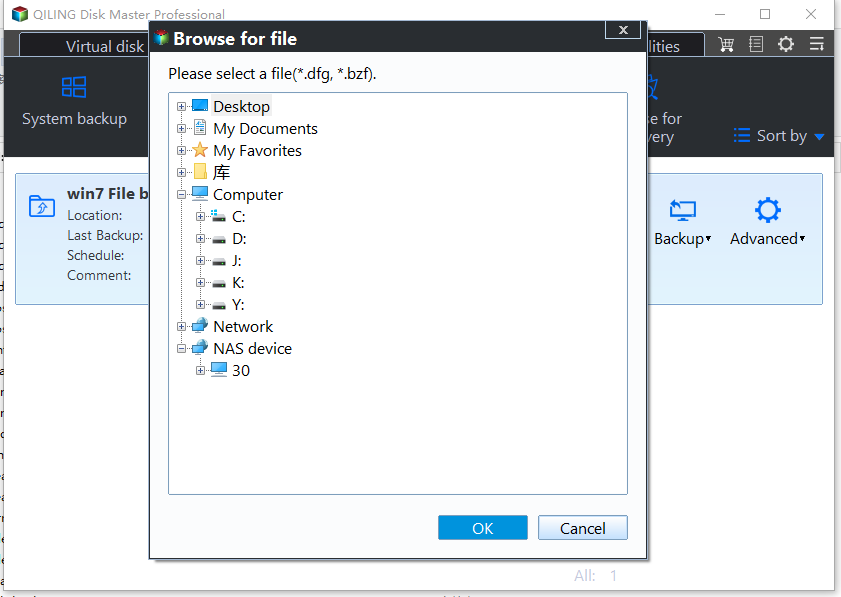
4. Choose Restore this system backup and click Next to continue.
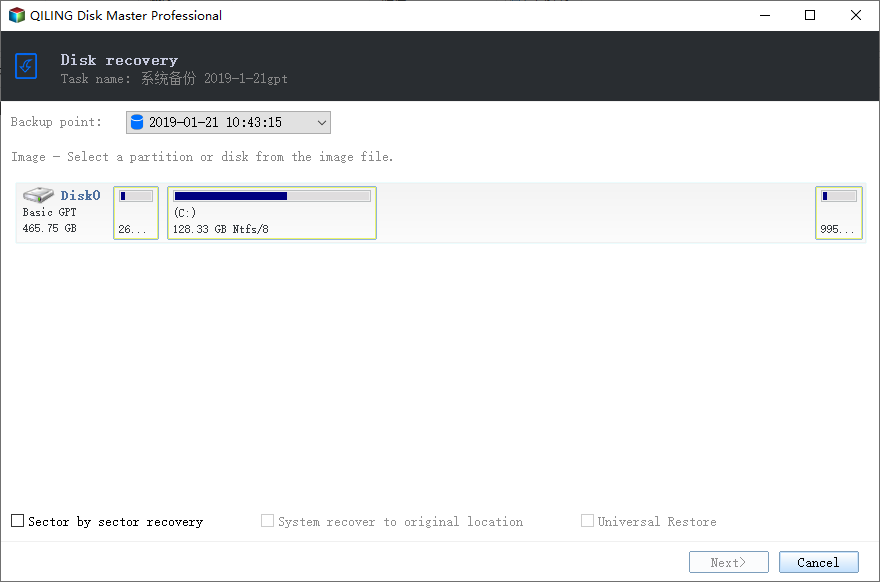
Note: If you want to restore the system to a different location, you can select the "Restore system to other location" option and choose a different partition.
5. After confirming all information about the operations, if everything is correct, click Proceed to execute the operations automatically. Once the progress reaches 100%, simply click Finish to exit.
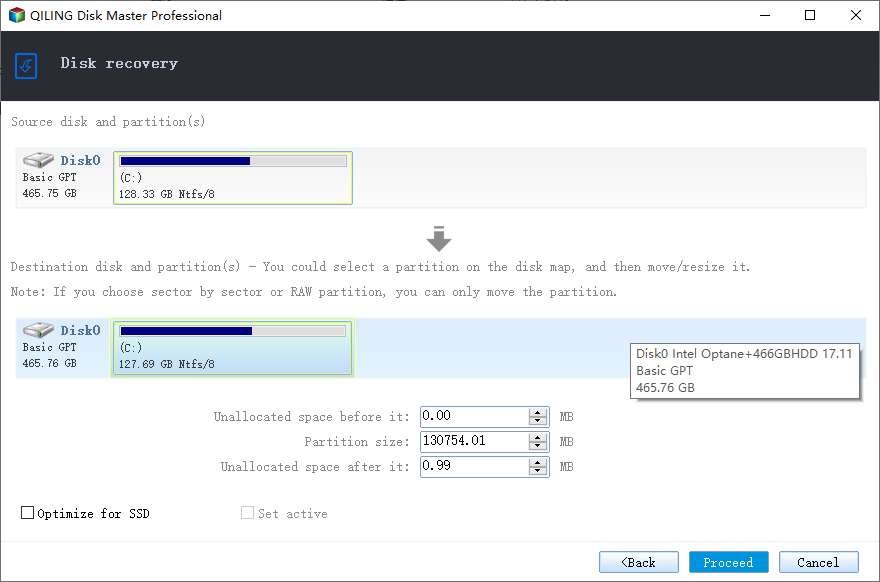
Notes:
- The "Universal Restore" feature is available for users who want to restore a system from one computer to another, ensuring a successful boot on different hardware. However, this feature is only available in the Professional edition or higher, and is a paid upgrade for users with the Standard edition.
- If you created a sector-by-sector backup, you can restore it sector by sector. This process restores every byte on the hard drive, takes longer, and requires enough target disk space.
With Qiling Disk Master, you can choose to clone only the system or the entire drive, and even boot directly from the cloned disk if your system or disk is damaged, by simply changing the cloned disk to the first boot option.
✐ Easier way to restore system image from external hard drive:
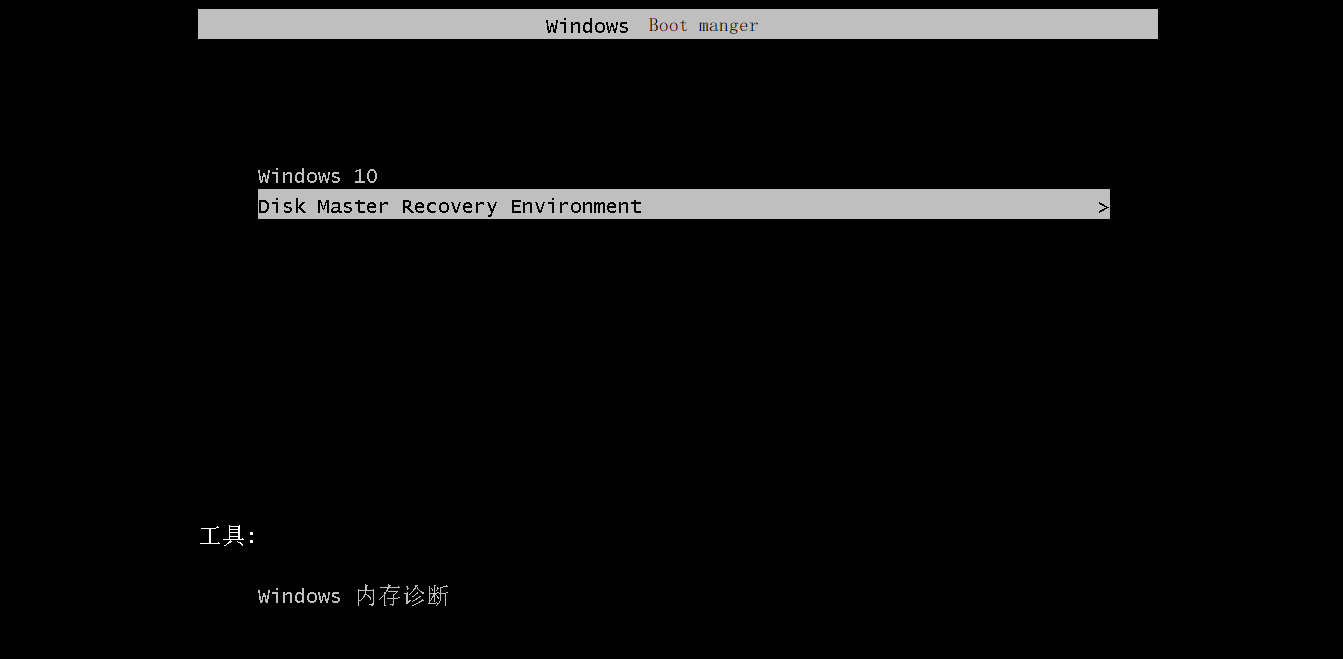
You can use Qiling Disk Master, a onekey recovery software, to create system images and bootable media simultaneously. This software will also add a boot menu to your computer and assign a fast key, such as F11 or A, to access it.
When your computer is not working, you can access the software through the boot menu by pressing F11 or A, and then use the "OneKey System Recovery" option to restore your system image.
Restore system image from external hard drive with Windows built-in tool
To restore a computer from a system image on an external hard drive, you'll need to have created a system image to the external drive beforehand, as well as a system repair disc to start the unbootable computer. This process allows users to utilize the inbuilt tool to recover their system, catering to those who still prefer this method. The steps for this process are detailed below.
If your computer is still booting normally, you can restore a system image directly. For example, if you're using Windows 7, you can follow the steps for Backup and Restore to restore your system image.
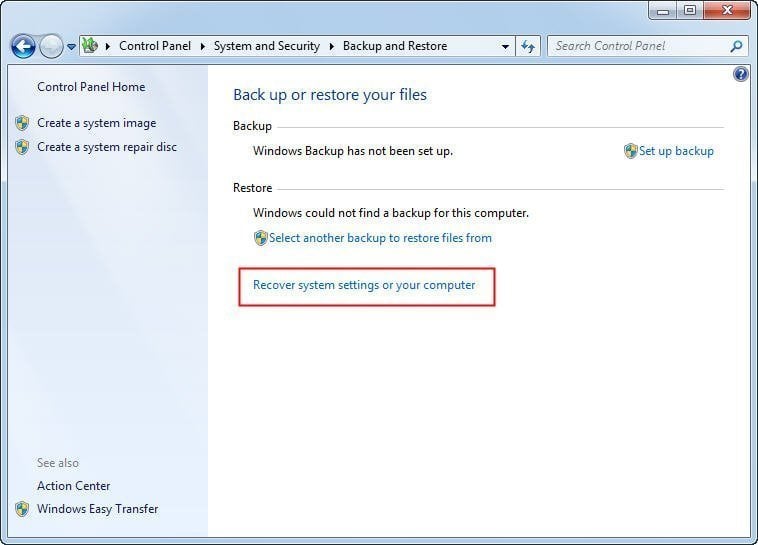
1. To access the recovery tool in Windows, go to Start, then Control Panel, and System and Security. From there, select Recover system settings or your computer, which will open the Backup and Restore tool. This will allow you to recover system settings or your entire computer.
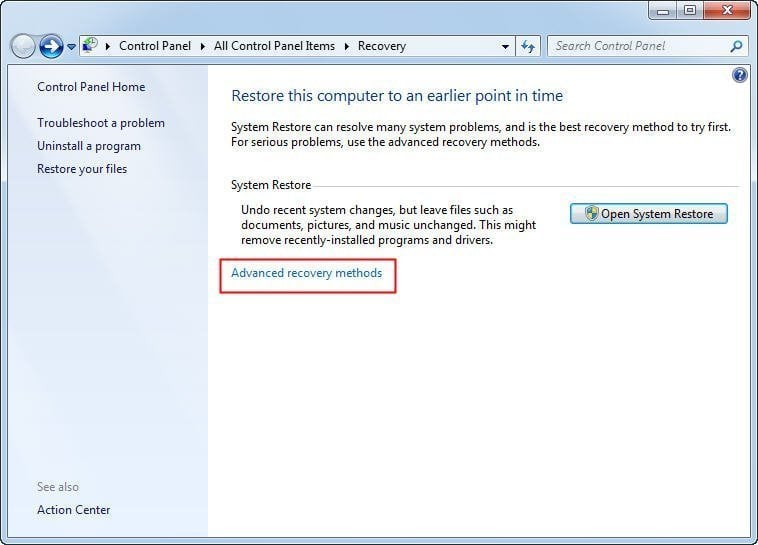
2. To access advanced recovery settings, click on the "Advanced recovery methods" option.
3. In the Advanced options screen, click on "Use a system image you created earlier to recover your computer" and follow the wizard to select the system image and restore it from an external hard drive.
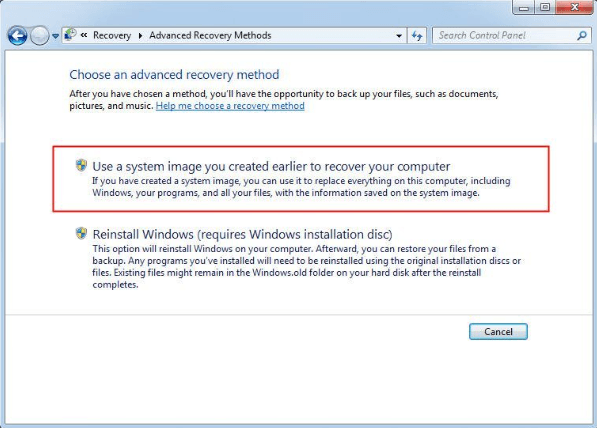
If your computer can't boot, use the system repair disc to boot it first, then restore from the system image.
1. To restart your computer with the system repair disc, simply insert the disc into your computer and press the power button. This will initiate the system repair process, allowing you to troubleshoot and fix any issues with your computer's operating system.
2. Go ahead and press any key on your keyboard to start the computer from the system repair disc.
Note: If your computer won't start from the CD/DVD, check if the first boot option in BIOS is set to CD-ROM Drive. If not, change it to the first option using the "+" button.
3. After choosing the language settings, click "Repair your computer", select a recovery option, and then click "Next".
The Windows built-in tool can be difficult for users without much computer experience. Some users also receive errors when restoring a system image stored on an external hard drive, such as "Windows could not find a backup for this computer," or "A Volume Shadow Copy Service component encountered an unexpected error."
Plus: Can’t restore system image from external hard drive
Some users may still be unable to restore a system image from an external hard drive. As a workaround, Windows 10 users can install Windows from installation media, mount the image created by Backup and Restore (Windows 7), and then apply the captured image in recovery mode.
If you're using Windows 10, you can try this method, but it may not work for Windows 7, 8, or 8.1 users.
Before trying this workaround, make sure the external drive is connected, powered on, and contains the WindowsImageBackup folder. The following steps are advanced and should be used only when the normal restore process fails.
1. Disconnect your computer from network.
2. Boot your computer with an installation disc, then select the operating system you want to install, accept the license code, and choose a custom installation to create the required operating system and recovery partitions.
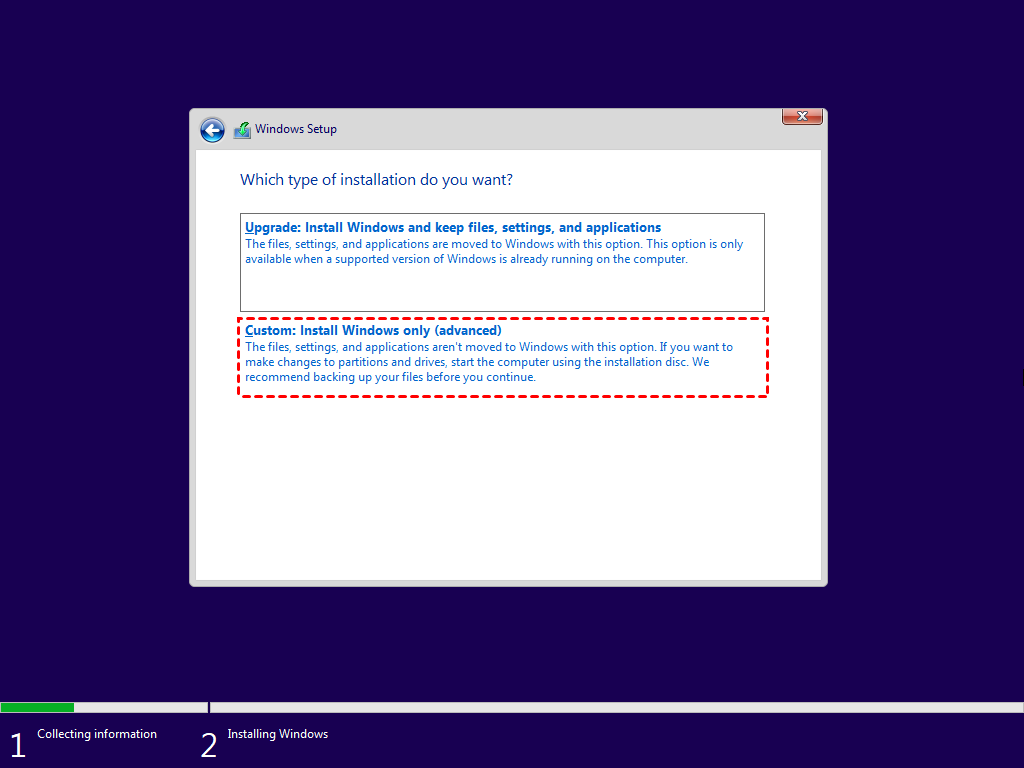
3. Log into your computer, create two new folders, "MountedVHDX" and "WindowsImage", in the C: drive. Then, copy the existing "WindowsImage" backup folder from an external hard drive to the newly created "C:\WindowsImage" folder.
4. Connect an external hard drive with sufficient free space, and within it, create a folder named "CapturedWIM" located at E:\CapturedWIM.
5. Run net user administrator /active:yes, then execute the following commands as needed:
- Mount-WindowsImage -ImagePath fullpathofvhdxindoublequotes -Path C:\MountedVHDX -Index 1
- New-WindowsImage -CapturePath C:\MountedVHDX -Name Win10Backup -ImagePath E:\CapturedWIM\sib.wim -Description "Windows 10 Backup" -Verify
- Dismount-WindowsImage -Path C:\MountedVHDX –Discard
6. Restart your computer and enter recovery mode by holding the Shift key while choosing Restart from the Power menu.
7. To troubleshoot and access the Command Prompt in Windows, select the "Troubleshoot" option, then choose "Advanced Options" followed by "Command Prompt". Once in the Command Prompt, you can execute specific commands to resolve issues or perform tasks.
- Format C:
- Dism /Apply-Image /ImageFile:E: \CapturedWIM\sib.wim /Index:1 /ApplyDir:C:\
8. Restart your computer and see if your Windows is activated.
If this process feels too complicated, return to the previous Qiling Disk Master method, which provides a simpler way to restore a system image from an external hard drive.
In the end
Qiling Disk Master Standard is reliable freeware for backup and restore. It allows you to create and restore system images from external hard drives in Windows 7, 8, 8.1, 10, and 11, while also providing extra features to protect your computer and data.
Clonezilla is free, open-source disk imaging and cloning software that can be used to back up files, folders, disks, and partitions, as well as clone an SSD to a larger one. It is useful for data preservation and migration.
Related Articles
- How to Right Enable System Restore in Windows 10?
- How to Restore A System Image to New SSD?
- 2 Quick Methods to Replace ASUS Laptop Hard Drive with SSD
- [Updated Methods] How to Move Eclipse Manager to Another Folder/Computer
Learn the key steps, checks, and practical tips for this related guide. - How do you migrate systems to different computers?
Qiling disk master is a powerful, reliable and secure backup facility with numerous benefits, including System Backup, System Restore and Clone utilities. - How to Get Cheaper Computer Repairs
QILING Disk Master software is an advanced and reliable solution for recovering from disastrous data losses and data backup necessities.
Products
Articles & Tutorials
- Data Recovery
- Data Backup
- File Recovery
- File Backup
- File synchronize
- System Backup and Restore
- Disk and Partition Clone
- Technical articles
- Disk Master Help
- Windows Deleted File and Disk Recovery Tutorials
- Windows File and Data Recovery Tutorials
- More Windows Tutorials for Install, Security, Files, and PC Tips
- Windows Boot, Repair, and Recovery Environment Tutorials
- Windows Backup Tutorials
- Windows Restore Tutorials
- Windows Clone and Migration Tutorials
- Windows Server Backup, Recovery, and Management Tutorials
- Windows Disk, Partition, and Storage Management Tutorials