How to Create and Use Windows 10 Recovery Image Backup?
Need to create a Windows 10 recovery image
Many computers experience system crashes or data loss due to viruses, hardware failures, or other unforeseen events, affecting up to 10% of computers monthly and 90% of users at some point.
To minimize the risks of data loss and system crashes, create a Windows 10 recovery image backup, which copies everything on your system drive, including the operating system, files, installed programs, and settings, into a compressed image file.
If your computer crashes or is infected with ransomware, you can restore it with Windows 10 system image recovery and get everything back. If your hardware fails, you can restore the Windows 10 image to a new hard drive using the Windows recovery tool in Windows 10.
Create Windows 10 system image on USB with built-in tool
To create a Windows 10 recovery image, save the image backup to a location where no system is installed, such as an external hard drive or network drive, to prevent it from being affected by computer failure.
To complete this task, you will need a backup and restore software, such as Windows' built-in Backup and Restore feature, which allows you to create a backup of your system and restore it in case of a problem.
To create a system image Windows 10 backup on a USB drive, follow these steps: First, ensure your USB drive is at least 64GB in size, as it needs to be large enough to hold the system image. Next, insert the USB drive into your computer and open the Windows Backup and Restore (Windows Backup) app.
1. To ensure that your Windows 10 computer is backed up successfully, it's essential to have your backup drive properly connected to your computer. This includes making sure the drive is securely inserted into the USB port and that the power cord is securely connected if it's a USB drive with its own power source.
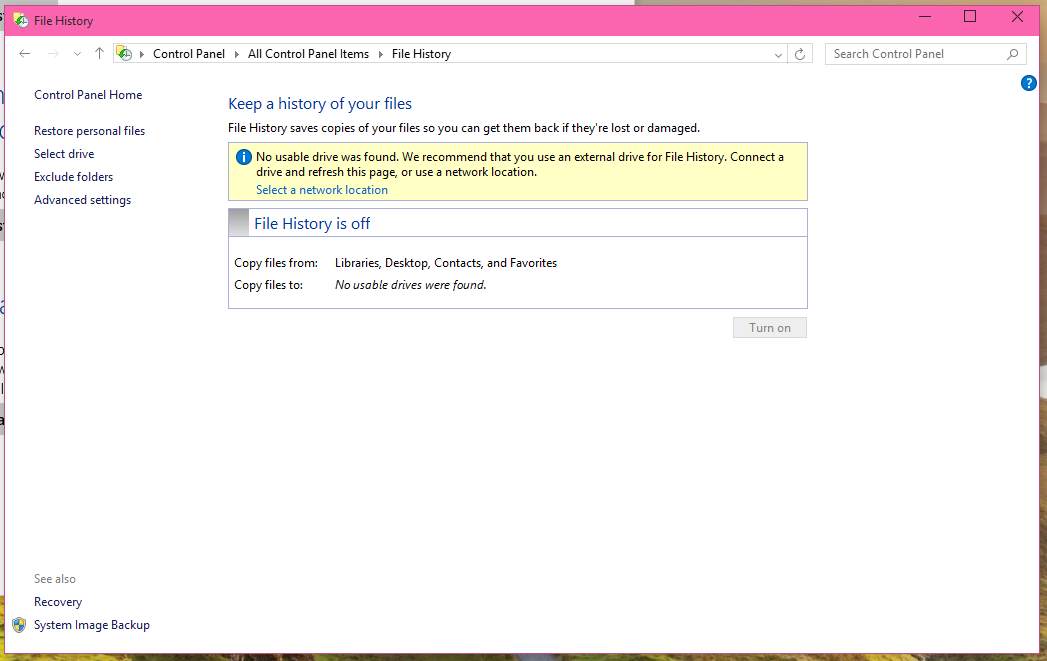
2. To access the File History feature, right-click on the Start button and select Control Panel, then All Control Panel Items, followed by File History. If you're using Windows 10 Home, you can search for File History instead.

3. Click on the link to System Image Backup down the left corner.
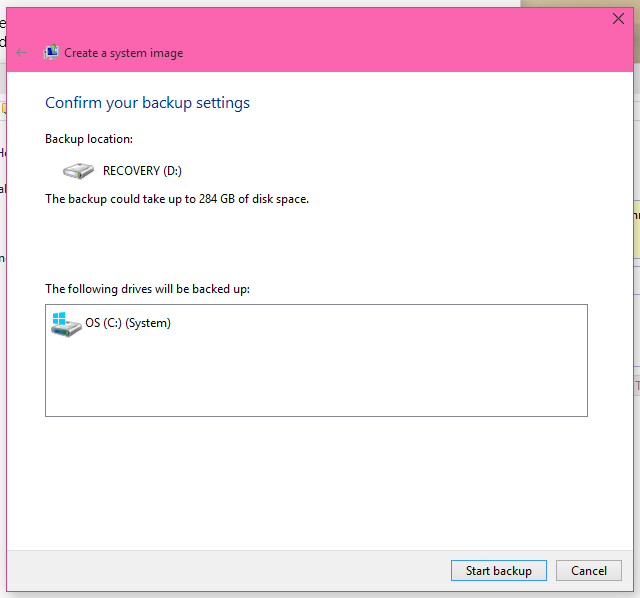
4. To create a system image of Windows 10, go to the Create a system image window, select a location to save the recovery image, and click Next. This can be done on a hard disk, DVDs, or a network location. All removable devices, including USB drives, are listed under the On a hard disk option. After selecting the location, click Proceed to begin the process.
To create a system image backup, start by opening the Control Panel, then select "All Control Panel Items" followed by "System" and finally "System Protection". This will allow you to create a recovery point, which can be used to restore your system in case of a problem. It's recommended to start this process at the end of your workday as it may take a few hours to complete.
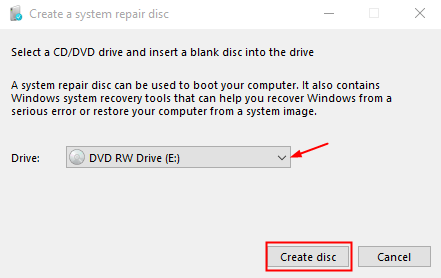
When the backup is complete, you will be asked to create a system repair disc, which you can do if you have a CD/DVD disc and a floppy drive.
If you're unable to boot into Windows 10, you can create a recovery drive with the built-in Recovery Drive feature.
Windows 10 has a built-in feature that allows you to create a recovery drive on a USB flash drive, which can be used to recover your system in case of issues, and also gives you the option to back up system files to the drive. This provides an additional recovery option called "Recover from a drive".

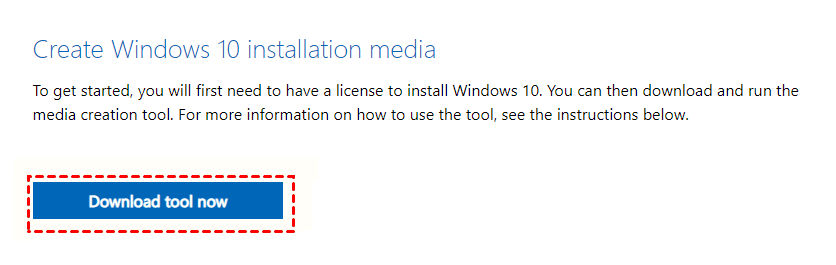
To download Windows 10 recovery on Microsoft's download page, you can choose to create a recovery USB drive that supports both CD/DVD and USB devices, allowing you to select the device you have available.
Use System Image Recovery to restore Windows 10 recovery image
To restore Windows 10 from a recovery image, you can access the Windows 10 recovery environment through two methods: by booting from the recovery media or by using the built-in Windows 10 recovery options.
To restart your Windows 10 computer in the advanced startup mode, go to Settings, then Update & Security, followed by Recovery, and click the Restart now button in the Advanced startup section.
After booting, insert the recovery media you created, set the boot priority to it, and restart your computer. Then, click "Next" and select "Repair your computer".
To restore from a Windows 10 recovery image using System Image Recovery, follow these steps: First, ensure that your computer is set to boot from the correct device, then insert the Windows 10 recovery media. Next, press the Windows key + X and select the Power option, then hold the Shift key and select Restart.
1. In the Choose an option window, click Troubleshoot > Advanced options > System Image Recovery.
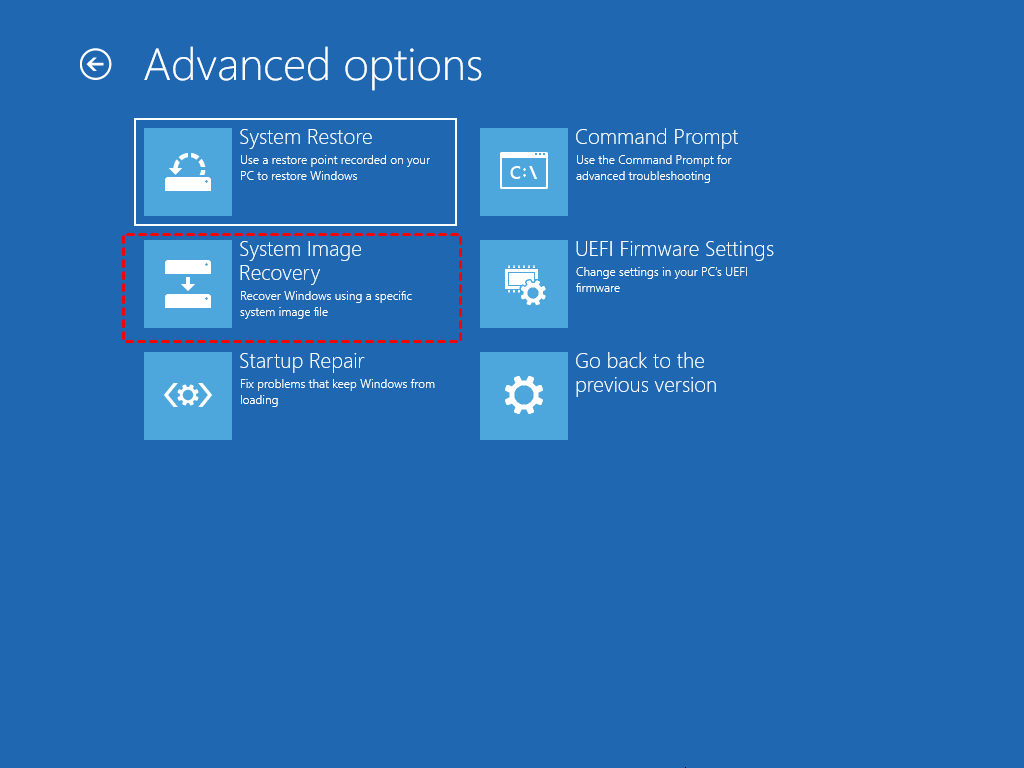
2. Select the operating system you want to restore, here is Windows 10.
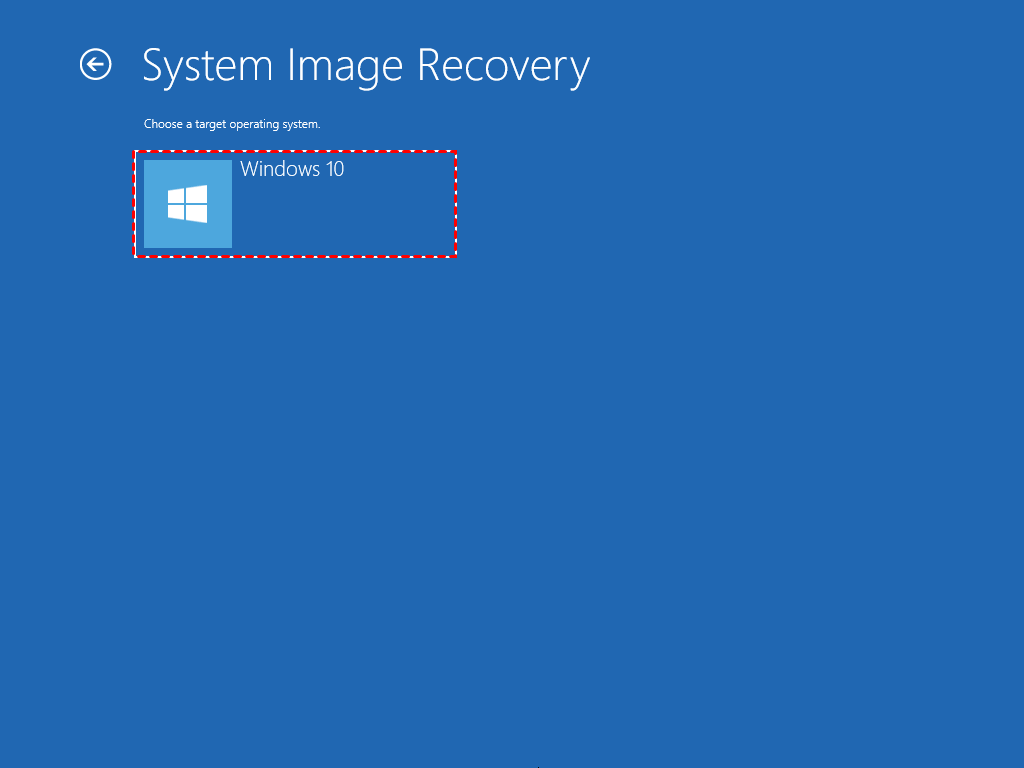
3. In the Re-image your computer window, tick "Use the latest available system image" and click "Next".
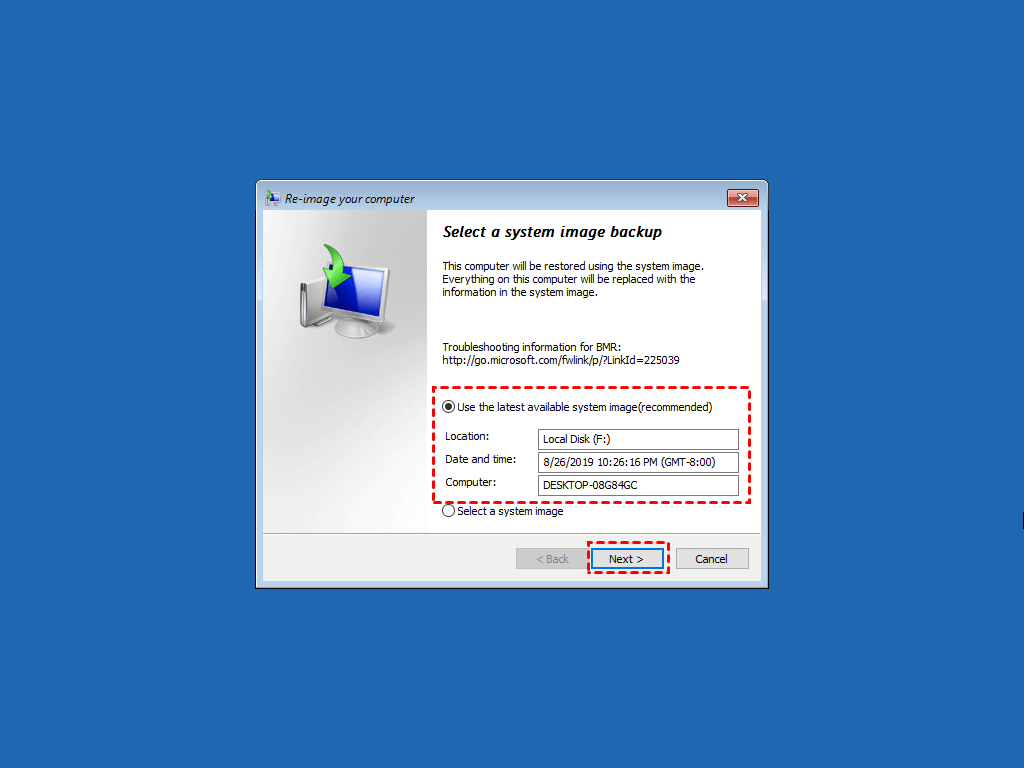
4. In the Choose other restore options window, select the "Format and repartition disks" option, then click "Next > Finish > Yes".
After following these steps, you can restore your system image and have your computer up and running in no time. However, if you try to restore the system image to a smaller drive, such as a hard disk drive (HDD) or solid-state drive (SSD), the restore process will fail due to the inability to support partition layouts smaller than the original disk.
You can create a Windows 10 recovery image using software like Qiling Disk Master Standard, which supports creating a system image backup with its System Backup feature, and then restoring with the created image in the Restore tab.
The backup image is compressed, has an .afi or .fvd extension, and can only be accessed by Qiling Disk Master, preventing unwanted access without a full restore.
Qiling Disk Master still provides many useful features, including schedule backup, incremental or differential backup, and universal restore, among others. Some features are exclusive to the professional or higher version.
Create Windows 10 system image for recovery purpose with Qiling Disk Master
1. Download and install this free backup software, then in its main interface, click Backup and select System Backup.

2. To restore your system, click where the arrow points and select your USB drive as the destination location. If your USB drive is not connected, connect it first. The software will automatically include the required partitions for a full system restore.

3. To create a system image on a USB drive, click on "Options" or "Schedule" to customize your backup settings. Once you've made your selections, click "Proceed" to initiate the backup process. This will create a system image on the USB drive, allowing you to restore your system to a previous state if needed.
You can comment on this task, set pre/post-command, enable email notification, enable normal or high compression level, etc.
You can set a daily incremental or differential backup (available in the professional version) to continuously back up your system and changes made after the first full backup, or adjust the schedule to weekly or monthly as needed.

The process will take a few hours, so please wait patiently until it's complete.
After that, you can choose to create a bootable media using USB drive or CD/DVD, which does the same effect as system repair disc or boot USB, and can be used on different computers, including all versions of Windows.

If your computer won't boot, you can use a bootable disk to restore a Windows 10 recovery image backup. This will restore your computer to its state at the time of the backup, effectively undoing any issues that caused the boot failure.

Your choice
Creating a Windows 10 recovery image is essential for a quick and easy computer recovery. To do this, you'll need to create a system image backup on a USB drive or other location. You can use the built-in tool Backup and Restore (Windows 7) or third-party software like Qiling Disk Master Standard to achieve this.
If you are using the built-To avoid a System Restore failed error, remember to restore the system image to a larger drive. Additionally, it's not possible to restore the system to a different computer.
If you need more advanced features or want to restore your system to a computer with different hardware, you might want to consider using Qiling Disk Master. This tool allows for universal restore, which is a feature that ensures your computer will be bootable after the restore process, especially useful for servers. Additionally, Qiling Disk Master Server is available for server users.
Related Articles
- 3 Free Ways to Create Windows 10 Recovery Disk or USB Drive
- 4 Effective Ways to Restore Windows 10 from Recovery USB
- Custom Refresh Image in Windows 10 for Reset This PC
- Windows 10 Recovery Tools Guide and Free Download | 2021
- 3 Ways to Transfer System Image to New Hard Drive
- How to Install Windows 10 on New SSD without CD or USB?
To install Windows 10 on a new SSD without a CD or USB, follow these steps. First, ensure your computer can boot from the SSD, then create a bootable Windows 10 installation media using the Media Creation Tool on another computer.
Products
Articles & Tutorials
- Data Recovery
- Data Backup
- File Recovery
- File Backup
- File synchronize
- System Backup and Restore
- Disk and Partition Clone
- Technical articles
- Disk Master Help
- Windows Deleted File and Disk Recovery Tutorials
- Windows File and Data Recovery Tutorials
- More Windows Tutorials for Install, Security, Files, and PC Tips
- Windows Boot, Repair, and Recovery Environment Tutorials
- Windows Backup Tutorials
- Windows Restore Tutorials
- Windows Clone and Migration Tutorials
- Windows Server Backup, Recovery, and Management Tutorials
- Windows Disk, Partition, and Storage Management Tutorials