Custom Refresh Image in Windows 10 for Reset This PC
How can a Custom recovery image be helpful
Many people have important files saved on their computer that they can't afford to lose, especially those who have used their computer for a long time. After running a Windows 10 system for some time, serious issues may arise that cannot be repaired, making it essential to have a backup plan in place.
If you're experiencing issues with your Windows 10 installation, you can refresh your installation or do a fresh install to resolve the problems. Windows 10 has a built-in feature called "Reset this PC" that allows you to reinstall Windows while keeping or removing your personal files. This can help fix issues and get your system up and running smoothly again.
How to use Reset this PC
To reset your Windows 10 PC, go to Settings > Update & Security > Recovery > Reset this PC, or boot from a Windows 10 recovery drive or installation disc and find the Reset feature in Advanced Options. This will reinstall Windows, fixing system issues.
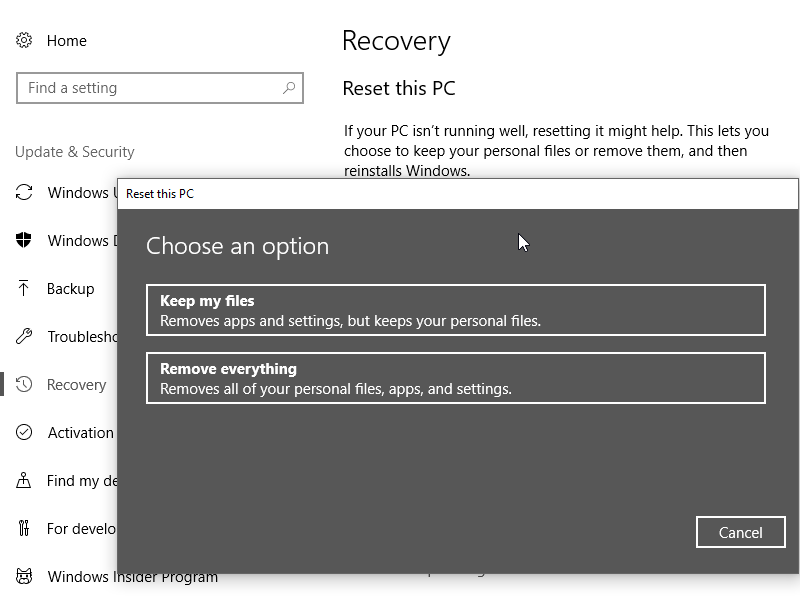
Will my files and apps get removed?
Windows 10 Reset PC offers two options: Keep my files and Remove everything. Choosing Keep my files preserves personal files in the C:\Users\current user folder, allowing you to login with the same account and password after the reset.
When choosing to reinstall or upgrade Windows, all installed programs and applications will be removed. However, all personal data will be saved in the directory c:\windows.old, allowing you to easily access and copy any desired files from your old system.
What if I do not want to lose installed applications?
Using Reset this PC with a customized image can save you time and effort by pre-installing and configuring all the necessary programs, making the process more convenient and efficient.
After installing all your favorite applications and ensuring the system is running smoothly, you can capture this image and use it as a system recovery image. Additionally, you can capture more incremental image backups.
How to create Windows 10 custom reset of refresh image
To capture a Windows 10 recovery image, you need to boot into the Windows recovery environment, which can be done by clicking Restart while pressing and holding the Shift key, or by booting from recovery media or an installation disk.
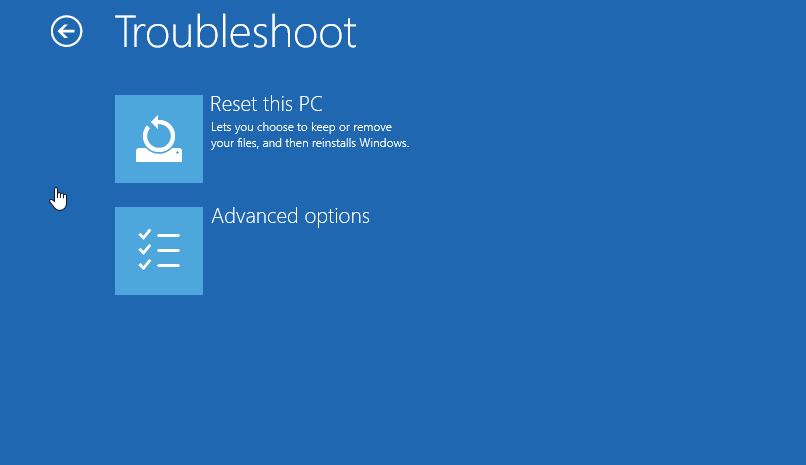
When your computer restarts after using Shift + Restart or from recovery media, go to Troubleshoot > Advanced options > Command Prompt. You may need to enter your account password to access the command prompt.
Within the command prompt window, type "dism /Capture-Image /CaptureDir:C: /ImageFile:D:\windows10\install.wim /Name:windows10 /description:2018-01-10".
To backup the current system to the D:\windows10 folder and create an image file named install.wim, use the command "dism /capture-image -o D:\windows10 -cl current -compress full" without quotes. Please adjust the location path as needed.
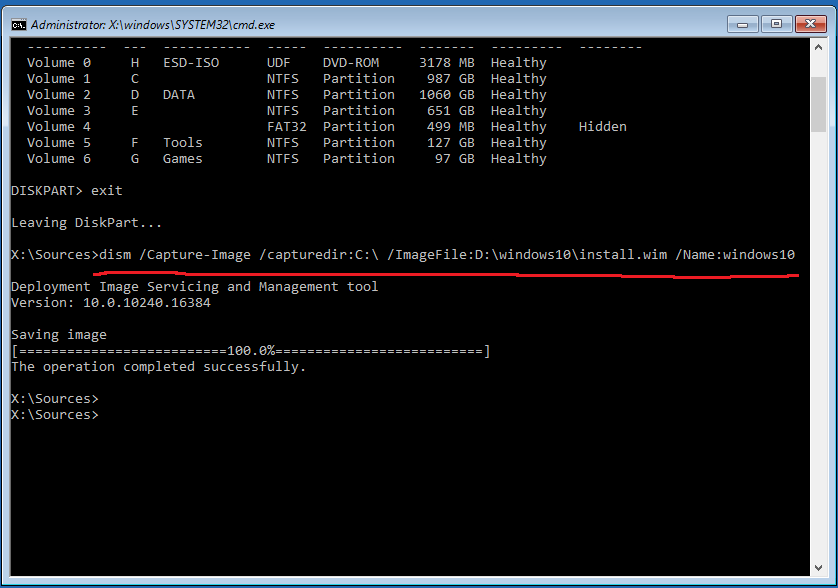
Parameters explained:
/Capture-Image- Capture a drive image to a new .wim file.
/CaptureDir- Specify the source directory, the location to be captured.
/CaptureFile- Specify target location to store the image file.
/Name- Specify a name.
/Description- To create a refresh image, specify a description for the image. This will allow you to identify which image to restore if you need to create multiple refresh images.
After installing new applications or Windows updates, you can add an additional image to the existing .wim file using the /Append-Image option. This only captures the newly added files to the image file, effectively working like an incremental backup.
Type the following command in a command prompt: "Dism /Append-Image /ImageFile:D:\windows10\install.wim /CaptureDir:C:\ /Name:windows10 /Description:2018-09-10".
When the recovery image is created successfully, run the following command in an elevated command prompt to let Windows 10 use the image you created to Reset this PC: ```cmd /c "D:\Recovery\WindowsRE\winre.wim" /unattend /unattend:unattend.
To set the Windows 10 custom refresh image, use the command "reagentc /setosimage /path D:\windows10 /index 1" (without quotes), replacing "/path" with the actual path to your Windows 10 custom refresh image.
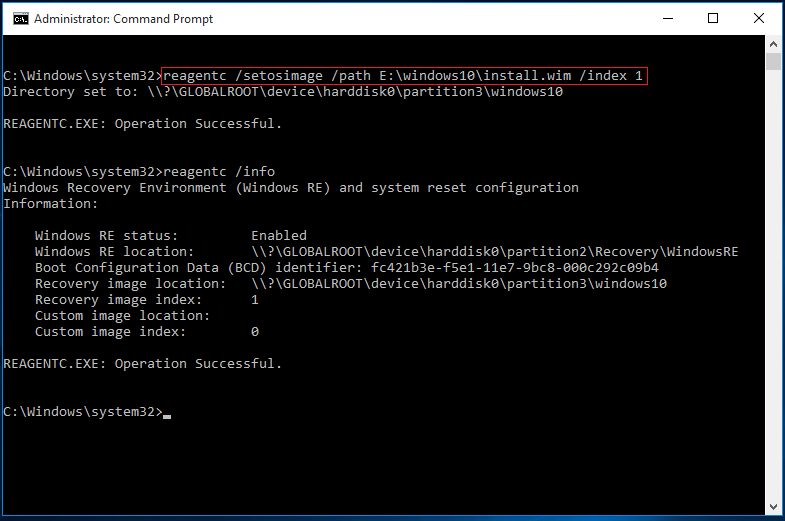
If Windows 10 Reset failed, you can use the command "reagentc /info" to check if the recovery image is available.
If you're not comfortable with the command prompt or prefer a more user-friendly approach, you can use another tool to create a custom image for Windows 10 recovery, rather than following the method described.
Create a system image for Windows 10 recovery
It's reported that viruses and ransomware are targeting commonly used recovery image files. To ensure your custom reset image is safe, it's hard to say. However, creating a Windows 10 system image with free backup software like Qiling Disk Master Standard can help avoid trouble, especially when Windows 10 updates like KB5001649 can sometimes cause problems or even data loss. By making a backup in advance, you can prevent a lot of issues.
Qiling Disk Master Standard is a perfect choice for those who prefer easy-to-use backup tools. The interface is designed to be very effective, minimizing the risk of user error, with each step having clear instructions.
To create a system image, follow these steps:
1. Download and install this Windows backup and restore tool.
2. Within the Home screen, click the Backup tab and select System Backup.

3. In the next screen, related partitions are automatically added as source data, and you only need to specify a destination location to save the image backup.

4. You will get the Operation Summary screen, where you can customize backup options and schedule the backup to run automatically, then click Proceed to start the backup.
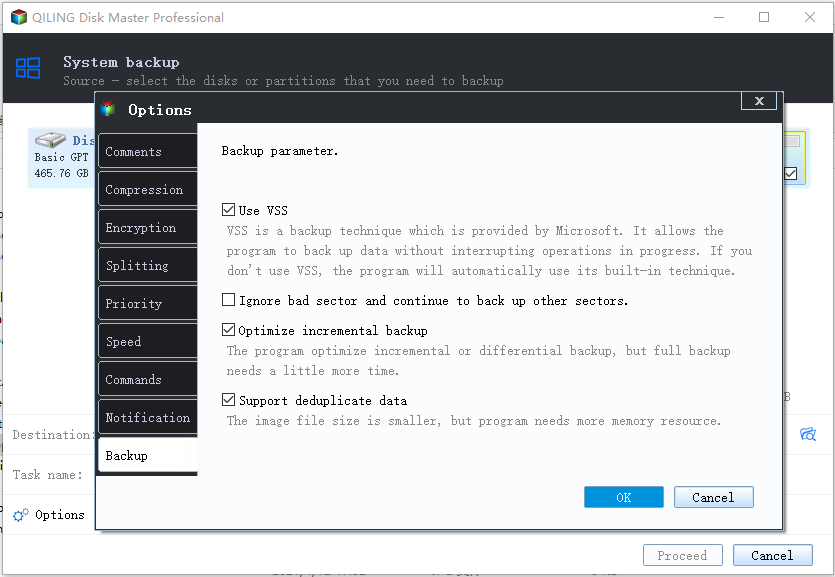
You can create a backup image of your PC, which can be used to create multiple incremental backups as you add files. After the backup is complete, you can create a bootable media using a USB drive or CD/DVD, allowing you to boot all versions of Windows 11/10/8/7.
Conclusion
If your computer is experiencing issues, you can use this image backup as a custom refresh image for Windows 10 to resolve problems while preserving all files and installed programs. Additionally, if Windows 10 fails to boot, you can boot from the backup disk to restore everything to its previous state using the Restore feature.
Related Articles
- Can I Use Recimg Windows 10 to Create a Custom Recovery Image
- Reset or Refresh Windows 10 without Losing Programs and Data
- How to Create and Use Windows 10 Recovery Image Backup
- How to Download Windows 11 23H2 ISO File
Windows has released the Windows 11 23H2 update. This article will tell you how to download Windows 11 23H2 ISO file using Qiling Disk Master and Windows Media Creation Tool, and via Microsoft. - The Best Way for Samsung Data Migration to Clone OS Only
To find the best way for Samsung Data Migration clone OS only, you can read this article carefully and learn the easiest way and the specific tutorial. - Easiest Samsung Laptop SSD Upgrade Kit
This tutorial will introduce you to the easiest Samsung laptop SSD upgrade kit and how to upgrade hard drive to Samsung SSD in simple steps.
Products
Articles & Tutorials
- Data Recovery
- Data Backup
- File Recovery
- File Backup
- File synchronize
- System Backup and Restore
- Disk and Partition Clone
- Technical articles
- Disk Master Help
- Windows Deleted File and Disk Recovery Tutorials
- Windows File and Data Recovery Tutorials
- More Windows Tutorials for Install, Security, Files, and PC Tips
- Windows Boot, Repair, and Recovery Environment Tutorials
- Windows Backup Tutorials
- Windows Restore Tutorials
- Windows Clone and Migration Tutorials
- Windows Server Backup, Recovery, and Management Tutorials
- Windows Disk, Partition, and Storage Management Tutorials