Sync Local Folder to OneDrive in Windows 11 with 2 Easy Ways
Learn about OneDrive in Windows 11
OneDrive is integrated into Windows 11, allowing users to sync files and folders between their computer and the cloud, and share files with others, with automatic syncing of changes when online.
OneDrive can be accessed with a Microsoft account, and most users have it as part of a Microsoft 365 subscription, which includes Office and 1TB of storage, or can get a free account with 5GB of space.
Why Sync Local Folder to OneDrive in Windows 11?
Syncing local folders to OneDrive in Windows 11 has several benefits, including being able to access and share files from anywhere, having a backup of important files, and being able to access files from other devices, among other reasons.
- After syncing, it is equivalent to having an extra copy of your files, which can effectively protect your files from data loss.
- You can access your OneDrive files and folders on other devices connected to your account without an internet connection, which is very convenient.
- You can share folders with others using the built-in "Share" feature.
How to Sync Local Folder to OneDrive in Windows 11
In Windows 11, OneDrive is already installed, so you just need to follow the steps to sync local folders to OneDrive. The process is straightforward and can be completed by following a series of simple instructions.
Step 1. To access OneDrive, select the Start button and search for OneDrive, click the top result, and then open it. Sign in with your Microsoft account to access your files.
Step 2. You are in the Your OneDrive folder page, select Next to accept the default folder location for your OneDrive files.
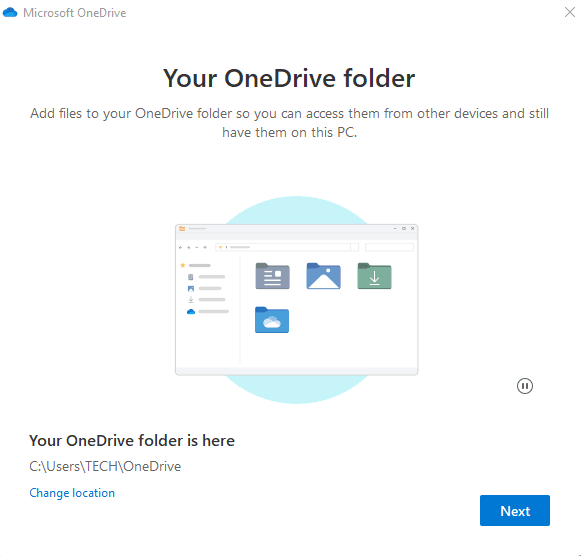
Tip: If you want to change the folder location, select Change location, which is recommended because you haven't synced any files yet.
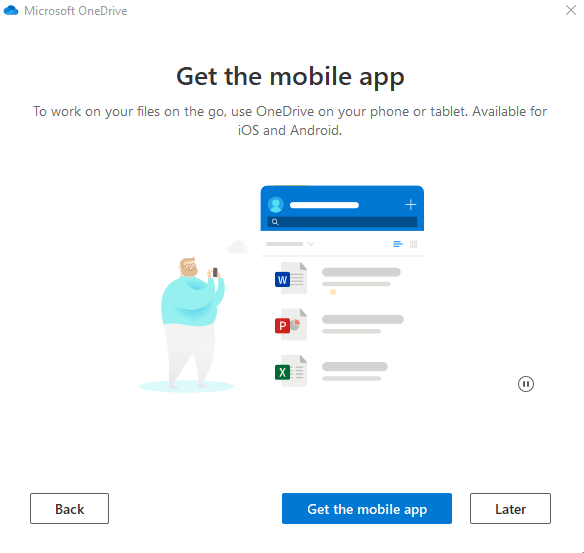
Step 3. After clicking on the OneDrive introduction, you will see a "Get the mobile app" screen. If you need the mobile app, click on the "Get the mobile app" button. Otherwise, click on "Later" to continue.
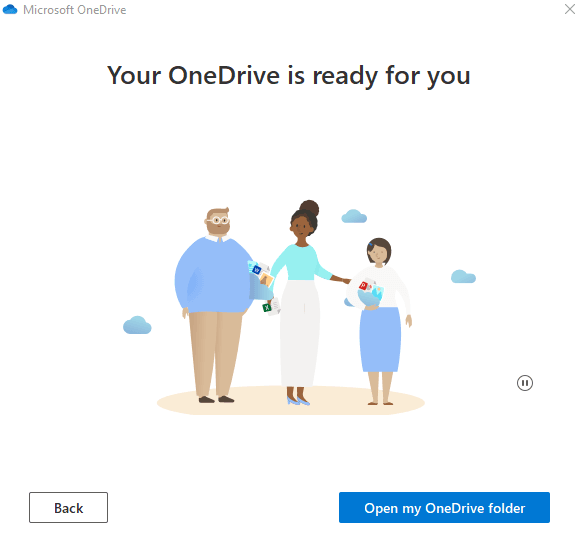
Step 4. Click Open my OneDrive folder in the Your OneDrive is ready for you page.
Step 5. When you open this page, it will automatically select these files for you and they will be synced into the OneDrive folder.
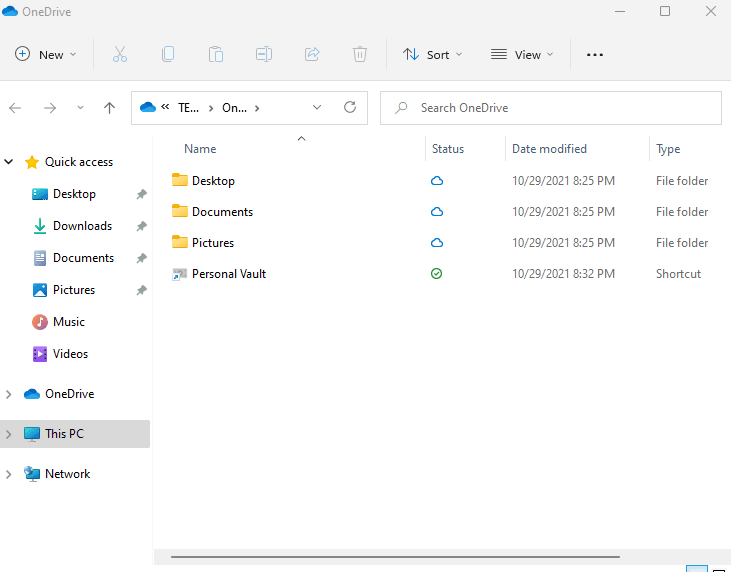
Limitation of OneDrive
To avoid issues, users should be aware of a few potential problems that may arise when using the OneDrive feature to automatically sync local folders in Windows 11. These include issues with folder permissions, conflicts between local and cloud versions of files, and potential data loss if not handled properly. As a result, users should exercise caution and carefully review the settings and permissions before enabling this feature to ensure a smooth and secure syncing experience.
- Syncing local files and folders to OneDrive in Windows 11 can be a tedious task, especially when they are located in different paths. The process of repeatedly dragging and dropping or copying and pasting files and folders can be very time-consuming and labor-intensive.
- When syncing changes to the cloud, make sure to make changes from the OneDrive folder, not locally on your computer, to ensure the changes are synced.
- Windows 11 OneDrive not syncing can occur when the sync process fails to make progress or never completes, leading to frustration. This issue may arise due to various reasons, including but not limited to, issues with the internet connection, OneDrive itself, or conflicts with other programs. To resolve this, try restarting OneDrive, checking the internet connection, and ensuring that the OneDrive folder is not set to be excluded from syncing.
- OneDrive may keep automatically syncing files you don't want, which can slow down your network and computer.
- OneDrive may move files to the cloud, leaving only thumbnails or shortcuts on the local drive, requiring an internet connection to access.
Sync Local Folder to OneDrive in Windows 11 with Qiling Disk Master (Easiest)
In addition to Windows' built-You can sync folders across different locations using OneDrive in Windows 11, but an easier and more reliable method is to use Qiling Disk Master Standard, a free sync software for Windows computers. This tool allows you to easily sync folders from various locations to OneDrive, and automatically sync any changes to the cloud.
- Automatic sync: It can automatically sync local folders in Windows 11 with OneDrive at set intervals, such as daily, weekly, or monthly.
- Multiple cloud devices: It supports syncing local folders to OneDrive and other cloud drives like Dropbox, Google Drive, etc.
- Different operating systems: It supports all Windows OS, including Windows 11, 10, 8.1, 8, 7, XP, and Vista.
To sync local folders to OneDrive in Windows 11, first, ensure that you have the OneDrive app installed on your computer. Then, navigate to the OneDrive app, click on the "Settings" icon, and select the folder you want to sync from the "Folders" tab.
Step 1. Download Qiling Disk Master Standard, install and launch it. Then click Sync > File Sync.

Notes: This software offers three additional advanced sync modes, available in the professional version and higher, in addition to File Sync.
- File Sync: The script will synchronize the OneDrive directory with the computer directory, deleting any additional files in the target folder.
- Real-Time Sync: When the folder on the computer is changed, it will be synced to OneDrive immediately.
- File sync: The script will synchronize changes made in the computer directory with the OneDrive directory, and vice versa, ensuring that both locations have the same updated files and folders.
Step 2. Click Folder to select the local folders you want to sync.

Step 3. Click the inverted triangle at the right edge of the second bar and choose Select a cloud drive.
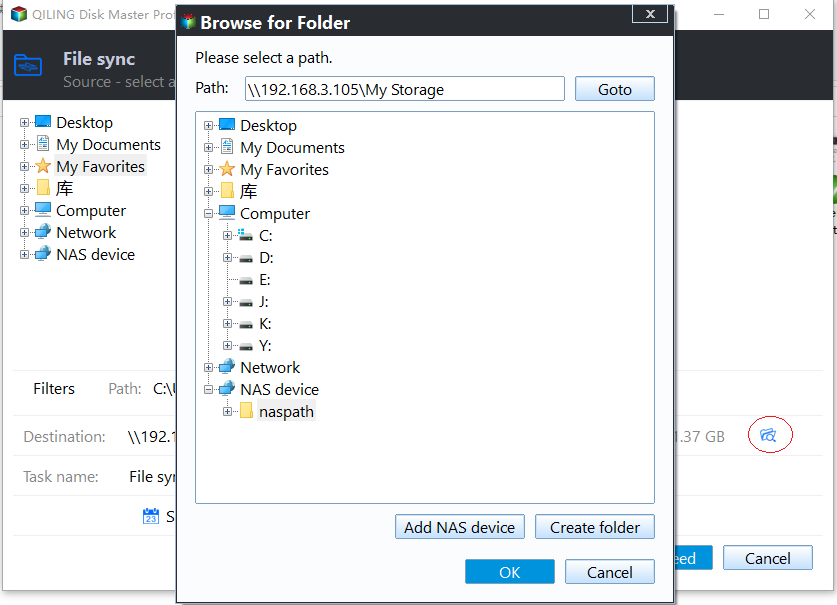
Tip: If you can't find OneDrive in the list, go back to Step 3 and manually navigate to the OneDrive local folder by clicking the folder shaped button in the second bar.
Step 5. Confirm your operations and click Proceed to sync local folders to OneDrive in Windows 11.
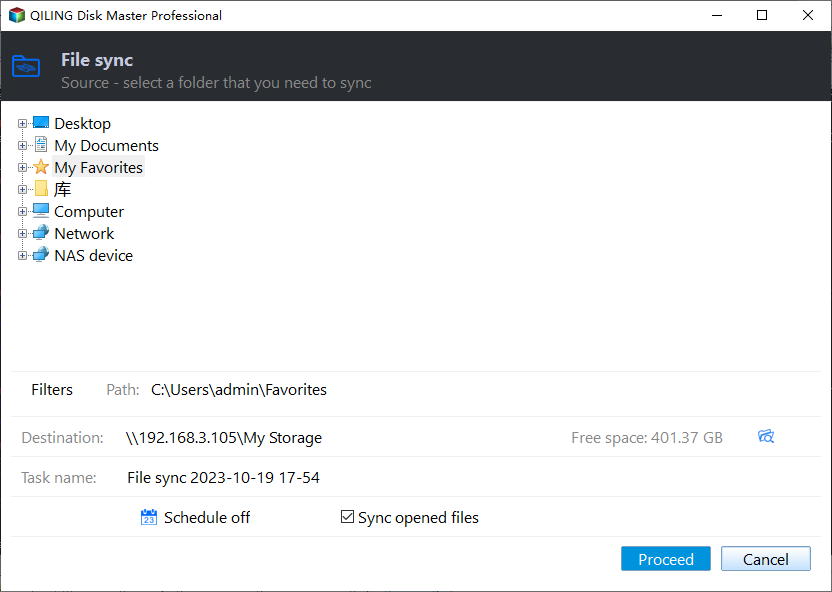
Notes:
- Options: You can add comments to sync tasks and set up email notifications for them, allowing for additional context and alerting team members to specific sync tasks.
- Schedule: SyncMate can automatically sync your files across devices, allowing you to set intervals such as daily, weekly, or monthly, or even trigger syncing based on specific events or when a USB device is connected. The professional version offers additional features, including event-based and USB plug-in syncing.
Summary
To sync local folders to OneDrive in Windows 11, you can use the free and professional sync software Qiling Disk Master Standard. This tool allows you to easily sync local folders from the same or different locations to OneDrive, and also sync subsequent changes. You can even set fixed intervals for automatic sync. Additionally, it supports syncing to other common cloud devices and all Windows operating systems, making it a convenient option.
This software is a professional backup solution that allows you to backup your system, disk, partition, or file, making it a great tool for creating backups, even for specific tasks like backup files to external hard drive in Windows 11. You can download it to explore its features further.
Related Articles
- How to Sync OneDrive in Windows 10 Automatically?
OneDrive auto sync is convenient. However, you may get stuck with OneDrive not syncing problem. You can find another easier way to sync Windows 10 to OneDrive. - 2 Ways to Sync Network Folder to OneDrive in Windows 7, 8, 10, 11
Here you will find the two ways to sync network folder to OneDrive in Windows 7/8/10/11. Both are free of charge, and the latter is simpler. - Mirror PC Folder to OneDrive | 3 Ways
You can mirror folder to OneDrive automatically with 3 practical ways, even if they are not in the desktop folder. Get details below. - How to Sync Any Local Folders to OneDrive (2 Ways Included)
OneDrive is free online storage that comes with your Microsoft account. Learn how to sync local folders to OneDrive easily from this page. - Wipe Hard Drive for Clean Install Windows 11 Safely and Easily (3 Ways)
You will learn 3 easy ways to wipe hard drive for clean install windows 11. You can choose to use the built-in tool, installation media or free third-party tool based on your own needs. - How to Increase C Drive Space in Windows Server 2003 without Data Loss?
You can increase Server 2003 (R2) C drive space using Diskpart utility or Qiling Disk Master Server.
Products
Articles & Tutorials
- Data Recovery
- Data Backup
- File Recovery
- File Backup
- File synchronize
- System Backup and Restore
- Disk and Partition Clone
- Technical articles
- Disk Master Help
- Windows Deleted File and Disk Recovery Tutorials
- Windows File and Data Recovery Tutorials
- More Windows Tutorials for Install, Security, Files, and PC Tips
- Windows Boot, Repair, and Recovery Environment Tutorials
- Windows Backup Tutorials
- Windows Restore Tutorials
- Windows Clone and Migration Tutorials
- Windows Server Backup, Recovery, and Management Tutorials
- Windows Disk, Partition, and Storage Management Tutorials