How to Sync OneDrive in Windows 10 Automatically | 2 Ways
OneDrive in Windows 10
OneDrive is a free cloud storage device embedded in Windows 10, offering users a convenient way to sync their files. Its prominent advantages make it a popular choice among users.
OneDrive allows you to save and access files from any device, phone, or tablet, and you can use them even without an internet connection. It's also a convenient way to share files with others and serves as a backup plan, allowing you to recover files in case of any issues.
To sync OneDrive in Windows 10, start by clicking on the Start menu and searching for "OneDrive." Click on the OneDrive app to open it. Click on the "Get started" button, then click on "Set up." Enter your Microsoft account email address and password to sign in. Choose the folders you want to sync with OneDrive. Click on the "Sync" button to start syncing your files.

Part 1. How to use OneDrive in Windows 10
OneDrive is very simple to use, with a OneDrive folder that comes with it, allowing you to easily sync files by dragging and dropping them into this folder. Alternatively, you can set up OneDrive to sync all files and folders or select specific ones to sync in batches. This functionality is also available in Windows 11, and the steps to use OneDrive remain the same as in Windows 10.
Step 1. Sign in OneDrive
1. Click Start and search for "OneDrive", and then open it.
2. Enter your account and password to sign in.
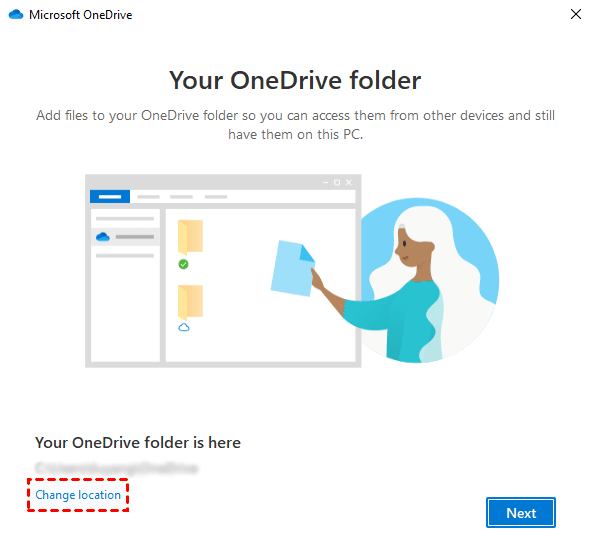
Step 2. Choose location for your OneDrive folder
On the window showing your OneDrive folder, you can see the default location of the OneDrive folder. If needed, click "Change location".
Step 3. Choose folders to sync from OneDrive to PC
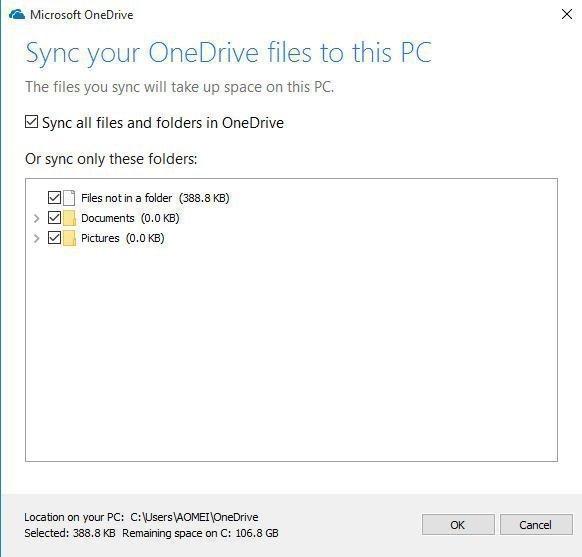
When setting up OneDrive on Windows 10/11, you're asked which folders to sync to your PC. This allows you to choose which files and folders to store locally on your device.
Step 4. Upload files to OneDrive
To move files from File Explorer to OneDrive, click "Open my OneDrive folder" and then drag and drop or copy and paste the files into the OneDrive folder. To access the OneDrive folder later, open "This PC", find "OneDrive" in the left pane and click on it.

✎ Tips:
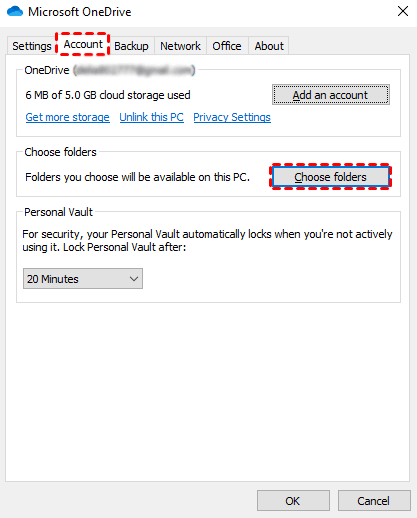
👉 To change the folders that will be synced from OneDrive to PC, right-click the OneDrive icon in the lower right corner, select Settings, and then click Choose folders on the Microsoft OneDrive Account page.
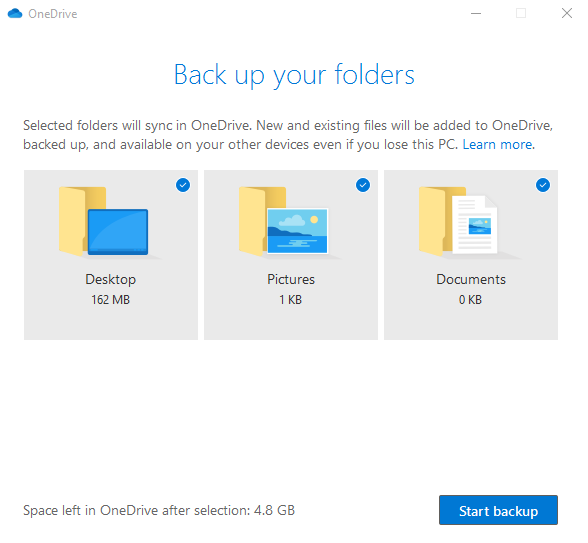
👉 OneDrive can automatically backup and sync files in the Desktop, Documents, and Pictures folders, allowing them to be protected and available on other devices.
1. Right-click the OneDrive icon and select Settings.
2. Go to the Backup tab and click Manage Backup.
3. Finally, click Proceed to make it.
Fix OneDrive sync problem in Windows 10
If you're experiencing Windows 10 OneDrive sync problems, such as being unable to sync files between your computer and OneDrive, or OneDrive not syncing all files, you may want to try some troubleshooting tips. These tips can help resolve issues like slow OneDrive sync and other sync problems.
1. Check if your Internet is connected.
2. To add a file or folder to a repository, you need to have write permissions to the repository. If you are trying to add a file or folder that you created, you likely have the necessary permissions.
3. To check if there are files and folders with the same name in the same location, you can use the command `ls` with the `-l` option in Linux or macOS, or the `dir` command in Windows. This will list the contents of the current directory in a detailed format, showing the file and folder names, sizes, and permissions.
4. Files larger than 10GB will not be synced, so it's recommended to compress or reduce the size of any files exceeding this limit.
If the above methods cannot help you solve the Windows 10 OneDrive sync problem, you can refer to the next part to learn a quick way to sync Windows 10 to OneDrive. And it's still used on Windows 11.
Part 2. Easier way to auto sync OneDrive in Windows 10/11🔥
To have a better and more successful experience in synchronization, you can also try a free OneDrive sync tool - Qiling Disk Master Standard, which is one of the best backup and sync software.
✦ You can either sync specific files and folders to cloud or backup PC to cloud.
✦ You can even sync open or running files.
✦ Cloud drives such as OneDrive, Dropbox, Box, SugarSync, hubiC, and Cloudme are supported.
✦ You can also backup to Qiling Cloud, which provides 1TB of free storage for 15 days after signing up for a Qiling account.
✦ You can automatically sync newly added files on Windows 10 with OneDrive on a daily, weekly, or monthly schedule. This way, you don't have to manually sync files every time they're added.
✦ Besides Windows 10, this software also supports Windows 11/8.1/8/7/XP/Visa.
How to automatically sync Windows 11/10/8/7 to OneDrive
Note: To sync files to OneDrive with Qiling Disk Master, you need to download the OneDrive desktop app, log in to your Microsoft account, and then proceed with the sync process.
Step 1. Download Qiling Disk Master Standard and run this software.
Step 2. Click Backup and recovery and select File Sync.

If you upgrade to a higher version, you can enjoy three advanced sync modes:
▶ File Sync: This will keep the destination directory exactly the same as the source directory. Any extra files in the destination folder will be deleted.
▶ File Sync will immediately synchronize files to the destination folder when the tool detects all kinds of changes made in the source folder.
▶ Two-Way Sync: This command will synchronize the changes made in the source directory with the destination directory and vice versa, ensuring both locations have the same files and updates.
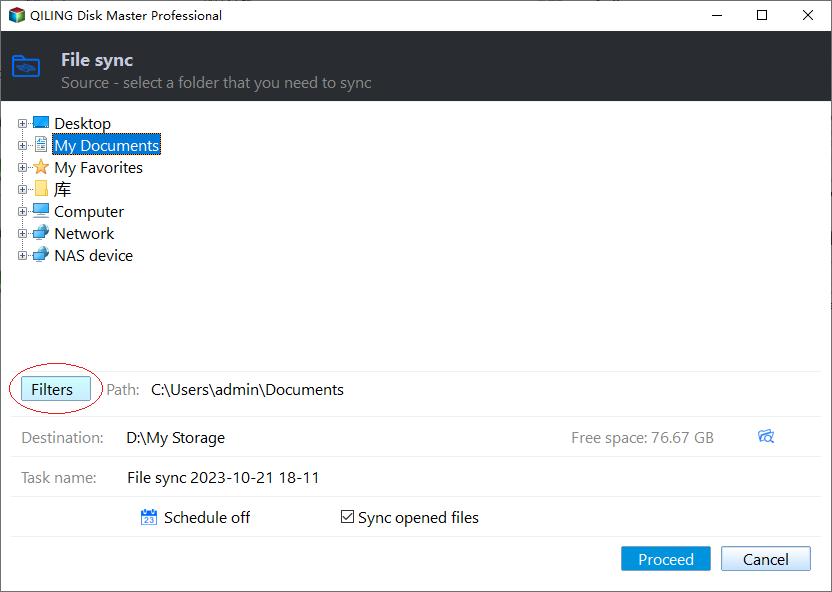
Step 3. Click Folder to select the folders you want to sync.

✍ Tip: To narrow down your search, you can click on "Filter Settings" which allows you to include or exclude specific file types. However, this feature is only available in the paid version, so you may need to upgrade to the Professional version if you need it.
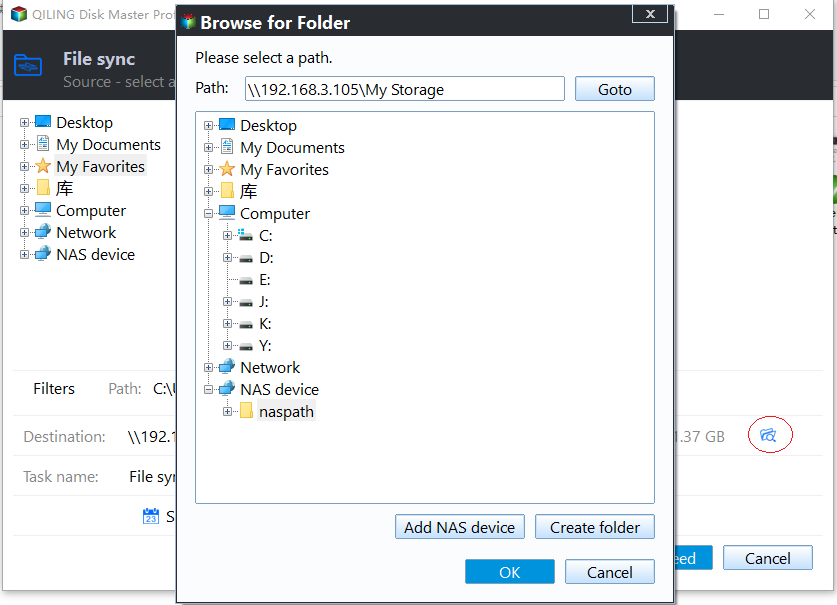
Step 4. To set OneDrive as the destination path, click the drop-down menu and choose "Select a cloud drive", then select OneDrive and click "OK".
Step 5. Click Schedule Sync to automatically sync Windows 10 with OneDrive, which will run the missed sync at the next system startup.

✍ Tip: You can click "Options" to add a unique comment to the sync task, making it easier to find later. Additionally, you can enable email notifications to receive updates once the task is complete.
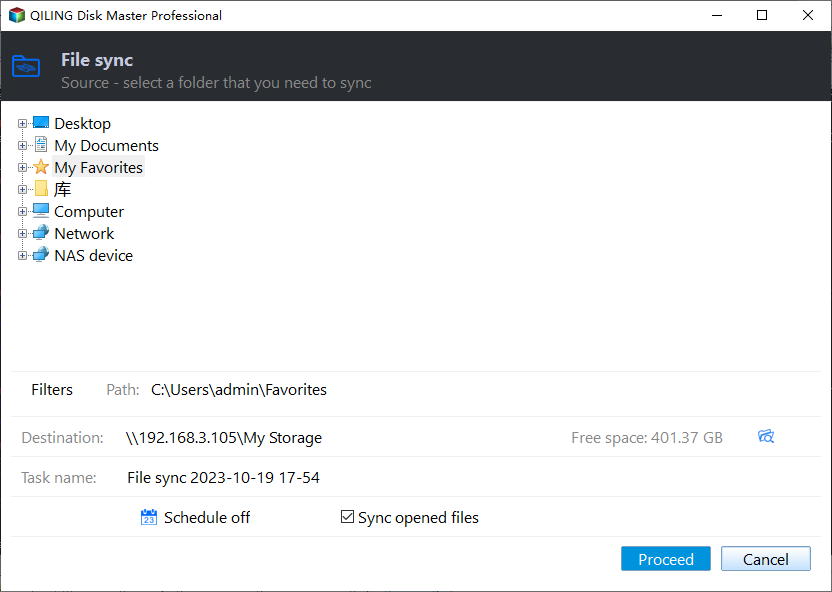
Step 6. After these have been set up, click Proceed.
Conclusion
Syncing OneDrive in Windows 10 is a straightforward process, and Qiling Disk Master makes it even more convenient by allowing for auto sync. Once you've set up the file sync, you can simply leave it running and it will automatically sync your files for you, making it easy to keep your OneDrive up to date.
Qiling Backup offers various backup options to protect your computer, allowing you to schedule tasks to backup your system, file, disk, and partition. This enables you to restore your PC to an earlier date that works well and retrieve lost data in case of issues.
The Server edition of Qiling Disk Master enables syncing Windows Server with OneDrive, and features a PXE Boot Tool for booting multiple computers within a LAN via the network.
Related Articles
- How to Sync Any Local Folder to OneDrive in Windows 10/8/7
OneDrive is free online storage that comes with your Microsoft account. Learn how to sync local folders to OneDrive easily from this page. - Sync Desktop to OneDrive Automatically with Best Freeware
Syncing desktop to OneDrive is one of the best ways to protect data safely, not only the current files but also changes made later. - Backup Windows 10 to USB Flash Drive Easily with Freeware
Backing up Windows 10 to USB flash drive is a necessary step to protect your computer and data on it. Then, learn how to operate, and you have 2 methods. - Automatically Sync OneDrive to External Hard Drive in Windows 10/8/7
This guide explains Automatically Sync OneDrive to External Hard Drive in Windows 10/8/7 with clear steps, key checks, and practical tips. - Dropbox Not Syncing in Windows 10 - How to Fix and Sync Files?
This guide explains Dropbox Not Syncing in Windows 10 - How to Fix and Sync Files with clear steps, key checks, and practical tips. - 2 Workarounds That Let File History Backup to OneDrive
Normally, you cannot use OneDrive for File History, but you can trick File History to backup to OneDrive. Here is a step by step guide to show you how.
Products
Articles & Tutorials
- Data Recovery
- Data Backup
- File Recovery
- File Backup
- File synchronize
- System Backup and Restore
- Disk and Partition Clone
- Technical articles
- Disk Master Help
- Windows Deleted File and Disk Recovery Tutorials
- Windows File and Data Recovery Tutorials
- More Windows Tutorials for Install, Security, Files, and PC Tips
- Windows Boot, Repair, and Recovery Environment Tutorials
- Windows Backup Tutorials
- Windows Restore Tutorials
- Windows Clone and Migration Tutorials
- Windows Server Backup, Recovery, and Management Tutorials
- Windows Disk, Partition, and Storage Management Tutorials