Auto Sync OneDrive to External Hard Drive in Windows 11/10/8/7
Why should you sync OneDrive to external hard drive
OneDrive is a cloud storage service that allows users to manage their personal files across various platforms. With the OneDrive app installed, files saved in the cloud are synced to the local storage in real-time. However, some users may also want to sync OneDrive to an external hard drive for added convenience and security, possibly due to the need for extra storage space or to have a backup of their important files.
- Make OneDrive files offline. If you need to use files on different devices often, you can sync the OneDrive folder to a removable storage device so you can access them even when the internet is offline.
- Avoid any potential data loss. To avoid data loss, it's recommended to back up the OneDrive folder offsite, as its default location on the C: drive can be vulnerable to computer failure, data corruption, or ransomware infection. This offsite backup provides an extra layer of protection for your synced files.
To sync OneDrive to an external hard drive, you can follow two helpful methods. Firstly, you can use the OneDrive sync client to sync your files to the external hard drive, allowing you to access your files on both the cloud and the external drive. Alternatively, you can use a third-party software or tool to clone or mirror your OneDrive files to the external hard drive, providing a local copy of your files for added security and backup.
|
📂 Method 1: Move OneDrive folder |
Right-To access OneDrive settings, click on the OneDrive icon in the taskbar and select "Settings" from the dropdown menu. |
|
🧿 Method 2: Use file sync software |
At the main console, click Sync and choose File Sync. |
Method 1: Move OneDrive folder to external drive
If you don't want to keep the original OneDrive folder, you can move it to a different location, but first, disable OneDrive to avoid losing data.
Step-by-step to move OneDrive folder to external drive:
1. Right-click on the OneDrive taskbar icon and then select Settings.
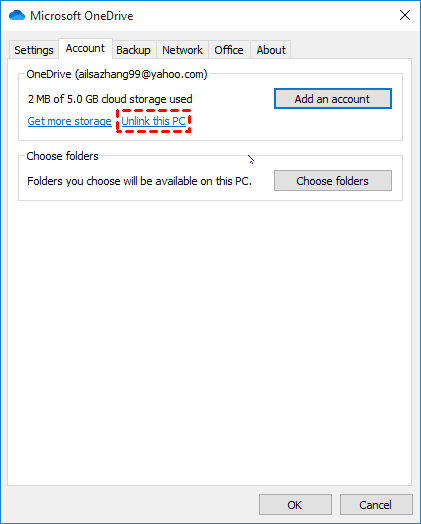
2. Click the "Account" tab and select "Unlink this PC". A OneDrive setup screen will pop out, but just ignore it for now.
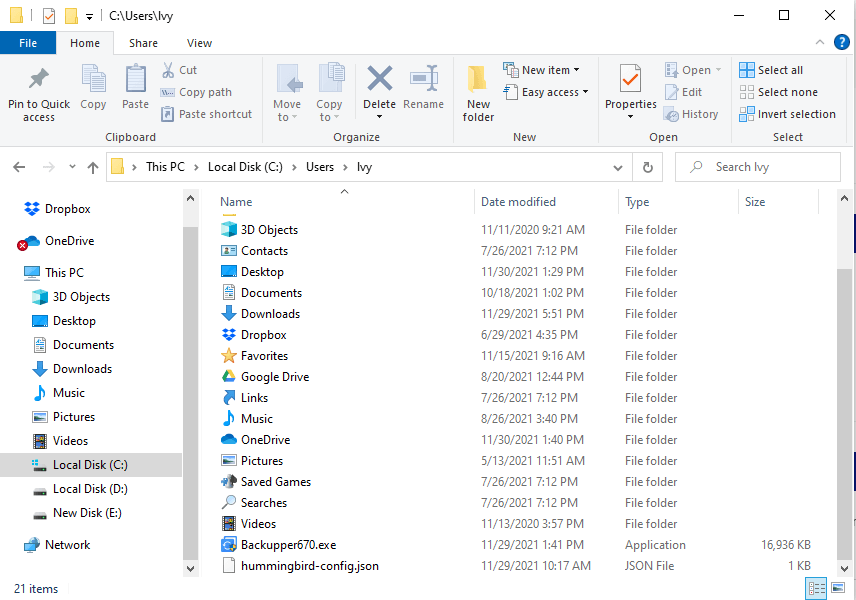
3. To move OneDrive files to an external hard drive, open File Explorer, locate your OneDrive folder, click the "Move to" button in the upper column, and select a folder on the external hard drive.
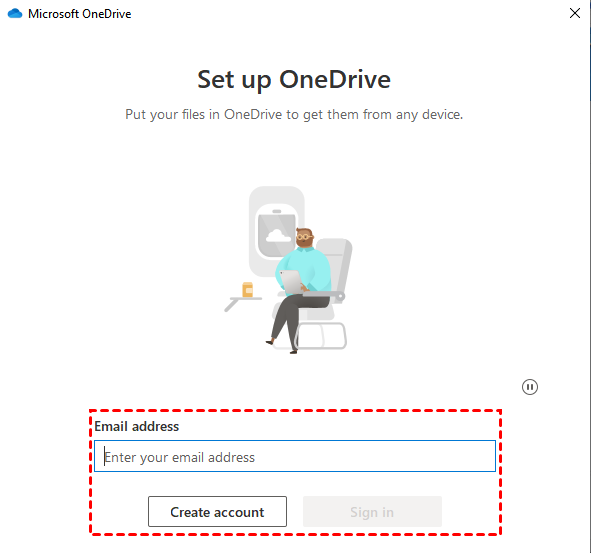
4. After transferring all your OneDrive contents to an external drive, navigate to the OneDrive setup screen and sign in with your OneDrive account.
5. To change the location of your OneDrive folder, click on the "Change location" link, select a new location for your OneDrive folder, and then click "Use this location".
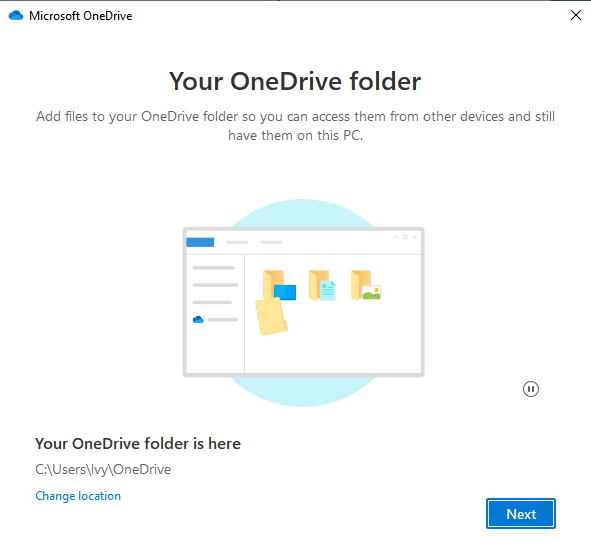
6. After clicking "Next", complete the setup process by following the on-screen instructions, which will then sync your files again.
Method 2: Sync OneDrive with external hard drive automatically
If you're looking for a free and reliable way to sync your files, you can consider using a file sync software for Windows 11/10/8/7, aside from moving your OneDrive folder to an external drive. Qiling Disk Master Standard is a great option, offering several advantages for keeping your files safe and synced.
★ To set up a one-way sync task, you can select the OneDrive folder and the removable storage device as the source and destination respectively, then choose the files you want to sync and set the sync direction to one-way. This will ensure that files from OneDrive are copied to the removable storage device, but not the other way around.
★ To automatically synchronize files, you can set up a schedule for the sync task, which can be configured to run daily, weekly, monthly, or triggered by specific events, such as a USB device being plugged in.
★ Besides OneDrive, you can use it to sync other cloud drives like Dropbox, Box, SugarSync, hubiC, and Cloudme to an external hard drive.
To sync OneDrive files with your computer, you can use the OneDrive desktop app. This app allows you to access and sync your OneDrive files directly from your computer, without needing to log in to the OneDrive website. To use the OneDrive desktop app, you'll need to download and install it from the Microsoft website.
How to sync OneDrive to external drive with a schedule:
1. At the main console, click Backup and recovery and choose File Sync.

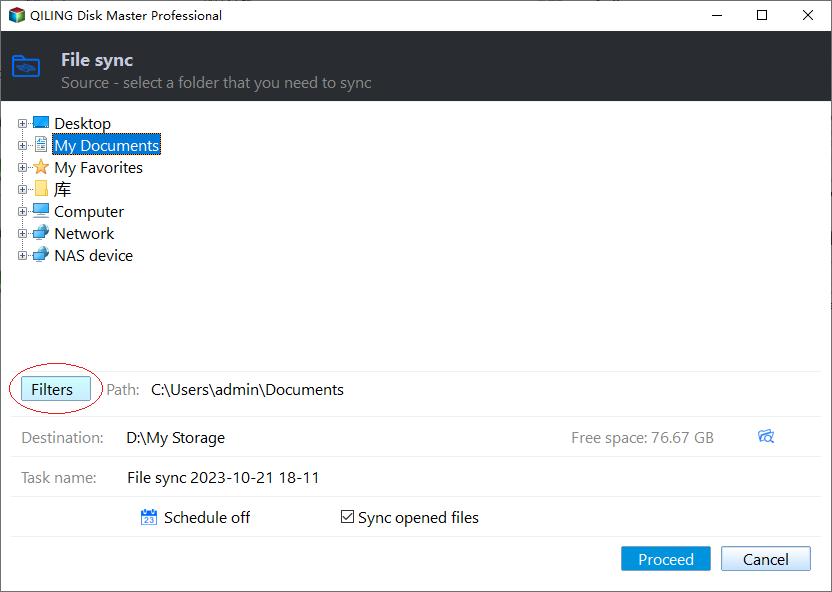
2. To sync a OneDrive folder, click the "Folder" option in the File Sync screen and select the OneDrive folder as the source folder to be synced.

💡 Tips:
- If you don't want to sync the whole OneDrive folder, you can select specific subfolders containing files you want to sync as the source folder(s) to transfer files from OneDrive to a USB drive or other external devices.
- You can exclude some files with a certain file extension that you don't want to sync with Filter settings, available in higher editions.
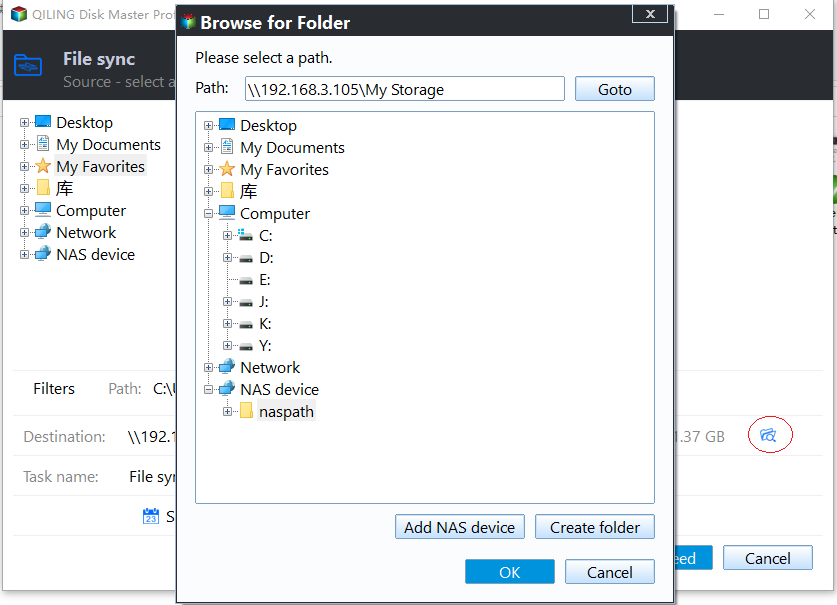
3. Select a folder on your external hard drive as the destination folder where you want to save your files.
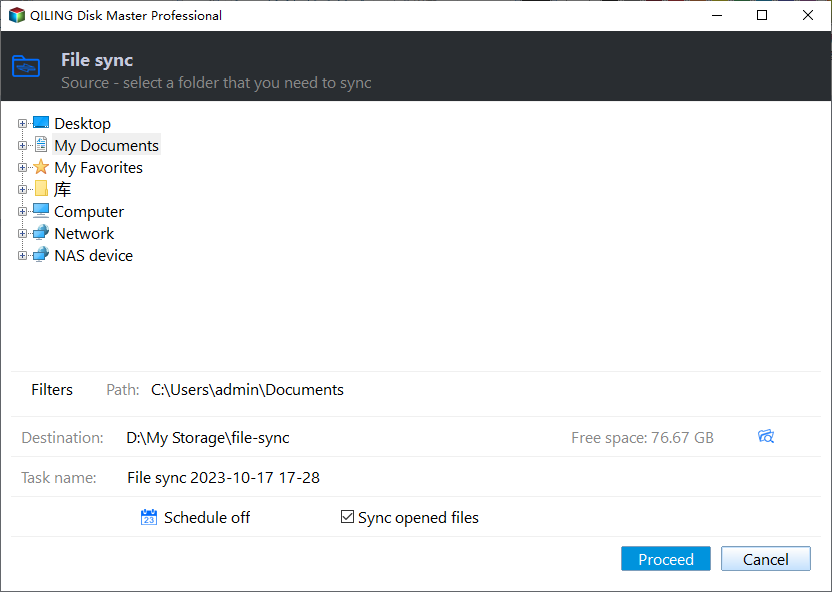
4. Click Schedule Sync to configure an automatic sync task based on your need.

5. After clicking "Proceed", you can add the schedule and proceed, or only add the schedule, to sync the contents of the OneDrive folder to the external drive as configured.
📖 Notes:
- You can click on "Options" to explore more features such as email notifications or syncing deletions.
- To sync an external hard drive to OneDrive, follow the same steps as before, but simply change the source folders and destination path to match your external hard drive's contents and OneDrive storage.
📖 More sync modes available in advanced editions:
- File Sync is a feature that synchronizes changed files from the source directory to the destination directory in real-time.
- File Sync: always keep the files in the destination directory exactly the same as the source directory.
- Two-Way Sync allows for mutual syncing of changes between the source and destination directories, ensuring that any updates made to one directory are reflected in the other.
Supplement: backup OneDrive to external drive automatically
This software offers a free file and folder sync feature, as well as an automatic file backup feature, allowing users to backup their OneDrive files to an external drive. To access this feature, users can click on "Backup" and then select "File Backup", followed by choosing the OneDrive folder to be backed up and the external drive to hold the backup image. The software also allows users to schedule the backup for automatic execution.

Qiling adds an extra layer of protection to your files by compressing them into an image file, which can only be accessed by restoring files from the image. This provides an additional safeguard against data loss. Additionally, creating a Qiling account allows you to backup files to Qiling Cloud, which offers 1TB of free storage for 15 days after signing up.
Summary
To protect your data, you should either move the OneDrive folder to an external drive or sync OneDrive to an external hard drive while keeping the original OneDrive folder intact.
The latter method is suggested. By syncing files to OneDrive as usual and keeping a copy of the original files on an external hard drive, you can ensure that you have a backup of your files. This way, if something bad happens to your computer, you can still use the copy on the external hard drive. Additionally, this method can also be used to backup files, system, and disk, or even clone the C drive to an SSD. Try it out to discover more!
Related Articles
- How to Backup to OneDrive for Business in Windows 10/8/7
- 2 Workarounds That Let File History Backup to OneDrive
- How to Make the Best Use of Windows 10 Previous Versions
- Easiest Way to Backup Network Drive to Local Drive in Windows 10
To backup network drive to local drive in Windows 10/11, you can use the best network drive backup software - Qiling Disk Master. - Quick Fixes to WD Backup Not Working in Windows 10/8/7
This guide explains Quick Fixes to WD Backup Not Working in Windows 10/8/7 with clear steps, key checks, and practical tips. - WD My Passport Backup with Free Software in Windows 10/8/7 | 2 Ways
WD My Passport comes with WD Backup software to auto backup PC files to WD Passport drive. But it has some compatibility and functional limitations. Try the 2nd way to protect your important files better.
Products
Articles & Tutorials
- Data Recovery
- Data Backup
- File Recovery
- File Backup
- File synchronize
- System Backup and Restore
- Disk and Partition Clone
- Technical articles
- Disk Master Help
- Windows Deleted File and Disk Recovery Tutorials
- Windows File and Data Recovery Tutorials
- More Windows Tutorials for Install, Security, Files, and PC Tips
- Windows Boot, Repair, and Recovery Environment Tutorials
- Windows Backup Tutorials
- Windows Restore Tutorials
- Windows Clone and Migration Tutorials
- Windows Server Backup, Recovery, and Management Tutorials
- Windows Disk, Partition, and Storage Management Tutorials