How to Backup Network Drive to Local Drive in Windows 10/11
What is a network drive?
A network drive is a computer storage device that is installed and operated over a computer network, typically a local area network (LAN).
It provides the same data storage to users on the same network as a standard disk drive, but instead of being stored locally, the data is transferred from a remote computer over a network connection.
Why need to backup network drive to local drive
Network drives are useful for storing and sharing files without using up computer resources, but users may also need to back up network drives to local drives in case of hard drive failures or to take advantage of their high-capacity storage. This allows users to ensure their files are safe and accessible even if the network drive is compromised or becomes inaccessible.
🔐 To protect data: If there is something wrong with the network, you can't access the shared location to view the file, and network drives are also vulnerable to malware and viruses.
📍 To view files easily: If you frequently need to access files on a network drive, it's easier to back up those files to a local drive. This way, you can avoid having to type out the network drive path every time you want to view a file.
Mapping a network drive on Windows 10/11 PC
To have Windows 10 backup network drive to local drive, you can map a network drive to your computer directly, allowing you to access the files on the drive like a local hard drive.
How to map a network drive?
1. To map a network drive, open Windows Explorer or My Computer, click on "Map network drive" in the Tools menu.
2. When a new "Map Network Drive" window opens, select an available drive letter from the dropdown list.
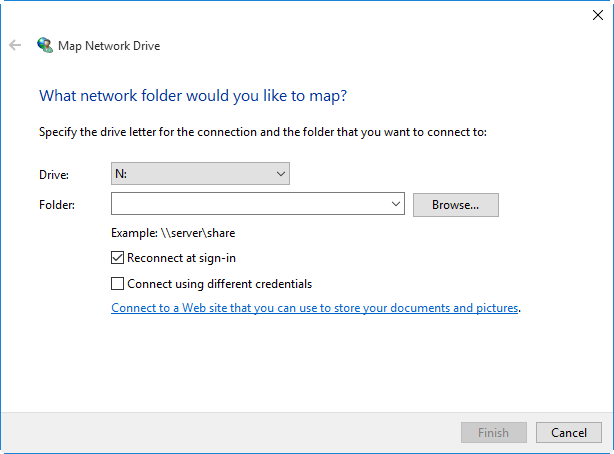
3. To map a folder as a drive, select the folder you want to have mapped, then click on OK.
4. To permanently map a network drive, select the "Reconnect at sign-in" option and click "Finish" in the "Map Network Drive" window.
✍Mapping network drives can only make it easier to view files, but your files are still stored on a network drive and at risk of being lost if not backed up. It's always suggested to backup network files to a local drive in Windows 11/10/8/7.
Best software to backup network drive in Windows 10/11
To keep network drive data safe, users often backup to external or local hard drives. However, manually copying a large number of files is impractical and time-consuming, especially for regular backups. A more efficient solution is to use reliable free backup software, such as Qiling Disk Master Standard, to streamline the process.
✔ It is professional backup software for Windows 11/10/8.1/8/7/XP/Vista.
✔ This software allows users to easily back up network drives to various local storage devices, including hard drives, DVDs, CDs, USB drives, and external hard drives. Additionally, users with a Qiling account can also back up their network files to the Qiling Cloud for remote storage and access.
✔ It allows you to set up a scheduled backup, such as daily, weekly, or monthly, to automatically backup a network drive.
✔ The software offers three backup modes: full, incremental, and differential. However, to schedule differential backups, users need to upgrade to a higher edition, such as Qiling Disk Master Professional.
Backup network drive to local drive via Qiling Disk Master
1. Download Qiling Disk Master Standard, install and launch it, then click on File Backup under the Backup tab.

2. Click Files or Folders according to your needs.

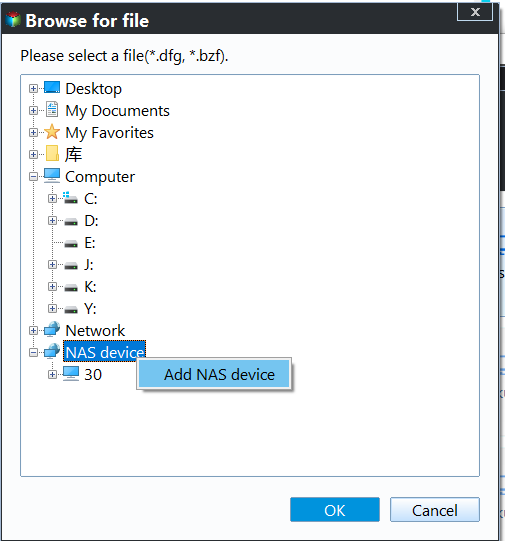
3. To add a network location, select Share/NAS, then Add Network Location. Enter a display name and network path, and click OK to access the desired file or folder on the network.
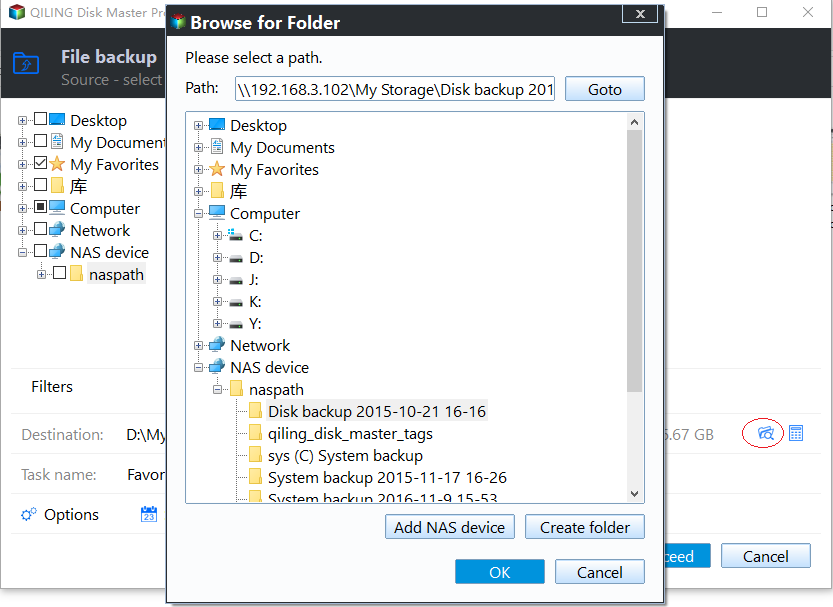
✎Note: After adding the source folder from a network location, you can click on it and see a funnel icon appear. Clicking this icon opens the "Filter settings", where you can select which file extensions to keep and which to exclude, a feature available in the Professional edition.
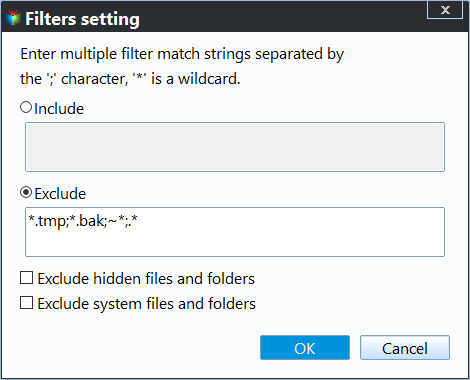
4. Select your local hard drive as the destination path and click the "Proceed" button.

✎Note: Click "Schedule" to select daily, weekly, or monthly backups under the General tab, and incremental or differential backups under the Advanced tab based on your needs.

Conclusion
Qiling Disk Master allows you to easily backup a network drive to a local drive in Windows 10 with just a few clicks. Its features, including incremental backup, enable you to automatically backup only changed files from the network drive to other locations, saving time and disk space.
This software supports various backup functions, including file backup, system backup, and disk backup, allowing users to choose the type of backup that suits their needs. Additionally, it caters to Windows Server users by providing a separate download option, Qiling Disk Master Server, which enables backup of network drives on the server.
Related Articles
- Easy Steps to Backup NAS to External Hard Drive
- 3 Ways for Windows 10 Backup to Network Drive/NAS
- How to Backup Windows 10 to NAS like Synology for FREE?
- How to Backup Windows 11 Files & OS to Network Drive
- 6 Ways to Fix Windows 7/10 Sync Center Problems [2022Guide]
Learn the key steps, checks, and practical tips for this related guide. - Windows Bidirectional Folder Syncing with Best Software
Windows bidirectional folder sync allows for the synchronization of files between two directories, where changes made in one directory are reflected in the other, using the best software available.
Products
Articles & Tutorials
- Data Recovery
- Data Backup
- File Recovery
- File Backup
- File synchronize
- System Backup and Restore
- Disk and Partition Clone
- Technical articles
- Disk Master Help
- Windows Deleted File and Disk Recovery Tutorials
- Windows File and Data Recovery Tutorials
- More Windows Tutorials for Install, Security, Files, and PC Tips
- Windows Boot, Repair, and Recovery Environment Tutorials
- Windows Backup Tutorials
- Windows Restore Tutorials
- Windows Clone and Migration Tutorials
- Windows Server Backup, Recovery, and Management Tutorials
- Windows Disk, Partition, and Storage Management Tutorials