How to Backup Network Shared Files in Windows 10
Backing up network shared files is important
Computer users often face situations that can lead to data loss, such as software or hardware failures, human errors, laptop theft, or unexpected disasters. To mitigate this risk, users typically backup their files to ensure their data remains safe.
Users who store files on network drives to prevent hard drive failures still face the risk of losing data. To mitigate this, it is essential to backup network shared files in Windows 10/8/7.
Best network backup solutions for you
To keep shared files safe, users often backup network shared files to local hard drives or external hard drives. For this purpose, Qiling Disk Master, a free network backup software, can be used to help users achieve this goal.
- The software allows users to backup various types of data, such as system files, external hard drive files, and network shared files, among others.
- You can save the backup image on a local hard drive, external hard drive, USB flash drive, NAS, or cloud drive.
- You can create daily/weekly/monthly backup to get continuous data protection.
Download Qiling Disk Master Standard and install it on your computer now!
Stepwise guide to backup network shared files in Windows 10
Backing up network files to a local hard drive is a common example of backing up data. This process involves copying files from a network location to a local hard drive, typically for the purpose of creating a redundant copy of the data.
Step 1. Launch Qiling Disk Master. Select File Backup under Backup tab.

Step 2. Go to the File Backup window, click on "Files" or "Folders" to select the files/folders on the network drive you want to backup, then select "Share/NAS" on the left side.

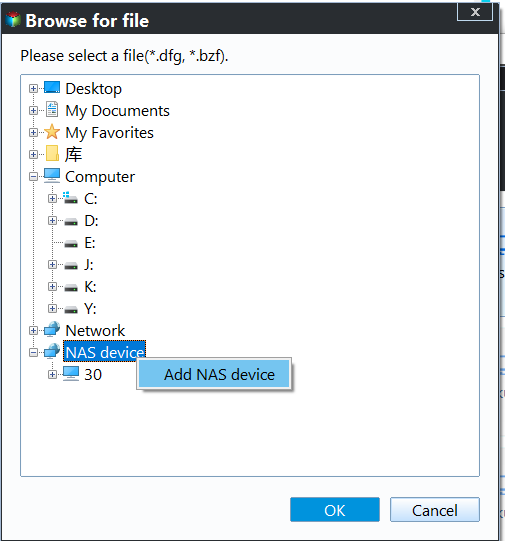
Step 3. To add a share or NAS device, go to the Select Share/NAS Device window and click "Add Share or NAS Devices". In the pop-up window, enter the network path of your share or NAS device and click "OK".
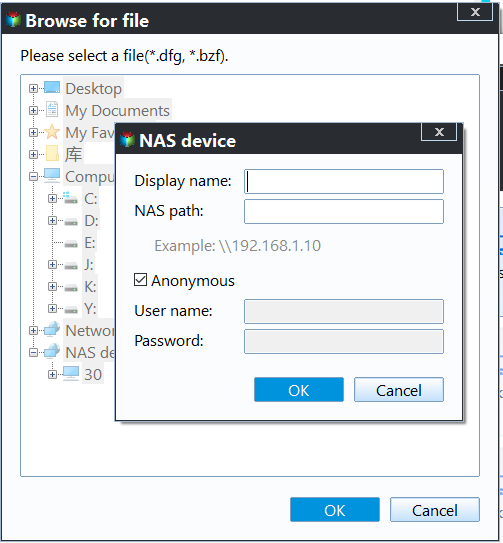
✎ Tip: Enter username and password if it is required.
Step 4. After selecting the shared folders to be backed up, you can choose the destination where you want to store the backup image, which in this case is the local E:\ drive.
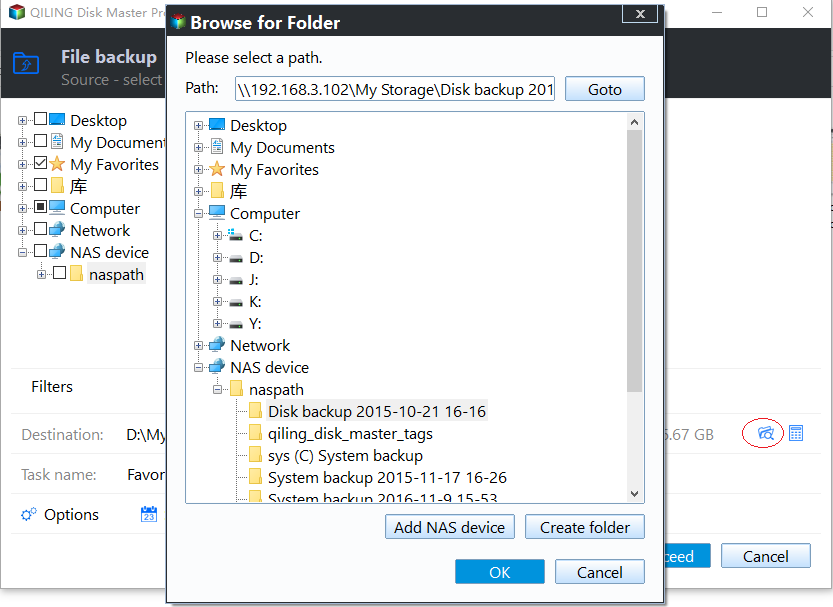
Step 5. Finally, click Proceed to execute all operations.
✍ Useful Tips: Actually, you can set up more for your backup before clicking Proceed.
>>> You can add a comment for you backup, or enable email notification in Options.
>>> Qiling Disk Master also allows you to set up an automatic file backup in Windows 10 with the Schedule Backup utility. You can choose from Daily, Weekly, or Monthly.
>>> You can choose backup methods in Backup Scheme. Differential backup is preferable to incremental backup because incremental backup requires all backups to be complete before a backup can be restored. You can also enable automatic backup cleanup to save disk space. You need to upgrade to Qiling Disk Master Professional to enjoy differential backup and auto backup deletion.

Conclusion
The article provides guidance on backing up network shared files in Windows 10 and using Qiling Disk Master to restore files from backup, as well as Qiling Centralized Disk Master for backing up multiple computers over a network.
Related Articles
- Top 3 Ways to Backup Windows 10/11 to Network Drive/NAS
You will learn 3 effective methods to backup Windows 10 backup to network drive or NAS easily, even run automatically with the best free auto backup software. - Easiest Way to Backup Network Drive to Local Drive in Windows 10
To backup network drive to local drive in Windows 10/11, you can use the best network drive backup software - Qiling Disk Master. - Backup Specific Folders in Windows 10 Easily | 2 Ways
You will learn how to easily backup specific folders that change often in Windows 10 with File History or Qiling Disk Master Standard. Pick up one to protect your data now! - Move Users Folder to Another Drive in Windows Server 2012
Find practical guidance for Move Users Folder to Another Drive in Windows Server 2012, including disk, partition, file system, or Windows troubleshooting steps. - Windows Copy Large Files Over Network in Windows 10/7 (Best Way)
You will learn the fastest way of Windows copy large files over network. And it also works for large amount of files. - Free Download Windows Easy Transfer Alternative in Windows 7/8/10
Try the best free Windows 10 Easy Transfer alternative to perform Windows 7 to Windows 10 migration easily.
Products
Articles & Tutorials
- Data Recovery
- Data Backup
- File Recovery
- File Backup
- File synchronize
- System Backup and Restore
- Disk and Partition Clone
- Technical articles
- Disk Master Help
- Windows Deleted File and Disk Recovery Tutorials
- Windows File and Data Recovery Tutorials
- More Windows Tutorials for Install, Security, Files, and PC Tips
- Windows Boot, Repair, and Recovery Environment Tutorials
- Windows Backup Tutorials
- Windows Restore Tutorials
- Windows Clone and Migration Tutorials
- Windows Server Backup, Recovery, and Management Tutorials
- Windows Disk, Partition, and Storage Management Tutorials