Two-Way File Sync in Windows 11, 10, 8, 7 | Best Practices
What Is Two-Way Sync?
Before understanding two-way synchronization, it's necessary to know the one-way synchronization.
One-way sync is a synchronization mode that copies specified items from the source directory to the destination directory, reflecting any changes in the source location, such as new creations, deletions, and modifications.
Two-way sync, also known as bidirectional sync, synchronizes items between a source and destination location, reflecting any changes made in either location. This mode maintains identical folders in both the source and destination.
Best Two-Way Sync Software in Windows 11, 10, 8, 7
To perform two-way sync between two folders, a professional two-way sync software like Qiling Disk Master Professional is required.
- Qiling Disk Master provides various sync modes to cater to different needs, including Basic Sync (one-way sync), Real-Time Sync, Mirror Sync, and Two-Way Sync, offering flexibility in different environments.
- You can sync changes between two folders automatically using the Schedule Sync feature.
- Various sync locations are supported, including syncing files to an external hard drive or syncing a QNAP to OneDrive.
The software has been highly recommended by millions of users due to its powerful features and reliable performance, and a 30-day free trial is available to try it out.
Two-Way Data Synchronization Best Practices
To perform a two-way file sync, you will need to follow these steps. First, ensure that both devices are connected to the same network or are physically connected via a cable.
1. Install and launch the file sync software, select the Sync tab, and choose Two-Way Sync.
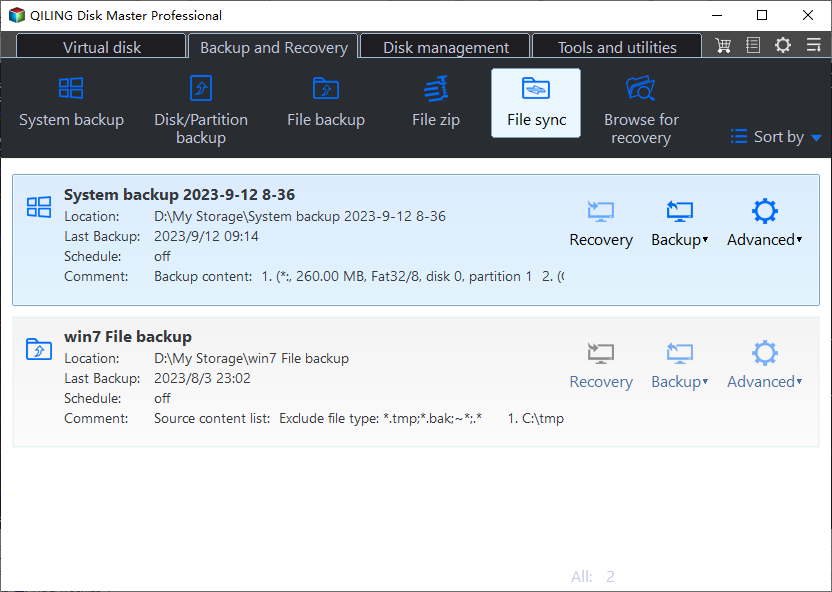
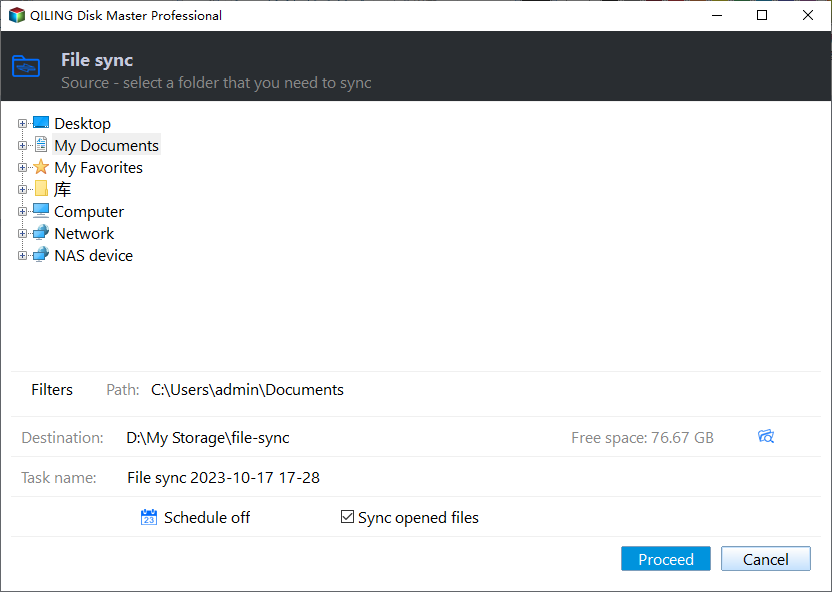
2. To sync a folder, click the "Folder" push button to select the source folder you want to sync. You can also customize the task name to differentiate it from other sync tasks if needed.

3. Select a destination folder.

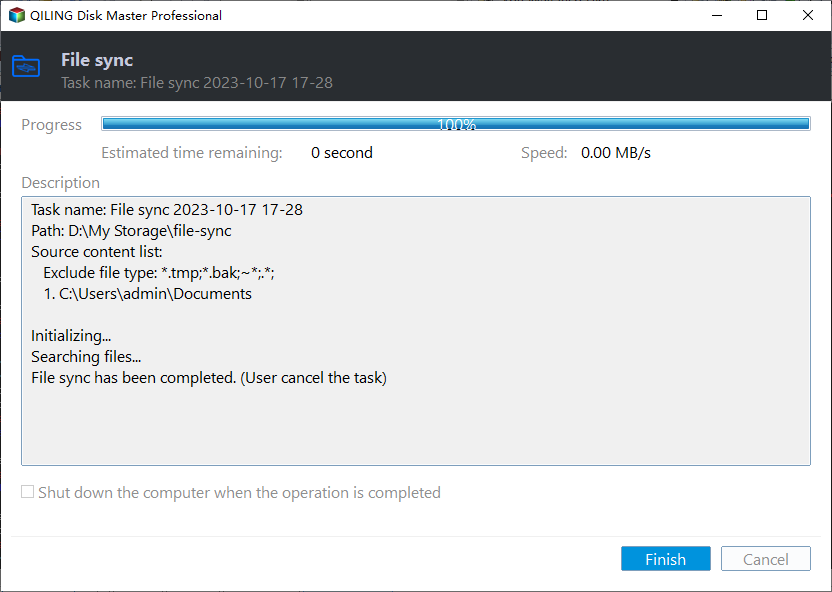
4. To perform two-way synchronization between two folders, press Proceed >>.
Optional Settings Before Syncing
1. Click Options to open the Sync Settings window.
In the General tab, you can add a comment to the sync task and enable email notifications to receive alerts after syncing once set up.
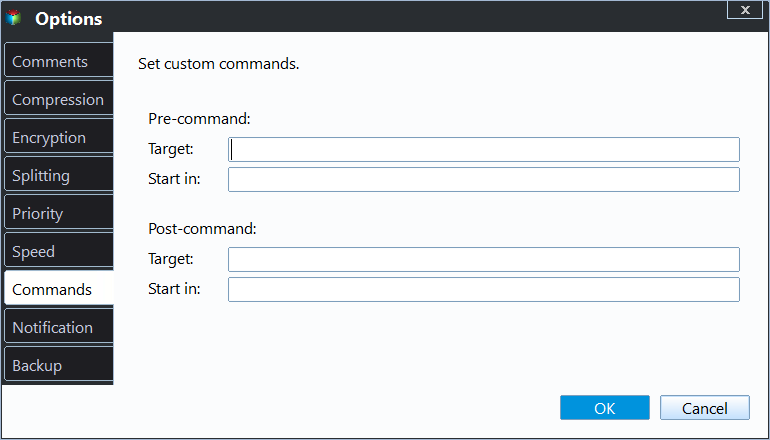
In the Command tab, you can enable pre-command or post-command to run a specified program or script before or after synchronization.
At the Advanced tab, you can set operation priority or choose to automatically create a folder with the same name as the task in the target location, depending on your preferences.
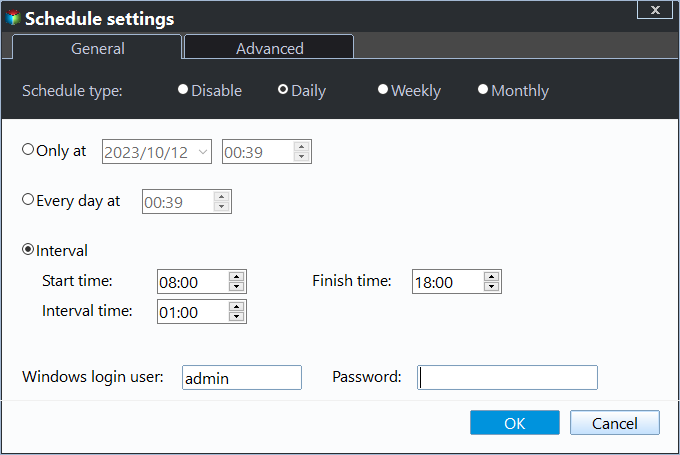
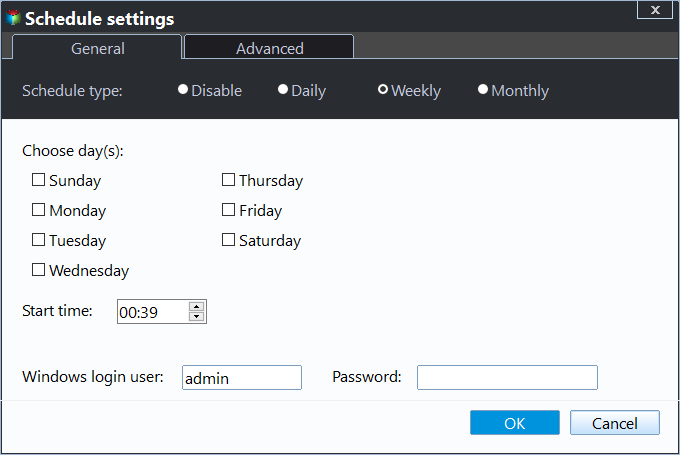
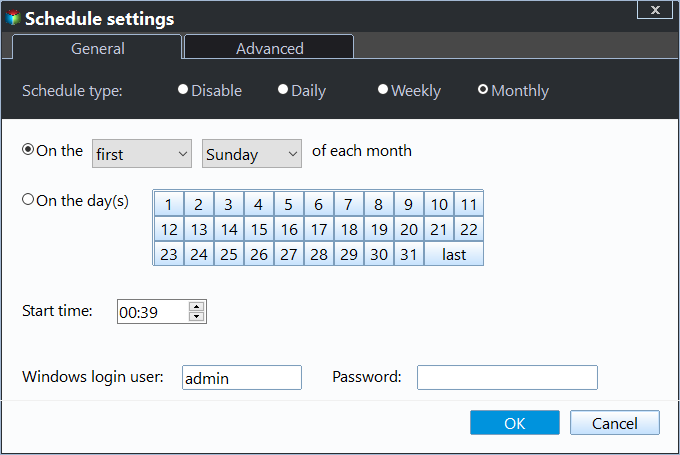
2. Schedule Sync 5 modes are available for syncing data via the device: Daily, Weekly, Monthly, Event triggers, and USB plug in.
1). Daily has three options you can make:
- Run once only at M/DD/YYYY, HH:MM.
- Run once every day at HH:MM.
- The intervals are every 1 hour, 2 hours, 3 hours, 4 hours, and 6 hours.
2). Weekly
3). Monthly
4 events are included to trigger the sync task, which are User logon, User logoff, System startup, and System shutdown.
If you perform a two-way sync between a USB drive and your computer, you can use the USB plug-in to automatically sync changes to the other side once the USB drive related to the two-way sync is detected.
During the Two-Way Sync Process
There is something you could do during the syncing process:
1. To set up the awaiting execution event for the computer, click the setting icon at the bottom left corner, tick "On completion" and choose one of the four options: Shut down PC, Restart PC, Hibernate, or Sleep, then press OK.
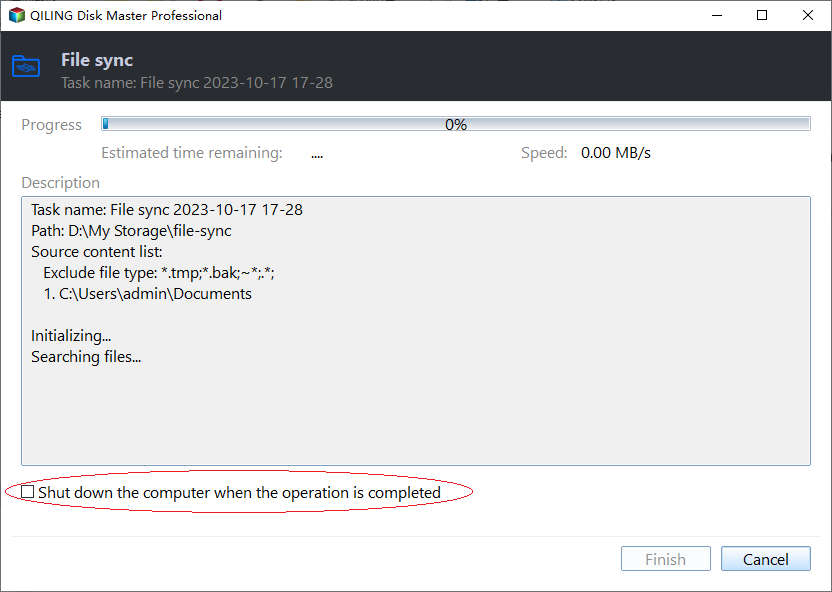
Once the two-way data sync is completed, the computer will execute the event that was previously set up. This means that the computer will perform the specified action or task, as programmed.
2. If you've set up two-way synchronization incorrectly, you can cancel it by simply turning it off. This will stop the process and prevent any further data exchange. Just turn it off and you're good to go.
3. To view the sync details, click on the underlined text that shows the syncing information. This will display the files currently being synced, the number of files, sync speed, remaining time, and other relevant details.
After the two-way data synchronization reaches 100%, please click on the "Finish" button to complete the process, ensuring that the synchronization has been successfully completed.
Two-Way Sync on Home Tab
After you set up a two-way sync task, go to the Home tab, find the two-way sync task, click the three-line icon, and select the desired operation.
- Schedule: If you have created a one-time two-way sync task, you can click it to schedule it.
- Edit Sync: You can modify the source folder, destination folder, and other settings for the two-way sync task.
- Locate Sync: This option allows you to open the two-way sync destination folder.
- Shortcuts: This function creates a desktop shortcut to run the sync task, allowing you to easily access and run it with a double click on the shortcut.
Some Tips for Two-Way Sync
1. The source folder name should not be changed once a 2-way sync task is set up, as this can cause the sync to fail with error code 4199 due to the source sync path no longer existing.
2. The maximum file path length for Two-Way Sync is limited to 256 characters.
3. The source folder and the target folder must be mutually exclusive, meaning they cannot have a containment relationship, where one folder is a subfolder of the other.
4. CD files are not supported in two-way sync and other sync modes.
5. The two-way sync feature cannot be used to sync system folders and files due to security concerns, as these cannot be overwritten.
Related Articles
- Best Way to Backup Computer Before Clean Install Windows 10
Windows 10 clean install will wipe out all the data. The best way to keep data safe is backup Windows 7/8 computer before clean install Windows 10. - How to Put Windows 10 on SSD from HDD without Reinstallation?
If you are trying to put Windows 10 on SSD from HDD, you can try the Qiling Disk Master software, which can help you put your Windows 10, 8, 7 OS on an SSD from HDD without reinstalling everything from scratch. - How to Backup D Drive in Windows 7/10 (Free and Easy)
Learn how to Backup D Drive in Windows 7/10 (Free and Easy) with clear steps, key checks, and practical tips. - The Windows RE Image Was Not Found - Fix It Right Now!
You will learn how to fix the Windows RE image was not found error effortlessly and how to reimage your computer. Scroll down to learn more and find the solutions working for you. - How to Wipe a Hard Drive on a Dead Computer?
To completely wipe a hard drive on a dead computer before selling or giving it away, you can resort to the professional software to make it instead of physically destroying the hard drive. - What Should I Do When Computer Freezes? (7 Options)
The computer freezes always to make users annoyed. Fortunately, you can find some effective solutions to fix it from here.
Products
Articles & Tutorials
- Data Recovery
- Data Backup
- File Recovery
- File Backup
- File synchronize
- System Backup and Restore
- Disk and Partition Clone
- Technical articles
- Disk Master Help
- Windows Deleted File and Disk Recovery Tutorials
- Windows File and Data Recovery Tutorials
- More Windows Tutorials for Install, Security, Files, and PC Tips
- Windows Boot, Repair, and Recovery Environment Tutorials
- Windows Backup Tutorials
- Windows Restore Tutorials
- Windows Clone and Migration Tutorials
- Windows Server Backup, Recovery, and Management Tutorials
- Windows Disk, Partition, and Storage Management Tutorials