Best Way to Backup Computer Before Clean Install Windows 10
- About Clean Install
- Why not use the built-in backup software File History?
- Qiling Disk Master – the best Windows backup software
- What to backup before reinstalling Windows 10?
- Backup Computer before Clean Install Windows 10 with Qiling Disk Master
- Restore selective files or the entire system image on Windows 10
- Wrapping things up
About Clean Install
A clean install is a process where the current operating system is completely removed and replaced with a new one, resulting in a fresh start with only the new OS on the hard disk.
Upgrading Windows 7 to Windows 10 can be done through a standard "Upgrade and Install" process, but sometimes the Operating System may not be able to upgrade due to missing essential files.
You could consider performing a Windows 10 clean install, which would likely resolve the issues on your previous OS, but it would also erase all data on the system hard disk.
To ensure data security, create a backup of your computer or clone only the OS partition, allowing you to restore your computer to an earlier date and protect it from disaster.
Why not use the built-in backup software File History?
Windows 10's built-in backup program, File History, was introduced in Windows 8, but it has limitations. It only backs up files in specific folders like Desktop, Contacts, Favorites, and Libraries, and doesn't allow system-wide backups. This means it can't meet the needs of users who want to backup their entire system.
You may encounter error messages like "Your File History drive is disconnected" or "File History doesn't recognize this drive" before you can start backing up. Additionally, File History cannot restore individual files from image files or clone data.
You can use Qiling Disk Master as an alternative to File History to backup files like music files, program files, work files, or even the entire system.
Qiling Disk Master – the best Windows backup software
Compared to other backup and restore software, Qiling Disk Master is the top image tool for Windows 10/8/7, offering a more flexible and user-friendly experience due to its intuitive interface, making it highly recommended by users.
Qiling Disk Master offers various backup functions, including system backup, partition backup, disk backup, and disk clone, as well as system restore. It also provides customizable backup settings, such as backup options, schedule, and scheme, which can be helpful in specific situations.
What to backup before reinstalling Windows 10?
Before reinstalling Windows, it's essential to backup certain files and data to ensure a smooth transition. This includes backing up your personal files, such as documents, photos, and videos, to an external hard drive, cloud storage, or a USB drive. Additionally, you may want to backup your Windows settings, including your desktop background, taskbar settings, and other personal preferences. It's also a good idea to backup any installed software, including their settings and license keys, to a separate location.
1. Make a backup of your personal data, such as files, folders, pictures, videos, usernames, and passwords, to prevent loss in case of a system crash, as manufacturers and Microsoft cannot provide these data. You need to protect them yourself.
2. Backing up programs along with settings, including serial numbers or license codes, is essential. If not done, reinstalling previously installed programs in the new operating system can be a tedious and time-consuming process, requiring customization from scratch.
3. Creating a system image is a useful backup option, especially when you're not familiar with a newly installed operating system. It allows you to restore your computer to an earlier date, providing a safety net in case you need to revert to a previous configuration. This can be especially helpful if you're trying out a new OS and want to go back to a previous version if needed.
Backup Computer before Clean Install Windows 10 with Qiling Disk Master
If your computer is running an outdated version, you may need to perform a clean install to upgrade to the latest version. Alternatively, if your computer is experiencing issues such as virus attacks, system file corruption, or user profile problems, a clean install may be the best solution to resolve these problems from scratch.
Before performing a Windows 10 clean install, it is essential to backup your PC, regardless of whether it is running Windows 7, Windows 8, Windows 8.1, or the original Windows 10/11. This ensures that your personal files and programs are preserved during the process.
Qiling Disk Master can take advantage of its Disk Backup feature to image data. To try this, please download Qiling Disk Master.
Step 1. On the main window, select Backup -> Disk Backup.

Step 2. Click the +Disks button to select the hard disk you want to backup, which can be one or more disks.

Step 3. Save the image file to a chosen destination, such as a computer, external hard disk, NAS device, network share, or USB flash drive.

Step 4. Press Proceed to image hard disk.

After performing these operations, you can proceed with a Windows 10 clean install without losing any data. Once the clean install process is complete, you can restore selective files from the image if needed. Additionally, if you're familiar with Windows 10, you can also restore the entire disk to a previous date.
Restore selective files or the entire system image on Windows 10
To restore selective files, you need to use Explore Image in Qiling Disk Master.
Step 1. To get started, download Qiling Disk Master on the new operating system and connect the image created by Qiling Disk Master.
Step 2. To create a virtual partition on your computer, go to Tools > Explore Image, select a backup image and backup point, set a drive letter for your image files, and click Next to start the pending process.
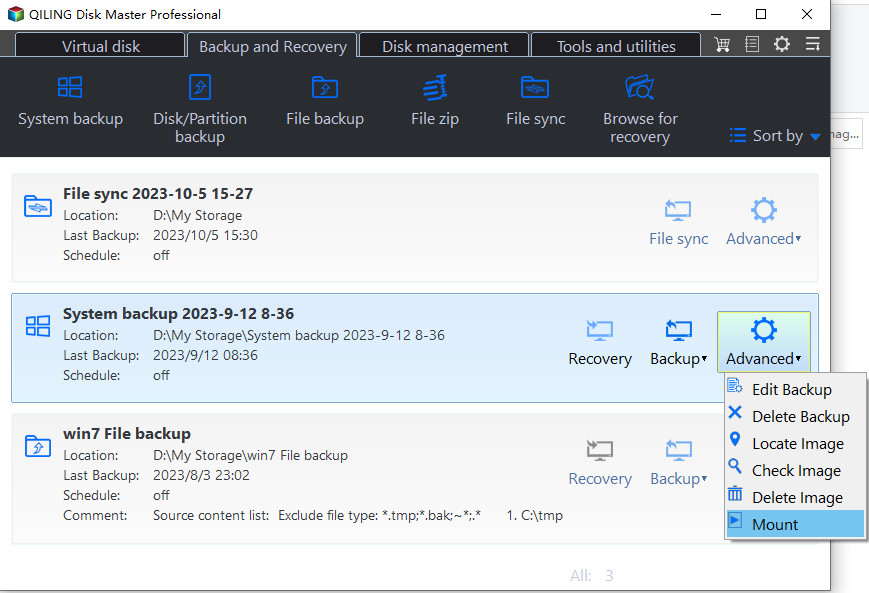
Step 3. To transfer files from a device to your computer, navigate to the device and select the files and folders you want to copy. Right-click on them and choose "Copy" or press Ctrl+C. Then, navigate to your computer and select the destination folder where you want to paste the files.
Step 4. Detach the virtual partition from the computer by clicking on Tools -> Explore Image, selecting the virtual partition and then clicking the Detach button.
To restore the entire system image on Windows, To take advantage of the Restore feature in Qiling Disk Master, you need to have a backup of your disk created beforehand, which can be done using the Backup feature. Once you have a backup, you can use the Restore feature to restore your disk to its previous state in case of any issues or data loss.
Step 1. This step is the same as Step 1 of selective file restore, where you select the files you want to restore.
Step 2. To restore your iPhone, click "Restore" and then select the backup image you want to restore from. If prompted, click "Yes" at the warning message.

Step 3. Select a backup point and click Next.
Step 4. Select "Restore this entire disk" to save your image files. If prompted that the destination disk will be deleted, click "Yes".
Step 5. Click Proceed.
Wrapping things up
To avoid losing files and programs, it's recommended to back up your computer before performing a clean install of Windows 10. This creates a backup image that allows you to restore your operating system and files to a previous state if needed.
For Windows 10 backup and restore software, Qiling Disk Master is a free and user-friendly option suitable for all types of users, including beginners, IT technicians, and server users. For beginners, Qiling Disk Master Standard and Professional are recommended, while IT technicians may prefer Tech or Tech Plus, and server users may consider Server.
Related Articles
- How to Backup Programs before Reinstalling Windows 10/8/7
This article will introduce you how to backup programs before reinstalling Windows 10/8/7 with best free backup software - Qiling Disk Master. - How to Backup Windows 10 for Fresh Install
Learn how to Backup Windows 10 for Fresh Install with clear steps, key checks, and practical tips. - How to Backup Files before Reformatting in Windows 7/8/10
An important means of data protection is to back up files before formatting or other major operations. This post will show you 2 effective ways to do it in Windows 7/8/10/11, either by built-in tool or a free file backup software. - How to Reinstall Windows 10 without Losing Data (3 Ways)
Sometimes, you may need to reinstall Windows 10/11 to solve system issues. This guide will show you how to reinstall Windows 10/11 without losing data step by step. - How to Reformat a Hard Drive in Windows 10/8/7?
Learn how to Reformat a Hard Drive in Windows 10/8/7 with clear steps, key checks, and practical tips. - How to Reimage a PC? (with Screenshots)
Reimage a PC with guided recovery options while protecting important files before repair.
Products
Articles & Tutorials
- Data Recovery
- Data Backup
- File Recovery
- File Backup
- File synchronize
- System Backup and Restore
- Disk and Partition Clone
- Technical articles
- Disk Master Help
- Windows Deleted File and Disk Recovery Tutorials
- Windows File and Data Recovery Tutorials
- More Windows Tutorials for Install, Security, Files, and PC Tips
- Windows Boot, Repair, and Recovery Environment Tutorials
- Windows Backup Tutorials
- Windows Restore Tutorials
- Windows Clone and Migration Tutorials
- Windows Server Backup, Recovery, and Management Tutorials
- Windows Disk, Partition, and Storage Management Tutorials