Complete Guide: Backup Windows 10 for Fresh Install
Windows 10 fresh install is needed
If your computer is experiencing issues such as running slow, system crashes, and programs quitting randomly, a fresh Windows install may be the best solution. Rather than trying to troubleshoot the underlying cause of these problems, a clean install can often resolve deep-seated issues and get your system running smoothly again.
Upgrading to Windows 10 from Windows 7 or 8.1 can cause system issues, such as slow performance, program crashes, and strange behaviors. In such cases, a fresh install can resolve these problems.
How to keep the data stored on C: drive when reinstalling
After a fresh Windows 10 installation, all files and programs saved on the C: drive will be lost, making it necessary to reinstall all functional programs, which can be a cumbersome process.
To perform a Windows 10 clean install without data loss, you can reinstall Windows 10 on the C: drive if it has at least 16GB of free space. This will move all data to a Windows.old folder, allowing you to restore files after the fresh install.
You can create a system backup and then selectively restore some files and programs to the C: drive after a fresh install.
Backup your computer before clean install
If you want to clean system drive only and reinstall Windows 10, backup only the system to avoid data loss. If you want to clean up the entire hard drive and start fresh, backup the entire hard drive.
To flexibly restore files from an image backup, you can use free backup and restore software Qiling Disk Master.
- It allows you to backup system, files, partitions and disks.
- You can use System Restore to revert your Windows 10 system to a previous state when it was working normally, which can help resolve system errors caused by recent operations or updates.
- You can retrieve specific files from a system or disk image without restoring the entire backup.
To backup Windows 10 before a clean install, follow these steps. First, ensure that you have enough free space on your drive to create a backup.
Step 1. Download this freeware, install and launch it.
Step 2. To backup your system, click on the "Backup" tab and select "System Backup" to only backup the system, or select "Disk Backup" to backup the entire system disk.

Step 3. In the next screen, you can see Qiling Disk Master has already included the system related partitions, so you just need to specify a location to receive the image backup.

✎ Note: It's recommended to backup Windows 10 to an external hard drive or NAS before doing a fresh install, as it will erase everything on the C: drive.
Step 4. Finally, click Proceed to run the backup.
How to fresh install Windows 10
To reinstall Windows 10 from scratch, you'll need to prepare a Windows 10 installation disc or USB drive. If you don't have one, you can download the Windows 10 media creation tool from Microsoft to create one, and then follow the steps to proceed.
Step 1. Connect the Windows 10 installation disk to your computer.
Step 2. Press a specified key (usually Delete or F2) to boot into BIOS and modify the boot order, so your computer will boot from the installation disk.
Step 3. When loaded, select language and other preferences, and then click Install Now.
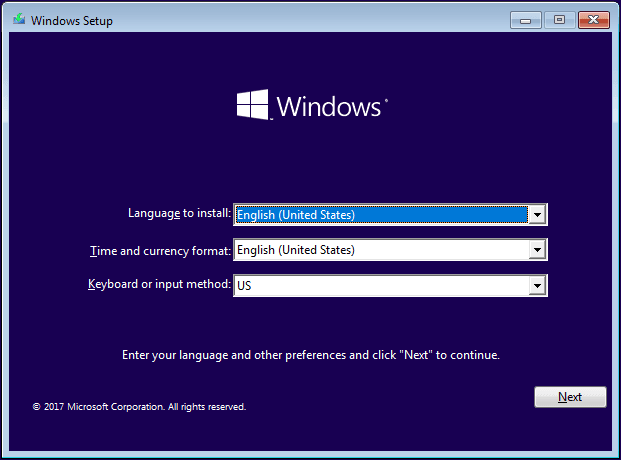
Step 4. When you are asked to enter product key, just click I don't have a product key. After fresh installation, Windows 10 will automatically get activated.
Step 5. Select the edition of Windows 10 (if applicable) and click Next.
📢 Note: If the edition of your product key doesn't match the selection, Windows 10 won't activate, requiring you to redo the entire process.
Step 6. Accept the license terms and click Next. Then, select Windows 10 installation type: Custom to ensure a clean install.
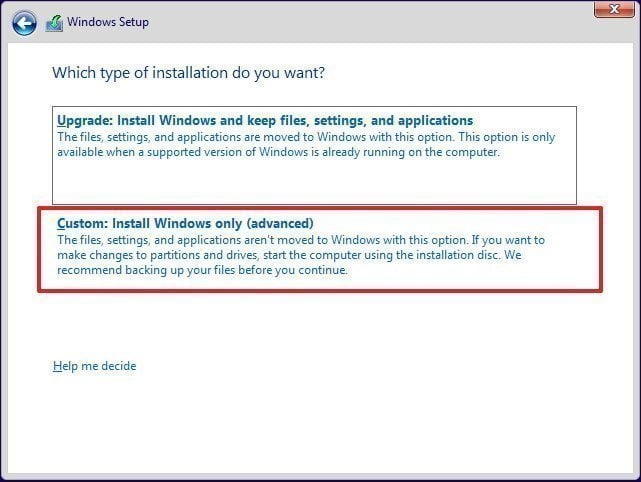
Step 7. Delete all existing partitions on the C: drive, including the system reserved partition, and then select the unallocated space to proceed with a fresh Windows 10 installation.
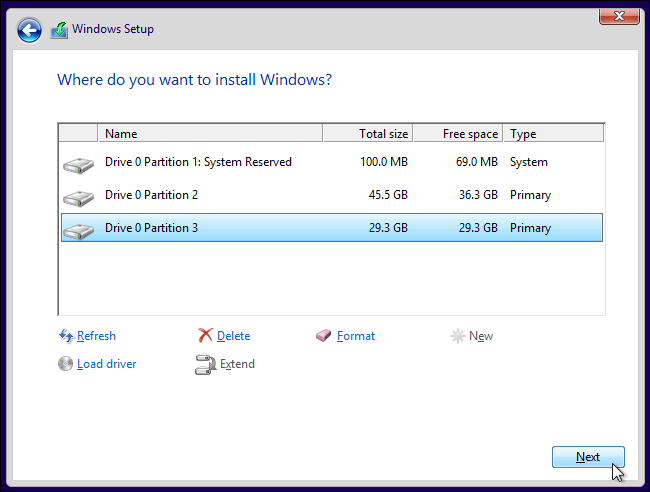
Step 8. When the copying files process is complete or the computer restarts, disconnect the Windows 10 installation disk and wait for the installation to complete.
♥ Tip on how to create a factory image backup:
After reinstalling your computer, it's a good idea to create a factory recovery partition, especially since there are no applications and user data at this point. This way, if your computer fails to work in the future, you'll have a backup recovery option. One tool that can help you achieve this is Qiling Disk Master, a one-key recovery software that can simplify the process.
The software allows you to create a system image backup and a factory recovery partition simultaneously, and adds a boot menu option to your computer. This enables you to access the software at system startup by selecting "Qiling Disk Master" in the Windows boot menu or pressing a specific key, such as F11 or A.
Restore some of the files from system image backup
Now that you have a fresh Windows 10 installed, you can restore files from your previous backup. You can use the AMEI Disk Master or Qiling Disk Master bootable media to restore your desired files. This will help you recover the data you wanted to keep.
Within Qiling Disk Master, select Explore Image under Tools.
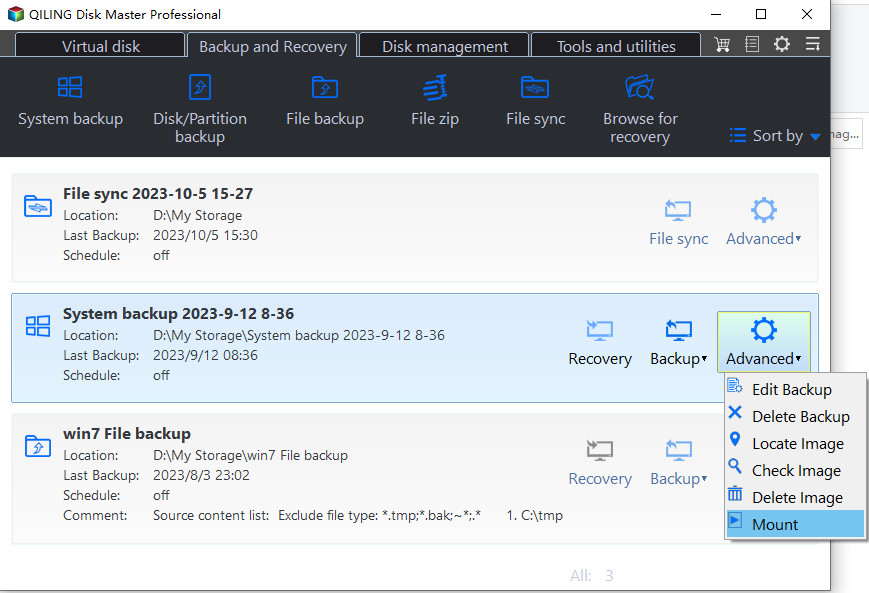
To restore your system, follow these steps: Select the backup image you want to restore, then follow the instructions to mount it to a virtual partition. Once the process is complete, you can view all the files in Windows File Explorer.
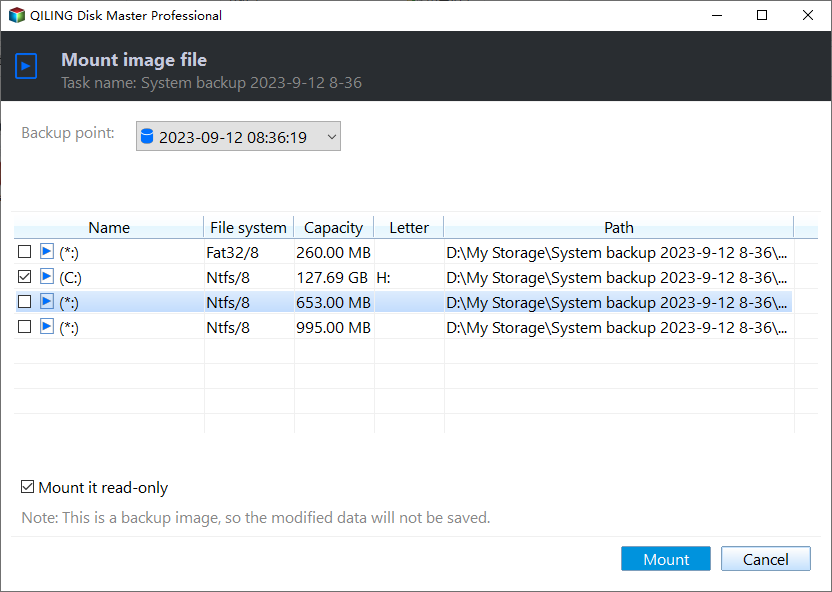
For files you want to keep, simply copy them to their original location, making sure to save them with the exact same path to avoid any potential issues.
💛 Note: You're right, if you restore the whole system image, it defeats the purpose of doing a fresh install. A fresh install is meant to start with a clean slate, free from any potential issues or clutter that may have accumulated over time.
Summary
To avoid data loss or potential issues, it's recommended to backup Windows 10 before a fresh install. Qiling Disk Master is a suitable tool for backing up your computer data, and its Standard version can also help with cloning a hard drive to an SSD, copying partitions, syncing files or folders, and more.
Related Articles
- What to Backup Before Reinstalling Windows 10 and How to Do It?
This guide explains What to Backup Before Reinstalling Windows 10 and How to Do It with clear steps, key checks, and practical tips. - How to Reinstall Windows 10 without Losing Data (3 Ways)?
Sometimes, you may need to reinstall Windows 10/11 to solve system issues. This guide will show you how to reinstall Windows 10/11 without losing data step by step. - Top 2 Easy Ways to Install Windows 10 on SSD
This guide explains Top 2 Easy Ways to Install Windows 10 on SSD with clear steps, key checks, and practical tips. - How to Increase System Reserved Partition Windows 7/8/10?
To extend the System Reserved partition in Windows 7, 8, or 10, follow the steps outlined in this article, which provides a secure and easy way to increase the size of this critical partition. - How to Transfer OS to SSD without Losing Everything on HDD
To transfer your operating system to an SSD without losing anything on your HDD, you can find the solution in this post. - How to Wipe A USB Drive Clean in Windows 10, 8, 7? [Two Methods]
Learn how to Wipe A USB Drive Clean in Windows 10, 8, 7 with clear steps, key checks, and practical tips.
Products
Articles & Tutorials
- Data Recovery
- Data Backup
- File Recovery
- File Backup
- File synchronize
- System Backup and Restore
- Disk and Partition Clone
- Technical articles
- Disk Master Help
- Windows Deleted File and Disk Recovery Tutorials
- Windows File and Data Recovery Tutorials
- More Windows Tutorials for Install, Security, Files, and PC Tips
- Windows Boot, Repair, and Recovery Environment Tutorials
- Windows Backup Tutorials
- Windows Restore Tutorials
- Windows Clone and Migration Tutorials
- Windows Server Backup, Recovery, and Management Tutorials
- Windows Disk, Partition, and Storage Management Tutorials