[Checklist] What to Backup Before Reinstalling Windows 10?
Possible scenarios for reinstalling Windows 10
Reinstalling Windows 10 can be a daunting task, especially for those without technical expertise. However, it may be necessary in certain situations, such as when you need to start fresh, resolve technical issues, or recover from a virus or malware attack. In these cases, reinstalling Windows 10 can provide a clean slate and help you get back up and running with minimal disruption.
- Slow system: If your Windows system is running slow and can't be sped up by uninstalling programs, there are still some other steps you can take. You can try running the built-in Disk Cleanup and Disk Defragmenter tools to free up space and organize your hard drive.
- Stubborn malware: If your computer is infected with viruses or malware and you're unable to remove them using Windows Defender or other antivirus software, you may need to take more drastic measures. One option is to perform a System Restore to a point before the malware was installed.
- Other system issues: To streamline your troubleshooting process, consider implementing a structured approach. This could involve creating a checklist of common issues and their corresponding solutions, or developing a decision tree to help you quickly identify and resolve problems.
To avoid losing data when reinstalling Windows 10, it's recommended to backup important files and documents before the process. This can be done by connecting an external hard drive or USB drive to the computer and using the built-in Backup and Restore feature or a third-party backup software to transfer the data. Additionally, it's a good idea to create a system image of the current Windows 10 installation to ensure that all settings and programs are preserved. This way, the user can restore the original Windows 10 installation and data after the reinstall.
👉 Things to backup before reinstalling Windows 10 [Important]💡
👉 Best backup freeware for Windows PC
👉 How to backup computer before reinstalling Windows 10🔥
Things to backup before reinstalling Windows 10 [Important]
Before reinstalling Windows, be aware that it will remove settings, installed programs, and personal files, so make sure to back up your data first to avoid data loss.
✅Personal files
You can back up your computer's files, including documents, photos, videos, music, and more, by copying them to an external hard drive, USB flash drive, or cloud storage service like Google Drive, Dropbox, or OneDrive.
✅Programs and drivers
To back up your computer, consider saving drivers for graphics cards, network adapters, audio, and chipsets, as well as essential programs like Microsoft Office, antivirus software, and specialized software used for work or hobbies.
✅Email and contacts
Make sure to backup your emails, contacts, and other important data stored in your email client, such as Microsoft Outlook or Mozilla Thunderbird, to prevent loss in case of a computer crash or other issues.
✅Browser bookmarks and settings
If you use web browsers like Google Chrome, Mozilla Firefox, or Microsoft Edge, you may want to export your bookmarks and other settings so you can import them back after reinstalling Windows.
✅Usernames and passwords for all the sites, applications you use
✅Serial numbers or license codes for your applications
Before reinstalling Windows 10, it's essential to save specific files and settings. To accomplish this, you'll need a specialized backup utility to assist you in preserving your data and configurations.
Best backup freeware for Windows PC
Here I'd like to recommend the best free backup software—Qiling Disk Master Standard to you.
- The software provides different types of backups, including System/Disk/Partition/File/Cloud Backup in the free version, and Outlook Backup and Email Backup in the higher editions.
- With the Schedule Backup feature, you can set your backups to run automatically, ensuring your data is safely backed up at regular intervals.
- To improve backup efficiency and save storage space, you can do an incremental backup, which allows you to only back up the changes made since the last backup. This approach reduces the amount of data that needs to be backed up and stored, making it a more efficient and cost-effective option.
- It supports all Windows PC operating systems like Windows 11/10/8/7/Vista/XP, but not Windows Server operating systems.
Qiling Disk Master can be used to backup programs, drivers and files before reinstalling Windows. To do this, download Qiling Disk Master and follow the instructions to learn how to use it.
 Qiling Disk Master
Best free Windows backup software for personal use.
How to backup computer before reinstalling Windows 10
To backup programs, drivers and files before reinstalling Windows 10, perform a disk backup using Qiling Disk Master. Choose to backup to an external hard drive or a network location, such as backing up to an external hard drive.
1. Connect the external drive to your computer and ensure it is detected by the system.
2. Install and launch Qiling Disk Master. Click Backup on the left pane and select Disk Backup.

3. To select the current hard drive as the source disk to be backed up, click on the "Disks" option.

4. To save the backup image file, click the folder icon to select the external drive as the destination path.

5. Click Proceed to run the backup.

>> Options: You can enable email notification, choose the compression level for the backup image file, and select between intelligent sector backup or sector-by-sector backup.
>> Schedule Backup: You can set the backup task to run automatically at fixed intervals, such as daily, weekly, or monthly. This way, you don't have to manually initiate the backup process each time, ensuring that your data is regularly backed up and protected.
>> Backup Scheme: To save disk space, Qiling Disk Master Professional will automatically delete old image files. Upgrading to the Professional version is required to access this feature.
6. Safely disconnect the external drive and keep it properly.
✨ Helpful note:
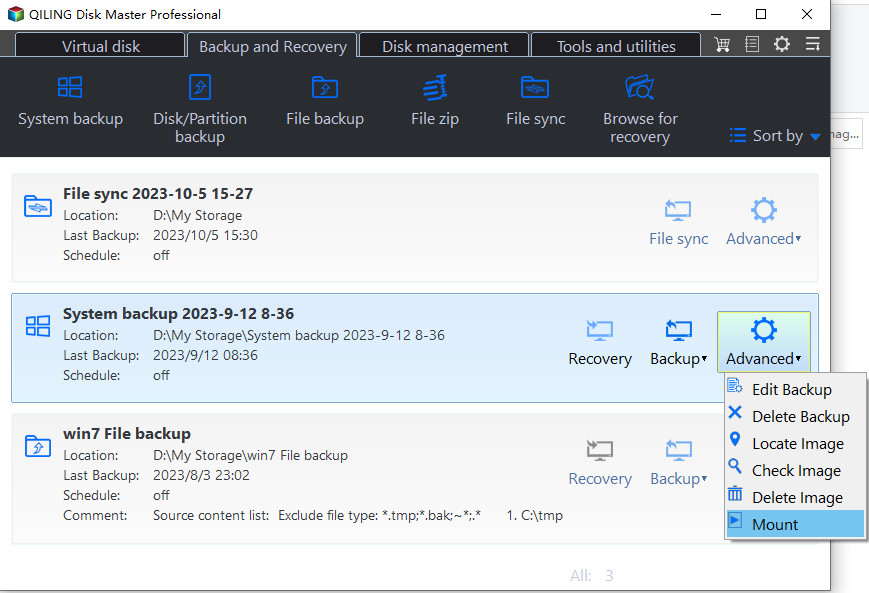
To restore files or programs after reinstalling Windows 10, use Explore Image to unpack the backup file into a virtual drive, then copy the desired files or programs to another location.
Summary
You've successfully identified what to backup before reinstalling Windows 10 and how to use Qiling Disk Master for the backup process. In addition to its backup and recovery capabilities, Qiling Disk Master can also serve as a free SSD migration tool and an alternative to Allway Sync, offering powerful data protection and easy data migration. Give it a try!
Related Articles
- How to Backup Windows 10 for Fresh Install
Learn how to Backup Windows 10 for Fresh Install with clear steps, key checks, and practical tips. - Best Way to Backup Computer Before Clean Install Windows 10
Windows 10 clean install will wipe out all the data. The best way to keep data safe is backup Windows 7/8 computer before clean install Windows 10. - How to Backup Programs before Reinstalling Windows 10/8/7?
This article will introduce you how to backup programs before reinstalling Windows 10/8/7 with best free backup software - Qiling Disk Master. - How to Encrypt External Hard Drive in Windows 11 (2 Ways)
You can learn why encrypt external hard drive in Windows 11 and 2 easy solutions to achieve the goal. The graphic tutorial will be included in each method. Keep reading to know more details. - What Is GPT Disk and How to Manage GPT Disk
A GPT disk uses the GUID partition table (GPT) disk partitioning system, which is an alternative to the traditional Master Boot Record (MBR) system. GPT disks are larger in size and can support more partitions than MBR disks. To create a GPT disk drive, you can use a tool like Disk Management in - 2023 Qiling Disk Master Crack + Serial Key Free Download [New]
Qiling Disk Master Crack alternatives with serial keys are available for free download, including Professional, Server, and Technician versions. Additionally, a 20% Off discount is available for the latest Qiling Disk Master license code.
Products
Articles & Tutorials
- Data Recovery
- Data Backup
- File Recovery
- File Backup
- File synchronize
- System Backup and Restore
- Disk and Partition Clone
- Technical articles
- Disk Master Help
- Windows Deleted File and Disk Recovery Tutorials
- Windows File and Data Recovery Tutorials
- More Windows Tutorials for Install, Security, Files, and PC Tips
- Windows Boot, Repair, and Recovery Environment Tutorials
- Windows Backup Tutorials
- Windows Restore Tutorials
- Windows Clone and Migration Tutorials
- Windows Server Backup, Recovery, and Management Tutorials
- Windows Disk, Partition, and Storage Management Tutorials