Top 4 Ways to Backup Outlook Live Emails on Your PC
Why backup Outlook live emails?
Microsoft introduced Outlook.com in 2012, replacing Hotmail.com, as a web-based personal information manager. It integrates email, calendar, contacts, to-do lists, and tasks services for users.
While Outlook.com has the same level of security as Microsoft 365, online hacking remains a significant threat to webmail accounts, particularly due to rapid technological advancements and malicious behavior. In fact, account hacking is one of the most common forms of cybercrime today, putting users and organizations at risk of losing access to important emails stored in a single cloud location.
The inaccessibility of cloud emails is primarily caused by service or internet outages, making it essential to back up emails using the Outlook.com platform to ensure continuity in case of disruptions.
- Way 1: backup emails via Outlook web app (OWA)
- Way 2: backup certain crucial emails through forwarding
- Way 3: backup emails using Outlook desktop app
- Way 4: backup Outlook mails with the best Outlook backup tool
- FAQs on Windows Outlook live emails
Way 1: backup emails via Outlook web app (OWA)
The "Export mailbox" feature in Outlook.com allows users to export mailbox data to a PST file. Follow the steps below to request and download the exported mailbox.
1. Sign in to Outlook web app using your Microsoft account.
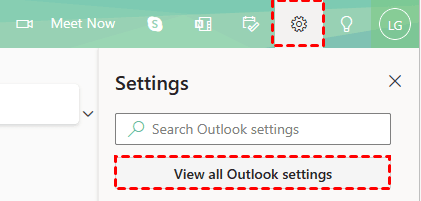
2. To view all Outlook settings, click the Gear or Settings icon on the right and select the View all Outlook settings option.
3. To access the export mailbox feature, click on the "General" option in the left panel, then navigate to "Privacy and data" > "Export mailbox" under the "Export mailbox" section.
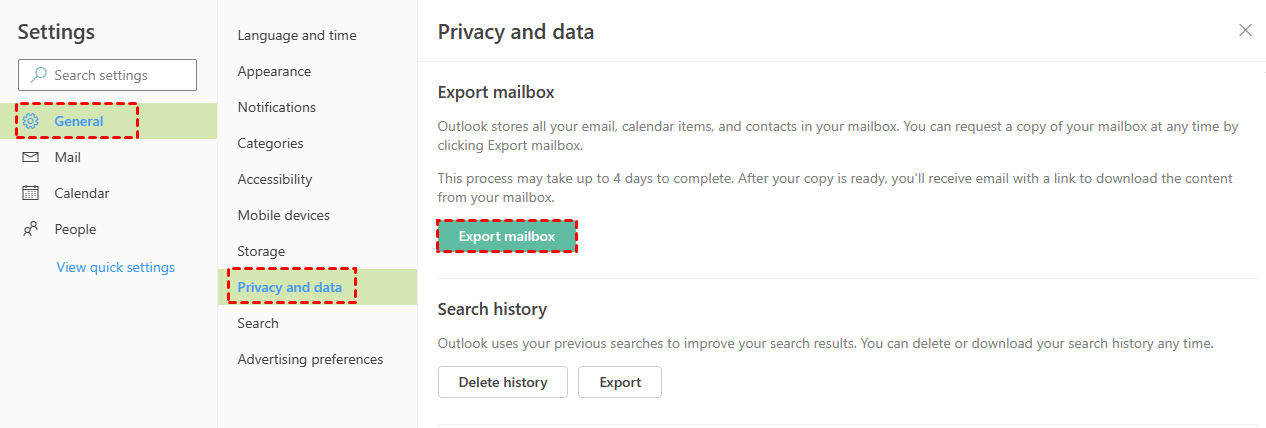
4. The export process will start once the user chooses the "Export mailbox" option, and is expected to take around four days to complete. After the export is finished, users can download the exported PST file from their Outlook.com inbox folder.
Way 2: backup certain crucial emails through forwarding
Users will only benefit from this method if they have a very small number of important emails to protect, fewer than 100, which may contain private account information, passwords, or other business data, allowing them to easily forward these emails to trusted account holders for added security.
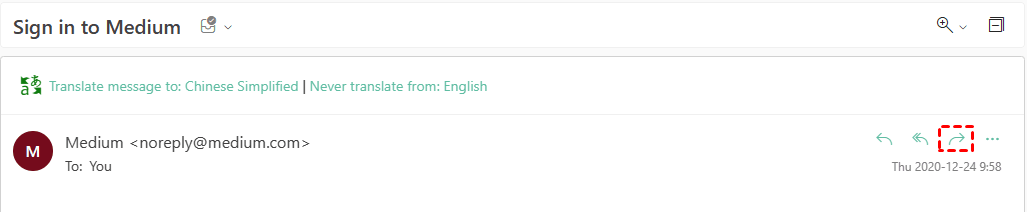
To forward an email with attachments, simply open the email, select "Forward" from the top ribbon, enter the recipient's email address, and then select "Send".
Way 3: backup emails using Outlook desktop app
To back up email messages with the Outlook desktop app, use the Import/Export feature to export mailbox folders to a PST file.
1. Click File > Open & Export > Import/Export in Outlook.
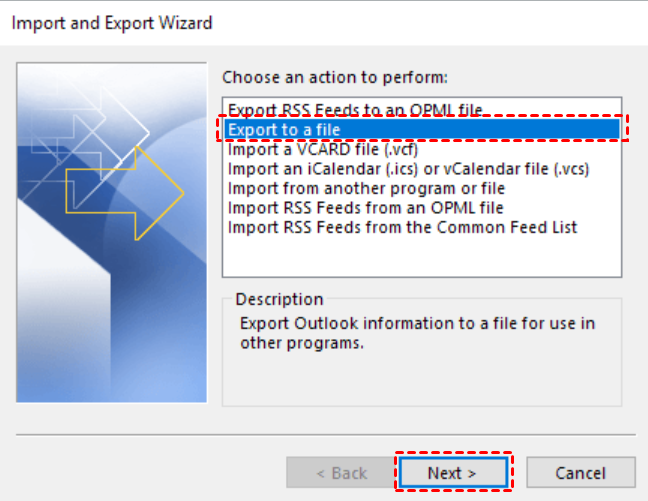
2. Click Export to a file, and then click Next.
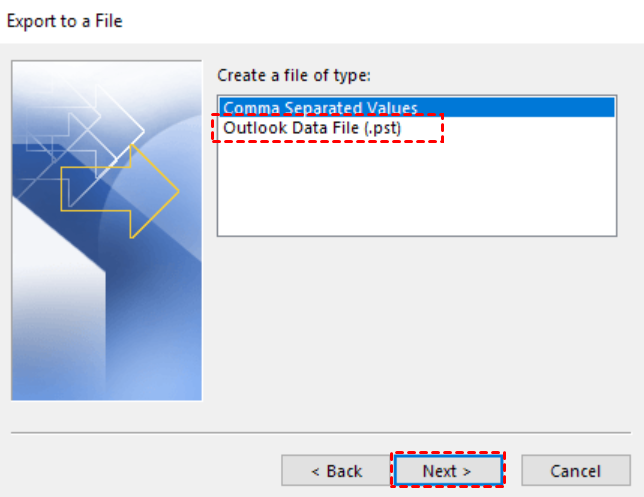
3. Click Outlook Data File (.pst), and click Next.
4. Select the email folder under the target account from the box labeled "Select the folder to export from" and click Next. If necessary, check the box "Include subfolders" to include all subfolders in the export.

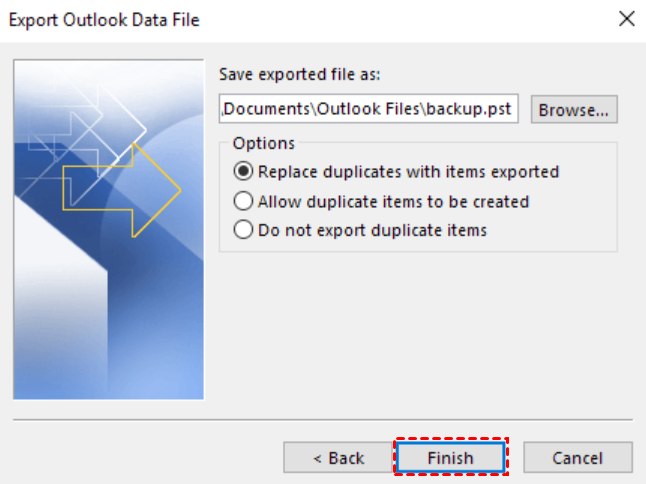
5. Browse to a location for the exported PST file, such as the default Outlook Files folder or another local/external drive, name the file, and click Finish.
6. Enter and confirm a password to secure sensitive files, then click OK to initiate the export process.
Way 4: backup Outlook mails with the best Outlook backup tool
To back up Outlook emails with more flexible options, Qiling Disk Master Professional can help create scheduled email backups.
- This program allows you to backup Outlook's emails, contacts, notes, calendars, and tasks in a user-friendly way.
- The tool works seamlessly with the Outlook as well as Gmail, Hotmail, and any other email accounts that are added to the Outlook client.
- You can easily backup Outlook emails to devices such as cloud drives, USB flash drives, NAS devices, or external hard drives as you wish.
- The "Schedule Backup" feature allows users to automatically back up their email data.
- To reduce backup time and image size, you can use incremental or differential backup methods.
Download Qiling Disk Master and follow the steps below to back up Outlook emails and other important mailbox data.
1. In Outlook, add the email account you want to backup.
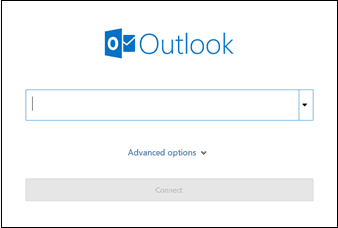
- To set up your email account in Outlook, go to the Start menu, select Outlook, enter your email address, and then click the "Connect" button to add your first email account.
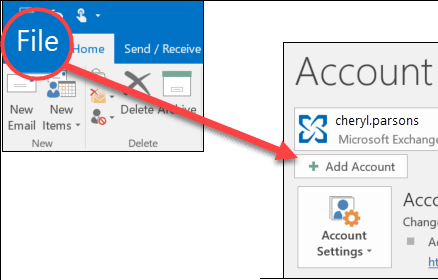
- To add a new email account in Outlook, go to the Start menu, click on Outlook, then go to File, and select Add Account.
2. After installing Qiling Disk Master on your PC, start the software and click on the "Backup" option, then select "File Backup" from the available choices.

3. Create a backup task and name it as needed. Click "Add Outlook Data" or the email data option to select the mailbox folders under the target account.

4. Choose a path as the backup image's destination.

5. Select the needed options, set a schedule and backup scheme if required, then click Proceed to start backing up your Outlook data.
FAQs on Windows Outlook live emails
1. How long does Outlook Live keep emails?
Outlook Live allows you to keep your emails for a long time due to its large storage capacity, and it will keep them unless you decide to delete them.
2. How do I backup live emails to a flash drive?
To backup live emails to a flash drive, you can use specialized software or export emails to a .pst file and manually save it on the flash drive.
3. How do I save Outlook live email to a hard drive without PST?
While the .pst file format is the most common way to save Outlook live emails, you can also consider using third-party backup tools like Qiling Disk Master, which provide alternative methods for creating backups directly to a hard drive, offering a convenient and efficient way to preserve your email data.
4. How to open Outlook emails that are saved to an external hard drive?
To open Outlook emails saved on an external hard drive, you can follow these steps: First, ensure that the external hard drive is connected to your computer. Next, open Outlook and click on the "File" tab.
- Connect the external hard drive to your computer and open Microsoft Outlook.
- To open an Outlook data file, go to the "File" tab and select "Open & Export" followed by "Open Outlook Data File."
- Browse to the location of the .pst file on the external hard drive and select it.
- To access your saved Outlook emails, click "OK" to open the .pst file, allowing you to view your stored emails.
Summary
There are four ways to back up Outlook Live emails on your PC. The first three methods are useful for specific needs, but they also have limitations.
- The Outlook web app has a significant delay of 4 days for the completion of mailbox export process.
- The forwarding feature is only suitable for backing up a small number of emails.
- The Outlook desktop app has a limitation where it can only backup one folder at a time, and the backup process cannot be automated.
Qiling Disk Master allows you to back up multiple email folders at once and run automatic backups, making it useful for regular Outlook email protection.
Related Articles
- How to Backup Outlook Emails before Deleting Account (2 Ways)
This tutorial will show you how to backup Outlook emails before deleting account to have peace of mind knowing that you are in control of your data. - How to Backup Old Emails in Outlook: A Comprehensive Guide
Learn how to Backup Old Emails in Outlook: A Comprehensive Guide with clear steps, key checks, and practical tips. - How to Backup or Export Entire Outlook Mailbox Easily
You will learn how to backup entire Outlook mailbox to PST file or other location. This article also includes two useful methods to backup individual or multiple emails. - How to Transfer All Data from One Surface Pro to Another
Learn how to Transfer All Data from One Surface Pro to Another with clear steps, key checks, and practical tips.
Products
Articles & Tutorials
- Data Recovery
- Data Backup
- File Recovery
- File Backup
- File synchronize
- System Backup and Restore
- Disk and Partition Clone
- Technical articles
- Disk Master Help
- Windows Deleted File and Disk Recovery Tutorials
- Windows File and Data Recovery Tutorials
- More Windows Tutorials for Install, Security, Files, and PC Tips
- Windows Boot, Repair, and Recovery Environment Tutorials
- Windows Backup Tutorials
- Windows Restore Tutorials
- Windows Clone and Migration Tutorials
- Windows Server Backup, Recovery, and Management Tutorials
- Windows Disk, Partition, and Storage Management Tutorials