How to Backup Outlook Emails before Deleting Account (2 Ways)
User case
How to save Outlook emails before deleting account?
You can save your Hotmail emails and folders by exporting them to a PST file, which can be imported into Microsoft Outlook or other email clients. To do this, go to the Hotmail settings, click on "More mail settings", then "Import and export", and select "Export to a file". Choose the PST file format and select the folders you want to export. Once exported, you can import the PST file into your new email account, such as Gmail or Outlook.com, or save it to a local drive for offline viewing. After exporting, you can delete your Hotmail account as usual.
- Question from Microsoft Community
To avoid losing important emails, it's recommended to backup Outlook emails before deleting accounts, especially if you have created multiple email accounts in Microsoft Outlook and some of them contain important emails that you want to keep. This way, you can save a copy of your emails and access them later, even if you delete the original account. This is particularly useful if you're leaving a job and want to keep a record of your work emails, or if you have personal emails that you want to keep for future reference.
Deleting an email account from Microsoft Outlook permanently removes all associated data, including emails, contacts, and calendar entries, which cannot be recovered. However, there are ways to delete an email account while saving its important emails to your computer, allowing you to retain valuable information even after the account is removed.
How to backup Outlook emails before deleting account
If you're leaving a job or no longer want to use an email account, you can save your Outlook emails by exporting them to a PST file or another email client. This allows you to keep a record of your emails and can be useful for archiving or referencing important messages.
- Way 1. Backup Outlook emails via Import & Export
- Way 2. Backup Outlook emails with best email backup software
Way 1. Backup Outlook emails via Import & Export
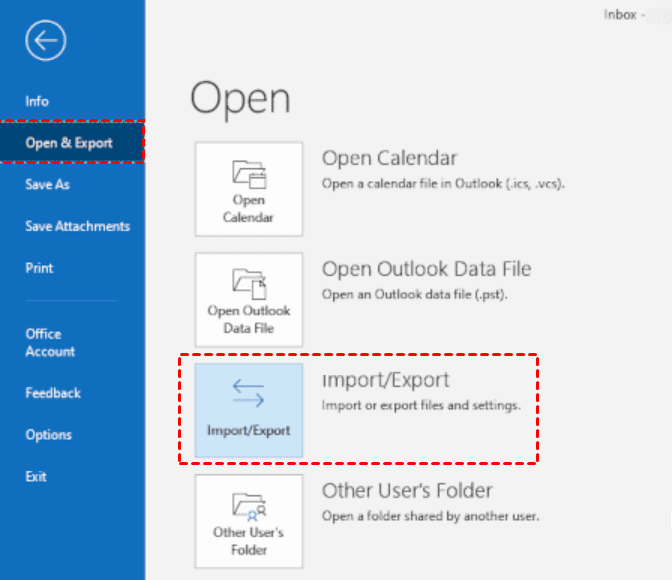
1. Open your Outlook and click File > Open & Export > Import/Export.
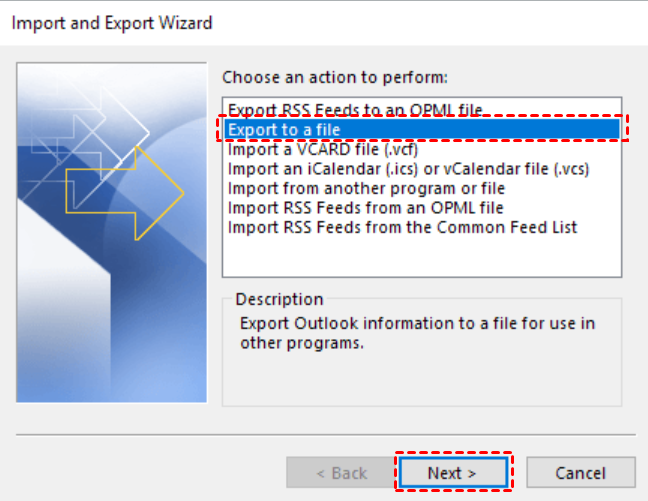
2. The Import and Export Wizard will pop up, select Export to a file, and click Next.
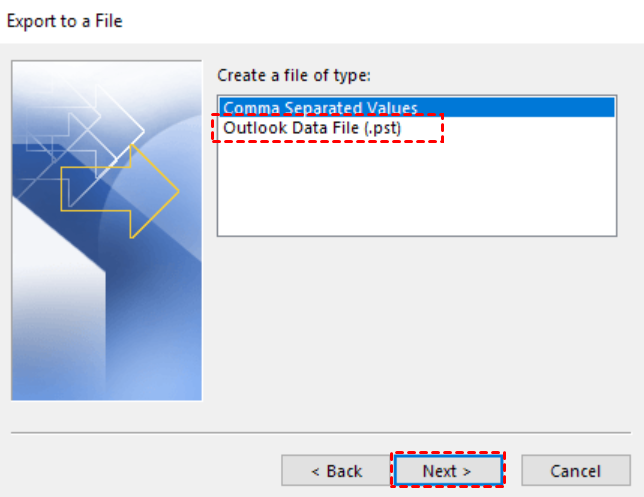
3. Select Outlook Data File (.pst), and click Next.
4. Select the emails folder you want to backup, and ensure the "Include subfolders" box is selected.

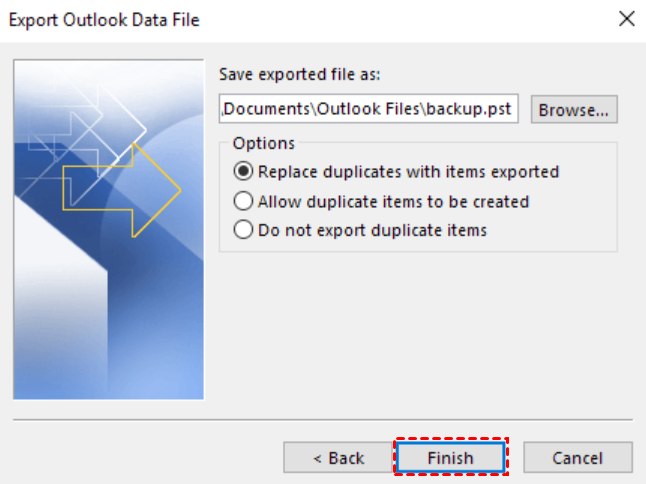
5. The wizard will suggest saving a copy of your .pst file to the default location. Click Finish. You can choose to backup to an external hard drive.
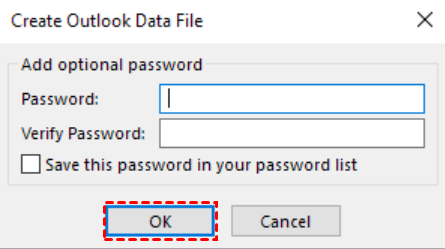
6. To password protect your backup, enter a password in the "Password" field and confirm it in the "Confirm password" field. If you want to protect sensitive files, enter a password and click "OK". If you don't want to password protect your backup, leave both fields empty and click "OK".
🌟 Notes: The Outlook Import and Export feature has several limitations when it comes to backing up emails, including the inability to export emails from the "Junk" folder, the lack of support for exporting emails from shared mailboxes, and the inability to export emails from IMAP accounts. Additionally, the feature can be slow and unreliable, especially when dealing with large email datasets.
☞ Size limitations: If you have a large number of emails, you may not be able to backup all of them using this method. This is because the method relies on the email client's ability to export all emails to a file, which may have size limits or time constraints.
☞ Lack of automation: You have to manually perform the backup process every time you want to backup your emails, which can be inconvenient and time-consuming.
☞ Not support incremental backup: You have to manually back up all your emails every time you perform a backup, which can be time-consuming and may require a lot of storage space.
Consider using a cloud-based email backup solution that can automatically backup your emails, contacts, and calendar events. This way, you can ensure a secure and reliable backup of your email data without having to manually export and store it yourself.
Way 2. Backup Outlook emails with best email backup software
You can refer to Qiling Disk Master Professional, a reliable email backup software, to easily backup Outlook emails automatically. It can also backup all data in Outlook, including emails, contacts, attachments, notes and calendar, and works with all Windows PC operating systems including Windows 11/10/8.1/8/7/XP/Vista.
✏ With its Outlook backup feature, you can easily backup your Outlook emails to various storage locations, including your internal hard drive, external disk, USB, NAS, network location, or even cloud clients.
✏ You can schedule automatic backup of Outlook data by setting daily, weekly, monthly, or event triggers frequency, and also enable the feature to wake up the computer to run scheduled tasks during off-peak hours.
✏ You can backup only changed files in Outlook through incremental backup (by default) or differential backup, saving time and disk space.
To start backing up Outlook emails, download and install a professional backup software on your PC, then follow the graphic tutorial. For Server users, you can try Qiling Disk Master Server instead.
Step 1. Open Qiling Disk Master Professional. In the main interface, click Backup > File Backup.

Step 2. Click Add Outlook data and select the Outlook email folders you want to backup.

Step 3. Then click the box below to select a backup destination to store your backups.
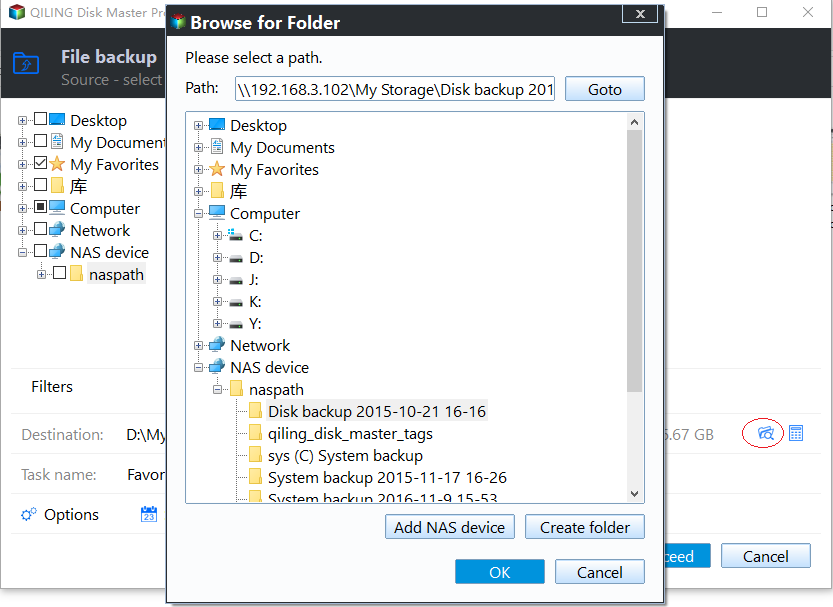
Step 4. To start Outlook emails backup automatically, click "Proceed" and the main steps to backup Outlook have been completed, allowing for further customization of backup settings.
☛ Schedule Backup: Set backup frequencies to "Daily", "Weekly" or "Monthly" and ensure the option to wake the computer to run scheduled tasks is checked.

☛ Backup Scheme: You can choose full backup, incremental backup or differential backup according to your needs, and Enable Automatic Backup Cleanup To prevent disk storage full issues, you should regularly delete old backups. This feature can help maintain the health of your storage system and prevent potential problems.
Bottom line
To backup Outlook emails before deleting your account, you can use either Outlook's built-in export feature or a dedicated email backup software like Qiling Disk Master. This will ensure your emails don't get lost after deleting your account, providing you with peace of mind and a secure backup of your important messages.
Qiling Disk Master allows you to backup Active Directory on Server 2019 and restore it to another computer, providing a powerful and reliable backup solution for Outlook accounts.
Related Articles
- How to Backup Outlook Folder to Hard Drive (2 Ways)
You can learn why backup Outlook folder to hard drive and 2 safe methods to achieve the goal. Each method includes a detailed tutorial. Keep reading and scroll down for more details. - Top 2 Ways to Take an Outlook Personal Folders Backup
This article describes two ways to help users to take Outlook personal folders backup. You can choose the most suitable one according to your needs. - (FULL FIX 2021) We Couldn't Create a New Partition or Locate an Existing One
Get the full solutions to fix 'we could not create a new partition or locate an existing one' Windows 11/10 USB, error 0x8004240f, 0x80042468, SSD, RAID, unallocated space, and many other related Windows 11/10 install errors. - How to Create a Mirror Image of My Computer on Windows? Best Solutions
The aim of creating a mirror image of my computer is to create a system image to backup everything on the computer, including all the operational data and personal files. - Best Toshiba Hard Drive Backup Software
We all know that finding a good Toshiba hard drive backup software is very important. It makes the backup task simple and efficient. Click to learn more about backup software and its use steps. - Free USB Image Tool Bootable for Windows 10
To prevent boot files on USB from being lost, users usually back them up with a free USB image tool bootable. Qiling Disk Master can help you backup your USB easily.
Products
Articles & Tutorials
- Data Recovery
- Data Backup
- File Recovery
- File Backup
- File synchronize
- System Backup and Restore
- Disk and Partition Clone
- Technical articles
- Disk Master Help
- Windows Deleted File and Disk Recovery Tutorials
- Windows File and Data Recovery Tutorials
- More Windows Tutorials for Install, Security, Files, and PC Tips
- Windows Boot, Repair, and Recovery Environment Tutorials
- Windows Backup Tutorials
- Windows Restore Tutorials
- Windows Clone and Migration Tutorials
- Windows Server Backup, Recovery, and Management Tutorials
- Windows Disk, Partition, and Storage Management Tutorials