How to Backup Outlook Folder to Hard Drive (2 Ways)
Why Backup Outlook Folder to Hard Drive?
Regularly backing up your Outlook emails is essential, whether for business or personal use, to prevent data loss. Fortunately, Outlook offers both internal and cloud storage options, providing ample space for your emails.
Users can create a backup of their Outlook folder on a hard drive as a safe and secure means of storing their data, especially if they already use internal inbox storage. This method provides easy access and security, making it a popular choice for users who want to backup their Outlook folder to a hard drive.
- Data Backup: Creating a backup of data on a local or external drive can protect the data in case of data loss, deletion, or security breach by safely storing it on a hard drive.
- Data Sharing: Outlook emails saved on the hard drive can be easily shared and saved with attachments, making it convenient for users to access and manage their emails.
- Data Movement: Transferring data from one device to another or dealing with forgotten password issues can be resolved by saving Outlook emails on the hard drive, making it easier to manage these situations.
How to Backup Outlook Folder to Hard Drive
Knowing several common reasons why users back up Outlook emails to hard disk, you can continue reading this article. It will introduce two solutions in turn, allowing you to choose the one that suits your needs.
There are two methods to back up Outlook files: manually or automatically. The manual method involves manually copying and saving Outlook files to the hard disk, while the automatic method uses professional backup software to do it for you. Both methods include step-by-step graphic tutorials to guide you through the process.
Method 1. Backup Outlook Folder to Hard Drive Manually
To export all emails from Outlook, you can manually export the .pst/.ost files to back up Outlook files to the hard disk. This method allows you to save all your emails, and you can follow the steps described to complete the process.
Step 1. Launch Outlook, select File, then Account Settings.
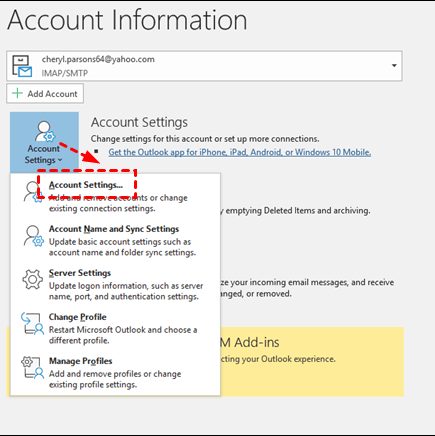
Step 2. Click on the data files to get the exact location on Outlook, noting the location for file i.e. .pst file location for POP3 or IMAP, and .ost file location for exchange servers.
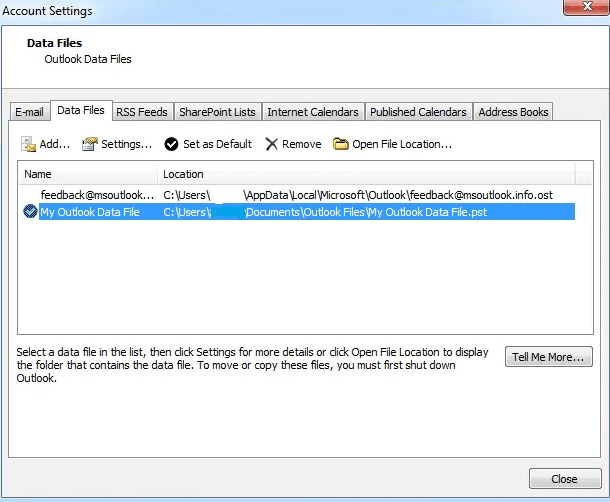
Step 3. To find the data file on your device, locate it and click on it to get the file location.
Step 4. Once you track the file, copy it to the local or external hard drive to create a backup.
To manually export Outlook emails to a local or external hard drive, you can save them along with their attachments.
Method 2. Backup Outlook Folder to Hard Drive Automatically
Manual backup of Outlook files to hard disk is only suitable for small amounts of emails. For larger email collections, a more efficient method is recommended. Professional backup software, such as Qiling Disk Master Professional, can automate the process of backing up Outlook files to hard disk, including contacts, attachments, inbox, notes, and calendar. This software is compatible with various Windows PC operating systems, including Windows 11/10/8.1/8/7/XP/Vista.
- Multiple Locations: In addition to backing up Outlook files to a hard disk and external disk, you can also save your Outlook emails to a USB drive, network location, SD memory card, or cloud storage services like Google Drive, OneDrive, or Dropbox.
- Schedule Backup: You can schedule backups to run daily, weekly, monthly, or at specific events, and also set your computer to wake up and run tasks during off-peak hours.
- Incremental/differential backup: The tool allows you to backup only changed files in Outlook, using incremental or differential backup, which saves time and disk space.
- Email Preview: This software also supports previewing emails in your Outlook account while you are recovering.
This professional backup software can be downloaded and installed, allowing users to back up Outlook files to a hard disk according to a provided graphic tutorial. A version for Windows Server users is also available, known as Qiling Disk Master Server.
Notes: To recap, the main steps to backup Outlook have been completed. You can now customize your backup settings as needed.
Schedule Backup: To set up automatic backups, select a backup frequency such as daily, weekly, or monthly, and ensure the option to wake the computer to run scheduled tasks is enabled.
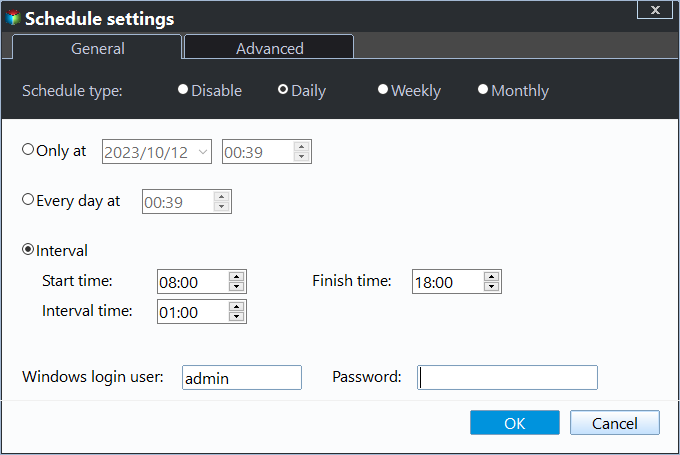
Backup Scheme: You can Enable Automatic Backup Cleanup To resolve storage full issues, it's recommended to regularly delete old backups. This feature can help maintain a healthy storage space by automatically removing unnecessary backups, ensuring that the system has enough space to function properly.
Step 5. Click Proceed to backup Outlook to hard drive automatically.
Summary
Backing up your Outlook files to your hard drive is essential, and there are two methods to achieve this. For a small number of emails, you can manually back up your Outlook files, but for a large number of files, using professional backup software like Qiling Disk Master is a more efficient and automated option. This software allows you to backup your Outlook folder to your hard drive with multiple backup destination paths and methods, making it a convenient solution for large data sets.
In addition, it has a 30-You can try the software for free for a day to see if it's a good fit, and it also offers various features to safeguard your data security in all aspects, allowing you to download it to learn more.
Related Articles
- 2 Ways to Run Automatic File Sync in Windows 11, 10, 8, 7
Set up automatic file sync in Windows and choose a schedule that keeps important folders updated. - [2 Easy Ways] How to Backup QuickBooks Automatically on Windows 11/10/8/7
If you're looking to automatically back up your QuickBooks data, you're in the right place. This article will outline two methods to help you achieve this. By the end of reading, you'll be able to choose the best approach to back up your QuickBooks, ensuring your financial data is safely secured. - Is TotalAV a Good Antivirus? (2024 Ultimate Review)🔥
Review TotalAV features, protection limits, and backup considerations before choosing antivirus software. - OneDrive Files Not Showing on Another Computer - 7 Simple Solutions
OneDrive by Microsoft is used globally for file hosting services. However, it may show errors like OneDrive files not showing on another computer. Learn the reasons for this problem, followed by the top seven solutions to use OneDrive easily. - What is VSS Backup and How to Create a Backup under VSS
If you want to learn more about VSS backup, continue to read below and learn what it means, how it works, and the top 2 ways to create VSS copy backup. - 4 Tips to Fix Windows 10 Backup not Backing up All Files
This article includes 4 tips for Windows 10 backup not backing all files selected in File History, and provides an effective alternative to auto backup files.
Products
Articles & Tutorials
- Data Recovery
- Data Backup
- File Recovery
- File Backup
- File synchronize
- System Backup and Restore
- Disk and Partition Clone
- Technical articles
- Disk Master Help
- Windows Deleted File and Disk Recovery Tutorials
- Windows File and Data Recovery Tutorials
- More Windows Tutorials for Install, Security, Files, and PC Tips
- Windows Boot, Repair, and Recovery Environment Tutorials
- Windows Backup Tutorials
- Windows Restore Tutorials
- Windows Clone and Migration Tutorials
- Windows Server Backup, Recovery, and Management Tutorials
- Windows Disk, Partition, and Storage Management Tutorials