4 Tips to Fix Windows 10 Backup not Backing up All Files
- Windows 10 File History not backing up all files
- How to fix Windows 10 backup not backing up all files
- Fix 1. Pay attention to the filename and directory structure
- Fix 2. Delete current backups and set it up again
- Fix 3. Run system file checker to repair system files
- Fix 4. Decrypt EFS encrypted files & folders
- Reliable software to auto back up all the files you want in Windows
- Verdict
Windows 10 File History not backing up all files
Many Windows users have developed good backup habits, but the built-in tools can be unreliable, with some users experiencing issues where Windows 10 backup does not back up all files.
It's a concern that File History can lead to unintended data loss, as people rely on it to be worry-free, but may unknowingly discover that important files are not backed up. If you're experiencing this issue, here are some helpful tips that may assist you.
Automate the backup of your files, folders, documents, and operating system to a local or external drive, USB flash drive, or cloud storage for safe and secure data preservation.
How to fix Windows 10 backup not backing up all files
Unfortunately, Windows has no official explanation for this issue, and users are often advised to consult the tutorial on how to operate file history to troubleshoot the problem themselves.
While I've compiled some points that may affect Windows 10 backup results, the problem of missing files may not be fully resolved. It's recommended to use more reliable backup software like Qiling Disk Master for data security.
Fix 1. Pay attention to the filename and directory structure
Users experience issues with backing up folders with very long filenames and deeply nested directory structures, which can cause the file path to become too complicated for the backup process to handle.
Check if your files that weren't backed up match this scenario. If so, you might be able to simplify the filename or re-arrange the folders to resolve the issue.
Fix 2. Delete current backups and set it up again
This may not seem useful, but actually works for some users.
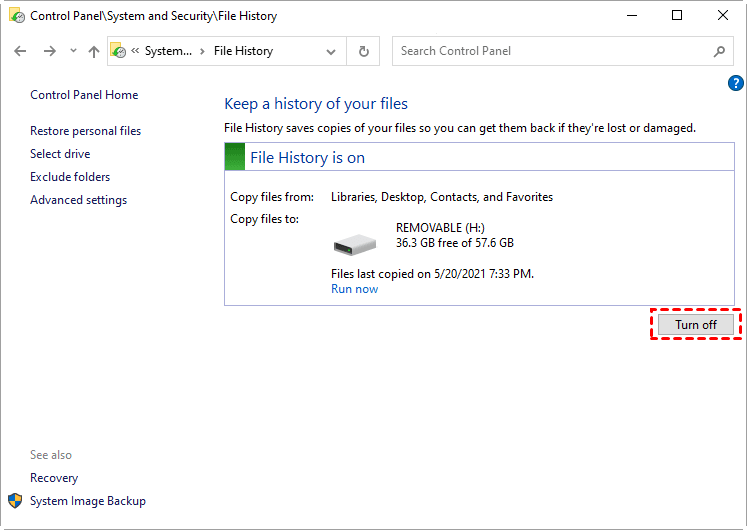
To resolve the issue, turn File History off, then on, which may trigger a forced refresh. If that doesn't work, delete the backups on the target drive, set up File History from scratch, and exclude folders that were already backed up to cloud drives or network locations.
Windows 10 File History can now back up files that were previously missed by the feature. This includes files in the "Users" directory, system files, and files in the "Program Files" directory.
Fix 3. Run system file checker to repair system files
When Windows functions won't work properly, System File Checker is a useful tool that scans all protected system files, replaces corrupted files with a cached copy located in %WinDir%\System32\dllcache, and fixes issues.
1. Search for "Command Prompt" and choose to Run as administrator.
2. Type the command "sfc /scannow" and press ENTER.
3. The system file verification process will begin, scanning all protected system files and waiting until the verification reaches 100%.
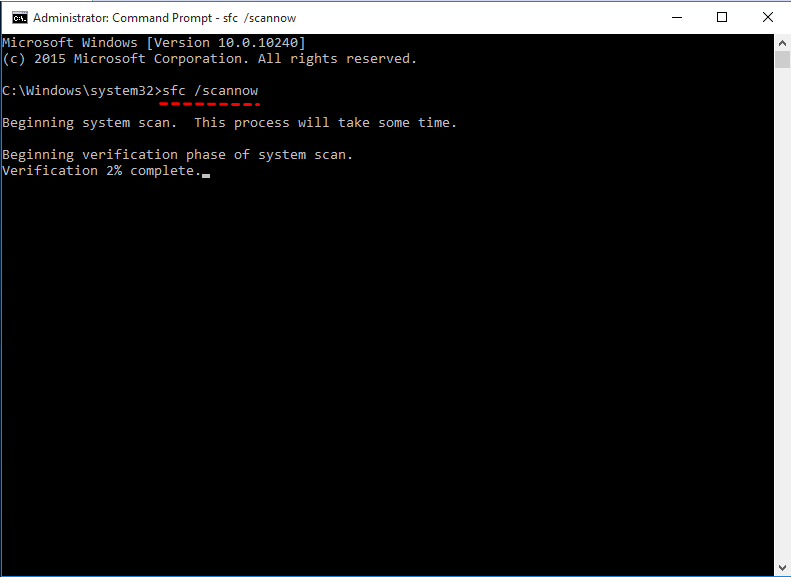
If the issue of Windows 10 File History not backing up all folders is caused by missing or corrupted system files, running the System File Checker (sfc) may help resolve the problem.
Fix 4. Decrypt EFS encrypted files & folders
File History does not backup EFS encrypted files. If you encounter an error message about encrypted files, check if your files or folders have been encrypted. If so, decrypt them before backup.
1. Right-click the file or folder in Windows Explorer, click Properties.
2. Tap Advanced button beside Attributes options in General tab.
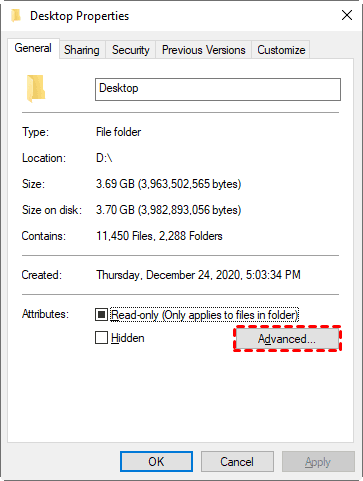
3. Uncheck the option "Encrypt contents to secure data" and click OK and Apply to save the changes.
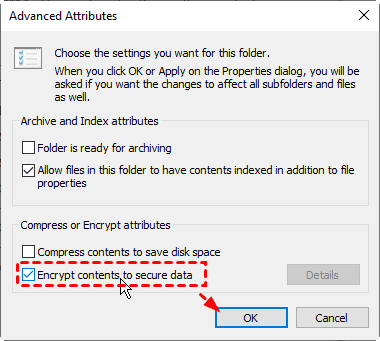
*If there are other problems with your File History, please refer to Windows 10 File History not working.
To properly back up files encrypted after the initial File History setup, you can decrypt them first, set up File History to back up them, then encrypt them again if necessary.
Reliable software to auto back up all the files you want in Windows
Windows 10 backup missing files is a chronic problem that hasn't been officially solved nor explained, leaving users frustrated and without a reliable way to restore their data.
If you want to safely and steadily back up all the files and folders you want, all suggestions will ultimately lead to a powerful and effective Windows backup utility, such as Qiling Disk Master Standard.
The software can serve as a replacement for Windows Backup and Restore and File History, and its free Standard version can meet most backup needs.
✍Multiple image backup modes: File and folder backup, partition backup, system backup, and disk backup are all methods of backing up data to prevent loss in case of hardware failure, software corruption, or other disasters. These backups can be used to restore data, settings, and even entire systems to a previous state, minimizing downtime and ensuring business continuity.
✍Schedule options: based on Daily/Weekly/Monthly, and performed in incremental backup by default.
✍Various supported storages: A local drive is a storage device connected directly to a computer, while an external hard drive is a separate storage device connected via USB or other interface. A NAS (Network-Attached Storage) device allows multiple computers to access shared files over a network, and a network share is a folder on a networked computer that can be accessed by others.
✍Comprehensive functionality: This software not only allows you to backup your data, but also enables you to duplicate folders with file sync features, or migrate a hard drive with disk clone features.
✍Wide application range: it works on all desktops and laptops running Windows 10/8.1/8/7/XP/Vista.
Download the free file backup software to give it a try:
Higher editions of the product offer additional features, such as automatic backup cleanup, and server users can take advantage of a 70% discount for a single computer, as compared in the edition comparison chart.
How to back up all files/folders you want in Windows 11/10/8/7
1. Launch the software, go to the Backup tab and select File Backup.

2. To specify the data you want to back up, click on either the "Folders" or "Files" option.
In advanced editions like Professional, you can include or exclude files with specific masks via file filter.

3. Select the destination path. Here I'll back up selected files to external hard drive just as File History do. In ordinary use, you can also Select a network location or Select a cloud drive in drop-down menu.

4. To set up automatic backups, click on the "Schedule" and "Backup" buttons. This allows you to choose a frequency for backups, such as daily, weekly, or monthly. The default backup mode is incremental, which saves time and space by only backing up changed data.
◆ In advanced editions, users can choose from various options, including Event triggers/USB plug in, and perform differential backup.
◆ Backup Scheme is also available in advanced editions to automatically delete older backups, thus saving your storage space.
◆ To confirm if your Windows 10 backup task is completed successfully, enable the Windows 10 backup notification in the Options, so you won't suddenly find problems like Windows 10 backup not backing up all your files.

5. To create a full backup and 6 incremental backups, click Proceed and wait for it to complete. If you make it a scheduled task, it will repeat the backup cycle.

Related tip:
Instead of image backup, you can also go to Backup > File Sync to copy folders with original folder structure for direct use, and it also supports schedule. For real-time sync of changed files, use File Sync in advanced editions.
Verdict
While File History can be a convenient and easy-to-use backup tool, many users have encountered issues with Windows 10 backups not including all files, potentially leading to severe data loss. Despite best efforts, it's challenging to completely avoid such situations. A more reliable approach is to use third-party software to secure your data.
Qiling Disk Master is a Windows 10 backup utility alternative that offers core functionality and fills some gaps of its counterparts. It allows for automatic backup to cloud drives, deletion of old backups, and easier system backup and restore compared to System Image Backup. It also has a Server edition for Windows Server users.
Related Articles
- Backup and Restore with Windows 10 Backup Utility (3 Ways)
This article is written for Windows 10 users who want to backup and restore OS, programs, and personal files in order to transfer files or protect data. - Create Schedule Automatic Backup in Windows 10 [3 Ways Included]
You can easily create schedule automatic backup in Windows 10 with the help of Backup and Restore (Windows 7), File History and Qiling Disk Master Standard. - File History Cleanup – Delete Older Versions in Windows 10, 8.1, 8
You will get 3 ways for File History cleanup and one professional software to prevent backup disk full issues. - How to Repair Windows 7 without CD Easily
Get clear ideas below and follow the stepwise guide to repair Windows 7 without CD. You have three choices, please check them and select one per your needs. - How to Restore Default Programs in Windows 7 Easily
Learn how to Restore Default Programs in Windows 7 Easily with clear steps, key checks, and practical tips.
Products
Articles & Tutorials
- Data Recovery
- Data Backup
- File Recovery
- File Backup
- File synchronize
- System Backup and Restore
- Disk and Partition Clone
- Technical articles
- Disk Master Help
- Windows Deleted File and Disk Recovery Tutorials
- Windows File and Data Recovery Tutorials
- More Windows Tutorials for Install, Security, Files, and PC Tips
- Windows Boot, Repair, and Recovery Environment Tutorials
- Windows Backup Tutorials
- Windows Restore Tutorials
- Windows Clone and Migration Tutorials
- Windows Server Backup, Recovery, and Management Tutorials
- Windows Disk, Partition, and Storage Management Tutorials