File History Cleanup | Delete Old Versions in Windows 10 or 11
Can I delete file history folder in Windows 10?
File History, introduced in Windows 8, allows you to keep multiple versions of your files on a specified location, such as an internal or external hard drive or network location. However, if not configured correctly, File History can quickly consume a large amount of space, leading to issues.
Can I delete Windows file history?
To clean up your Windows backup files, try the following: Check if the File History settings are still set to delete backups older than one month. If not, go to Settings > Update & Security > Backup > More options and verify the settings. If the issue persists, try running the Disk Cleanup tool (cleanmgr.exe) on the backup drive to remove unnecessary files. You can also try deleting the backup files manually by going to the backup drive, opening File Explorer, and deleting the oldest files first.
- Question from Reddit
In this case, you need to delete file history folder so as to free up disk space, otherwise, you cannot backup any files or folders with it. In the long run, there is a risk of data loss, because you don't backup changes made later. And I'll introduce you 3 ways to delete old versions in Windows 10 file history and one professional software to prevent backup disk full issue from begining.
How to use File History cleanup to delete old versions
You may need to adjust the advanced settings for file history backup, which could be the reason for the issue. Alternatively, you can try manually deleting the file history folder or resetting it in Windows 10 or 11 to resolve the problem.
Way 1: Delete File History folder using Clean up Versions
1. Plug in your backup drive and ensure it can be detected. Then, go to Control Panel > System and Security > File History to open it.
2. To check the file history status and change its backup setting, you can check the file's properties in File Explorer. Right-click on the file and select "Properties". In the properties window, look for the "File History" tab and check if it's enabled.
If file history is enabled, you can delete the backups. To do this, click on the Advanced settings option at the left.
>> If not, I'm sorry, you can't, the file history folder is locked.
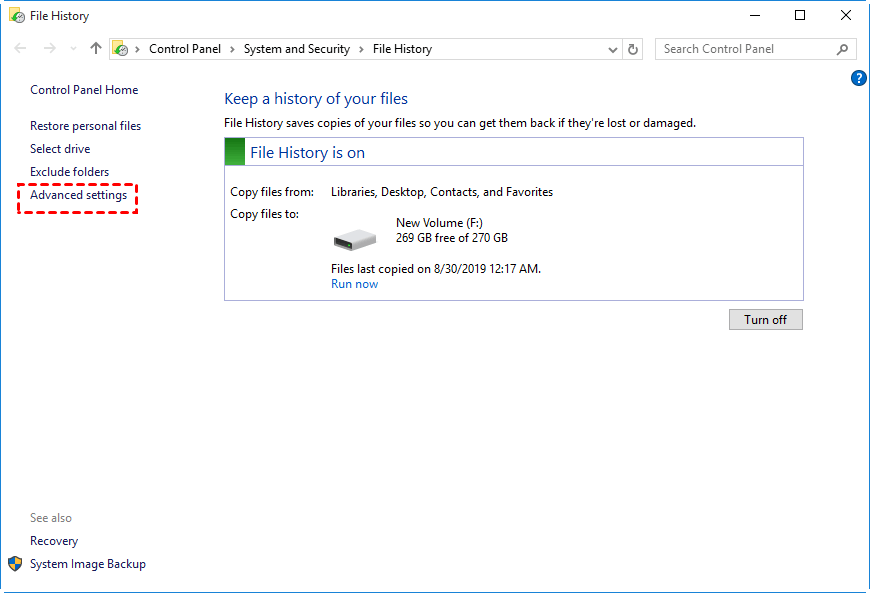
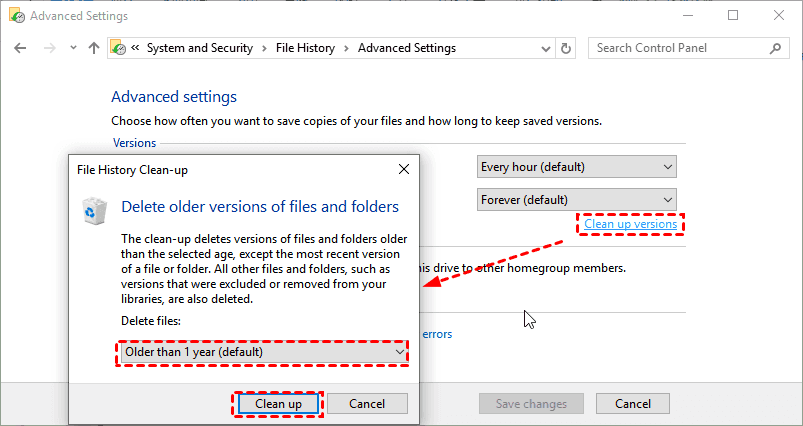
3. To clean up saved versions, go to "Versions" > "Keep saved versions" and select "Clean up versions" under it.
4. To clean up File History, select "All but the latest one" or "older than 1 month to 1 year" in the File History Clean-up window and click "Clean up". This will delete the previous versions, freeing up disk space.
Way 2. Use FhManagew.exe to delete old File History backups
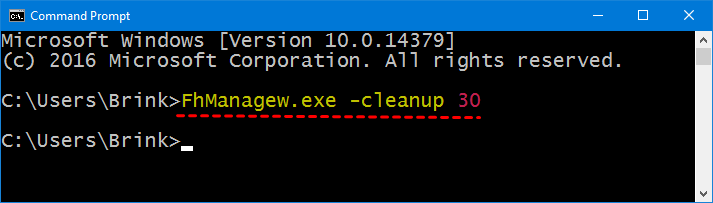
There is a possibility that you failed to perform File History cleanup with error code, such as 8004050e, 800405ff, or stating "could not clean up file history data element not found". In this case, try running the FhManagew.exe command.
To delete files older than a certain time period, you need to replace the month value with the corresponding number of days, such as 30 for 1 month, 60 for 2 months, and so on, except for the latest file, which requires 0.
1. To open the Command Prompt, press the Windows key + R to open the Run dialog, type "cmd" and click "OK".
2. You can delete File History backups within one month by running the command `Remove-Item -Path "C:\ProgramData\Microsoft\Windows\Windows Backup\BackupSet-[username]" -Recurse -Force` in PowerShell, replacing `[username]` with your actual username. This will delete all backups made within the last month. Please note that this command permanently deletes the backups, so make sure to run it only if you're certain you want to delete them.
FhManagew.exe -cleanup 30
FhManagew.exe -cleanup 30 -quiet
Way 3: Reset File History in Windows 10
If the above methods don't work, try resetting file history and backing up specific folders in Windows 10 again, but note that all backed-up files and folders will be deleted in the process.
Step 1. Go to File History and click Turn off if it says "File History is on".
Step 2. Open File Explorer, copy and paste the path of File History, which is usually located in the following path, and then delete all the files or folders in it.
%UserProfile%\AppData\Local\Microsoft\Windows\FileHistory.
Step 3. Go to File History again and click Turn on if it says "File History is off".
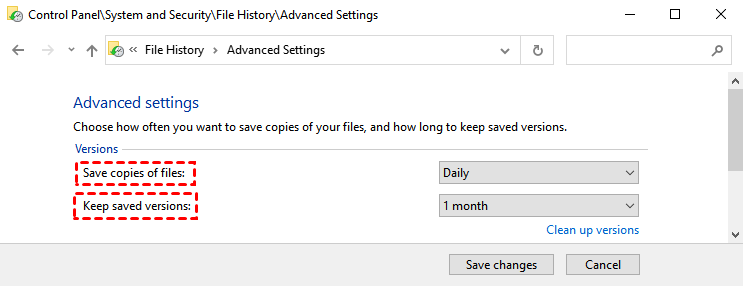
Step 4. Click Advanced Settings, and configure proper backup settings. Then, click Save changes to backup files in Windows 10.
- Select a The backup frequency can be set to a longer interval, such as daily, to reduce the number of backups and free up disk space, while still maintaining a regular backup schedule. daily.
- Change backup retention to shorter. The default option is "Older than 1 year", which can be changed to "Less than 1 year" or even "Older than 1 month".
Backup files in Windows 10 with least disk space
Windows 10's File History feature allows you to delete old versions of files, but this is only temporary if you can't configure the backup settings properly. Unfortunately, the backup settings in File History are limited, with the longest backup frequency being daily and the shortest retention being 1 month, which can quickly fill up your file history drive.
If you want more flexible backup features, try AOEMI Disk Master Professional, which supports file backup, system backup, disk backup, and partition backup, allowing you to backup any items you want, not limited to files or folders. This software also offers various backup features to help minimize backup image size.
- Daily/Weekly/Monthly schedule backupIt allows you to set different backup frequencies, including daily, weekly, and monthly, and also specify the exact date, time, and interval for each backup.
- Incremental backup refers to backing up only the files that have changed since the last backup, making it a more efficient option than a full backup. However, it can be more demanding for restoration purposes.
- Automatic backup cleanup: Regularly deleting old backup images based on selected cleanup methods is essential.
- The software has features that help save disk space, including intelligent sector backup, normal compression, and automatic splitting, which can be adjusted to high compression for more efficient image size.
If you're unsure whether to use Windows File History or Backup, check out this article for more information. After learning more, you can download Qiling Disk Master Professional, which has a 30-day free trial, allowing you to test it before committing.
This version only supports Windows XP, Vista, 7, 8, 8.1, 10, 11. For server users, try Qiling Disk Master Server.
Step 1. Launch Qiling Disk Master Professional after installing, click "Backup" and "File Backup".

Step 2. To backup files, click "Files" or "Folder" to select the files or folders you want to backup. Then, choose a backup destination, such as an external hard drive, USB drive, network drive, or cloud drive, to store the backup image.

Step 3. Configure backup features, and then click "Proceed" to backup files in Windows 10, which will use minimal disk space and regularly delete backup files.
- You can adjust the settings by clicking on the "Options" button, which allows you to customize features such as compression level, splitting, and more.
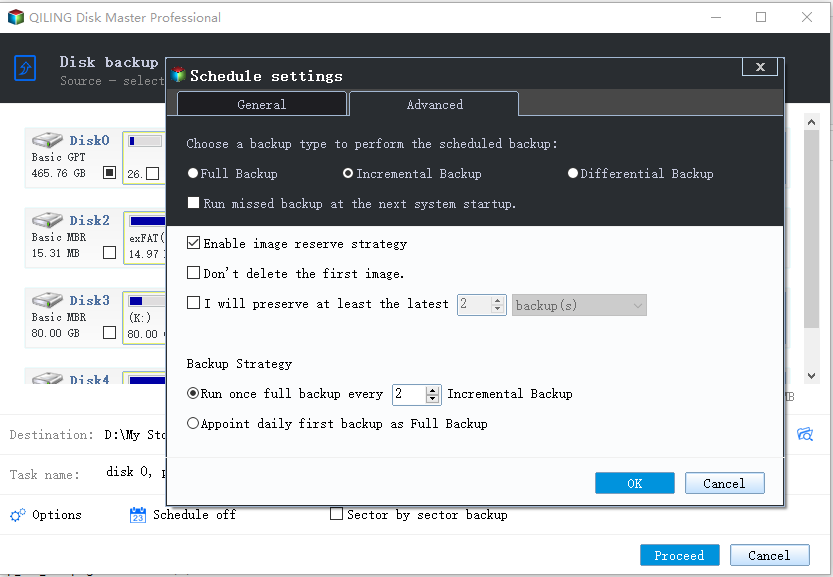
- To enable schedule backup, select Schedule Backup and choose a frequency of Daily, Weekly, or Monthly. Additionally, you can set up backups to occur at specific events using Event triggers or save files to a USB drive using the USB Plug in feature.

- To set up a backup scheme, enable the backup feature and choose a backup method from the options of full, incremental, or differential backup. Additionally, select an automatic cleanup method, such as by quantity, daily, weekly, monthly, or by time.
File History Clean up versions not working
Users may encounter errors such as "File History element not found" or "failed to perform File History cleanup with error 80040507 or 800405ff" when dealing with File History. This issue can be caused by various factors, including corrupted system files, incorrect Windows version, or outdated Windows updates. To resolve this, users can try running a System File Checker (SFC) scan to replace corrupted files, check the Windows version and update it if necessary, or restart the File History service.
Case 1: File History element not found
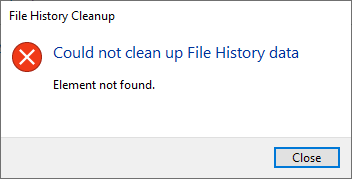
This issue might occur due to system file corruption or disk problems. To resolve it, unplug all USB drives and devices, then perform File History cleanup again.
If the File History feature is not working, you can check more solutions in this article: File History element not found.
Case 2: Failed to perform File History cleanup with error 80040507
This issue might occur if the file history or user profile is corrupt. You could consider transferring files to a new user profile or resetting file history.
To transfer files to a new user profile, follow these steps: locate the files you want to transfer, right-click on them and select "copy" or "cut", then navigate to the new user profile, right-click on the desired location and select "paste" or "move", and finally, confirm the transfer by clicking "yes" or "ok" on the prompt. Alternatively, you can use the "copy to" or "move to" options in the file explorer to transfer the files.
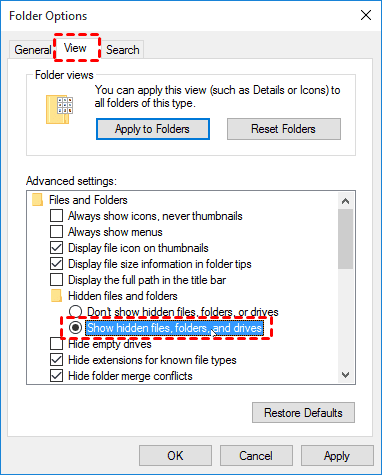
Step 1. Go to File Explorer > View > Options > Change folder and search options.
Step 2. In the Folder Options window, go to the View tab, select Show hidden files, folders or drives and uncheck Hide protected operating system files. Click Yes and then OK to confirm.
Step 3. To copy files from the old profile to the new one, locate the C:\Users\Old_Username folder and C:\Users\New_Username folder on the Windows drive, and then copy the contents of the old profile to the new one.
Step 4. When creating a new user profile, you can save time by copying files from the older user profile and pasting them into the new one. However, be sure to exclude the following three files: [insert files to exclude].
•Ntuser.dat
•Ntuser.dat.log
•Ntuser.ini
Step 5. Restart your computer and see if you are able to access files in the new user profile.
Case 3: Failed to perform File History cleanup with error 800405ff
This issue may occur when a file name in a subfolder is too long for File History to handle. To resolve this, try to shorten the file name or remove files currently backed up by File History and reset the feature.
Written in the end
File History Cleanup can delete older versions of Windows 10 file history backups, but if not configured well, it may fill up the backup drive. If the backup settings are restricted, a professional file backup software may be needed to help.
Qiling Disk Master offers flexible backup features, reduces backup image size, and eliminates backup disk full issues, making it suitable for system, disk, and partition backups.
Related Articles
- How to Delete File History Backup in Windows 10?(4 Ways included)
You will learn 4 ways to delete file history backup in Windows 10 or 11 and how to backup files without occupying much disk space. - How to Delete Backup Files in Windows 10 When Backup Disk Full
Windows 10 backup disk may get full after saving multiple versions of backups. Learn to manually or automatically delete all kinds of backup files. - Windows Server Backup Not Deleting Old Backups - Fixed
This guide explains Windows Server Backup Not Deleting Old Backups - Fixed with clear steps, key checks, and practical tips. - Fix Annoying Error: Your File History Drive Is Disconnected
Try the following 5 ways to fix "Your File History drive is disconnected" error, or try the best free alternative for File History - Qiling Disk Master to auto backup your files easily. - Solved: Windows 10 File History Not Working | 4 Ways Included
You can easily fix Windows 10 File History not working problem with given solutions. If not, try File History alternative and backup files with it. - How to Transfer Windows OS from GPT Disk to SSD without Reinstalling?
Learn how to Transfer Windows OS from GPT Disk to SSD without Reinstalling with clear steps, key checks, and practical tips.
Products
Articles & Tutorials
- Data Recovery
- Data Backup
- File Recovery
- File Backup
- File synchronize
- System Backup and Restore
- Disk and Partition Clone
- Technical articles
- Disk Master Help
- Windows Deleted File and Disk Recovery Tutorials
- Windows File and Data Recovery Tutorials
- More Windows Tutorials for Install, Security, Files, and PC Tips
- Windows Boot, Repair, and Recovery Environment Tutorials
- Windows Backup Tutorials
- Windows Restore Tutorials
- Windows Clone and Migration Tutorials
- Windows Server Backup, Recovery, and Management Tutorials
- Windows Disk, Partition, and Storage Management Tutorials