Best Free Incremental Backup Software: Save Storage and Time
Scenario
Looking for the best incremental backup software
You're looking for a backup software that can selectively backup changed files, has multiple backup options, and allows you to schedule backups. The software should also be able to detect if no changes have been made and skip the backup, or add new content if changes have been made. Is that correct? If so, some popular options that might fit your needs are Duplicati, Backblaze, and Veeam. These programs can backup specific folders or files, and some of them can also compress the backups to save space.
- Question from tom's HARDWARE
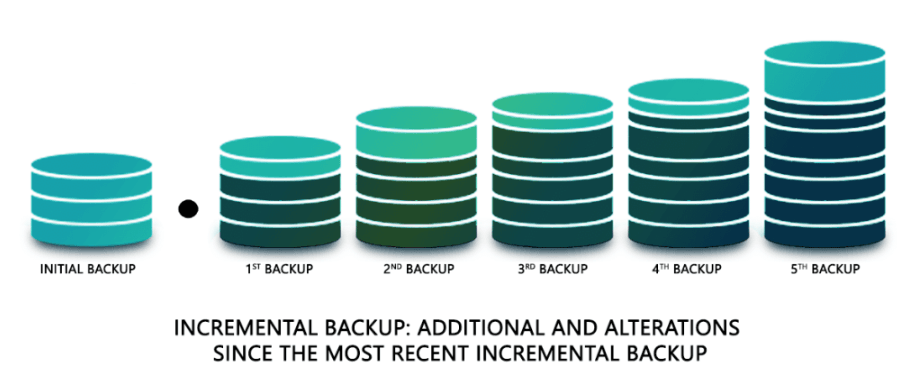
In today's tech-dependent world, people store valuable data on their computers, including sensitive documents, videos, and images. To safeguard this data, regular backups are made, allowing for easy restoration in case of system crashes or hardware failures.
To save disk space and reduce backup time, many users choose incremental backup. Incremental backup is a method where only the changes made since the last backup are saved, reducing the amount of data to be backed up. This approach is more efficient than full backups, which save the entire dataset. Incremental backup software, such as Qiling Backup can be used to implement this method. These tools can be set up to automatically back up only the changes made since the last backup, making the process more efficient. By using incremental backup, users can save disk space and reduce backup time, making it a popular choice for those looking to improve backup efficiency.
Overview of incremental backup
An incremental backup is a type of backup where only files that have been added or modified since the previous backup are saved, building on a previous full or incremental backup.
What are its pros and cons?
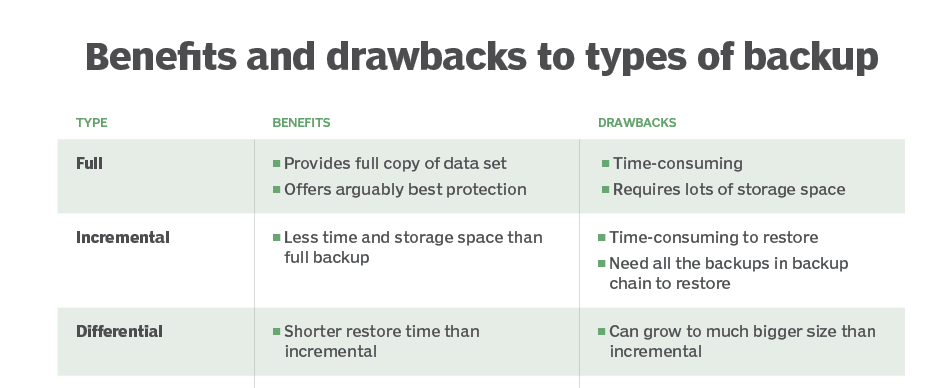
Pros: Incremental backups are beneficial as they only save changed data, minimizing the time and disk space required each time, making them a convenient option.
Cons: When restoring data, each backup set has to be done individually, making the process more complicated and time-consuming.
What are the differences between full, incremental, and differential backup?
Full backup A full backup is a complete copy of all data, providing the best protection, but is time-consuming and requires a lot of storage space, making it impractical for daily use.
Differential backup: A differential backup is similar to an incremental backup, but it offers a shorter restore time, as it starts with a full backup and subsequent backups only contain data that has changed.
To determine whether incremental or differential backup is better, click the link provided for more information on these backup methods.
To accomplish incremental backups in a best and easy way, you'll need to look beyond Windows' built-in backup tools like Backup and Restore, File History, and others, which can only automate backups but not perform incremental backups. Instead, you'll need to turn to third-party software for help.
Backup Windows 11, 10, 8, 7 via best incremental backup freeware
If you're looking for the best incremental backup freeware, Qiling Disk Master Standard is a comprehensive data protection solution that can meet your needs.
Qiling Disk Master Standard is a backup and restore software that can be run on all Windows PCs. It offers an easy-to-use interface and supports various backup types, including full, incremental, and differential backups. Additionally, it supports file backup, disk backup, partition backup, and cloud backup at customizable intervals.
To create an incremental backup, you need to start with a full backup, and then subsequent backups will only save the changes made since the last backup.
To create incremental backups for your computer, download and install the incremental backup software free on your computer, and follow the instructions to set it up.
✍ Automatically create incremental backup
Step 1. Here, we take Disk backup as an example. To do this, go to the left menu and select Backup, then tap on Disk Backup. You can choose other backup types based on your actual needs.

Step 2. Under the Disk Backup page, tap Disks to select the disk that you wish to backup.

Step 3. Choose a destination path for your backup.

Step 4. You can enable Schedule Backup and set up automatic backup disks in daily, weekly, monthly frequency.

In the Backup Scheme, incremental backup runs by default, except for the first full backup, after which all subsequent automatic backups only back up changed data.
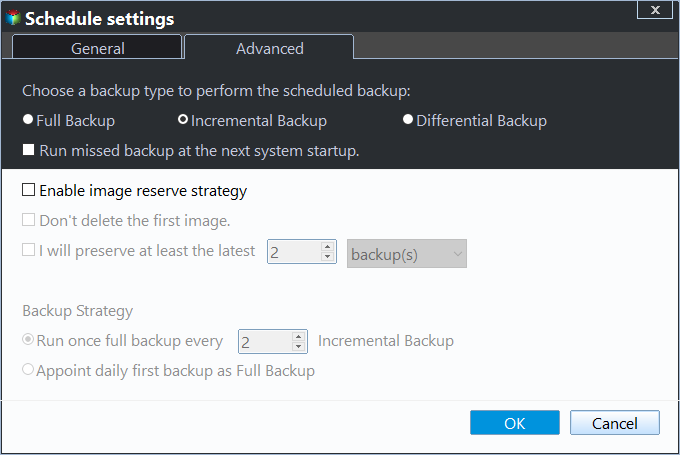
Step 5. Click Proceed to complete this process.
💛 You can upgrade to Professional edition to enjoy more features:
♦ Backup encryption: To ensure the security of your backup task, you can set a password to prevent unauthorized access. This adds an extra layer of protection to your backup data.
◊ Advanced schedule types: You can also set automatic backup disks using features like event triggers and USB plug-in besides daily, weekly, and monthly frequency.
♦ Differential backup: Backup only saves the changed data since the last full backup, making recovery much simpler as it only requires one full backup plus any differential backup.
◊ Backup retention policy: You can enable the option "Enable Automatic Backup Cleanup" to let the program automatically clean up image files and save disk space usage.
✍ Manually create incremental backup
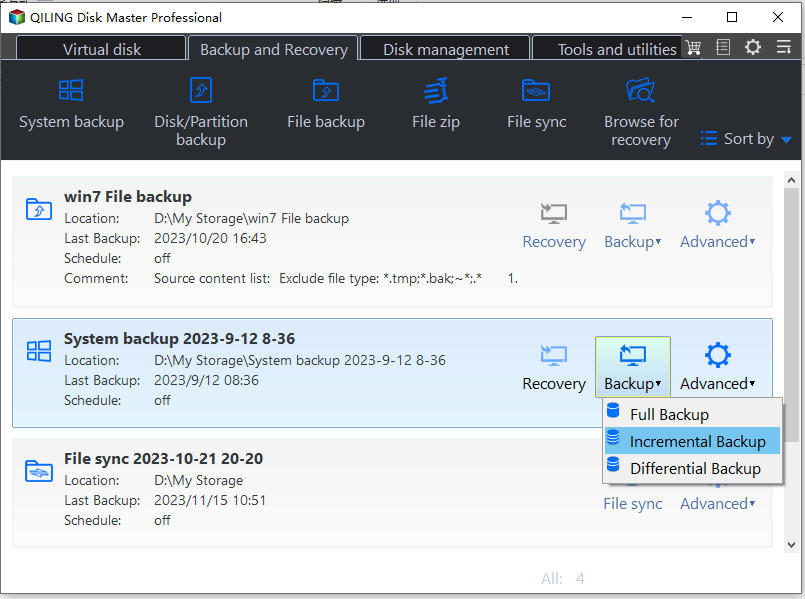
To run an incremental backup manually, first complete a full backup without scheduling it, then go to the Home tab, click on the task, and select Backup > Incremental Backup.
In the end
You now know the benefits of incremental backup and the top software for it - Qiling Disk Master. By backing up only changed data, you save time and disk space. Upgrading to a higher edition also unlocks advanced features like backup filter, encryption, schedule triggers, and more, including differential backup and automatic old backup deletion.
Qiling Disk Master is a comprehensive data protection solution that offers a free backup software and a clone feature, allowing users to clone Windows 11 to another hard drive with ease, making it a reliable assistant for data protection.
Related Articles
- How to Do Incremental and Differential Backup in Windows 10
Learn how to Do Incremental and Differential Backup in Windows 10 with clear steps, key checks, and practical tips. - Windows 7 Incremental Backup - Only Backup Changed Files
You will learn the Windows 7 incremental backup meaning and how to create it step by step, 2 ways in total. - How to Create Block Level Incremental Backups in Windows
Learn how to Create Block Level Incremental Backups in Windows with clear steps, key checks, and practical tips. - Do You Backup Everything
This guide explains Do You Backup Everything with clear steps, key checks, and practical tips. - How to Use Centralized Backup Management for Data Protection
This article helps to learn about centralized backup management and offers the tutorial to perform centralized backup. - Incremental Backup Archive Bit and Backup Methods
Incremental and differential backup methods, often used in conjunction with archive bit, are compared and contrasted in this article. The archive bit, a flag used to track file changes, is also discussed in relation to these backup methods.
Products
Articles & Tutorials
- Data Recovery
- Data Backup
- File Recovery
- File Backup
- File synchronize
- System Backup and Restore
- Disk and Partition Clone
- Technical articles
- Disk Master Help
- Windows Deleted File and Disk Recovery Tutorials
- Windows File and Data Recovery Tutorials
- More Windows Tutorials for Install, Security, Files, and PC Tips
- Windows Boot, Repair, and Recovery Environment Tutorials
- Windows Backup Tutorials
- Windows Restore Tutorials
- Windows Clone and Migration Tutorials
- Windows Server Backup, Recovery, and Management Tutorials
- Windows Disk, Partition, and Storage Management Tutorials