Top 2 Ways to Take an Outlook Personal Folders Backup
Need to Perform Outlook Personal Folders Backup
Outlook is an essential tool for daily work, used for sending emails, setting calendar events, and creating tasks and other items. A personal folder in Outlook is a file with a .pst extension located on your computer's hard drive, not on the server, containing emails, forms, documents, and other personal folders. Like any other file, personal folder files can be saved, copied, and moved to another location on your computer or server.
You can view your read emails even when offline using these files, and they also enable you to recover or transfer your Outlook data in case of hardware failure, data loss, or switching computers/hard drives. To backup your Outlook folders, simply keep reading for more information.
How to Create Outlook Personal Folders
Personal folders help organize and archive emails to local or network locations, freeing up space on the mail server. To utilize this feature, consider starting with instructions on creating personal folders in MS Outlook.
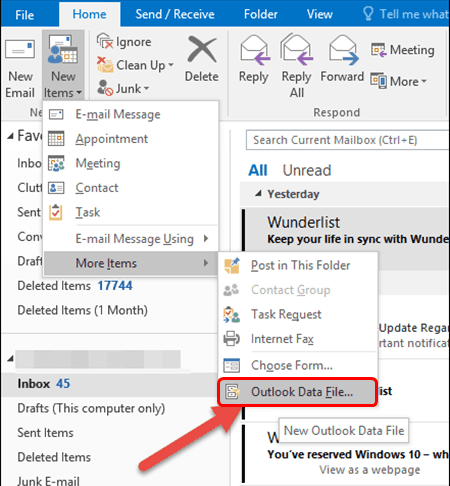
- To create a new Outlook data file, click on the HOME tab, then select New Items, followed by More Items, and finally Outlook Data File.
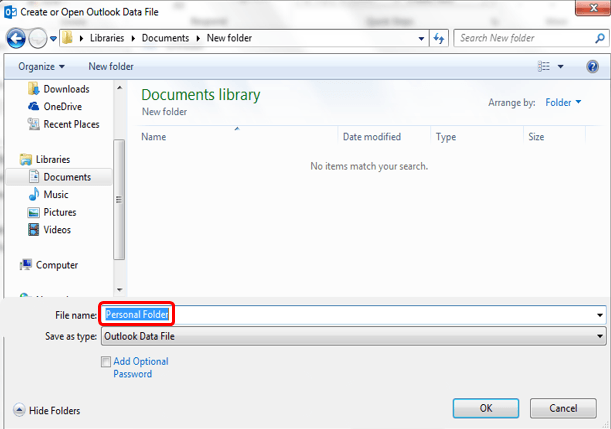
- In the "Create or open Outlook data file" window, name your Personal Folder and click "OK".
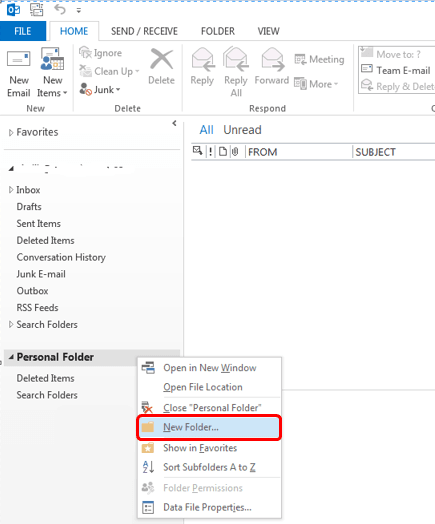
- To add subfolders to the Personal Folder, right click on the personal folder and select New Folder. This will create a new folder within the Personal Folder, which can then be used to organize and store files.
- Once you have created the folders you need, simply drag and drop emails to your PST file and they will be moved to the new archive you have created.
Perform Outlook Personal Folder Backup - 2 Ways
Microsoft Outlook is an email management tool that has been widely used and has made the organization of work easy and comfortable for many users. To ensure that your data is safe, it is recommended that you take regular backup of Outlook personal folders. This can be done in two ways, which will be explained in the article.
Way 1. Perform Outlook Folder Backup Manually
You can manually export Outlook .pst/.ost file to backup Outlook files to hard or other locations in the first method.
- To start, open Outlook on your device, then go to the main menu and select the "File" option. From there, choose "Account Settings" in the File section to initiate the process.
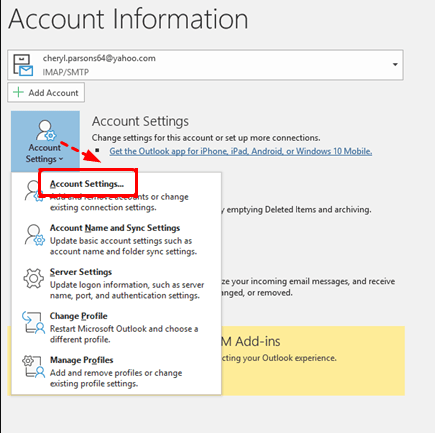
- To find the location of your Outlook data files, click on the "Data Files" button, which will display the exact location of your .pst file if you're using POP3 or IMAP, or your .ost file if you're using an Exchange server. Take note of this location.

- To find the data file on your device, locate it and click on it to get the file location.
- Once you have traced the file, copy it to a local or external hard drive to create a backup.
Way 2. Backup Outlook Personal Folder Automatically
Manual backup of Outlook personal folders is not practical for large numbers of files. For efficient backup, consider using professional email backup software, such as Qiling Disk Master Professional, which can automatically backup all Outlook data, including contacts, attachments, inbox, notes, and calendar, on various Windows operating systems.
🎄 Multiple locations. You can backup your Outlook files to various locations, including your internal hard drive, external disk, USB drive, network-attached storage (NAS), network location, SD memory card, and cloud services like Google Drive, OneDrive, and Dropbox.
🎄 Schedule Backup allows you to set daily, weekly, monthly, and event trigger time frequencies to regularly backup Outlook data. Additionally, you can enable the "Wake up computer to run scheduled tasks" feature to schedule backups during off-peak hours or when Outlook is not in use.
🎄 Incremental/differential backup: This tool enables you to back up only the files that have changed in Outlook, utilizing either "incremental backup" or "differential backup" methods, which helps save time and disk space by only backing up the files that have been modified.
🎄 Email Preview: This software also supports previewing emails in your Outlook account while you are recovering, making the process more efficient and convenient.
This professional backup software can be downloaded and installed to backup Outlook files to a hard disk, with the option to choose the Qiling Disk Master Server version for Windows Server users.
Notes: You can further customize your backup settings to suit your needs.
☛ Schedule Backup: Set backup frequencies to "Daily", "Weekly" or "Monthly", and ensure "Wake the computer to run scheduled task" is selected.
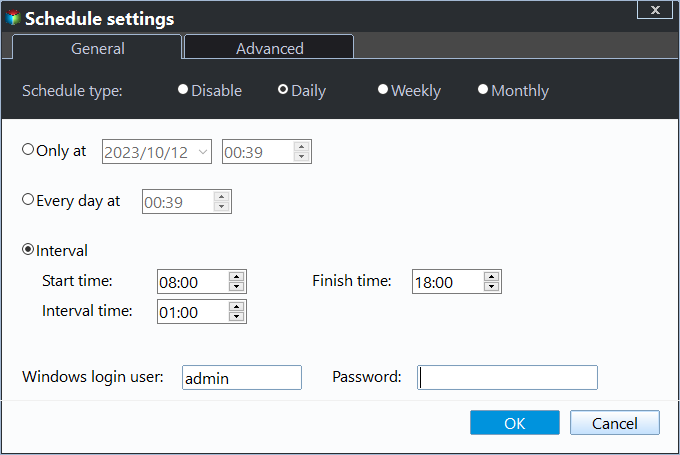
☛ You can enable automatic backup cleanup to delete old backups regularly, solving storage full issues.
Step 5. Click Proceed to take an Outlook personal folders backup automatically.
Summary
You can achieve Outlook personal folders backup in two ways. For a small amount of emails, you can manually backup your Outlook files using the first method. However, for a large number of files, it's more efficient to use professional backup software like Qiling Disk Master, which can automatically backup your Outlook personal folders and supports multiple backup destination paths and methods.
Moreover, this software offers a 30-day free trial period, allowing you to try it risk-free before deciding to purchase. It also features robust data protection, safeguarding your information in all aspects, and can be downloaded to explore its capabilities further.
Related Articles
- Backup Outlook PST Files to OneDrive with 2 Tested Ways
You will learn both manual and automatic method to backup Out PST files to OneDrive, even breaking the file locking issues. Get more below and backup your PST files now. - How to Backup Minecraft Worlds [Full & Detailed Tutorial]
You can backup your Minecraft Worlds using three different methods, which will be explained in this article. If you're not familiar with backing up your Minecraft Worlds, this is the right place to learn. After reading this, you can choose the method that suits you best. - 3 Ways to Transfer Files to Your Windows 11 New Computer
You have three powerful options to transfer files to your new Windows 11 computer. Let's explore which one is the best fit for you. - Full Guide to Move Games to Another Drive or A New Computer Without Reinstallation
This guide explains Full Guide to Move Games to Another Drive or A New Computer Without Reinstallation with clear steps, key checks, and practical tips. - Fix: Boot Configuration Data file is Missing in Windows 10
This article introduces how to fix Boot Configuration Data file is missing in Windows 10, and solutions to protect computer from system files damage or loss. - How to Create Bootable Backup in Windows 10 (2 Ways)
Bootable backup for Windows can help you restore computer to its last working state or factory reset it to default settings when it fails. Let's do it now!
Products
Articles & Tutorials
- Data Recovery
- Data Backup
- File Recovery
- File Backup
- File synchronize
- System Backup and Restore
- Disk and Partition Clone
- Technical articles
- Disk Master Help
- Windows Deleted File and Disk Recovery Tutorials
- Windows File and Data Recovery Tutorials
- More Windows Tutorials for Install, Security, Files, and PC Tips
- Windows Boot, Repair, and Recovery Environment Tutorials
- Windows Backup Tutorials
- Windows Restore Tutorials
- Windows Clone and Migration Tutorials
- Windows Server Backup, Recovery, and Management Tutorials
- Windows Disk, Partition, and Storage Management Tutorials