How to Create Bootable Backup in Windows 10 (2 Ways)
The importance of Windows 10 bootable backup
A bootable backup, also known as a system backup or disk backup, is an exact replica of your working system, including the system partition and system-related partitions. This replica can be restored to a new hard drive or the original one if your computer malfunctions, allowing you to boot from it.
Unexpected computer problems can happen to anyone, causing system crashes, virus attacks, or human errors, potentially leading to a computer that won't boot. In such cases, reinstalling the system is not ideal as it would erase all data on the drive.
Reinstalling a system can be a complex and time-consuming process, but using a bootable backup of Windows can simplify the process by allowing you to start fresh from the beginning.
How to make a bootable backup of Windows 10
To create a bootable backup for Windows 10, you can use either third-party free backup software or the built-in Backup and Restore (Windows 7) feature. This backup will ensure that your system is recoverable in case of a disaster. For the former, you can download and install software like Qiling Backup, which are both free and offer a range of features. For the latter, you'll need to access the Control Panel, click on System and Security, then click on Backup and Restore (Windows 7), and follow the prompts to create a backup. Both methods allow you to choose what to back up, such as your operating system, files, and applications, and will create a bootable backup that you can use to restore your system if needed.
- Method 1. Create a bootable image in Windows 10 with third-party tool
- Method 2. Create a bootable backup in Windows 10 with built-in tool
Method 1. Create a bootable image in Windows 10 with third-party tool
Qiling Disk Master Standard is the best free backup software for Windows 10, offering an intuitive interface and simple operation steps to create a bootable backup of Windows 10. It allows creating system images for Windows 10 on various storage devices, including USB drives, external disks, cloud drives, NAS devices, and network locations.
- Create Windows bootable backup automatically: It supports auto backup based on daily, weekly, or monthly schedules, ensuring continuous protection of the system partition.
- Greatly save disk space while backing up: This system uses incremental backup by default, backing up only changes since the last backup, while still offering other disk-saving features like normal compression, intelligent sector backup, and automatic splitting.
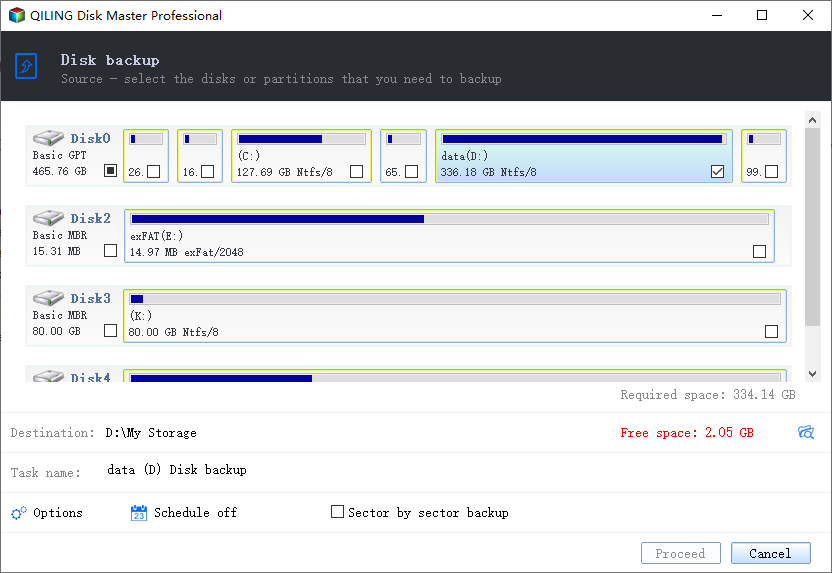
- Other backup types: Besides System Backup, it also supports Disk Backup, Partition Backup and File Backup.
It is free to download and use, supporting Windows 11/10/8.1/8/7/Vista/XP, and a server version called Qiling Disk Master Server is also available.
To make a bootable backup for Windows 10, first, you need to download and install a backup software like Qiling Backup. Then, create a bootable media, such as a USB drive or CD/DVD, and use the software to back up your system to the media. The software will guide you through the process of creating a bootable backup, and you can choose to include or exclude specific files and folders.
Step 1. Launch this freeware, click System Backup under Backup tab.

Step 2. The task name can be changed as desired, and the related system partitions are automatically selected. To proceed, click on the bar at the lower location to select the destination path.

Step 3. Confirm your operations and then click Proceed to create bootable backup in Windows 10.
3 ways to make your Mac backups automatic and hassle-free:
Options: You can customize Windows 10 email notifications to confirm successful operations, enable encryption for backups to prevent unauthorized access, and use high compression to make backup images smaller.
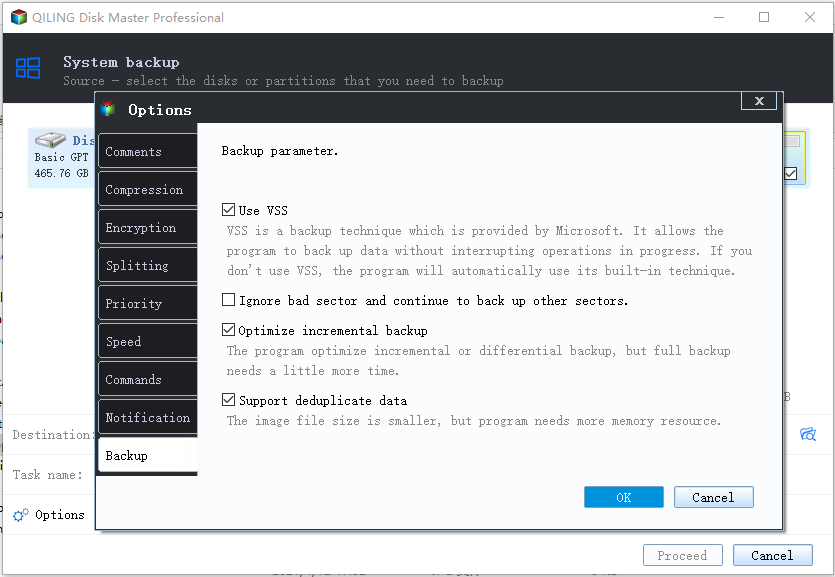
Schedule Backup: The backup software allows for automatic backups on a daily, weekly, or monthly schedule, in addition to utilizing event triggers and USB plug-ins. The latter two features enable automatic backups to a USB flash drive when it's plugged in, and are available on the professional version of the software.

Backup Scheme: The advanced version allows changing the default backup method to differential backup. Additionally, old backup images can be deleted based on quantity, time, or daily, weekly, or monthly intervals.

This freeware is great for creating a bootable rescue media that can help restore your system if it fails to boot.
Connect the bootable media to your computer, boot from it, and follow the steps to restore the system image from the backup you created.

To resolve the issue, you can create a recovery environment in Windows 10, boot from it at the next system startup, and then perform system restore using the steps provided. This approach allows you to bypass the need for a USB or CD/DVD drive.
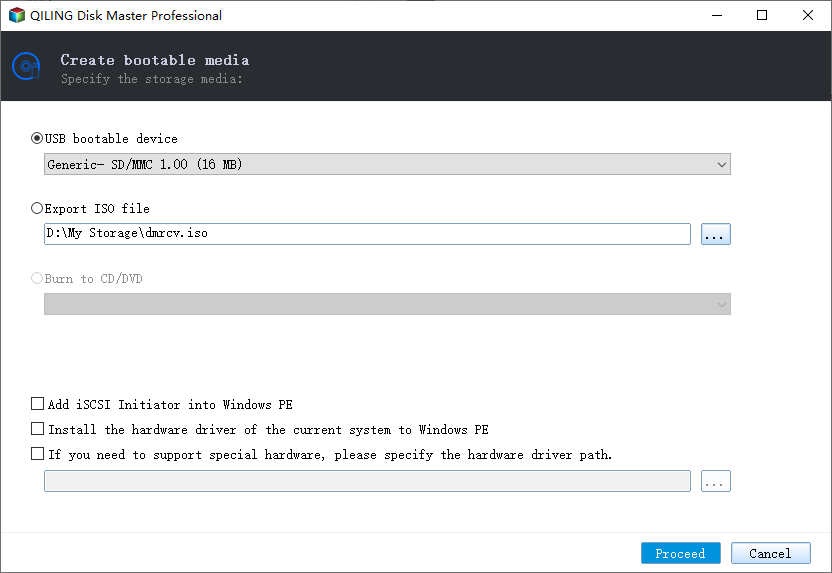
Tip on creating Windows bootable backup in Windows 10 flexibly:
If you're looking for a reliable software to create a bootable image in Windows, you can try Qiling Disk Master Professional. It allows you to set a fast key (F11 or A) to boot from the image, eliminating the need to create a separate bootable media. Additionally, it supports daily, weekly, and monthly schedule backups.
Method 2. Create a bootable backup in Windows 10 with built-in tool
Windows 7's Backup and Restore tool can still be used to create a system image in Windows 10, although it's no longer supported or maintained by Microsoft. If you choose to use it, you can follow these steps, but be aware that you may encounter issues with Windows 10 backup not working.
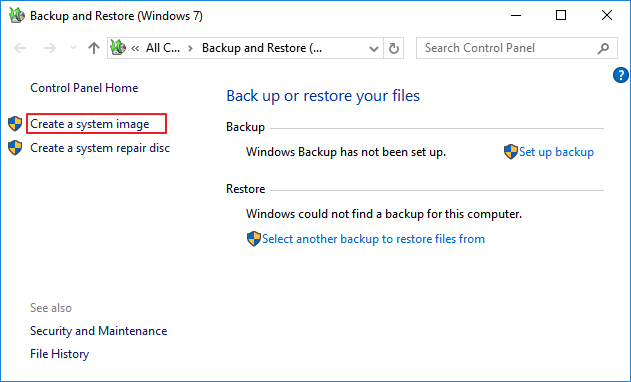
Step 1. Open Control Panel, and click System and Security. Then, Select Backup and Restore (Windows 7) from the list.
Step 2. Click Create a system image on the left pane.
Step 3. Save the backup to a chosen destination, such as a hard disk or network location, and then click Next.
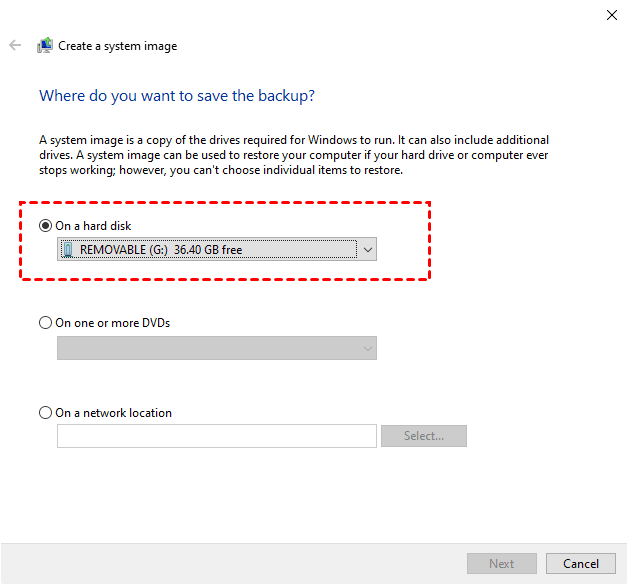
Step 4. Windows includes the necessary drives to run the operating system by default, and you can also choose to add extra drives to be included in the backup.
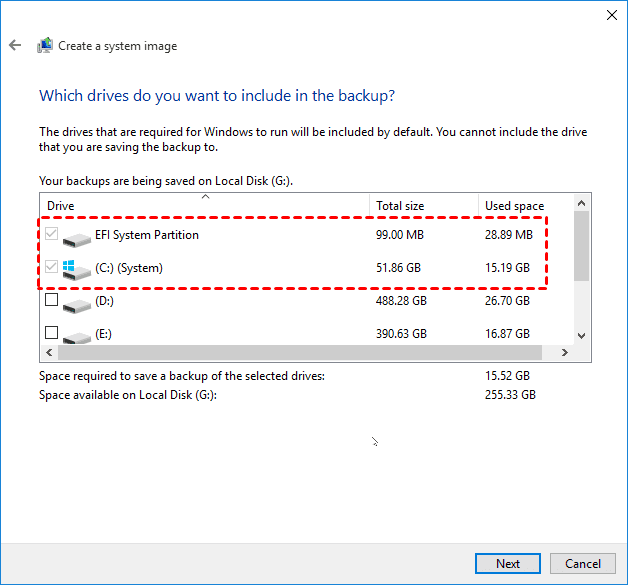
Step 5. Confirm your system backup settings and then click Proceed.
Wait for the backup process to be completed, then you will be asked to create a system repair disc or a recovery drive, which can help you boot your computer if it fails.
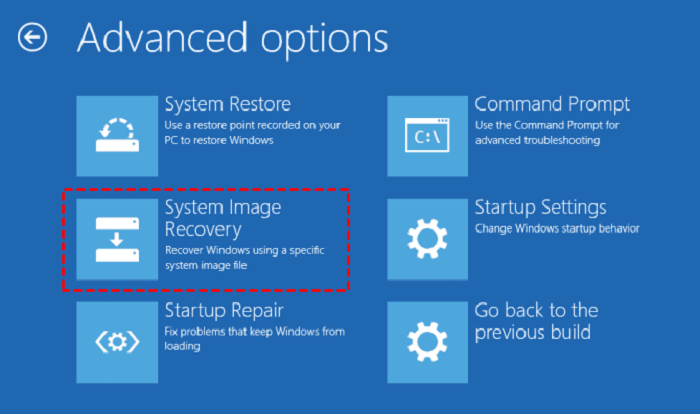
If your computer crashes or experiences issues, insert the repair disc, boot from it, and follow the prompts until you reach the "Repair your computer" option. Then, select Troubleshoot, Advanced options, and System Image Recovery to perform a system restore.
Verdict
To create a bootable backup for Windows 10, I recommend using Qiling Disk Master Standard, which offers an easy-to-use interface and advanced features such as scheduling automatic backups, backing up on system shutdown, and deleting backup files to free up disk space.
This freeware is useful for creating a bootable clone of Windows 10 and also allows cloning hard drives, replacing laptop HDD with SSD, and cloning Samsung SSD to Samsung SSD.
Related Articles
- Fixed: "File History Element Not Found" Error on Windows 10
To avoid the “File History element not found” error, consider using a professional backup software. This can help prevent the error from occurring in the future. - How to Backup SD Card Data Before Formatting-4 Ways Included
You can learn how to backup SD card data before formatting on this page. 4 effective methods are provided. Choose the one that suits you best. - Best PC Backup Cloud Storage: Preview and Full Tutorial
Have a preview of PC backup cloud storage and follow the best solutions to achieve backing up PC files or entire PC to cloud. Get to know the details below. - Best Synology File Recovery Tools to Recover Files on/from NAS
Synology file recovery tools help you recover deleted files on Synology NAS and lost data on a PC from Synology NAS. Learn how to do it from this article. - How to Backup A Folder in Windows 7 | Step-by-Step Guide
Backup in Windows 7 typically creates a full image of the system or a particular disk, rather than a specific single file or folder. However, there are practical ways to backup a folder, including using Qiling Backup, and the following post will provide step-by-step guides on how to do so. - How to Backup A Hard Drive Windows 7 [Ultimate Guide for Windows 7 Users]
Back up a Windows 7 hard drive with file backup, disk imaging, or external storage methods before upgrade or repair.
Products
Articles & Tutorials
- Data Recovery
- Data Backup
- File Recovery
- File Backup
- File synchronize
- System Backup and Restore
- Disk and Partition Clone
- Technical articles
- Disk Master Help
- Windows Deleted File and Disk Recovery Tutorials
- Windows File and Data Recovery Tutorials
- More Windows Tutorials for Install, Security, Files, and PC Tips
- Windows Boot, Repair, and Recovery Environment Tutorials
- Windows Backup Tutorials
- Windows Restore Tutorials
- Windows Clone and Migration Tutorials
- Windows Server Backup, Recovery, and Management Tutorials
- Windows Disk, Partition, and Storage Management Tutorials