Best PC Backup Cloud Storage: Preview and Full Tutorial
User case
Looking for the best PC backup cloud storage solutions
Hello all.
You're working on a project to compare the usefulness and economic viability of a personal cloud storage device versus OneDrive for business use. To determine the best option for three categories, you need to consider the following factors.
The best operating system for a personal cloud storage solution is Linux, specifically Ubuntu, due to its high security, flexibility, and customization options. It can be easily installed on an old computer or a dedicated device, and can be configured to run headless, making it ideal for a cloud storage solution.
Best personal cloud storage software
Required Security software to protect data on this device
As far as security software goes, I haven't found any specific software yet, so any and all suggestions for this would also be amazing.
Thanks to anyone who can help.
- Question from tom's HARDWARE
If you're searching for the best solution for personal cloud storage and security software to protect your device's data, this article addresses your queries comprehensively.
What is the best cloud storage for PC backup?
Backing up data frequently is a good protection measure to prevent data loss in case of accidents. Users have various backup location options, including local disks, NAS devices, external hard drives, and cloud storage services, which have become increasingly practical and secure. This allows people to choose the best method for their needs.
To find the best cloud storage for your needs, research the available brands, their free storage space, and subscription costs. If you're looking to backup your computer, consider the options outlined in the following contents.
|
|
Free storage space |
Subscription plans |
|
OneDrive |
5GB |
Billed yearly 1TB -$5.83/month 5TB -$8.33/month |
|
Google Drive |
15GB |
2TB: $9.99/month or $99.99/year 10TB: $99.99/month |
|
Dropbox |
2GB |
Billed yearly 2TB -$9.99/month 3TB -$16.58/month |
|
Amazon Cloud |
5GB |
1TB: $6.99 a month or $59.99 a year 2TB: $11.99 a month or $119.98 a year |
|
IDrive Cloud |
5GB |
$79.50 per year for 5TB |
To back up your files or computer to the cloud storage you have set up, master the following steps to ensure you no longer have to worry about losing your data.
Example: how to backup PC files or entire PC to cloud easily
To backup your PC files such as photos and videos or the entire PC to the cloud, simply follow these steps. First, you need to sign up for a cloud storage service such as Google Drive, OneDrive, or Dropbox.
- Backup photos or videos to cloud via Amazon Photos
- Backup entire PC to cloud storage using Qiling Disk Master
Backup photos or videos to cloud via Amazon Photos
Amazon Photos is a secure digital cloud storage service designed for personal use, allowing you to upload, view, and share your photos. As an Amazon Prime member, you get unlimited full-resolution photo storage and 5 GB for video, making it a convenient option to backup your photos and videos to the cloud.
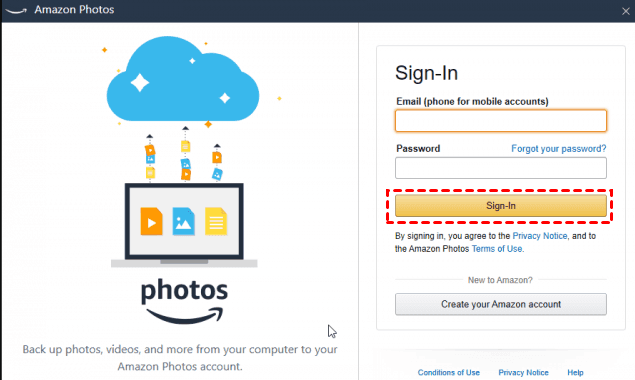
1. Download and install the desktop app for your PC, then sign in with your Amazon account details or create a new one if you don't have an account yet.
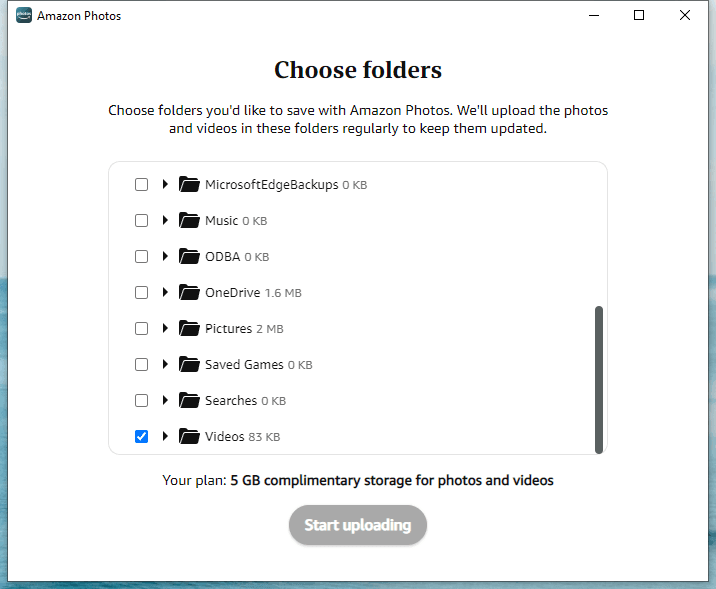
2. Once you enter the tool, you'll be prompted to select the folder you want to backup. Choose the folders you'd like to save, click "Start uploading", and it'll automatically upload the contents.
To continue backing up files, click the "Add backup" button and select the files or folders you want to include in the backup.
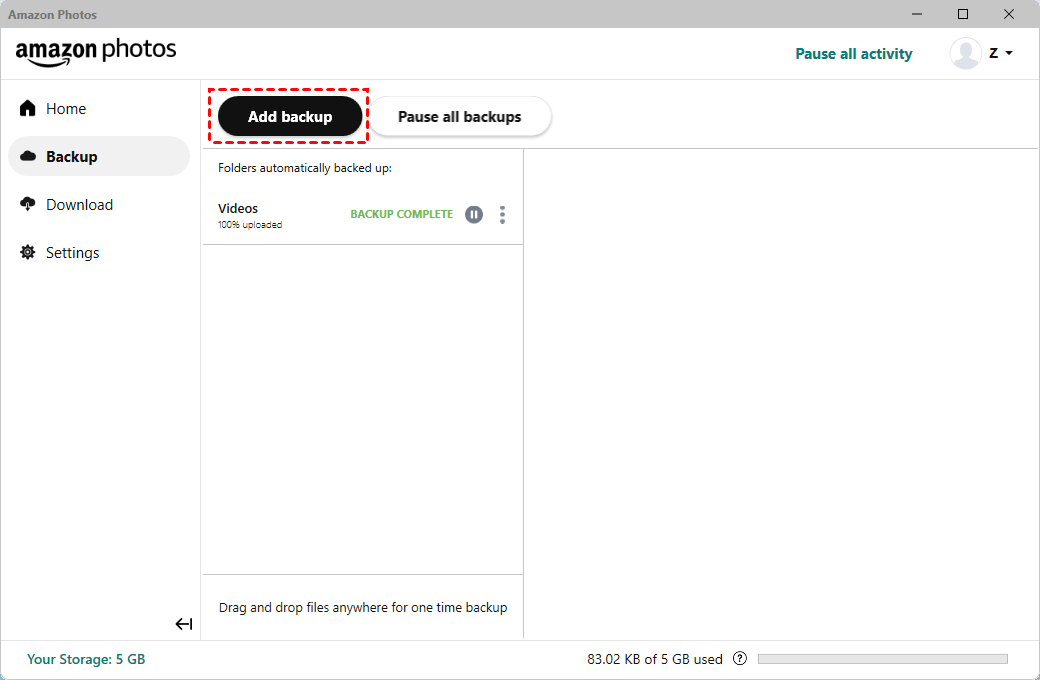
You can upload files or folders to Amazon Cloud by dragging them to the main interface.
Backup entire PC to cloud storage using Qiling Disk Master
To enable backup your entire PC to multiple cloud storage, you need the best cloud backup solution - Qiling Disk Master Standard. This software supports backing up files/folders, disks, partitions, and even your entire OS, making it a comprehensive backup tool. Its numerous features and benefits make it stand out among other backup software on the market, and it has become the go-to choice for millions of users.
👣 Multiple cloud storage: You can backup your files to multiple cloud devices like Google Drive, OneDrive, Dropbox, and Box.
👣 Backup types: The software supports various types of backups, including file backup, partition backup, system backup, and disk backup, providing users with comprehensive backup options.
👣 Various backup locations: The software allows users to back up their data to a variety of storage devices and locations, including NAS devices, local disks, external hard drives, network shares, USB devices, and cloud drives.
👣 Backup only changed data: Incremental backup allows you to save only the data that has changed since the last backup, freeing up storage space and improving backup efficiency.
👣 Automatic backup: You can enable backup with fixed intervals such as daily, weekly, or monthly.
👣 Support all Windows OS: This software has excellent compatibility with various operating systems, including Windows 7, 8, 8.1, 10, 11, XP, and Vista. For server users, Qiling Disk Master Server is recommended.
To backup your entire PC to cloud storage using Qiling Disk Master, you need to download and install Qiling Disk Master Standard and also install the desktop application of your chosen cloud drive, such as Google Drive, on your computer.
Note: To avoid running out of cloud storage space, check if your cloud storage is sufficient before uploading a disk backup image, and expand your cloud capacity if necessary.
Step 1. Run Qiling Disk Master Standard. Select Backup > Disk Backup.

Step 2. Select the source disk that you want to backup to the target cloud storage by clicking on the "Disks" option.

Step 3. To create a backup of your disk, select the disk you want to backup from the list of available disks, then choose a cloud drive as the destination to store the disk backup image file, such as Google Drive.
Google Drive desktop folder is likely located in C:\Users\UserName\Google Drive, with the name of the drive folder being the same for other cloud storage services.

✨ You can set up your backup by clicking on the bottom left corner options:
Options: You can enable email notifications after a task is completed and add comments to your tasks. Additionally, you can split backups, compress them, or select a specific backup mode, among other options.
Schedule Backup: You can schedule backups daily, weekly, or monthly, and also utilize Event triggers or USB plug-ins with Qiling Disk Master Professional.
Backup Scheme: This feature can enhance backup efficiency and automatically remove old backup images to free up storage space, and it is available in the paid edition.
Step 4. Confirm your settings and click Proceed to perform entire PC backup to cloud storage.
Final words
You've found the best cloud storage for your PC backups and learned two simple methods to back up your files or computer.
Qiling Disk Master, a top data protection software, offers features beyond backup, including restore, sync, and clone, as well as tools, making it ideal for tasks like WD Green cloning and resolving slow file transfer issues in Windows 11.
Related Articles
- Best Way to Backup PC to Cloud in Windows 10 or 11 (FREE)
Backing up PC to cloud drive like Google Drive automatically with Qiling Disk Master is the best free way to protect computer and data on it. Scroll for more details. - Best Free Cloud Backup for PC (Top 2 Ways Included)
This article will introduce you the best free cloud backup for PC. Whether you want to backup files or even the Windows system, you can finish this task simply and for free. - Automatically Backup PC Files to Google Drive | 2 Simple Ways
Backing up files to Google Drive is very convenient for users to access the data from different computers, and this article will tell you how to backup files to Google Drive. - How to Restore QuickBooks to New Computer with 2 Easy Ways
Learn how to Restore QuickBooks to New Computer with 2 Easy Ways with clear steps, key checks, and practical tips. - Solved: Can't Create Restore Point in Windows 10
If you can't create restore point in Windows 10, refer to this article to realize how to fix this problem and find out a better way to protect your computer. - Clone Windows 10 Image to Multiple Computers | 3 Simple Steps
This essay show you the best way to clone Windows 10 image to multiple computers simultaneously, just follow the steps to install Windows 10 to several different computers over network.
Products
Articles & Tutorials
- Data Recovery
- Data Backup
- File Recovery
- File Backup
- File synchronize
- System Backup and Restore
- Disk and Partition Clone
- Technical articles
- Disk Master Help
- Windows Deleted File and Disk Recovery Tutorials
- Windows File and Data Recovery Tutorials
- More Windows Tutorials for Install, Security, Files, and PC Tips
- Windows Boot, Repair, and Recovery Environment Tutorials
- Windows Backup Tutorials
- Windows Restore Tutorials
- Windows Clone and Migration Tutorials
- Windows Server Backup, Recovery, and Management Tutorials
- Windows Disk, Partition, and Storage Management Tutorials